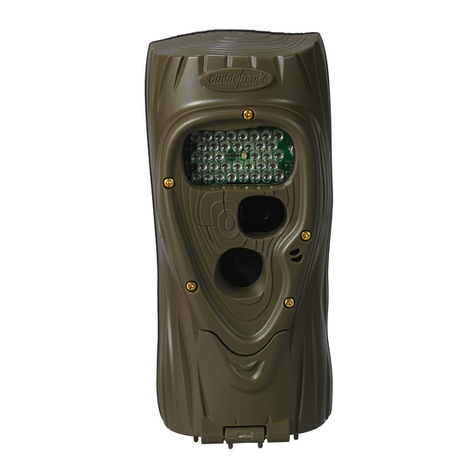
Cuddeback CuddeLink Manuale utente

CuddeLinkManual
Version 2.20.2017 Page 1 of 24
CuddeLink
FCC Notice
Changesormodificationsnotexpresslyapprovedbythepartyresponsibleforcompliancecould
voidtheuser’sauthoritytooperatetheequipment.ThisdevicecomplieswithPart15ofthe
FCCRules.Operationissubjecttothefollowingtwoconditions:(1)thisdevicemaynotcause
harmfulinterference,and(2)thisdevicemustacceptanyinterferencereceived,including
interferencethatmaycauseundesiredoperation.Thisequipmenthasbeentestedandfoundto
complywiththelimitsforaClassBdigitaldevice,pursuanttoPart15oftheFCCRules.These
limitsaredesignedtoprovidereasonableprotectionagainstharmfulinterferenceina
residentialinstallation.Thisequipmentgenerates,usesandcanradiateradiofrequencyenergy
and,ifnotinstalledandusedinaccordancewiththeinstructions,maycauseharmful
interferencetoradiocommunications.However,thereisnoguaranteethatinterferencewill
notoccurinaparticularinstallation.Ifthisequipmentdoescauseharmfulinterferencetoradio
ortelevisionreception,whichcanbedeterminedbyturningtheequipmentoffandon,theuser
isencouragedtotrytocorrecttheinterferencebyoneormoreofthefollowingmeasures:
Reorientorrelocatethereceivingantenna.
Increasetheseparationbetweentheequipmentandreceiver.
Connecttheequipmentintoanoutletonacircuitdifferentfromthattowhichthereceiver
isconnected.
Consultthedealeroranexperiencedradio/TVtechnicianforhelp.
Quick Start Guide
This guide assumes you know how to navigate the camera’s user interface. All the settings
explained in this section are in the CL MENU item. To access the CL MENU press MODE until
COMMANDS is selected, then press MORE until CL MENU appears, then press UP to enter. Use
UP and DOWN to make selections. Press MORE to advance to the next item.
1. One CuddeLink equipped camera must be the HOME camera. HOME is the camera that
collects images from the REMOTE cameras.
2. Set up HOME camera:

CuddeLinkManual
Version 2.20.2017 Page 2 of 24
a. Set the normal camera parameters as explained in the camera’s manual. Date,
time, camera delays, etc.
b. Set CL MODE to HOME
c. Set CL LOC to 001. This is a location id number used to identify each camera.
d. Skip over CL INFO by pressing [MORE]
e. Set CL CHAN to any number. You can leave this at 1 but we recommend you
change this. Pick any channel, but remember what you selected.
f. That is all you need to do.
g. ARM the camera (Press MODE until ARM is selected)
3. Set up the REMOTE camera:
a. Set the normal camera parameters as explained in the camera’s manual. Date,
time, camera delays, etc.
b. Set CL MODE to REMOTE
c. Set CL LOC to 002. IMPORTANT – all cameras should have a unique CL LOC
(location) number. For this quick start set 1 for home, and set remotes as 2, 3, 4
and so on.
d. Set CL CHAN to the same channel you set on the HOME camera. IMPORTANT –
all cameras must be set to the same channel.
e. Leave CL DELAY and CL COUNT in the default settings of CL DELAY 15, and CL
COUNT 100.
f. Press [MORE] to view RF LEVEL and observe the display. A number will appear
that represents the signal strength. If the strength is displayed you can deploy
the camera. IMPORTANT – CuddeLink transmission distance varies with terrain
and distance and can be from 2/10 of a mile to over a mile (1/4 mile typical in a
forest). You must use RF LEVEL to verify you have a signal before you deploy a
remote camera.

CuddeLinkManual
Version 2.20.2017 Page 3 of 24
g. ARM the camera (Press MODE until ARM is selected)
h. Continue to deploy all your Remote cameras in a similar manner.
4. Checking the HOME camera
a. Checking the CuddeLink HOME camera is similar to checking a conventional trail
camera. Remove the SD card and use your normal image viewing method.
b. On the SD card is folder named 400CUDDY. Within this folder are images from
the CuddeLink remote cameras. If you used a unique CL LOC then each remote
camera’s images will be in a different folder within the 400CUDDY folder.
c. The images taken with the HOME camera are in the 100CUDDY folder.
Using CuddeLink is this easy. However, do yourself a favor and read this entire manual as there
is more you should know to get the best from CuddeLink.
Reference Manual
What CuddeLink Does
Hunters long ago realized the importance and benefits of using multiple trail cameras. But
checking these cameras can be a time consuming task that takes away from hunting time, and
pollutes the area with human scent. Cuddeback’s patent pending CuddeLink eliminates checking
multiple cameras and utilizes 1 camera as an image depository for up to 16 CuddeLink cameras.
CuddeLink is a wireless network of cameras that transmit their images to 1 camera. The
depository camera is called the HOME camera, and the transmitting cameras are called REMOTE
cameras. The cameras can be deployed in any arrangement with the only requirement being
that each camera must be in radio contact with another radio and have a link back to Home.
Transmission range is highly terrain dependent, but in a forest a range of over 1/3 mile is
common, allowing for an end-to-end link of over 4 miles. In open terrain we have tested
camera-to-camera transmission to over 1 mile.

CuddeLinkManual
Version 2.20.2017 Page 4 of 24
ROCKET SCIENCE. The technology in CuddeLink is complicated, but using
CuddeLink is not. However, using CuddeLink is not intuitive and does require
some time to learn. You must read this manual, preferably multiple times. We
also recommend you watch our tutorial videos at www.cuddelink.com. Because
of the advanced nature of this technology we do not offer phone support. All
questions must be answered by trained technicians and engineers, which we
cannot afford to have taking phone calls (unless you want to pay much more for
CuddeLink cameras). Therefore, all support must be done via email. Visit
www.cuddelink.com to email us and a qualified technician or engineer will answer
your questions.
The problem with explaining CuddeLink concepts is it is easier to use CuddeLink
then it is to explain. We recommend you read this manual twice. After which
you will find setup and deployment very easy.
TERMS
CuddeLink is Cuddeback’s trademark name for Cuddeback’s network enabled trail cameras.
Network refers to a collection of CuddeLink cameras that are in radio contact with each
other.
Home refers to the camera or device that collects all images.
Remote refers to cameras that transmit images to the HOME node.
Repeater refers to a device that acts as a relay station on a CuddeLink network. The
REPEATER does not take pictures, it only transmits images from one node to the next node.
Node is a general name for any camera, home and repeater device on the network.
Chain is 2 or more cameras that are linked together via the CuddeLink network.
CL is an abbreviation for CuddeLink.

CuddeLinkManual
Version 2.20.2017 Page 5 of 24
EQUIPMENT. CuddeLink enabled cameras are required to build a network. Each CuddeLink
camera can be configured to be a HOME, REMOTE or REPEATER. A network can have only 1
HOME and up to 15 REMOTEs & REPEATERs. Total nodes on a single network is limited to 16.
DEPLOYMENT. CuddeLink cameras use a proprietary mesh network wireless system that allows
the cameras to send images to HOME by
hopping
the images from camera-to-camera. This
daisy chain system allows for simple deployment with the only requirement that the cameras are
in radio contact with each other. Refer to the sample deployment scenarios below.
MORE THAN 16. A single CuddeLink network is limited to 16 cameras. If you require more than
16 cameras you can deploy additional networks. Each network must be assigned a unique CL
CHANNEL.
RETRIEVING IMAGES. The advantage of the CuddeLink system is you can retrieve all your
images from one camera; or have them collected on a PC; or images can be sent to a phone or
PC via the Internet or via a cell phone modem
(additional equipment required for PC or cell
support)
.
HOME Image Collection. All images transmitted from the REMOTE cameras will be saved on
the HOME node’s SD card. You check the HOME camera as if it were a conventional trail
camera.
PC Image Collection. The CuddeLink Home Plus node connects to a Windows PC running
Cuddeback’s Trophy Room PC program. The PC will copy the images from the Home Plus node
to the PC. Cuddeback’s free Windows program Trophy Room can be used to view the images
from all CuddeLink cameras on your network.
Internet Connected Windows PC. If your CuddeLink cameras are deployed where you have
access to an Internet connected PC you can get CuddeLink images anywhere you have internet
access. And you can do this without an additional monthly Internet fee. Most likely this is a

CuddeLinkManual
Version 2.20.2017 Page 6 of 24
dwelling on the property with Internet access. This Internet access can be from a DSL, Cable, or
Cell Modem. Access is accomplished by connecting the CuddeLink Home Plus to a Windows PC
with Cuddeback’s Trophy Room program installed. Trophy Room will copy the images from the
HOME node and place them in Microsoft’s OneDrive folder to allow you to access the images
anywhere with a smart phone, tablet or PC.
Note – this feature is only available when CuddeLink Home Plus is attached to a Windows PC,
however images can be viewed on any Internet capable device.
Cell Modem. Cuddeback offers the CuddeCell Modem that attaches to any CuddeLink camera
and allows images to be emailed or texted to a cell phone. This method requires a cell phone
contract with additional cell connection fees, but only 1 cell phone connection is required to
transmit images from up to 16 cameras.
CuddeLink Setup
CuddeLink is very easy to setup and deploy and only requires a few settings in each camera.
Settings Summary
SETTING RANGE HOME REMOTE DESCRIPTION
CL MODE
OFF,
HOME,
REMOTE,
REPEATER
X X
One camera must be set to HOME. All other cameras must
be REMOTE or REPEATER. Choose OFF if you want
CuddeLink disabled on this camera.
CL LOC 000 thru
999 X X Set this so your cameras can be identified. Each camera
should be assigned a unique number.
CL CHAN 1 thru 16 X X Every camera on the network must be set to the same CL
CHANNEL. You can choose any channel.
CL DELAY 5 sec to
1 hour X
Remote only. Controls how often images are queued for
transfer.
CL COUNT All, 25, X Remote only. Sets the maximum number of images that

CuddeLinkManual
Version 2.20.2017 Page 7 of 24
50, 100,
250
will be queued to send. Deletes the oldest images to make
room for the newest.
CL LEVEL Signal
level X
Remote only. Use this to verify the camera is on the
network and how strong the signal is.
CL NODES Camera
Status X Home only. Displays the status of each remote camera.
Step 1. Program CuddeLink CL MODE
All CuddeLink settings are in the CL MENU in the COMMANDS menu. To access the CL MENU
navigate to the COMMANDS menu and press MORE until CL MENU is displayed, then press UP.
CL MODE is used to select the camera’s CuddeLink mode. Choices are OFF, HOME, REMOTE,
REPEATER. Press UP or DOWN to select, then press MORE to continue programming additional
CuddeLink settings.
OFF – use this if you do not want this camera to be part of a CuddeLink network. The
CuddeLink radio will be disabled.
HOME – Set Home on the camera that collects images. Only 1 camera can be set to
HOME.
REMOTE – Set Remote on the cameras that take pictures and transmit the pictures to the
HOME camera.
REPEATER – use this when you need a repeater to transmit images, but you do not want
the camera to record images. Refer to REPEATER section latter in this manual.
Step 2. Program CL LOC
CL LOCATION (CL LOC) assigns a unique number to each camera on the network. It is
important that each camera on your CuddeLink networks has a unique CL LOC number. Refer to
section CAMERA NAMING for our recommendations on how to use this setting.
Step 3. Program CL CHAN

CuddeLinkManual
Version 2.20.2017 Page 8 of 24
The channel is the radio frequency the cameras use to transmit images. All cameras on your
network must be set to the same channel. CuddeLink has 16 channels available numbered 1
thru 16. You can choose any number you like, but do not choose a channel number used by
another network in the immediate area.
Step 4. Network Control – Overview
This information can be confusing for first time users. You may want to use the default CL
DELAY and CL COUNT setting for the first few weeks and then come back and review this
section.
Background. The CuddeLink network, like all wireless networks, has limits to how much data
can be transmitted in a specific amount of time. Think of the CuddeLink network as highway
where only so much traffic can pass in a given amount of time, and the more traffic on the
highway the slower it moves and the longer it takes to reach a destination. Your cameras can
send all the images they record, but this can create a backlog of images that will require more
time to transfer HOME.
With 5 or more cameras the network limit is about 24MB (about 1000 images) per day. If you
deploy 5 cameras this averages to 200 images per camera per day. For 10 cameras the average
is 100 images per day per camera. Actual throughput will vary with each network setup and
image size.
When a camera records an image the full size image is placed on the SD card, and a
compressed image is placed into a transmission queue where the image waits its turn to
transmit home. Cameras can queue up 100s or even 1000s of images that will eventually be
transmitted home.
However, sending all images is not necessarily best. The network of cameras may record more
images then can be transmitted in a reasonable amount of time, resulting in hours or even days
for an image to get transmitted home. You will want to control how much image traffic you put
on your CuddeLink network. CuddeLink has 2 methods for you to control the images a camera
sends.
Note – all images the camera records are saved on the remote camera’s SD card. This
discussion only applies to images transmitted to the HOME camera.

CuddeLinkManual
Version 2.20.2017 Page 9 of 24
Step 5. Network Control - Program CL DELAY (Remote only)
CL DELAY is somewhat like Camera Delay, except it controls how often images are transmitted.
Let’s use an example to demonstrate how this feature works:
<Insert diagram>
Let’s assume you set a CAMERA DELAY of 5 seconds and a CL DELAY of 30 seconds.
The camera takes a picture at 00 seconds and the image is transmitted and the 30
second CL DELAY is started.
A second picture is taken at 10 second, this picture is not transmitted because the CL
DELAY has not gotten to 30 yet.
A third picture is taken at 33 seconds, this image is transmitted because it is more than
30 seconds since the last image was transmitted.
CL DELAY has settings of 5 seconds to 1 hours. It is important to understand that a
combination of a short CL DELAY (5 seconds) and many images taken per day (100s) will create
a situation where 100s or even thousands of images are queued to transfer, which could require
days to be transmitted home. For this reason we recommend using a reasonable CL DELAY to
limit the number of images sent home. (Daily throughput is about 1000 images combined
across all cameras on the network).
Recommendations:
Trails
– CL Delay of 5 seconds. Most likely a trail will not have much activity in a day so
you may want to send every image home.
Fields and Plots
– CL Delay of 30 seconds or more. In fields the camera may record
dozens to hundreds of images in a day. You will want to use a longer CL Delay to limit
the number of images the camera transmits.
Feed Site
– CL Delay of 1 or even 5 minutes or more. Feed sites are where a camera can
record 100s of images in a day. We recommend you use a longer CL Delay to
compensate for all the images recorded.

CuddeLinkManual
Version 2.20.2017 Page 10 of 24
Experiment. We recommend you monitor the number of images in the camera’s queue
and how quickly the images are getting home then adjust CL DELAY as required.
Step 6. Network Control - Program CL COUNT (Remote only)
CL COUNT allows you to set a maximum number of images that the camera can place in its
transmit queue. Think of this as a safety net to prevent overloading the network and assures
you get the most recent images in a timely manner. Available settings are ALL, 25, 50, 100, 250.
Once this limit is reached the oldest images are removed from the Queue to make room for
newer images.
Say a nuisance animal stops in front of your camera and the camera records 200 images of the
nuisance animal. Then the animal leaves and the camera begins capturing deer as they walk
past the camera. The camera will want to send all the images of the nuisance animal, and the
later images of the deer will have to wait their turn. Depending upon the other cameras on the
network, this could require hours or days before the newer images are sent home. However, if
you set CL COUNT to 50 or 100, you are assured that your camera’s image queue will not get
overloaded with excessive images.
Recommendation – we recommend using the formula 1000 divided by the number of cameras.
For example, if you have 10 cameras deployed, then 1000/10 = 100. Set CL COUNT to 100 on
all cameras. An advantage of this feature is that you can reduce the CL Delay to as low as 5
seconds and not be concerned that a camera will overload the network, as this CL Count will
control the number of images queued for transmission and assure the most recent images are
sent home.
Step 6. Verify CL LEVEL (Remote only)
CL LEVEL is a signal strength meter. The range is 0 (poor) to 99 (best). A level above 20 is
sufficient for reliable image transmission. We have successfully deployed networks with signal
level as low as 10, however, if at all possible try to keep the levels at 20 and above.
It may take up to 1 minute for the CL LEVEL to detect a signal.
Altri manuali per CuddeLink
1
Indice
Altri manuali Cuddeback Telecamera da ricognizione

Cuddeback
Cuddeback Silver Series Manuale utente

Cuddeback
Cuddeback CuddeLink Home 1385 Scheda tecnica

Cuddeback
Cuddeback NoFlash Manuale utente

Cuddeback
Cuddeback Ambush Manuale utente

Cuddeback
Cuddeback Capture Manuale utente

Cuddeback
Cuddeback EXCITE Manuale utente

Cuddeback
Cuddeback EXCITE Manuale utente

Cuddeback
Cuddeback CuddeLink Manuale utente

Cuddeback
Cuddeback Attack Manuale utente

Cuddeback
Cuddeback Capture IR Manuale utente