
deeper START Manuale utente

Deeper Smart Sonar START
Technical Specifications
Weight: 2.1oz / 65g
Size: 60 x 65 x 65-mm / 2.3 x 2.5 x 2.5in
Sonar Type: Single beam
Frequency (Beam cone): 120 kHz, 40°
Depth Range Max/Min: Max 165ft / 50m, Min 1.6ft / 0.5m
Sonar Scan rate: 10 scans per second
Operating Temperature: 0°C to 40°C / 32°F to 104°F
Internal Battery: Lithium Polymer, 3.7V Rechargeable, 850mAh
Power Supply input (for charging battery): 5V DC, 650mA max
Power Adapter (not included in the box, recommended):

Input AC 110V/240V. Output Micro USB A, 5V 450mA
Wireless connection type: Wi-Fi
Casting Range: Up to 165ft / 50m. Range depends on the OS and smartphone model
Battery Life: Up to 6 hours
Charging Time: 2.5 hours
Installing the Deeper App
1. Open App Store or Google Play on your smartphone or tablet, and search for Fish Deeper.
2. Download and Install the Fish Deeper app.
ⓘ FishDeeper app works on a wide range of devices that use iOS or Android operating systems. To
check if the Deeper App will work on your device please go to Compatibility
Sonar display basics
Sonar readings (display) of Deeper PRO and CHIRP models provide crucial information about the water body, such
as location of fishes, their approximate size, bottom hardness, weeds and their density, as well as underwater
structure.
It is also important to understand how various settings such as Beam angle and Color palette affect the sonar
display and the amount of information it provides.
You can find general information about how sonars display information and how to interpret it here:
How sonars work: https://deepersonar.com/us/en_us/how-it-works/how-sonars-work

How to read Deeper PRO and PRO+ displays: https://deepersonar.com/us/en_us/how-it-works/how-to-read-
fishfinder
How to read Deeper CHIRP displays: https://deepersonar.com/us/en_us/how-it-works/how-to-read-a-fish-finder-
chirp
Sonar display basics
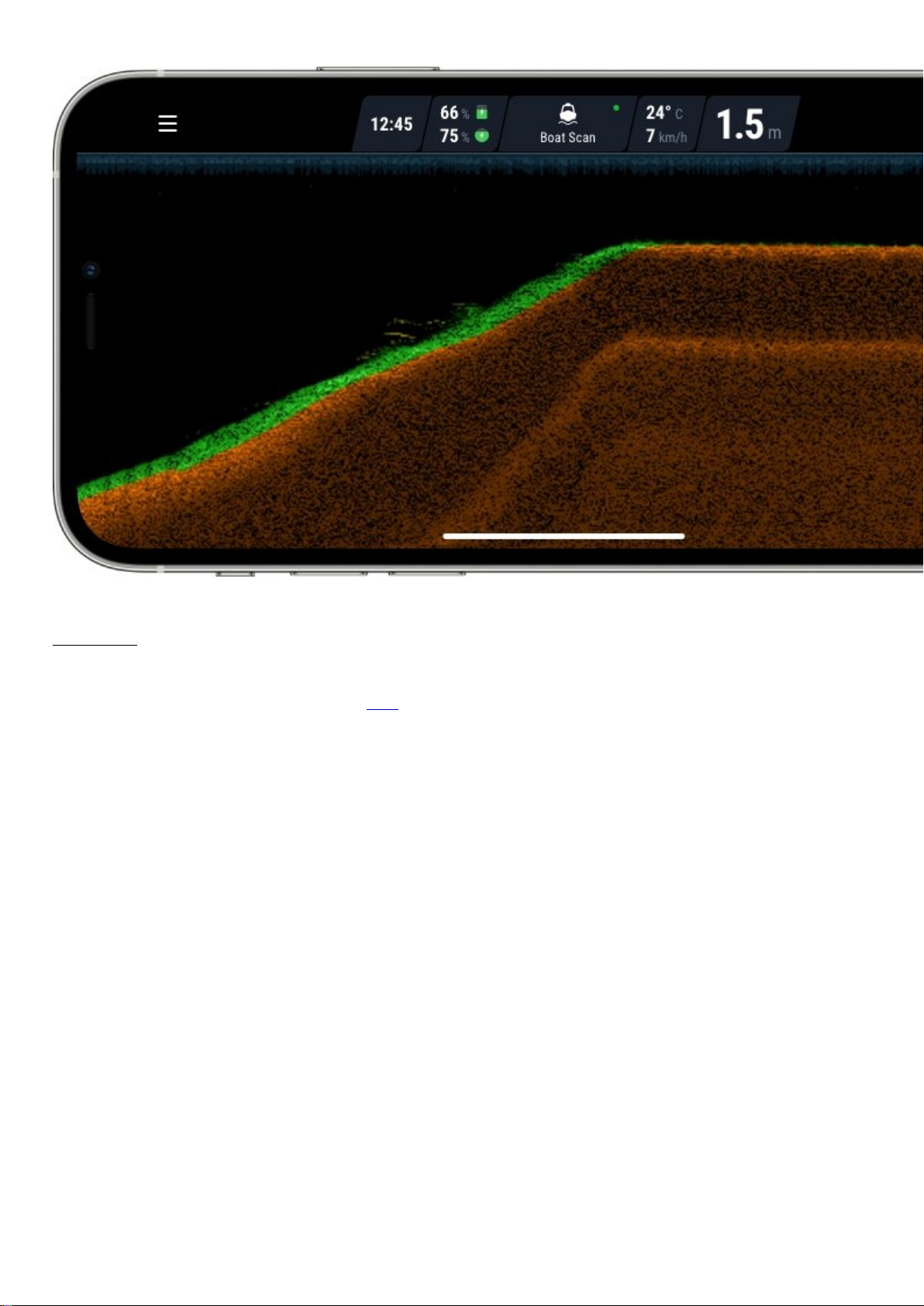
Bottom: When set to Raw (detailed) sonar display, your Deeper can help you determine whether the bottom is
hard or soft. When the sonar pulses sent from your Deeper are reflected by the bottom, a hard bottom will return a
stronger signal than a soft bottom. To properly determine the bottom hardness, please use Narrow or Mid beams
on your Deeper. Wide beams are not suited to determine bottom hardness.
Second sonar return: You may also see a second sonar return: this is caused when the sonar signal bounces
between the bottom and the surface of the water and back again. Hard bottoms will show a strong second return,
while soft bottoms will show a very weak one or none at all. To properly determine the bottom hardness, please
use Narrow or Mid beam angle on your Deeper. Wide beams are not suited to determine bottom hardness.
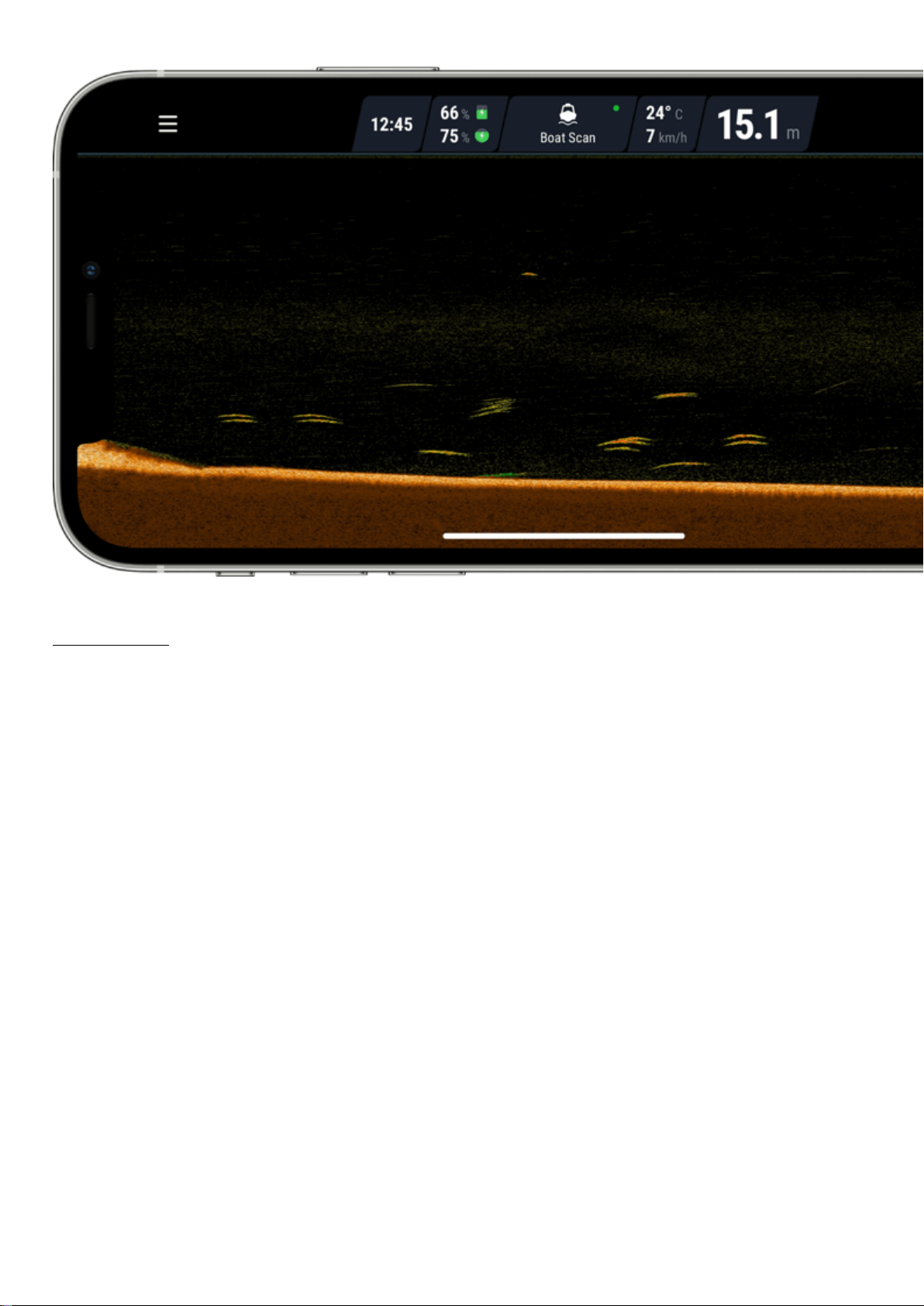
Fish Icons: Fish Icons are displayed in three different sizes. The classification of fish by size depends on many
variables, with weight being only one of them. This means Fish Icons do not always accurately reflect an actual
fish’s size. If you want to determine the fish size more accurately, you should choose Raw sonar display and
untick Fish Icons. Read more on this topic here.
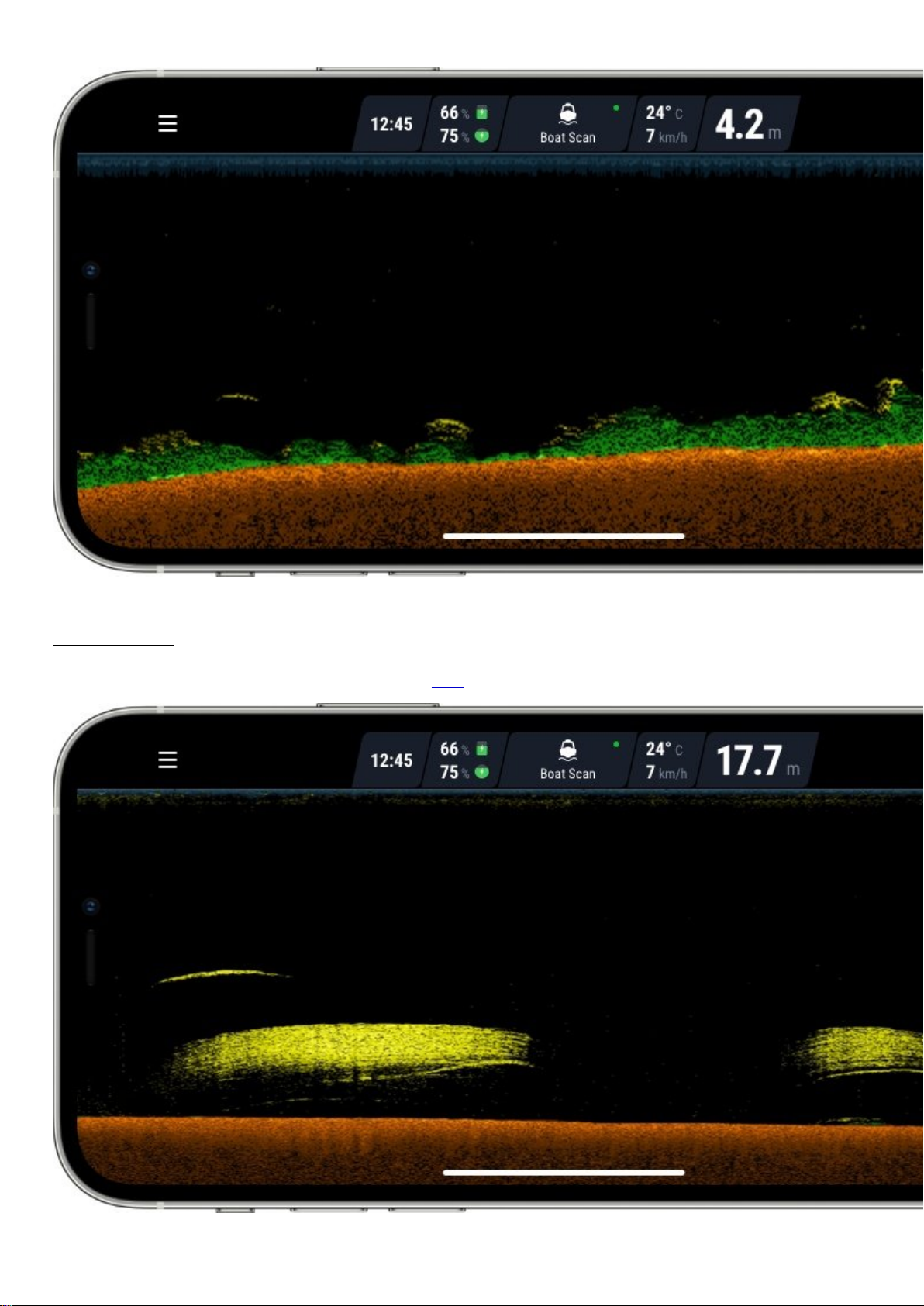
Water surface: Along the top of the screen, you will see a blue water surface line with a grouping of intense
colors. This area is surface clutter, which can be caused by waves or other sonar interference on the surface of the
water. Surface clutter is the blind zone, where the sonar will not detect any fishes or underwater objects.

The length of surface clutter depends the beam angle and frequency used. The higher the frequency – the smaller
the surface clutter is, and the less depth Deeper will need to operate.
Deeper CHIRP surface clutter
When using Narrow CHIRP beam (675 kHz), surface clutter zone will be stretching down to 0.15m (0.5 ft) from the
surface of water. No fish or underwater objects will be detected in that area. Deeper sonar will display “too shallow
or too deep” error message if the actual depth of water is less than 0.15m (0.5 ft).
Mid CHIRP (290 kHz) will have a surface clutter zone of 0.6m (2 ft) and will not detect any fishes or underwater
objects in that area.
Wide CHIRP (100 kHz) will have a surface clutter zone of 0.8m (2.6 ft) and will not detect any fishes or underwater
objects in that area.
Deeper PRO surface clutter
Narrow beam (290 kHz) will have a surface clutter zone of 0.6m (2 ft) and will not detect any fishes or underwater
objects in that area.
Wide beam (90 kHz) will have a surface clutter zone of 1.3 m (4.2 ft) and will not detect any fishes or underwater
objects in that area.
Weed: Weed beds and vegetation are shown in green when Classic color palette is used.

Logging in
To login to Fish Deeper Website, , go to maps.deepersonar.com. You can login using Facebook, Google or your My
Deeper username and password. It is the same user name and password you use for the Deeper App.
Charging and connecting
First unscrew the top cover to open the device – please always ensure the device is dry before opening it. Now
connect your Deeper Sonar to a USB power source using the cable included. For charging, please use a standard
smartphone or tablet charger, or connect the cable to your personal computer, your car’s power outlet, or the USB
outlet of another device.
When you connect your Deeper CHIRP+ to a power source, it automatically turns on. An orange light will flash in
intervals to show the device is charging. The number of flashes indicates the status of the battery.
One flash means charging just started and the battery is still empty.
Two flashes mean 25% charged
Three flashes mean 50% charged
Four flashes mean 75% charged
A green light means the battery is fully charged.
A blue light indicates that the temperature is too cold for charging. The lithium-ion battery cannot be

charged at temperatures below 3°C / 37.4°F. Please take your Deeper Sonar to room temperature conditions
and resume charging.
A red light means there is a problem with charging. In this case, first please try a different charger and
cable. Next, please leave the device charging for a longer period (over 1 hour). If the light is still red, please
contact Support.
Once your device is charged, screw the top cover back on, ensuring it is closed tightly so that the words ‘Water’
and ‘Proof’ align perfectly.
ⓘ Never put your Deeper in water when it is connected to the charger cable. This could damage the device and any
damage will not be covered by the warranty. Always ensure the top cover is firmly closed and the Water Proof
marks are perfectly aligned before putting your Deeper Sonar in water.
ⓘMake sure that the threads of the Deeper top cover and body are always clean, do not attach the top cover if there
is sand or dirt on the thread of the top cover or the Deeper. Clean it first.
ⓘ Please note you can only connect to one Deeper Sonar at a time from your phone or tablet. And your Deeper
Sonar can only connect to one phone or tablet at a time.
How sonars work
Before you start using your Deeper device, it is important to understand some basic points about how sonars work.
1. Sonars scan in cones.

This means when you mark a fish or feature, it is somewhere within the cone sent down by your sonar (not
necessarily directly below your sonar). It also means that the deeper you scan, the wider the area you cover,
because the sonar cone gets bigger as it goes down.
2. Sonar displays constantly scroll
Altri manuali per START
3
Indice
Altri manuali deeper Sonar


