
Digital Equipment LN15X-DA Manuale utente

DIGITAL LN15X-DA
Duplexing Unit
User Manual

A E
FB
C
D
G
H
I
J
L
K
IL-2
M
N
O

DIGITAL LN15-DA Duplexing Unit User Manual 1
Preface
This user’s manual provides installation procedures and some other
important information. For solving problems, also refer to the User’s
Manual of the printer.
Icons draw your attention to advisory messages, as illustrated below.
A line precedes and follows the message to show where the message
begins and ends.
Caution:
Ignoring this information could result in personal injury.
Notice:
Ignoring this information could result in loss of data or harm to your
equipment.
Important:
These notes contain remarks, tips, and other useful supplementary
information.
☞
✍
Conventions
!

DIGITAL LN15-DA Duplexing Unit User Manual 2
LearningtheDuplexUnit
The duplex unit, easily installed at the bottom of the printer, enables
you to print on both sides of paper of standard sizes.
• Printable paper sizes are A4, B5, A5, Legal, Letter, and Executive.
• The duplex unit copes with high-speed printing of 14 ppm.
• Addition of the duplex unit increases just a little in foot print.
• Installation is easy without extra connection of cables.
• Face-up rear stacker is provided for thick paper, transparencies,
envelopes, or labels which are limited to one-sided printing.
To print data using the duplex unit with the printer in the PS
emulation, the total capacity of printer’s RAMs must be 10M bytes
or more. Insufficient capacity restricts some functions.
The illustration below identifies the main parts of the duplex unit.
These names are referred to throughout the manual, so take some
time to become familiar with them.
Features
Rear unit
Rear stacker
Paper path
select lever
Base unit
Lock
lever Printer
NamesofParts
Rear
opening

DIGITAL LN15-DA Duplexing Unit User Manual 3
The illustration below shows the routes of paper feeding in the
printer including the duplex unit and other standard and optional
components. Understanding of these paths are useful to remove
jammed paper.
Unpacking the
Duplex Unit
Setting Up
Remove cushions and securing tape. As you unpack the duplex unit,
check it carefully for damage. If you find damage, notify your dealer.
This user’s manual is the only accessory of the duplex unit.
Important:
Save the original carton and packing materials in case you need to
store or transport your duplex unit.
PaperPaths
q, w
q
q
w
w
®
w®
Optional paper tray
MFF
q: First printing
w: Second printing
®: Reverse feeding
Duplex unit
Paper tray
Printer
q
✍
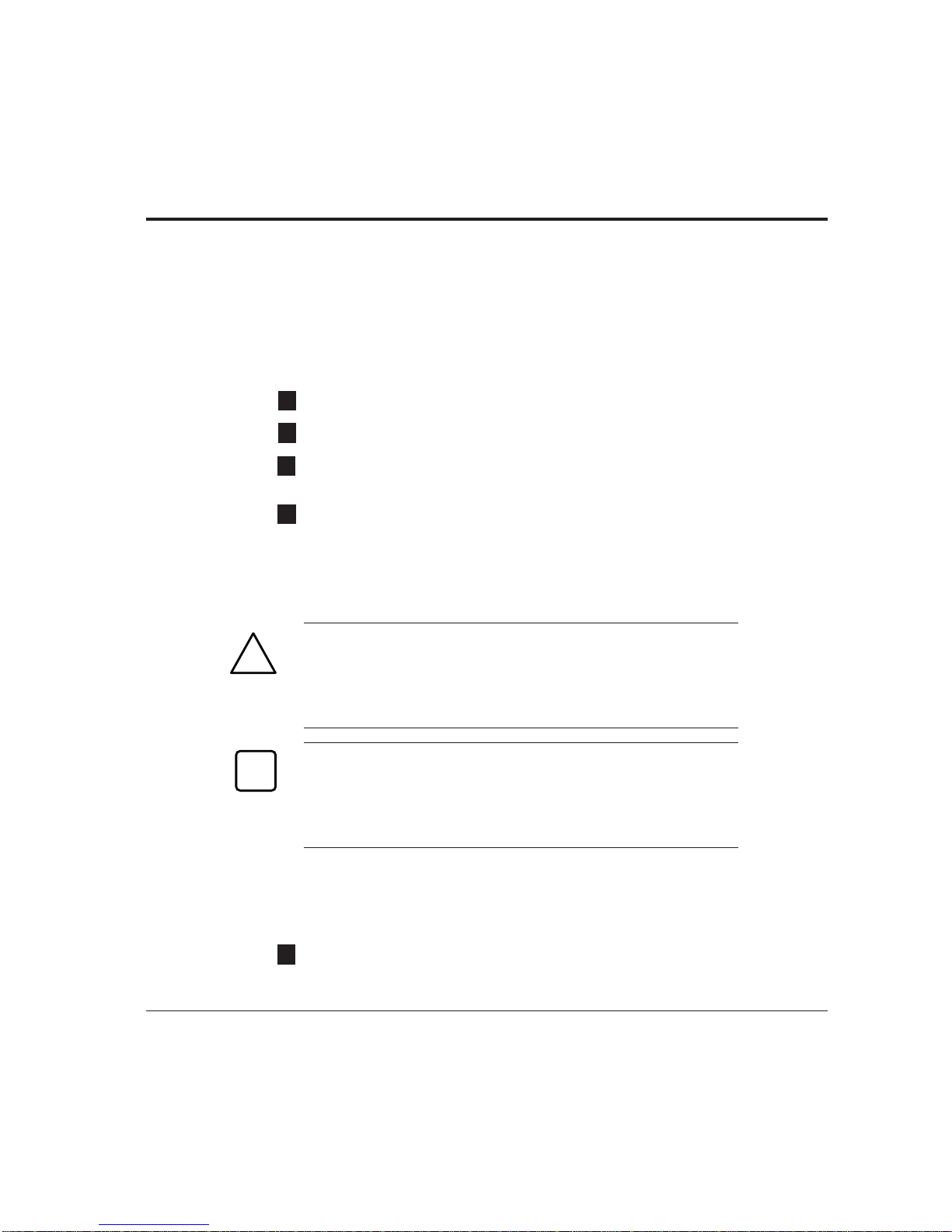
A
DIGITAL LN15-DA Duplexing Unit User Manual 4
Before installing the duplex unit, prepare your printer.
• First turn power off.
• Disconnect the power cord from both printer and power outlet.
• Disconnect the interface cable from the printer.
• Remove the multi-function feeder (MFF).
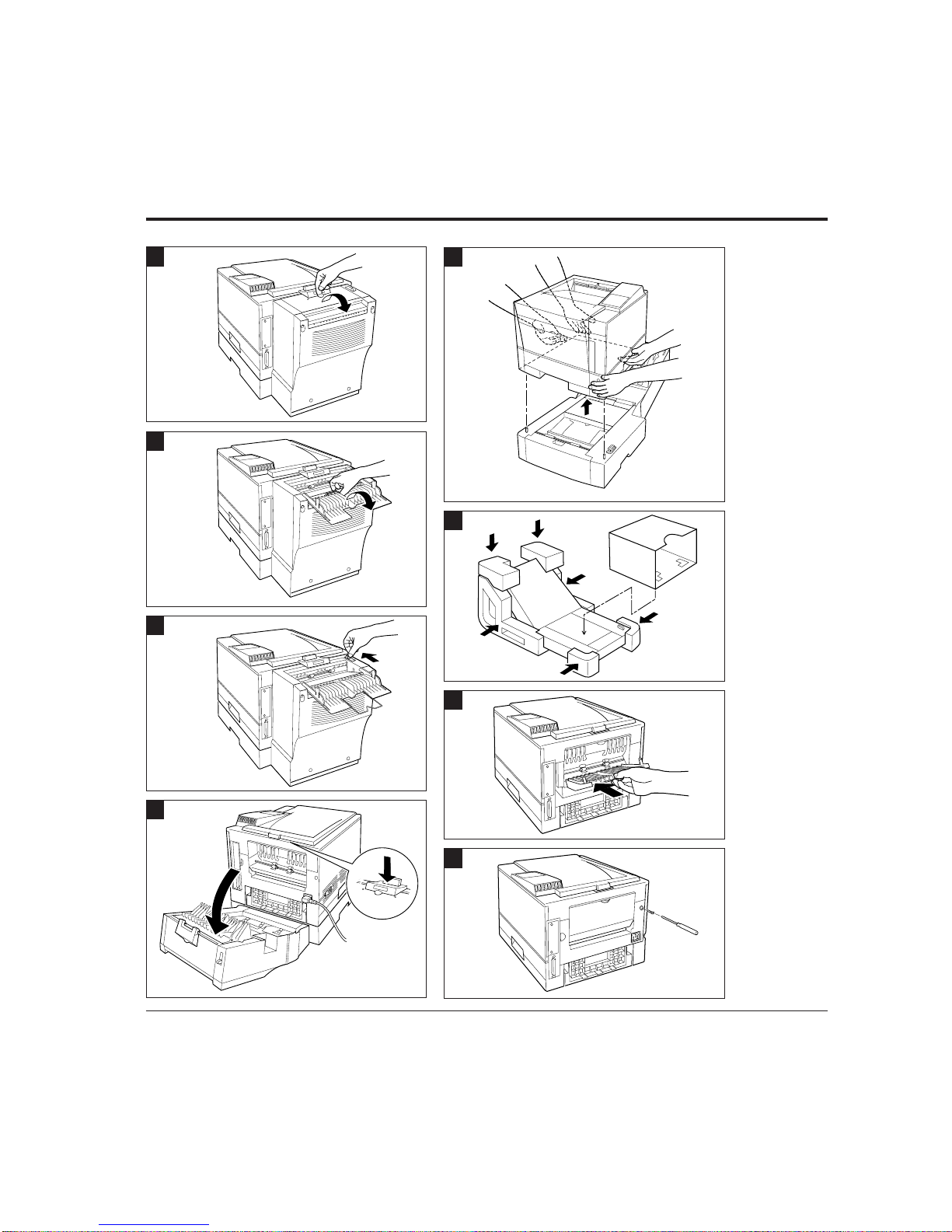
• Remove the rear cover from the printer as follows:
1. Remove the screw securing the rear cover to the printer.
2. Bending the left side of the rear cover, remove the cover.
3. Remove the rear stacker sliding along the guide grooves in the
printer. Be sure to store the rear stacker for future use.
4. Return the rear cover to the printer.
It is not necessary to change the printer location, but remember the
following:
Caution:
To avoid possible personal injury or harm to your equipment,
cooperate with another person in assembling or disassembling the
printer, duplex unit, multi-function feeder, and paper feeder (if
installed). Do not lift or move the printer as equipped with other units.
Notice:
Be sure to keep the rear opening of the duplex unit away from a wall
or another equipment so as to open the rear unit for clearing paper
jam or not to block the reverse operation of paper that comes out
and in the opening during two-sided printing.
To install the duplex unit, follow these steps:
1. Move the printer to clear its location and put the duplex unit
instead with the rear unit open.
Then, positioning the holes at the bottom of the printer to the
guide studs on the duplex unit, put the printer gently on the
duplex unit.
Preparingthe
Printer
Installingthe
DuplexUnit
☞
F
E
D
C
B
!

DIGITAL LN15-DA Duplexing Unit User Manual 5
Notice:
If your printer is equipped with an optional paper feeder, dismount
the printer from the paper feeder. Then, mount the duplex unit on
the paper feeder, lock the paper feeder, and the printer on the duplex
unit.
2. Connect the power cord to the printer.
3. Close the rear unit until its lock lever clicks. Connect the
interface cable. If necessary, mount the multi-function feeder.
Then, connect the power cord to the power outlet.
Caution:
Be careful that your fingers or hair is not squeezed between the
printer and the duplex unit when closing the rear unit.
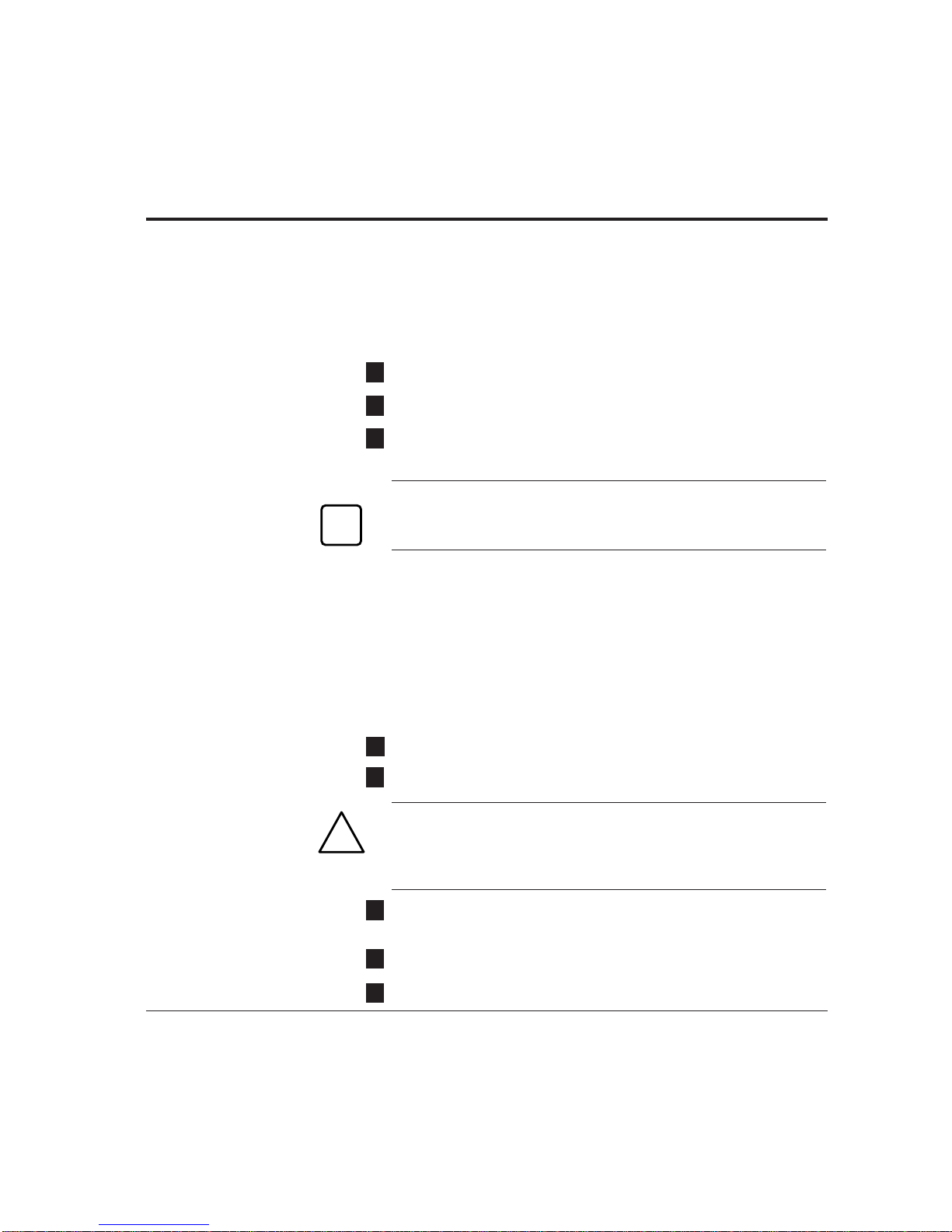
You can check two-sided printing using the printer control panel.
1. Load several sheets in paper tray 1.
2. Turn power on.
The printer control panel
message shows READY
with the ONLINE
indicator on.
3. Press the READY button to put the printer offline.
The ONLINE indicator
turns off with the READY
message unchanged.
4. Press the MENU button to make the printer enter the menu
mode.
The message changes to
SETUP MENU PAGE
FORMAT MENU.
☞
TestingDuplex
PrintingOffline
READY
G
READY
SETUP MENU
PAGE FORMAT MENU
!

DIGITAL LN15-DA Duplexing Unit User Manual 6
5. Press the ENTER button to select the page format menu.
The message changes to
COPIES 1*.
6. Press the MENU button five times to display the desired item of
the page format menu.
The message changes to
DUPLEX MODE OFF*.
7. Press the + button once to change the parameter.
The message changes to
DUPLEX MODE ON.
8. Press the ENTER button to select the new parameter.
An asterisk follows the
message like DUPLEX
MODE ON*.
9. Press the READY button to exit the page format menu.
The message changes to
READY and the ONLINE
indicator turns on.
10.
Press the READY button again to put the printer offline.
The ONLINE indicator
turns off with READY
unchanged.
11.
Press the SELF TEST button five or more seconds to start self test
printing.
The message changes to
SELF TEST, the DATA
indicator flashes, and the
status report is printed on
both sides of a sheet.
12.
Check that the printing is successful.
COPIES
1*
DUPLEX MODE
OFF*
DUPLEX MODE
ON
DUPLEX MODE
ON*
READY
READY
SELF TEST
DIGITAL LN15-DA Duplexing Unit User Manual 7
Using the Rear Stacker
The rear stacker of the duplex unit has the same function with that
of the printer.
1. Open the rear stacker of the duplex unit.
2. Raise the paper support wire.
3. Set the paper path select lever forward the printer. Be sure to
move the lever all the way until it is stopped.
Notice:
After printing, be sure to return the paper path select lever backward
the printer.
RemovingtheDuplexUnit
When removing the duplex unit from the printer, follow these steps:
1. Turn the printer power off and remove the power cord, interface
cable, and multi-function feeder (if installed) from the printer.
2. Open the rear unit of the duplex unit.
3. Lift the printer to separate it from the duplex unit.
Caution:
To avoid possible personal injury or harm to your equipment,
cooperate with another person in lifting the printer. Do not lift or
move the printer as equipped with other units.
4. Store the duplex unit flat using the packing materials saved at
installation
5. Re-install the rear stacker in the printer.
6. Return the rear cover to the printer.
K
L
M
N
O
H
I
J
!
☞
Indice
Altri manuali Digital Equipment Accessori per stampanti


