
Doro IP500PBXW Manuale utente

ip500pbxw
Owner’s Manual

Administration Manual ip500pbxw – English
1
Table of Contents
1Introduction................................................................................................................................. 4
Conformance.................................................................................................................................................................4
Important Safety instructions.........................................................................................................................................4
Features.........................................................................................................................................................................6
Basic Requirements ......................................................................................................................................................6
Using this Document .....................................................................................................................................................7
2Getting to know your ip500pbxw................................................................................................ 8
Parts Check ...................................................................................................................................................................8
Front Panel ....................................................................................................................................................................9
3Connecting Your System ......................................................................................................... 10
Step 1: Placing your system unit................................................................................................................................10
Step 2: Connect your telephones and PSTN Line(s).................................................................................................11
Fit the Cable Cover over the phone connections.......................................................................................................11
Step 3 Internet Access Connections ..........................................................................................................................11
Step 4 Connect the Power ..........................................................................................................................................12
Step 5 ip520c DECT Phones......................................................................................................................................13
Step 6 Connecting to the Internet ...............................................................................................................................14
Cabling ip520c phones................................................................................................................................................17
Cabling Standard telephones .....................................................................................................................................17
Wall Mounting the Ip500pbxw.....................................................................................................................................17
ip520c phone connections (underside of phone) .......................................................................................................17
Attaching the ip520c phone desk plinth......................................................................................................................18
Wall-mounting a ip520c phone ...................................................................................................................................18
Power Fail Telephone .................................................................................................................................................19
4Basic programming using the Management Application ......................................................... 19
Basic PABX Settings...................................................................................................................................................20
Basic Router Configuration for an ADSL connection.................................................................................................24
Basic Router Configuration for a Cable Modem connection .....................................................................................24
Date & Time Settings ..................................................................................................................................................25
5Using Your ip500pbxw Phone System .................................................................................... 27
System Description .....................................................................................................................................................27
Introduction to your ip500pbxw Phones .....................................................................................................................27
System ip520c phone..................................................................................................................................................29
Using the DECT Handset............................................................................................................................................33
ip520c– Basic Call Features .......................................................................................................................................36
Using a Standard or DECT Handset ..........................................................................................................................41
Additional Call Features ..............................................................................................................................................44
Outgoing VoIP Calls....................................................................................................................................................47
Station Set-Up options ................................................................................................................................................48

Administration Manual ip500pbxw – English
2
Incoming Call Handling ...............................................................................................................................................49
Using Voicemail...........................................................................................................................................................50
Remote Notification of Voice Messages.....................................................................................................................53
Programming Additional System Options ..................................................................................................................56
6Connecting to the Internet........................................................................................................ 57
Types of Internet Access.............................................................................................................................................57
Configuring a PPPoE ADSL connection ....................................................................................................................57
Configuring a PPPoA ADSL connection ....................................................................................................................60
Configuring a DHCP ADSL connection – RFC 1483.................................................................................................60
Changing the ADSL Modem Operating Mode ...........................................................................................................63
Connecting to an External ADSL Modem, Cable Modem, LAN, WAN or add a host to the DMZ ...........................63
Password .....................................................................................................................................................................66
DHCP Server...............................................................................................................................................................67
Addressing...................................................................................................................................................................70
Changing the LAN IP address and subnet mask.......................................................................................................70
7PABX Configuration using the web interface........................................................................... 72
Incoming Ringing.........................................................................................................................................................73
System Settings...........................................................................................................................................................74
Station Settings ...........................................................................................................................................................77
Line Settings ................................................................................................................................................................81
Line Divert....................................................................................................................................................................83
Class of Service...........................................................................................................................................................83
Timers ..........................................................................................................................................................................85
Outgoing VoIP Calls....................................................................................................................................................86
CDS Routes.................................................................................................................................................................88
Outgoing Restriction....................................................................................................................................................89
8Advanced Router Settings ....................................................................................................... 91
VoIP Settings...............................................................................................................................................................91
Wireless Setup / Security ............................................................................................................................................94
Firewall.......................................................................................................................................................................102
Diagnostics ................................................................................................................................................................113
Firmware Update.......................................................................................................................................................118
System Resets ..........................................................................................................................................................120
AConfiguring Your ip500pbxw via the ip520c........................................................................... 122
To enter system programming..................................................................................................................................122
System Setup Options ..............................................................................................................................................122
Using Voicemail.........................................................................................................................................................130
Programming Additional System Options ................................................................................................................134
Miscellaneous system configuration options............................................................................................................134
To configure PSTN Lines..........................................................................................................................................136
To set system timers .................................................................................................................................................137
To reset your system.................................................................................................................................................138

Administration Manual ip500pbxw – English
3
BCordless Phone Detailed Instructions.................................................................................... 139
CIP Addresses, Network Masks & Subnets ............................................................................. 148
IP Addresses .............................................................................................................................................................148
Subnet masks............................................................................................................................................................149
DGlossary ................................................................................................................................. 150
EConfiguring your PCs ............................................................................................................. 155
Configuring Ethernet PCs .........................................................................................................................................155
FTroubleshooting...................................................................................................................... 159
Cannot browse the Internet.......................................................................................................................................159
Troubleshooting your Cordless Phone .....................................................................................................................162
Troubleshooting the PABX........................................................................................................................................163
Connecting to an external modem............................................................................................................................164
Support ......................................................................................................................................................................164

Administration Manual ip500pbxw – English
4
1 Introduction
Congratulations on becoming the owner of the Doro ip500pbxw combined voice & data communications system. You will
now be able to access the Internet using your high-speed DSL connection, share your phone connection between fixed &
cordless handsets and access the latest in ‘Voice over IP’ services.
This User Guide will show you how to connect Doro ip500pbxw gateway, and how to customize the configuration to get the
most out of your new product.
Conformance
Declaration of conformity
Doro hereby declares that the products Doro ip500pbxw, Doro ip510w and Doro ip520c conforms to the essential
requirements and other regulations contained in the directives 1999/5/EC (R&TTE), 2002/95/EC (ROHS). A copy of the
manufacturer’s declaration is available at www.doro.com/dofc
Important Safety instructions
When using your telephone equipment, basic safety precautions should always be followed to reduce the risk of fire,
electric shock, and injury to persons, including the following:
Read and understand all instructions.
Follow all warnings and instructions marked on the product.
Unplug this product from the wall outlet before cleaning. Do not use liquid cleaners or aerosol cleaners. Use a damp cloth
for cleaning.
Do not use this product near water (for example, in a wet basement).
Do not place this product on an unstable cart, stand, or table. The product can fall, causing serious damage to the product.
Slots and openings in the cabinet and the back or bottom are provided for ventilation, to protect it from overheating; these
openings must not be blocked or covered. This product should never be placed near or over a radiator or heat register. This
product should not be placed in a built-in installation unless proper ventilation is provided.
This product should be operated only from the type of power source indicated in the manual. If you are not sure of the type
of power source to your building, consult your dealer or local Power Company.
The mains power socket outlet must be located near the product and must be easily accessible to allow plugging/unplugging.
Do not allow anything to rest on the power cord. Do not locate this product where persons walking on it will abuse the cord.
Do not use a station cord with this product’s AC power cord. The AC outlet for this product should not be used for any other
electrical equipment.
Never push objects of any kind into this product through cabinet slots as they can touch dangerous voltage points or short
out parts that could result in a risk of fire or electric shock. Never spill liquid of any kind on the product.
To reduce the risk of electric shock, do not disassemble this product, but take it to a qualified serviceman when some
service or repair work is required. Opening or removing covers can expose you to dangerous voltages or other risks.
Incorrect re-assembly can cause electric shock when the product is subsequently used.
Unplug this product from the wall outlet and refer servicing to qualified service personnel under the following conditions:
When the power supply cord or plug is damaged or frayed.
If liquid has been spilled into the product.
If the product has been exposed to rain or water.
If the product does not operate normally by following the operating instructions.
Adjust only those controls that are covered by the operating instructions because improper adjustment of other controls can
result in damage and will often require extensive work by a qualified technician to restore the product to normal operation.
If the product has been dropped or the cabinet has been damaged.

Administration Manual ip500pbxw – English
5
If the product exhibits a distinct change in performance.
Avoid using a telephone (other than a cordless type) during an electrical storm. There can be a remote risk of electric shock
from lightning.
Do not use the telephone to report a gas leak in the vicinity of the leak.
Save These Instructions.

Administration Manual ip500pbxw – English
6
Features
The list below contains the main features of the system and may be useful to users with knowledge of networking protocols.
If you are not an experienced user, the chapters throughout this guide will provide you with enough information to get the
most out of your System.
Features include:
Support for 2 external PSTN lines & 2 VoIP channels.
Connection of up to 4 wired phone sets.
DECT base station supporting 4 cordless stations.
Advanced phone system features with voicemail.
Internal DSL modem for high-speed Internet access.
10/100Base-T Ethernet router to provide Internet connectivity to all computers on your LAN.
Wireless access via wireless network card and wireless security features.
Network address translation (NAT) functions to provide security for your LAN.
Network configuration through DHCP Server and DHCP Client.
Services including IP route and DNS configuration, RIP, and IP and DSL performance monitoring.
User-friendly configuration program accessed via a web browser.
Basic Requirements
In order to use all the features of the system, you must have the following:
An ADSL service up and running on your telephone line (or other type of Internet access with Ethernet connection).
One or more computers each containing an Ethernet card (10Base-T/100Base-T network interface card (NIC)).
For system configuration using the supplied web-based program: a web browser such as Internet Explorer v4 or later, or
Netscape v4 or later. Note that version 4 of each browser is the minimum version requirement – for optimum display quality,
use Internet Explorer v5, or Netscape v6.1.
Note
You do not need to use a hub or switch in order to connect more
than one Ethernet PC to your System. Instead, you can connect
up to four Ethernet PCs directly to your System using the ports
labelled on the rear panel.

Administration Manual ip500pbxw – English
7
Using this Document
Notational conventions
Acronyms are defined the first time they appear in the text and also in the glossary.
The term LAN refers to a group of Ethernet-connected computers at one site.
The term WLAN refers to a group of Wireless-connected computers at one site.
Typographical conventions
Displaytext is used for items you select from menus and drop-down lists and the names of displayed web pages.
Bold text is used for text strings that you type when prompted by the program, and to emphasise important points.
Special messages
This document uses the following icons to draw your attention to specific instructions or explanations.
Note
Provides clarifying or non-essential information on the current topic.
Definition
Explains terms or acronyms that may be unfamiliar to many
readers. These terms are also included in the Glossary.
WARNING
Provides messages of high importance, including messages
relating to personal safety or system integrity.

Administration Manual ip500pbxw – English
8
2 Getting to know your ip500pbxw
Parts Check
In addition to this document on CD, your package should arrive containing the following:
1 ip500pbxw Unit
1 Power Supply ip500pbxw
(PSU)
1 Blue (Ethernet WAN) cable
RJ-45
1 Documentation Pack 1 Cordless handset & charger
(Optional)
1 Yellow (Ethernet LAN)
cable RJ-45
1 Main distributor frame cover
(MDF)
1 Grey line cable
(RJ-11 to RJ11)
1 Violet ADSL cable
(RJ-11 to RJ-11)
1 Splitter
Administration Manual ip500pbxw – English
9
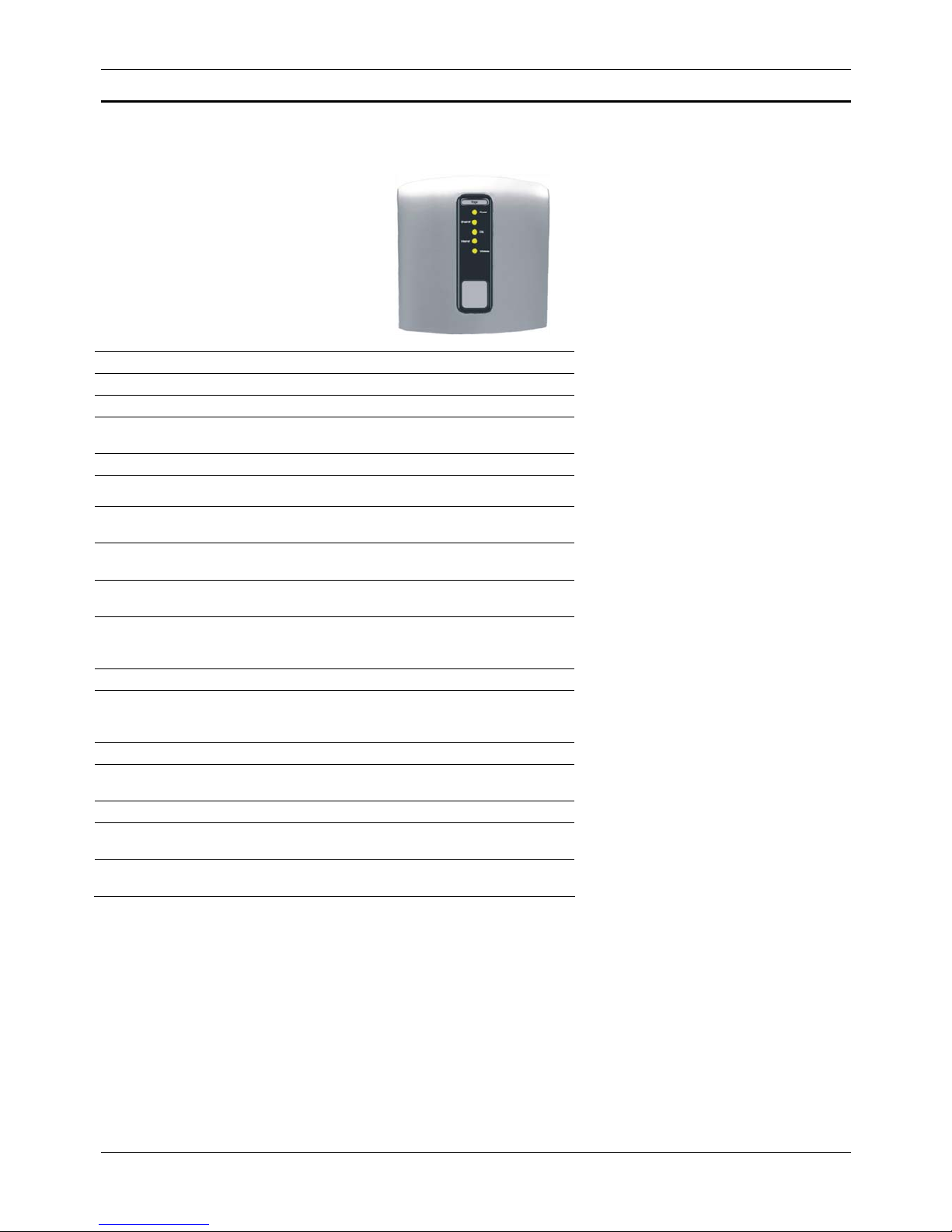
Front Panel
The front panel contains a ‘Page’ button and lights called Light Emitting Diodes (LEDs) that indicate the status of the
system. Pressing the ‘Page’ button rings all the cordless handsets registered to the system.
Label Color Function
Power Off Power not connected to the system
Red Powering up or system malfunction
Flashing
Red/Green
Cordless phone registration mode
Green Power on
Ethernet Off No device connected to the LAN
Solid Green
Powered device connected to the LAN
DSL Green
Flashing slowly
ADSL line not connected
Green flashing
fast
ADSL line connected and synchronising
Green.
(Occasional
flicker)
ADSL line connected and synchronised
Internet Off ADSL line not connected
Red System attempted to make an IP connection and
failed. Usually indicates that the Internet User Name
or Password is incorrect.
Solid Green System is IP connected and no traffic is detected
Flashing
Green
System is IP connected and traffic is detected
Wireless Off Wireless LAN is disabled
Solid Green
Wireless LAN is enabled
Flashing
Green
Wireless LAN is active with traffic in either
direction
Indice


