
Elvid STUDIOVISION SRM-7X2-4KH Manuale utente
USER MANUAL
STUDIOVISION
SRM-7X2-4KH
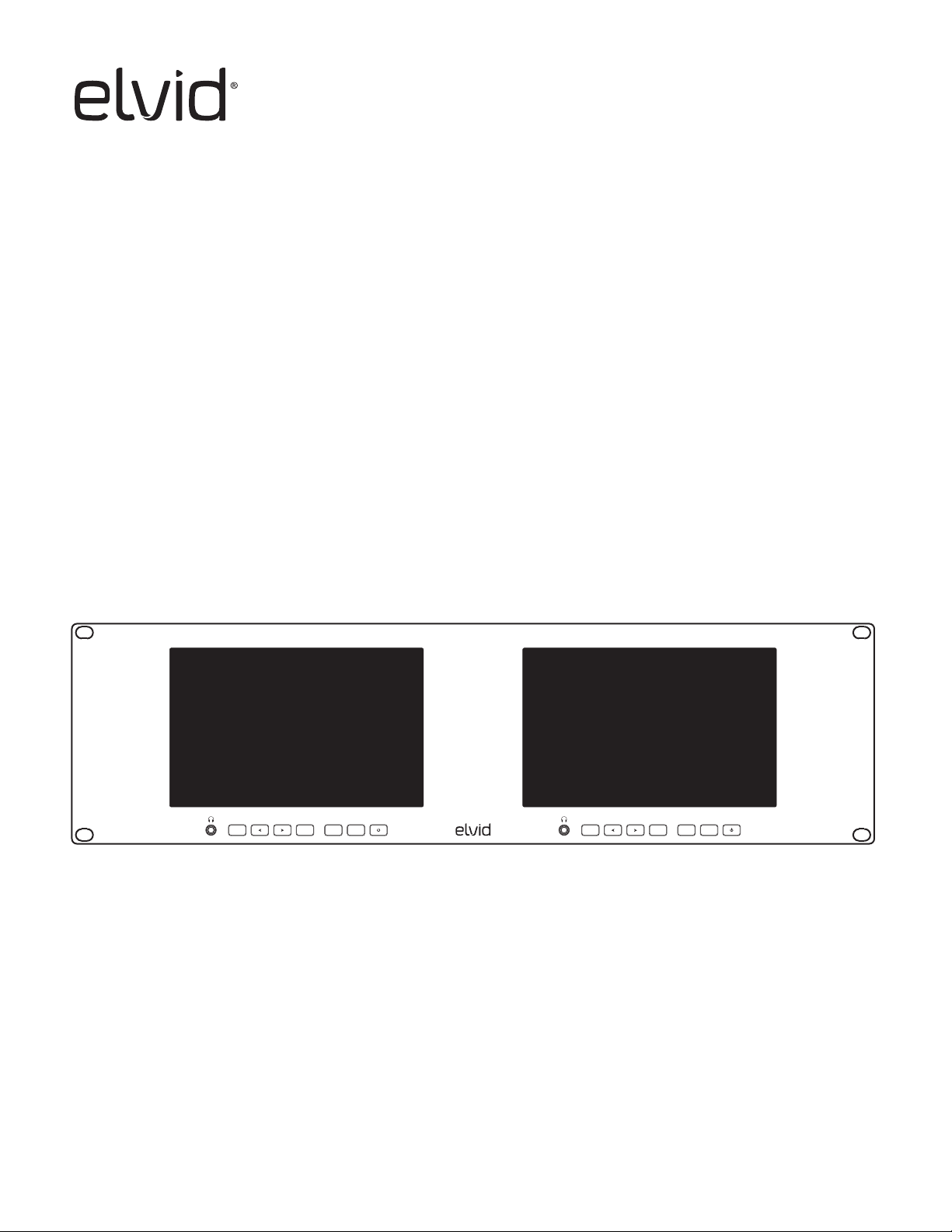
Dual 7 in. Rackmount Monitors
STUDIOVISION 4K SRM-7X2-4KH
MENU EXIT FN INPUT MENU EXIT FN INPUT

2
PRECAUTIONS
• Exposure to high sound levels can cause permanent
hearing loss. Avoid listening at high volumes for
extended periods of time.
• Keep this product away from water and any
ammable gases or liquids.
• Do not expose this product to humidity or extreme
heat or cold.
• Make sure this product is powered off when
plugging it into a power source.
• Use only the correct, recommended voltage.
• Do not attempt to disassemble or repair this
product.
• Do not place or store the monitor facedown, since
this can damage the screen.
• Handle this product with care. Avoid any impacts to
this product.
• Do not block the vents in this product.
• Disconnect this product from its power source
before storage and during electrical storms.
• Do not use chemical solutions to clean this product.
Clean it with only a soft, dry cloth.
• Keep this product away from children.
• Make sure that this product is intact and that there
are no missing parts.
• To avoid damage to this product, be careful not
to overtighten or improperly thread any of the
threaded ttings.
• All images are for illustrative purposes only.
THANK YOU FOR CHOOSING ELVID.
The Elvid SRM-7X2-4KH rackmount monitoring system ts dual 7-inch, full HD monitors into a standard 19-inch
machine rack. The LCD panels’ native 1920 × 1200 resolution provides a sharp image and facilitates precise color
rendering. The monitors feature HDMI and SDI inputs with loop outputs, and their native aspect ratio of 16:10 ts
most popular video formats. Both monitors have a 160° viewing angle, so no matter where you place them in a studio,
location, or broadcast truck, you’ll view the picture in crisp detail.
Each monitor features 3G-SDI and HDMI 2.0 inputs and loop outputs so you can view one signal on both monitors,
or a separate signal on each. Easy-to-access menus let you select which of the many monitoring and broadcast tools
to display on each side. An assignable function button on each monitor gives you the option of putting specic tools
at your ngertips. User-supplied 3-D LUTs can be loaded via the USB port, and ethernet software control is supported
via the ethernet port. A DE-15 Tally connector is compatible with standard tally systems for monitoring in broadcast
applications. The dual monitor supports up to 8 audio channels, and headphone outputs for each panel allow you to
monitor the sound from either input signal.

3
TABLE OF
CONTENTS
Overview���������������������������������������������������������������������������������������������������������������������������������������������������������������������������������������������������������������������������������������������������������������4
Setting Up the StudioVision Rackmount Monitor����������������������������������������������������������������������������������������������������������������������������������������������������������������������������������6
Using the StudioVision Rackmount Monitor��������������������������������������������������������������������������������������������������������������������������������������������������������������������������������������������7
Picture Menu�������������������������������������������������������������������������������������������������������������������������������������������������������������������������������������������������������������������������������������������������������9
Marker Menu�����������������������������������������������������������������������������������������������������������������������������������������������������������������������������������������������������������������������������������������������������10
Function Menu �������������������������������������������������������������������������������������������������������������������������������������������������������������������������������������������������������������������������������������������������10
Waveform Menu �����������������������������������������������������������������������������������������������������������������������������������������������������������������������������������������������������������������������������������������������11
Audio Menu ��������������������������������������������������������������������������������������������������������������������������������������������������������������������������������������������������������������������������������������������������������11
System Menu ����������������������������������������������������������������������������������������������������������������������������������������������������������������������������������������������������������������������������������������������������12
Supported Resolutions and Frame Rates������������������������������������������������������������������������������������������������������������������������������������������������������������������������������������������������13
Specications ����������������������������������������������������������������������������������������������������������������������������������������������������������������������������������������������������������������������������������������������������14
Troubleshooting������������������������������������������������������������������������������������������������������������������������������������������������������������������������������������������������������������������������������������������������15
4
OVERVIEW
ALSO INCLUDED
• Power adapter
STUDIOVISION 4K SRM-7X2-4KH
MENU EXIT FN INPUT MENU EXIT FN INPUT
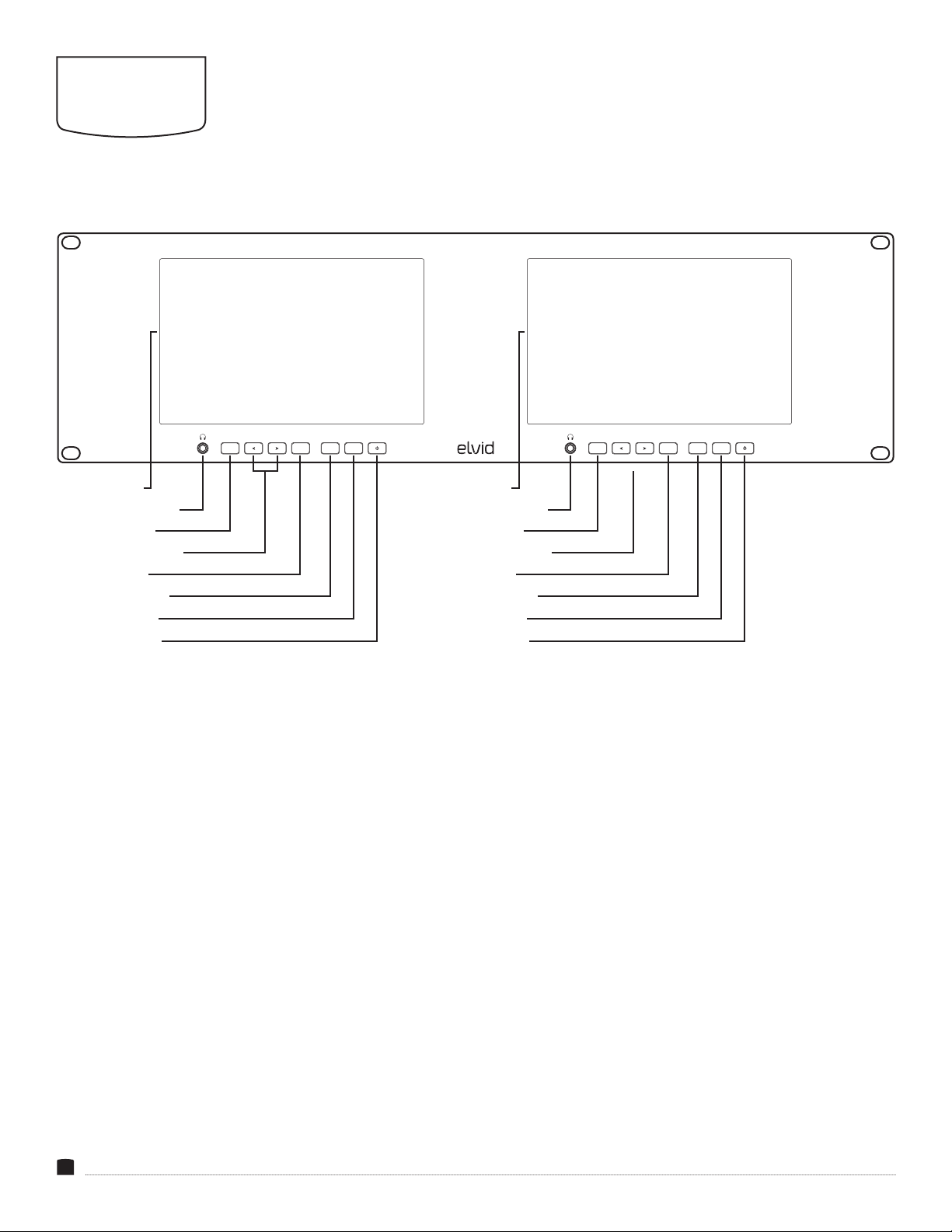
FRONT
LCD screen
Headphone output
Menu button
Navigation buttons
Exit button
Function button
Input selector
Power button
LCD screen
Headphone output
Menu button
Navigation buttons
Exit button
Function button
Input selector
Power button
5
IN OUT IN OUT
DISPLAY 2 DISPLAY 1
IN OUT IN OUT
TALLY
LAN
USB
12V 2A
HDMI SDI HDMI SDI
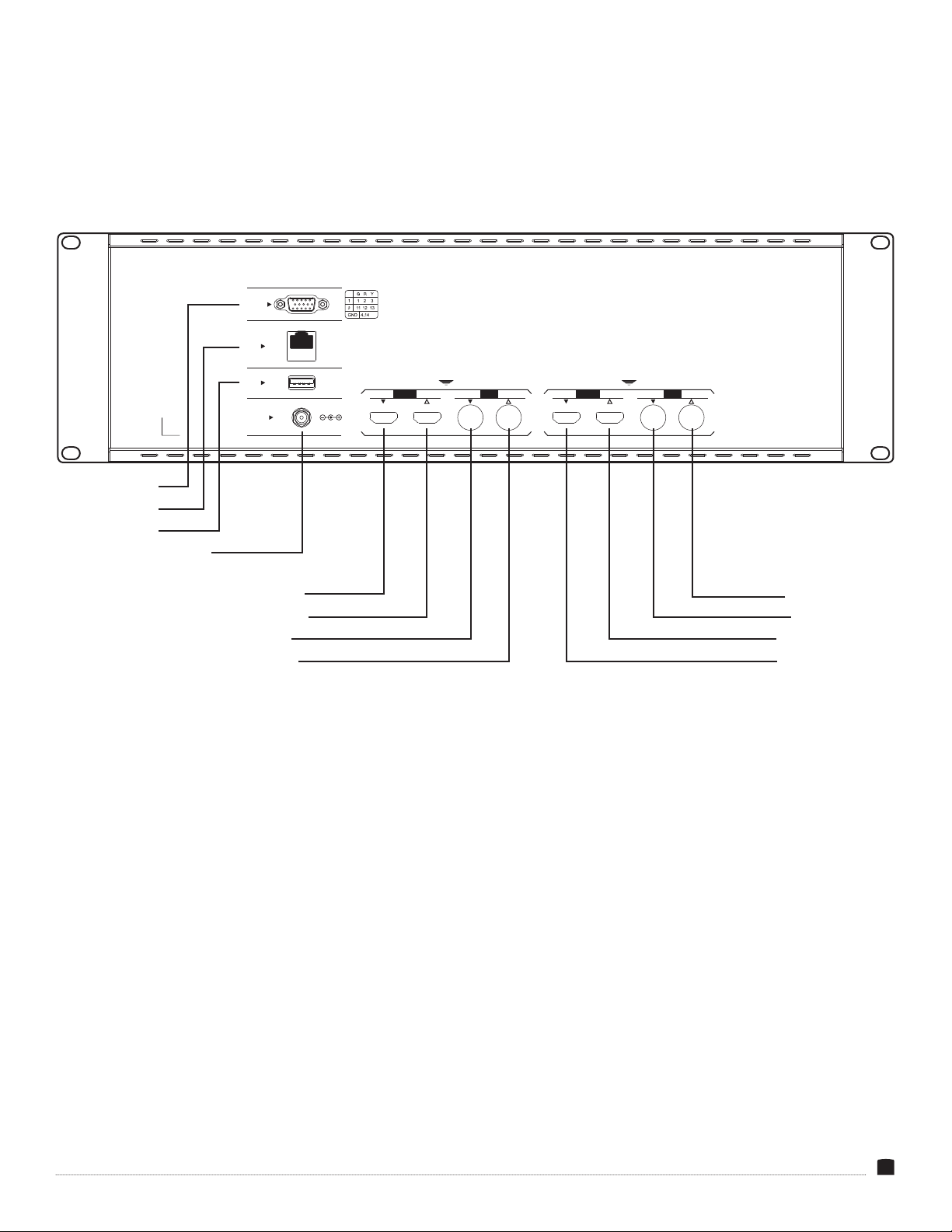
BACK
HDMI 2.0 input 3G-SDI output
HDM 2.0 output 3G-SDI input
3G-SDI input HDM 2.0 output
3G-SDI output HDMI 2.0 input
12V 2A Power input
USB port
LAN port
Tally port

6
MOUNTING THE MONITOR
The StudioVision Rackmount Monitor ts into any standard 19-inch
machine rack and takes two standard rack spaces (3U).
Use standard 10-32 or M6 rack screws to attach the monitor into
the rack at all four corners.
INPUT SIGNAL
The dual monitors can simultaneously display different video
signals or use loop-through outputs to display the same signal on
both monitors.
Connect the video source to an SDI or HDMI input. Once the
monitor is powered on, the picture is immediately visible. The
StudioVision monitor’s image processor automatically scales the
signal to t the screen.
Attach two separate sources to each monitor:
Plug HDMI sources into the HDMI inputs 1 and 2 on the rear panel.
Plug SDI sources into the SDI inputs 1 and 2 on the rear panel.
OUTPUT SIGNAL
The SDI and HDMI loop outputs on each monitor output the
unmodied video signals from their corresponding inputs to
downstream equipment.
Important: The SRM-7X2-4KH does not support cross conversion.
The HDMI OUT plug will not output an SDI signal.
AUDIO
The StudioVision monitor accepts 8 channels of audio. The
headphone output for each side can be set to monitor a different
stereo pair of its incoming signal.
Note: The headphone jack outputs only the audio from its monitor’s
incoming signal. The audio signal does not loop unless the HDMI or
SDI signal is looped to the other monitor.
SETTING UP THE STUDIOVISION
RACKMOUNT MONITOR
USB PORT
User-dened LUTs can be imported via the USB port and stored in
the User1 through User6 options.
User-dened LUTs must be in .cube format, 3D size must be
17×17×17, and data and table order must be RGB. For the monitor to
recognize them, they must be named User1, User2, User3, User4,
User5, or User6 and placed in the root directory of the drive.
Connect a computer to the USB port on the rear panel to apply
rmware updates from Elvid when available. Firmware updates are
posted on the download page at www.elvidcinema.com.
CONNECTING TO A NETWORK
Connect the StudioVision dual monitor to a LAN via the ethernet
port on the rear panel.
The StudioVision monitor uses DHCP to obtain the IP address from
the network.
To manually assign an IP address to the StudioVision, see the
explanation of the System/DHCP menu below.
TALLY
The tally connector accepts signals from switchers and automation
systems, and you can use the StudioVision monitor to indicate the
signal’s status for on-air, preview, or broadcast applications. When
connected, the tally system will place a border around the active
signal�
Refer to the pin function diagram below, and your switcher or
automation system documentation to correctly wire the included
tally connector for compatibility.
7
USING THE STUDIOVISION
RACKMOUNT MONITOR
POWERING ON
Plug the power supply into an outlet and into the power input on
the rear panel.
The monitors will turn on when power is connected. After power
is connected, turn the monitors off and on using the front panel
power buttons.
When you turn on the screens for the rst time, an audio monitor,
histogram, vector scope, and RGB waveform scope will appear on-
screen�
To customize the screen appearance, you can turn these features
off or modify them by accessing the menus described below.
ACCESSING THE MENUS
To get the most out of the monitor, make sure the monitor’s settings
are properly congured. All the setting congurations are done in
the six main menus: Picture, Marker, Function, Waveform, Audio,
and System�
MENU NAVIGATION
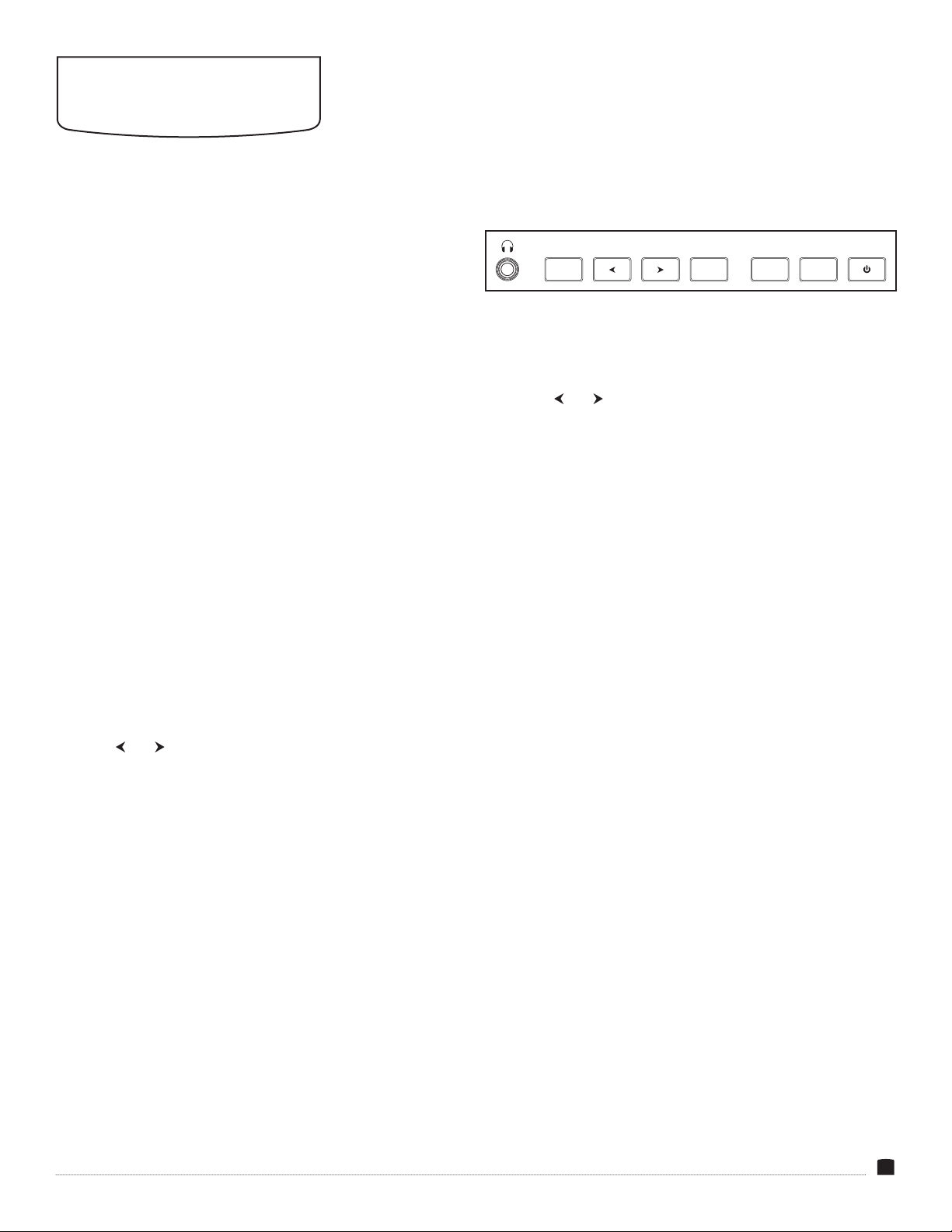
• Use the MENU button to select and conrm the menus and
functions.
• Use the and buttons to navigate the menus and adjust values.
• Use the EXIT button to exit the menus.
QUICK ADJUSTMENTS
When the monitor is powered on, you can make quick adjustments
to the volume and input settings at any time.
• Press the and buttons to activate the volume menu and
change the volume�
• Press the INPUT button to switch between HDMI and SDI input
signals�
• Press the EXIT button to return to the main screen.
FUNCTION BUTTON
The user-denable FUNCTION button engages monitor functions
you can program to accommodate your specic needs. See
Function
Button Setup
below for information on changing the function
assignment�
By default, the FUNCTION button is set to Peaking. Press to toggle
the peaking feature.
MENU EXIT FN INPUT

8
FUNCTION BUTTON SETUP
To change the functions assigned to the FUNCTION button, follow
these steps:
1. Press and hold the FUNCTION button until the function select
menu appears on-screen.
2�Press the and buttons to move through the options until you
arrive at the desired function, and press the MENU button to
save it and return to the main screen�
Menu options for the function buttons are Center Marker, Aspect
Marker, Safety Marker, Overscan, Scan, Aspect, HDR, Camera Log,
Check Field, H/V Delay, Freeze, Color Bar, Peaking, False Color,
Exposure, Histogram, Full Mode, Waveform, Vector, Time Code,
Mute, and Level Meter.
When a function is assigned to the function button, press the
FUNCTION button repeatedly to scroll through the available
options for that function.
RESETTING THE STUDIOVISION RACKMOUNT MONITOR
To erase all settings and return to the factory presets, follow these
steps:
1. Press the MENU button to open the main menu.
2�Scroll down to the System menu and press MENU�
3. In the System menu, scroll down to Reset, and press the MENU
button to activate it.
4�If you’re ready to reset the monitor, press the or button to
select On. The monitor takes a few seconds to reset and return
to the main view.

9
PICTURE
MENU
BRIGHTNESS
Adjusts the monitor’s brightness value from 0 to 100. The default
setting is 50.
CONTRAST
Adjusts the contrast value of the on-screen image from 0 to 100.
The default setting is 50.
SATURATION
Adjusts the value of screen color saturation from 0 to 100. The
default setting is 50.
TINT
Adjusts the tint value from 0 to 100. The default setting is 50.
SHARPNESS
Adjusts the value of ne detail of the picture from 0 to 100. The
default setting is 0.
RGB RANGE
Conforms the monitor with the incoming signal’s RGB encoding.
Select Limited (default) when the input signal is RGB limited (16-
235) and Full for full-range RGB signals (0-255).
HDMI EDID
Communicates the screen dimensions to the video source� Select 2K
or 4K. The default setting is 4K.
CAMERA LUT
Activates either the Default LUT menu or the User LUT menu. The
default setting is off. Applied LUTs will be sent downstream on
active outputs.
DEFAULT LUT
Available only when Default is selected in the Camera LUT menu.
When Default is activated, select from the list of LUTs that are built
into the monitor�
Select from SLog2ToLC-709 (default), SLog2ToLC-709TA,
SLog2ToSLog2-709, SLog2ToCine+709, SLog3ToLC-709, SLog3ToLC-
709TA, SLog3ToSLog2-709, or SLog3ToCine+709, ArriLogCTo709,
ArriLogCToP3DCI, CLogTo709, VLogToV709, JLogTo709,
JLogTo709HLG, JLogTo709PQ, and Z7NLogTo709.
USER LUT
Available only when User is selected in the Camera LUT menu.
When User is activated, you can import up to six user-dened LUTs
via the USB port and store them in the User1–User6 options.
User-dened LUTs must be in .cube format, 3D size must be
17×17×17, and data and table order must be RGB. For the monitor to
recognize them, they must be named User1, User2, User3, User4,
User5, and User6, and placed in the root directory of the drive.
BACK LIGHT
Adjusts the intensity of the backlight from 0 to 100. The default
setting is 100.
COLOR TEMPERATURE
Adjusts the color temperature of the on-screen image. Presets are
6500 (default), 7500, 9300, and User. When User mode is selected,
the values of red, green, and blue gain can be set manually from 0
to 255 and are preset to 128. Red, green, and blue offset can be set
manually from 0 to 511 and are preset to 256.

10
MARKER
MENU
FUNCTION
MENU
CENTER MARKER
Turning on the center marker places a crosshair at the center of the
screen. The preset is set to off.
ASPECT MARKER
Sets the on-screen aspect marker display. Select from 16:9, 1.85:1,
2.35:1, 4:3, 3:2, 1.3X, 1.5X, 2.0X, 2.0X MAG, and off (default).
SAFETY MARKER
Displays an on-screen safety frame marker. Select from 95%, 93%,
90%, 88%, 85%, 80%, and off (default).
MARKER COLOR
Changes the color of the on-screen markers. Choose from color
options white (default), black, red, green, and blue.
SCAN
Determines how the image is displayed based on the settings in
the Aspect and Zoom menus below. Selecting Aspect (default) or
Zoom activates the Aspect or Zoom menus. Selecting Pixel-to-Pixel
turns off scaling and displays the incoming video signal in its native
resolution and aspect ratio with 1:1 pixel mapping.
ASPECT
Available only when Aspect is selected in the Scan menu. Adjusts
the aspect ratio of the incoming video signal and how it is displayed
on-screen. Available settings are Full (default), 16:9, 1.85:1, 2.35:1,
4:3, 3:2, 1.3X, 1.5X, 2.0X, and 2.0X MAG.
OVERSCAN
If there is a blank area around the active image, turn on this feature
so the active video area lls the screen. The default is set to off.
ASPECT MAT
Available only when an aspect ratio is selected from the Aspect
Marker menu. Adjust the darkness of the area of the screen that’s
outside the aspect marker. Choose from 1 (lightest) to 7 (darkest)
and off (default).
THICKNESS
Adjusts the thickness of the on-screen markers. Choose 1 (thinnest),
to 7 (thickest). The default setting is 2.
H/V DELAY
H/V delay mode highlights the horizontal and vertical blanking
portions of the incoming signal. Select from three delay modes.
H mode delays the horizontal sync. V mode delays the vertical sync.
H/V mode delays both horizontal and vertical sync. The default
setting is off.
CHECK FIELD
When Check Field mode is on, only the selected color information
from the incoming video signal will appear on-screen. Check Field
mode is useful for calibrating the monitor. Select red, green, blue,
mono, or off (default).
ZOOM
Available only when Zoom is selected in the Scan menu. Scales the
incoming video signal. Select 10% to 90%. The default value is 50%.
FREEZE
Selecting on freezes the on-screen image. Selecting off returns to
the live video feed.
Indice
Altri manuali Elvid Monitor

Elvid
Elvid OCM-7B-D FieldVision Manuale utente

Elvid
Elvid Studiovision STV-150-4KH Manuale utente

Elvid
Elvid WCM-758G SkyVision Manuale utente

Elvid
Elvid OCM-7PWV Manuale utente

Elvid
Elvid FIELDVISION OCM-89-4KH Manuale utente

Elvid
Elvid RVM-7B-ALT Manuale utente

Elvid
Elvid RIGVISION RVM-5P-HDR Manuale utente

Elvid
Elvid StudioVision STV-280-4KHDR Manuale utente

Elvid
Elvid OCM-10-PSM Manuale utente

Elvid
Elvid RigVision CM-7L Manuale utente


