
Encore ENVCWI-G1 - Manuale utente

M-JPEG
Wireless IP Camera
Advanced Installation Guide
Version 1.1

- 1 -
PREFACE
Thank you for purchasing the M-JPEG Wireless IP Camera, a
powerful and high-quality image wireless IP camera. The camera
can be installed as a standalone system within your application
environment easily and quickly, and supports remote management
function so that you can access and control it using a Web browser
on your PC.
This Advanced Installation Guide provides you with the instructions
and illustrations on how to use your camera, which includes:
Chapter 1 Introduction to Your Camera describes the features of
the camera. You will also know the components and
functions of the camera.
Chapter 2 Hardware Installation helps you install the camera
according to your application environment. You can use
this camera at home, at work, at any where you want.
Chapter 3 Accessing the Camera lets you start using your camera
without problem. The camera can be set up easily and
work within your network environment instantly.
Chapter 4 Configuring the Camera guides you through the
configuration of the camera using the web browser on
your PC.
Chapter 5 Appendix provides the specification of the camera and
some useful information for using your camera.
NOTE The illustrations and configuration values in this guide are for
reference only. The actual settings depend on your practical
application of the camera.

- 2 -
Contents
Preface.........................................................................................................1
Chapter 1 Introduction To Your Camera................................................3
1.1 Checking the Package Contents...............................................3
1.2 Getting to Know Your Camera...................................................4
1.3 Features and Benefits.................................................................6
1.4 System Requirement...................................................................7
Chapter 2 Hardware Installation..............................................................8
2.1 Installing the Camera Stand.......................................................8
2.2 Connecting the Camera to LAN/WLAN....................................9
2.3 Applications of the Camera......................................................10
Chapter 3 Accessing the Camera.........................................................11
3.1 Using IPFinder ...........................................................................11
3.2 Accessing to the Camera.........................................................12
3.3 Configuring the IP Address of the PC.....................................15
Chapter 4 Configuring the Camera.......................................................16
4.1 Using the Web Configuration...................................................16
4.2 Using Smart Wizard..................................................................17
4.3 Basic Setup ................................................................................20
4.4 Network Settings........................................................................22
4.5 Setting up Video ........................................................................28
4.6 Event Server Configuration......................................................30
4.7 Motion Detect.............................................................................32
4.8 Event Config...............................................................................33
4.9 Tools............................................................................................36
4.10 Information..................................................................................38
Chapter 5 Appendix ................................................................................39
A.1 Specification...............................................................................39
A.2 Glossary of Terms.....................................................................41

- 3 -
CHAPTER 1
INTRODUCTION TO YOUR
CAMERA
1.1 Checking the Package Contents
Check the items contained in the package carefully. You should have
the following:
5One M-JPEG Wireless IP Camera.
5One AC Power Adapter.
5One External Antenna.
5One Camera Stand.
5One Ethernet Cable (RJ-45 type).
5One Installation CD-ROM.
5One Quick Installation Guide.
NOTE Once any item contained is damaged or missing, contact the
authorized dealer of your locale.

- 4 -
1.2 Getting to Know Your Camera
Front View
Lens Assembly
Power LED indicates
the camera is powered
on with the steady
amber light.
Link LED indicates
the camera’s network
connectivity with the
flashing green light.

- 5 -
Rear View
External Antenna
Screw Hole is used
to connect the camera
stand.
Reset Button will restart
the camera when it is
pressed quickly; when it is
long pressed for five
seconds, the camera will
resume the factory default
settings.
DC Power Connector
is used to connect the
AC power adapter, in
order to supply power
to the camera.
Ethernet Cable Connector
is used to connect the
network cable, which supports
the NWay protocol so that the
camera can detect the
network speed automatically.

- 6 -
1.3 Features and Benefits
Surveillance Supported
The camera supports “nightshot mode” to deliver clearer images
in the dark environment. Enable motion detection and setup
automated email alerts and upload FTP for security.
Remote Control Supported
By using a standard Web browser or the bundled UltraView
software application, the administrator can easily change the
configuration of the camera via Intranet or Internet. In addition,
the camera can be upgraded remotely when a new firmware is
available. The users are also allowed to monitor the image and
take snapshots via the network.
Multiple Platforms Supported
The camera supports multiple network protocols, including
TCP/IP, SMTP e-mail, HTTP, and other Internet related
protocols. Therefore, you can use the camera in a mixed
operating system environment, such as Windows 2000 and
Windows XP.
Multiple Applications Supported
Through the remote access technology, you can use the
cameras to monitor various objects and places for your own
purposes.
For example, babies at home, patients in the hospital, offices
and banks, and more. The camera can capture both still images
and video clips, so that you can keep the archives and restore
them at any time.

- 7 -
1.4 System Requirement
Networking
LAN: 10Base-T Ethernet or 100Base-TX Fast Ethernet.
WLAN: IEEE 802.11b/g.
Accessing the Camera using Web Browser
Platform: Microsoft® Windows® 2000/XP/Vista
CPU: Intel Pentium III 350MHz or above
RAM: 128MB
Resolution: 800x600 or above
User Interface: Microsoft® Internet Explorer 6.0 or above
Apple Safari 2 or above
Mozilla Firefox 2.00 or above
Accessing the Camera using UltraView
Platform: Microsoft® Windows® 2000/XP/Vista.
Hardware Requirement:
1 camera connected: Intel Pentium III 800MHz; 512MB RAM
2 ~ 4 cameras connected: Intel Pentium 4 1.3GHz; 512MB RAM
5 ~ 8 cameras connected: Intel Pentium 4 2.4GHz; 1GB RAM
9 ~ 16 cameras connected: Intel Pentium 4 3.4GHz; 2GB RAM
Resolution: 1024x768 or above
NOTE If you connect multiple cameras to monitor various places
simultaneously, you are recommended to use a computer with
higher performance.

- 8 -
CHAPTER 2
HARDWARE INSTALLATION
2.1 Installing the Camera Stand
The camera comes with a camera stand, which uses a swivel ball
screw head to lock to the camera’s screw hole. When the camera
stand is attached, you can place the camera anywhere by mounting
the camera through the three screw holes located in the base of the
camera stand.
The Camera Stand
- 9 -
2.2 Connecting the Camera to LAN/WLAN
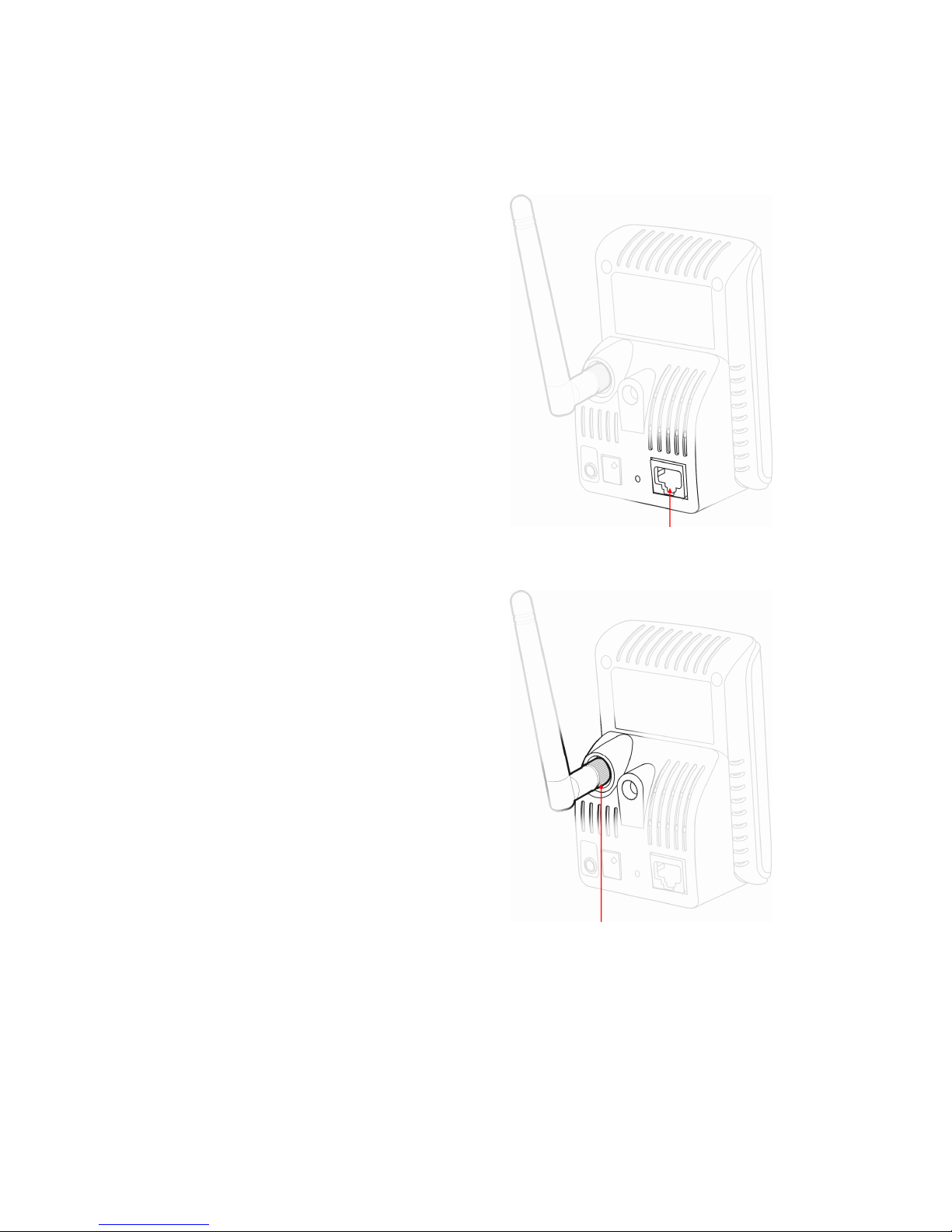
Use the provided Ethernet cable to
connect the camera to your local
area network (LAN).
When you connect the AC power
adapter, the camera is powered on
automatically. You can verify the
power status from the Power LED
on the front panel of the camera.
Once connected, the Link LED
starts flashing green light and the
camera is on standby and ready
for use now.
If you use a wireless network in
your application environment, you
need to attach the included
external antenna to the camera.
When the camera is powered on,
the camera will automatically
search any access point with
“default” SSID.
NOTEIf the camera cannot connect to your wireless network,
you need to install the camera in LAN and proceed with
WLAN settings.
Connecting the Ethernet Cable
Connecting the External Antenna
Altri manuali per ENVCWI-G1 -
2
Indice
Altri manuali Encore Telecamera IP

Encore
Encore ENVCWI-PTG1 - QUICK Manuale utente

Encore
Encore M-JPEG Guida di sicurezza

Encore
Encore ENVCWI-PTG1 - QUICK Manuale utente

Encore
Encore ENVCWI-G1 - Manuale utente

Encore
Encore ENVCWI-G2 Guida all'installazione

Encore
Encore ENVCWI-G2 Manuale utente

Encore
Encore ENVCWI-G1 - Manuale utente

Encore
Encore ENVCWI-PTG1 - QUICK Manuale utente

Encore
Encore ENVCWI-PTG1 - QUICK Guida di sicurezza


