Fred Fred.Mobility Manuale utente

Datalogic Memor™
FRED NUHQ MOBILITY
August 2013
USER MANUAL

Contact Fred IT Group Head Office — 03 9418 1800
Website — www.fred.com.au
Fred Help Centre — https://help.fred.com.au
Copyright Notice COPYRIGHT © 2012 FRED IT GROUP PTY LTD PRINTED IN AUSTRALIA. NO PART OF THIS PUBLICATION MAY BE REPRODUCED OR
UTILISED IN ANY FORM OR BY ANY MEANS, ELECTRONIC OR MECHANICAL, INCLUDING PHOTOCOPYING, RECORDING, OR BY
INFORMATION STORAGE AND RETRIEVAL SYSTEM, WITHOUT THE PRIOR WRITTEN PERMISSION OF FRED IT GROUP PTY LTD
Trademark Notices Fred Pharmacy, Fred Retail, and Fred Services are registered trademarks of Fred IT Group PTY LTD:
The following logos and products are trademarks of Fred IT Group PTY LTD:
Fred Dispense, Fred Pak, Fred Connect, Fred POS, Fred NUHQ, Fred NUHQ, Fred Satscan, Fred Help, Fred Backup, Fred Server, Fred Shop,
Fred Net, Fred Phone, Fred EFTPOS.
Other Trademarks Microsoft, Microsoft .NET Framework, Microsoft Internet Information Services (IIS), Windows, Windows Vista, Windows 7, Windows Server
2003, and Windows XP are either registered trademarks or trademarks of Microsoft Corporation in the United States and/or other countries.
Dual Core, Quad Core Xeon, Core 2 Duo and Pentium 4 are trademarks of Intel Corporation in the United States and/or other countries.
Version: 0.01
Modified: 7 October 2013

CONTENTS
i
Contents
NUHQ MOBILITY HANDHELD SCANNER 1
Main features .......................................................................................................................... 1
Logging into Fred Mobility....................................................................................................1
Scanning items.....................................................................................................................2
Using the Stylus ...................................................................................................................2
Fred Mobility Main Options ..................................................................................................3
Numeric keypad function keys.............................................................................................4
ORDERING 5
Working with orders............................................................................................................... 5
Creating New Orders ...........................................................................................................5
Editing Existing Orders.........................................................................................................7
Receiving an order...............................................................................................................8
GENERAL OPTIONS 11
Search and Lookup.............................................................................................................. 11
General options configuration ............................................................................................ 12
Scan....................................................................................................................................... 13
Changing Item Cost ...........................................................................................................13
Changing Retail Prices.......................................................................................................13
Creating Alias.....................................................................................................................14
Updating Quantity on Hand................................................................................................15
Updating Committed Quantities.........................................................................................16
Updating Quantity Available...............................................................................................17
Setting Restock and Reorder Points..................................................................................17
Printing Labels....................................................................................................................18

CONTENTS
ii
STOCKTAKING 20
Stocktake Options................................................................................................................ 20
Using Rolling Stocktake .....................................................................................................20
Performing a Batch Stocktake............................................................................................21
TROUBLESHOOTING FRED MOBILITY 23
Device Troubleshooting....................................................................................................... 23
STEP 1: Reset Fred Mobility..............................................................................................23
STEP 2: Check the wireless network connection..............................................................23
STEP 3: Restart the NU Mobile Service ............................................................................24
STEP 4: Check Fred Mobility Connection..........................................................................24
Items Not Scanning.............................................................................................................. 25
Item does not have a barcode to scan.......................................................................................25
Item is listed in an invoice to be received but now has new Alias/Barcode ...............................25
No existing item stockcard in NUHQ..........................................................................................25
Wrong item has been delivered in the order ..............................................................................25
Item was not found.....................................................................................................................25
Letters typing instead of numbers..............................................................................................26
UPDATING FRED MOBILITY 27
Updating Fred Mobility......................................................................................................... 27

CONTENTS
1
SECTION 1
NUHQ MOBILITY
HANDHELD SCANNER
NUHQ Mobility Overview
Fred Mobility is a wireless laser terminal that communicates directly with your computer from wherever you
are. Any tasks that you perform at the shelf face go directly into your point of sale system — fast and
accurately, every time.
NUHQ Mobility allows existing stores to purchase and use Mobility devices with NUHQ as a back office
application.
MAIN FEATURES
Logging into Fred Mobility
To log into Fred Mobility:
1. Press [F2] to open Fred Mobility.
The Login menu is displayed.
2. Select your user name from the User Name
drop-down.
The user name selected on the device is
added to history records to allow actions to
be easily audited.
3. Enter your password.
Fred Mobility accepts blank passwords if the
cashier has been set up without a password
in Store Operations or Fred POS. If the
NOTE: There is no default user for
NUHQ Mobilit
y
.
TIP: To exclude users from this list, go
to the Store Operation Manager
menu, and select Cashiers. Prefix user
names to be excluded with “zz”.

MAIN FEATURES
2
password is incorrect or missing, Fred
Mobility displays an error message.
Logging out of Fred Mobility
The easiest way to logout of Fred Mobility is by
using the [E
SC
]key on the device or tapping the
[Back] button from any screen you are in until
you return to the Fred Mobility main screen.
To logout of your Fred Mobility device:
1. Navigate to Fred Mobility main options
screen, and then tap [Logout].
Fred Mobility displays a confirmation
message.
4. Tap [OK] to confirm logout.
5. Return your Fred Mobility device to the
charger.
Scanning items
The Fred Mobility device captures a picture of
the entire bar code.
To scan items using the handheld scanner:
1. Point the Fred Mobility device to the barcode
of the product approximately 10cm from the
barcode.
2. Point the red laser on the barcode and then
press + hold the Fred Mobility button.
3. Once you hear a beep, release the
button.
Using the Stylus
The stylus selects items and enters information.
The stylus functions like a mouse.
Tap Function
Tap
Touch the screen once with the stylus to
open items and select.
Double Tap
Touch the screen twice with the stylus to
open items and select options.
Drag
Hold the stylus on the screen and drag
across the screen to select text and
images. Drag in a list to select multiple
items.
Tap-and-hold
Tap and hold the stylus on an item to
see a list of actions available for that
item. On the pop-up menu that appears,
tap the action you want to perform.
TABLE 1: STYLUS FUNCTIONS
NOTE: After a short period of
inactivity (usually 5 mins), the screen
locks and returns to the login screen.

CONTENTS
3
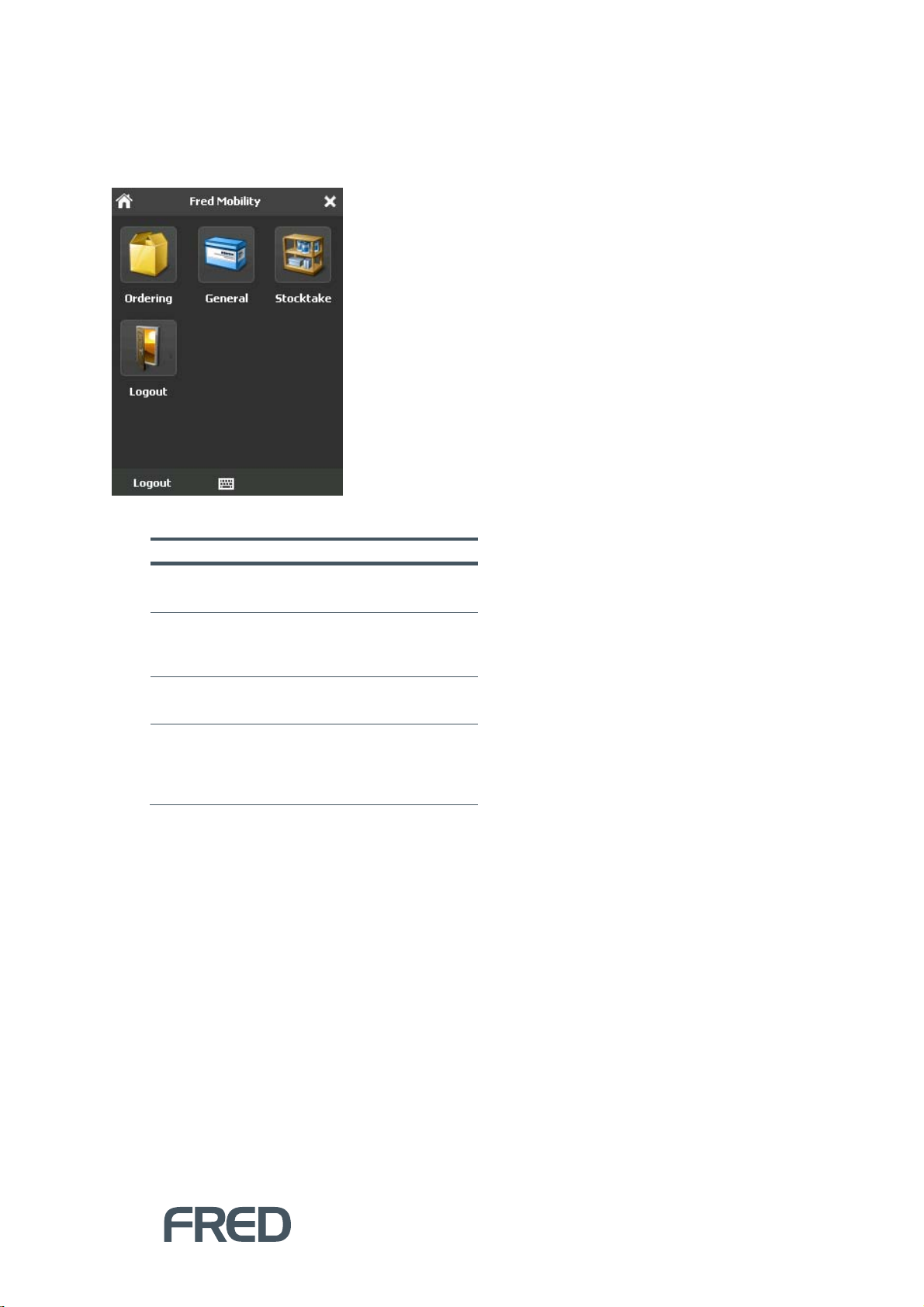
Fred Mobility Main Options
Once you log into Fred Mobility using your Store Operations or Fred POS username and password, the
Main Options screen appears.
FIGURE 1: FRED MOBILITY OPTIONS ON THE MAIN SCREEN
OPTION DESCRIPTION PAGE
Ordering Allows you to create, edit and
receive orders. 5
General Allows you to configure various
stock card options, update item
information and print labels.
11
Stocktake Allows you to perform Rolling
Stocktakes or Batch Stocktakes. 20
Logout Logs the current user out of
Fred Mobility. Once you have
logged out return the device to
the charger.
2
TABLE 2: FRED MOBILITY OPTIONS QUICK REFERENCE TABLE

MAIN FEATURES
4
B
C
D
E
F
H
G
Numeric keypad function keys
The section below outlines the most important function keys to become familiar with in order to effectively
use your new Fred Mobility Device. The keypad is located on the front of the device below the screen. The
numeric keypad appears as shown below including a list of functions of main keys.
FIGURE 2: NUMBERIC KEYPAD
Label Button(s) Function
A.
Log out of the current screen;
Turn device on or turn device off.
B.
Move forwards, backwards, upwards or downwards, scroll through a
Menu list, browse among folder files or select functions if pressed
down.
C.
Scan barcode data capture.
D. Decimal point key
Add a decimal point when entering values. Use also as a full stop
when entering comments and text.
E. [ENTER]
Confirm an action.
F.
Alternate numeric and alphanumeric use of the 10 numeric keys.
G.
Yellow modifier: Press before a standard key to enable the character
or function printed in yellow above the key.
H. [BKSP]
Delete a single character entered.
TABLE 3: MAIN NUMERIC KEYPAD FUNCTION KEYS ON THE FRED MOBILITY DEVICE
NUMERIC KEYPAD

ORDERING
5
SECTION 2
ORDERING
WORKING WITH ORDERS
Ordering allows you to receive orders, create new orders, and edit existing orders that are still open. You
can also check and update the stock on hand before ordering items.
Creating New Orders
To create new orders:
1. Login to Fred Mobility using your Fred POS
username and password.
The Fred Mobility main screen appears.
2. Tap [Ordering].
The Orders screen appears.
3. Tap [New].
4. In the Search screen, scan the item or enter
a code to search for an item you wish to
order.
If the code scanned or input is not found in
the database, Fred Mobility displays an
Error message.

WORKING WITH ORDERS
6
If the code is found, the Orders screen
displays basic ordering information about
the item.
Before ordering, you can also update the
Quantity on Hand.
5. Tap to open the Quantity on Hand
screen.
6. Enter the New Quantity on Hand and tap
[Update] (or press the [E
NTER
]key on your
Fred Mobility device) to update the Quantity
on Hand and return to the Quantity to
Order screen.
7. Enter the Quantity to Order and press the
[E
NTER
]key on your Fred Mobility device.
A new line is saved your new Order.
8. Repeat the process for all items to be added
to the new Order.
9. Once complete logout of Fred Mobility and
return your device to the charger.
NOTE: The second value in Quantity
on This Order represents the quantity on
order in ALL orders.
NOTE: TheQuantity on Hand has
been updated. If you close the
Quantity on Hand screen without
updating, the value is discarded.
NOTE: If you scan or input a code that is
already on the order, the screen displays
the Quantity on This Order. When you
input a Quantity to Order, the system
overrides the previous Quantity on this
Order. It does not append it to the existing
Questo manuale è adatto per i seguenti modelli
1
Indice
Manuali Lettore di codici a barre popolari di altre marche

POSMicro
POSMicro Datalogic PowerScan D7100 Manuale utente

Marson
Marson MT780 Guida rapida alla configurazione

NCR
NCR RealPOS Manuale utente

Motorola
Motorola SE3300 Guida rapida alla configurazione

Element
Element P130BT Manuale utente

Motorola
Motorola Symbol LS3008 Manuale di installazione e funzionamento