
GoRave AR5 Manuale utente

AR5 AUDIO RECEIVER
GoRave Receiver & Amplier
Owner’s Manual
Installation and Operation
Version 1.2 / 12-12-2013
TM
GORAVE AR
AUDIO RECEIVER & AMPLIFIER
Owner’s Installation and Operation Manual
V1.2 / 12-12-2013
TM
1. Getting Started
1.1 Thank You
Thank you for the purchase of your GoRave AR5 audio receiver & amplier. The GoRave AR distributes audio
from mobile and wired devices to loudspeakers installed in your space. Use it with GoRave Audio Senders to
cast audio into your space and swap between your devices and content sources.
This manual provides basic installation and operating instructions. The manual will help you experience the
performance your system was designed to produce.
1.2 Safety Precautions
FOR YOUR SAFETY:
► Carefully read this manual before connecting or operating your GoRave AR receiver/amplier. Keep this
manual for later reference.
► Allow for ventilation around your GoRave AR module for heat dissipation. Keep the GoRave AR away
from appliances that produce heat.
► Connect the GoRave AR to the power outlet with the supplied power supply cable. Follow all local elec-
trical codes for power connection.
► Stop using the GoRave AR and have it inspected and/or serviced by qualied service personnel if:
● The power supply cord or plug has been damaged.
● Objects have fallen into or liquid has been spilled into the unit.
● The unit has been dropped or damaged in any way.
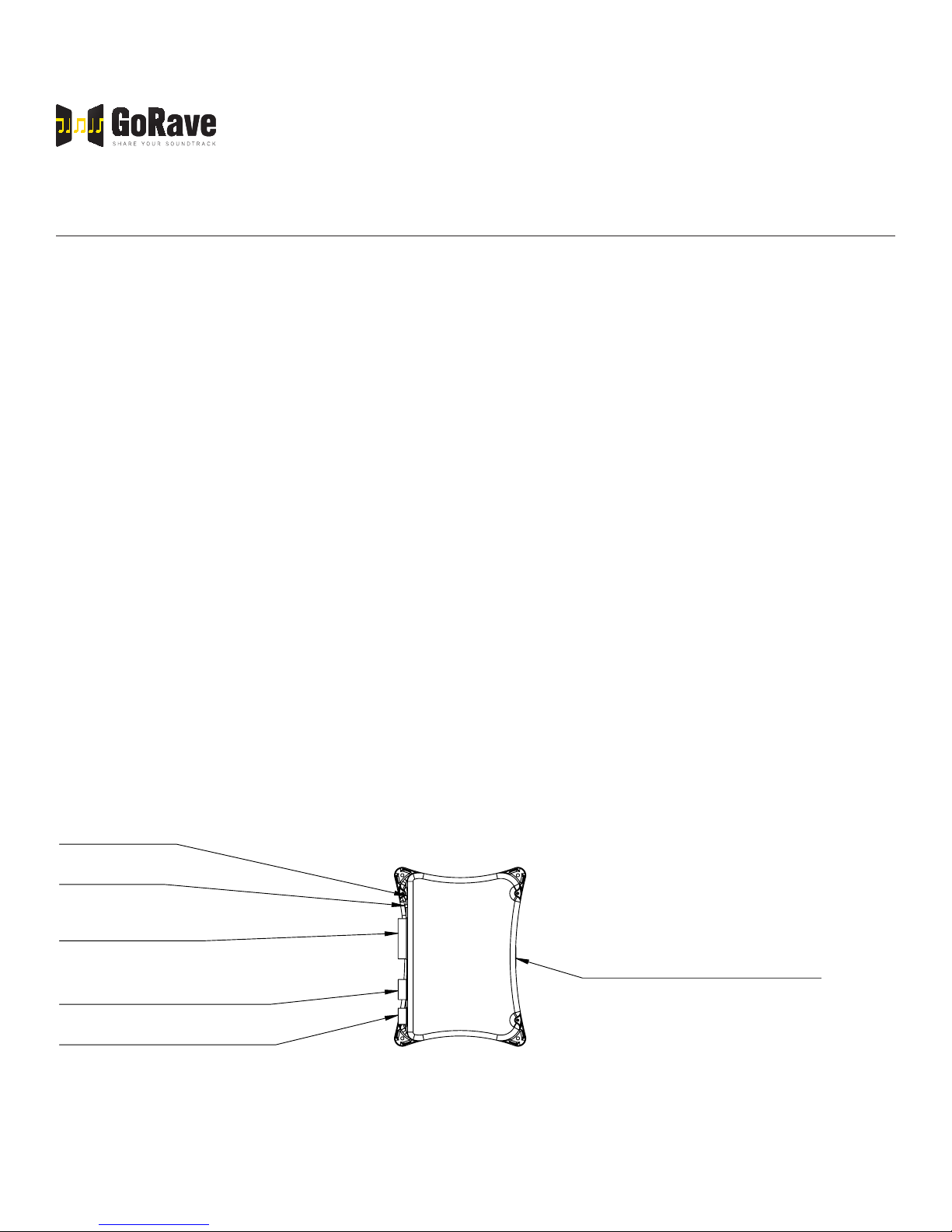
1.3 Where to Install
Speaker outputs
Serial port
Main Power: 90 - 270VAC
White: Neutral
Black: Line
1 meter molded NEMA-15 power plug
Auxiliary audio input (wired)
Pairing button
LED indicator
TOP
Fig 1: top view of a GoRave AR receiver/amplier.

GORAVE AR
AUDIO RECEIVER & AMPLIFIER
Owner’s Installation and Operation Manual
V1.2 / 12-12-2013
TM
The wireless GoRave Audio Senders offer a trans-
mitting range of 40 feet for the USB style and 30
feet for all other styles. Install your GoRave AR5
receiver amplier inside this transmitting radius.
Include the distance needed to transmit from out-
side spaces when deciding on the best location
for your AR5 receiver amplier.
Mount your GoRave AR receiver/amplier with
adequate space around the unit for all audio and
power connections as well as easy access the
receive/pair button and LED status indicator. Use
four screws (and anchors) to secure the unit to
the surface.
2. Power and Control
2.1 AC Power Connection
The GoRave AR receiver/amplier should be
plugged directly into a grounded power receptacle
rated to deliver the power required by the GoRave
AR unit and the components connected to it.
Connect the power cord to the AC outlet. If local
electrical codes require a hard wire connection instead of the AC power plug and socket connection, consult a
qualied electrician for installation assistance.
The GoRave AR receiver/amplier will operate with a line voltage of 90-270 VAC with a line frequency of either
50Hz or 60Hz. There is no need to convert or adjust the unit in any way.
NOTE: If you are going to be away from home for an extended period of time such as a month-long vacation, it
is a sensible precaution to unplug your amplier (as well as other audio and video components) while you are
away.
2.2 Power Indicator
The LED indicator beside the send/receive pairing button will pulse when the power cord is plugged in to an AC
outlet, indicating that the amplier is turned on. The GoRave AR5 has a built in low power sleep mode where
the power supply and ampliers will turn off when audio is not playing.
Fig 2: typical installation in central closet or pantry to maximize useful
35’ transmitter range (range indicated by dashed circle). In this exam-
ple, the owners have opted for stereo loudspeakers to be installed in
their kitchen, master bedroom and one outdoor speaker for the patio.
MASTER BEDROOM
DINING ROOM
LIVING
ROOM
GARAGE
BEDROOM
Centrally installed
GoRave SE

GORAVE AR
AUDIO RECEIVER & AMPLIFIER
Owner’s Installation and Operation Manual
V1.2 / 12-12-2013
TM
2.3 Protection Circuitry
The GoRave AR features a thermal protection circuit that protects the amplier against potential damage in
the event of extreme or faulty operating conditions. The GoRave AR’s protection circuit is independent of the
audio signal and has no impact on sonic performance. The protection circuit monitors the temperature of the
output devices and shuts down the amplier if temperatures exceed safe limits. It is unlikely you will ever see
this protection circuitry in action. However, should a faulty condition arise, the amplier will stop playing and the
LED indicator on the AR5 unit will ash quickly. The amplier will automatically resume normal operation when
a fault condition is removed.
In most cases, the protection activates because of a fault condition such as shorted speaker wires or inad-
equate ventilation leading to an overheating condition. In very rare cases, highly re active or extremely low
impedance speaker loads could cause the protection circuit to engage.
If the protection circuitry triggers repeatedly and you are unable to isolate and correct the faulty condition, con-
tact your GoRave reseller for assistance in troubleshooting.
2.4 CAT6 Control Connection
Along with installing speaker wires, GoRave recommends running a CAT6 cable from your internet / telco /
electrical closet to the GoRave AR installation location. The CAT6 cable will serve for future GoRave internet
remote control, home automation and television options.
3. Inputs and Outputs
The GoRave AR has one wireless and one wired input connection. The wireless connect enables input from
one or more wireless GoRave Audio Senders. The auxiliary wired input enables you to play analog audio from
conventional audio sources such as a CD player.
3.1 Wired Input Connection
Your GoRave AR5 Amplier / Receiver has provision for 1 auxiliary connection from an external audio device.
You can connect your home stereo, cd player, Airport Express, Blackberry Gateway, Xbox etc.
Connect the Auxiliary Audio Input to a GoRave HCRCA2W RCA wall connection plate using 4 conductors of
speaker wire. Use cable as suggested in section 4.2 of this manual. Connect left to the white jack on the wall
plate and right to the red jack.
To connect to your external device use a 3.5mm to RCA cable, supplied or a common stereo RCA cable, not
supplied.
When connected, use the controls on the auxiliary device to control volume and operating functions.

GORAVE AR
AUDIO RECEIVER & AMPLIFIER
Owner’s Installation and Operation Manual
V1.2 / 12-12-2013
TM
3.2 Connecting and playing with wireless Audio Senders
To cast audio from a GoRave Audio Sender that has been paired to a GoRave AR5 Audio Receiver, simply
insert the Audio Sender into a device, play music, watch video while your enjoy the audio through you GoRave
speakers.
Your GoRave AR5 Audio Receiver is exible and adaptable to enhance the way you live today and in the fu-
ture. You can choose to have the your AR5 open to receive audio from any GoRave Audio Sender or you can
choose for your GoRave AR5 to receive audio from specic Audio Sender(s) of your choosing. This process is
called pairing.
A GoRave AR5 can be paired with a maximum often (10) GoRave Audio Senders. To establish new pairing
relationships, the pairing memory can be cleared at any time. Your GoRave App will identify the AR5 Audio
Receivers it can play to.
Fig 3: front view of a GoRave AR receiver/amplier with speaker outputs (left) and wired inputs (right).
speaker
speaker
speaker
speaker
speaker
Mono +
Mono -
Right Front +
Right Front -
Right Rear +
Right Rear -
Left Rear +
Left Rear -
Left Front +
Left Front -
Left (Mono) -
Left (Mono) +
Shield
Right -
Right +
LED indicator
Push button
Serial programming port
Aux analog audio input
(wired interface):

GORAVE AR
AUDIO RECEIVER & AMPLIFIER
Owner’s Installation and Operation Manual
V1.2 / 12-12-2013
TM
3.3 How to clear paired Audio Senders from the GoRave AR5
Push and hold the Pairing Button on the AR5. The LED indicator will ash three times to conrm that you have
cleared the pairing memory. You are now able to establish new pairing relationships or leave the AR5 open to
receive audio from ALL Audio Senders.
3.4 How to pair an Audio Sender to a GoRave AR5 Audio Sender
a) Insert the GoRave Audio Sender into your device.
b) Open the GoRaveapp, tap the top of the screen to name the Audio Sender if it is not already named.
c) Play music on the device.
d) Press the pairing button once on the AR5 receiver toinstruct the AR5 to look for a NEW Audio Sender.( In
the pairing process, your AR5 is looking for ALL NEW Audio Senders and you may encounter hearing mu-
sic that is not from your device. Press the Pairing Button again to instruct the AR5 to look for the next new
Audio Sender. Repeat this until you hear your music from your device.
e) The GoRave app will ask you to name the AR5, tap the screen and type in a suitable name.
f) When you hear the music from your device through the GoRave speakers, press the button once more to
pair. You have 20 seconds to complete this step. The LED will ash 3 times conrming the pairing process
is complete.
g) The GoRave app will identify each AR5 it can connect with as well enable control the volume on each AR5.
3.5 Connecting the wireless USB Audio Sender on a MacOS computer
a) Insert the USB Audio Sender into the Mac’s USB port.
b) Click the Apple in the top left corner of the screen and choose “System Preferences”.
c) Click on “Sound”.
d) In the Sound settings screen, click the “Output” tab.
e) Select “SKAA Transmitter” from the list of audio output devices. This setting enables the computer to auto-
matically transmit from the USB Audio Sender when it is inserted in the device.
f) Adjust the volume to desired level.
g) Play an audio le on your Mac and follow the pairing process to add this USB Audio Sender to the GoRave
AR’s list of recognized transmitters.
Fig 4: front view of Go-
Rave AR enclosure show-
ing Receive/Send button,
LED indicator (highlighted
by yellow circle on right)
as well as wired speaker
outputs and analog audio
input.

GORAVE AR
AUDIO RECEIVER & AMPLIFIER
Owner’s Installation and Operation Manual
V1.2 / 12-12-2013
TM
h) Press and hold the Receive/Pair button on the GoRave AR for 10 seconds to pair the Audio Sender.
i) The LED indicator will turn solid green to show success and the GoRave AR will play the audio from your
Mac computer.
3.6 Connecting the wireless USB Audio Sender on a Windows computer
a) Insert the USB Audio Sender into the Windows device. It will automatically install the required drivers and
enable wireless audio transmission.
b) Adjust the volume on the device to desired level.
c) Press the Receive/Pair button on the GoRave AR for one second to pair the Audio Sender.
d) LED turns solid green in few seconds to show success.
3.7 LED status indicator states
LED Status: AR5 State: LED Pattern:
On Receiving & playing audio
Off No power
Fast Pulse Looking for a new sender
Slow Pulse Looking for a paired sender
3 fast blinks OK, conrmed x3
10 fast blinks Error executing request x10
Phone or
other device
transmitting
audio
GoRave AR
wireless
receiver/amplifier
AC power
connection Two stereo pairs of ceiling installed loudspeakers
Mono wall mounted
outdoor loudspeaker
Volume control
for outdoor
L
R
L
R
Fig 5: generic wiring diagram showing a mobile computing device transmitting audio to a GoRave AR wireless receiver amplier via a
GoRave Audio Sender. The amplier then distributes the audio to two stereo speaker pairs and one mono weather-resistant outdoor
speaker.

GORAVE AR
AUDIO RECEIVER & AMPLIFIER
Owner’s Installation and Operation Manual
V1.2 / 12-12-2013
TM
4. Loudspeakers
4.1 Speaker Selection
Combine GoRave loudspeakers with your GoRave AR receiver/amplier. GoRave components are tuned to
work together and deliver the best possible audio experience.
If you are installing other loudspeakers, use a speaker with a nominal impedance of 4 ohms or higher. Driving
multiple speakers in parallel or bridged conguration is not recommended.
4.2 Speaker Wire Selection
Use insulated two-conductor stranded wire to connect your GoRave AR5 to your GoRave loudspeakers. The
size and quality of the wire can have an audible effect on the performance of the system. Based on resistance
(Ohms) per foot on stranded cable, the table below provides a distance guideline to ensure your cable is sized
to deliver the best audio experience. Ensure the cable you select meets local building codes.
Wire Gauge Distance (8 ohm speaker
impedance)
Distance (6 ohm speaker
impedance)
Distance (4 ohm speaker
impedance)
18 AWG 60' / 18.2m 45' / 13.6m 30' / 9.1m
16 AWG 100' / 30.4m 75' / 22.8m 50' / 15.2m
14 AWG 150' / 45.7m 110' / 33.5m 75' / 22.8m
12 AWG 250' / 76.2m 180' / 54.8m 125' / 38.1m
10 AWG 400' / 122m 300' / 91.4m 200' / 61m
4.3 Connecting the Speakers
Review the “Speaker Outputs” diamgram shown in Figure 3. Connect the wire from the speakers to the 10-pin
terminal block that was included with your GoRave AR. Give yourself enough slack so you can move the com-
ponents enough during installation and give easy access to the speaker connectors.
When attaching bare wires directly to the binding posts, separate the rst few inches of the wire conductors
and strip about 1/8” (4mm) of insulation from the end of each conductor. Be careful not to cut into the wire
strands. Twist the strands of each conductor together to avoid fraying. Unscrew (turn counterclockwise) the
binding terminal shaft and insert the bundled wire into the hole in the shaft. Turn the screw clockwise to clamp
the connector wire rmly in place.
NOTE: Be sure there are no loose wire strands that could touch adjacent wires or connectors. Short circuits
caused by loose strands touching will trigger the amplier’s protection circuitry.
4.4 Polarity and Phasing
The polarity (the positive/negative orientation of the connections) for every speaker and amplier connection
must be consistent so all the speakers will be in phase. If the polarity of one connection is mistakenly reversed,
bass output will be very weak and stereo imaging degraded.

GORAVE AR
AUDIO RECEIVER & AMPLIFIER
Owner’s Installation and Operation Manual
V1.2 / 12-12-2013
TM
Identify the positive and negative conductors and be consistent with every speaker and amplier connection.
All wire is marked so you can identify the two conductors. There may be ribs or a stripe on the insulation of one
conductor, the wire may have clear insulation with different color conductors (copper and silver) or there may
be polarity indications printed on the insulation.
5. Troubleshooting
5.1 General Concepts
Most issues in audio systems are result of incorrect connections or improper control settings. If you encounter
problems, isolate the area of difculty, check the control settings, determine the cause of the fault and make
the necessary changes.
Check the following conditions if you are unable to get sound from your GoRave AR.
5.2 No Power
► Is the GoRave Audio Receiver connected to power?
► Is the LED status indicator on GoRave AR lit solid green?
► No main power to the GoRave AR (LED is off). Check AC power connections at the amplier and the
AC outlet.
5.3 No Sound
If the GoRave AR5 is powered on but not producing sound, check that the LED indicator is pulsing.
► If LED indicator is pulsing slowly:
● The AR5 Audio Receiver is seeking a signal from a paired Audio Sender.
● Use The GoRave App to conrm that the Audio Sender you are using is paired.
●Increase the volume on your device.
● Is your device on mute?
● Is your device further than 30 feet (9.1 meters) away?
● Is another device playing with a pair Audio Sender on low volume or mute?
► If LED indicator is pulsing rapidly:
● The GoRave AR5 Amplier / Receiver is looking for a new Audio Sender.
● Select and insert an Audio Sender into a device and play music.
● When you hear your music, push the pairing button to pair the selected Audio Sender.
► Is the device with the Audio Sender turned on?
► Is audio playing on the device?

GORAVE AR
AUDIO RECEIVER & AMPLIFIER
Owner’s Installation and Operation Manual
V1.2 / 12-12-2013
TM
► Is the device on mute?
► Is the volume on the device set too low?
► Do you have more than one Audio Receiver installed in your space?
● Is your audio playing from speakers connected to the other Audio Receiver?
● Does the GoRave app on your device show the Audio Receiver you want to play to?
If not, pair the device.
● The Audio Receiver may be receiving a signal from another Audio Sender at low volume or mute.
Stop audio playback from the other Audio Sender by pressing pause or removing the Audio Sender
from the device.
5.4 Poor Quality Audio Playback
► Crackle or static in the speakers may result from connection problem with Audio Sender. This can hap-
pen if you’re holding your device and pushing/moving the Audio Sender with your ngers.
► Unexpected pauses or drops in playback can result from the Audio Sender being out of range from the
Audio Receiver.
5.5 LED Indicator Is Continuously Flashing (Fast Blink)
The LED indicator will continuously ashing at a fast, high frequency when one of following conditions is de-
tected:
a) The GoRave AR was set to operate beyond its specications. To resolve the issue, try:
• Lowering the volume
• Reseating the wireless Audio Sender
• Turn the power to the GoRave AR off then on.
b) The fault protection circuit has shut off the amplier. This occurs only when there is faulty speaker wiring,
or a problem with overheating. Unplug the system and wait for the amplier to cool. Correct the cause then
reconnect the power. The GoRave AR will reset. If the problem is not corrected or reoccurs, contact your
professional installer.
6. Specications
Continuous Power Output 25 watts per channel
Frequency Response 20 to 20 kHz
Speaker Impedance 4 to 16 ohms
Power Requirements 90-270 VAC 50/60Hz
Power Consumption Maximum 160 watts
Dimensions (WxHxD) 166 x 76 x 226 mm
Weight (net) 1.5 kg
Altri manuali per AR5
1
Indice
Altri manuali GoRave Ricevitore


