
Gyration CYBERVIEW 410B-TAA Manuale utente

Quick Start Guide
CYBERVIEW 410B-TAA
4 MP Outdoor Intelligent Fixed Bullet Camera
Other Language
www.gyration.com
1
Waterproof Requirements
Please waterproof cables in accordance with the following instructions. User shall
assume all responsibility for device damage caused by water due to improper
waterproof measures.
NOTE!
⚫Before you start, connect all the needed cables and cut off the copper wires for
the cables that you don't use.
⚫Please use self-adhesive waterproof tape (supplied with some products) to
protect the cables.
⚫Use waterproof components to protect the network cable. Waterproof the
power cable separately if you don’t use it. The video cable does not need
waterproof treatment.
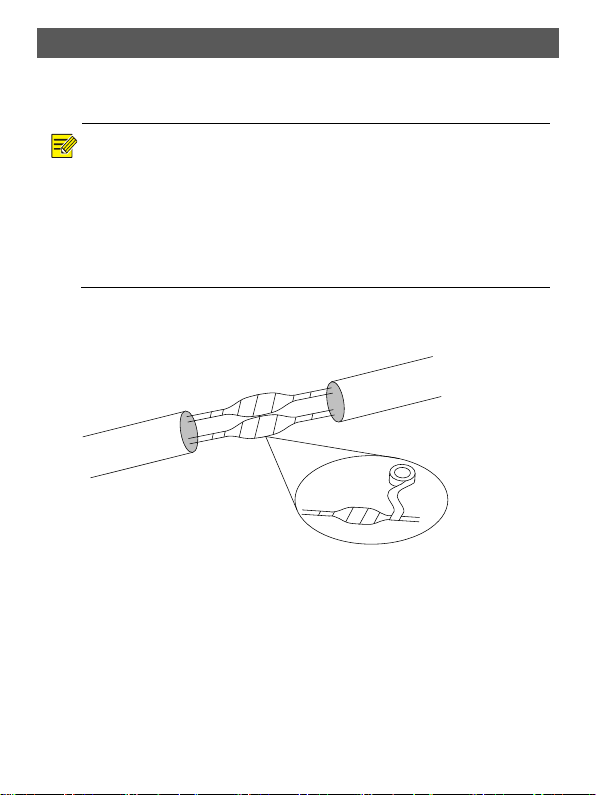
1. Use insulation tape (not included in the package) to insulate the connection part
of each cable.
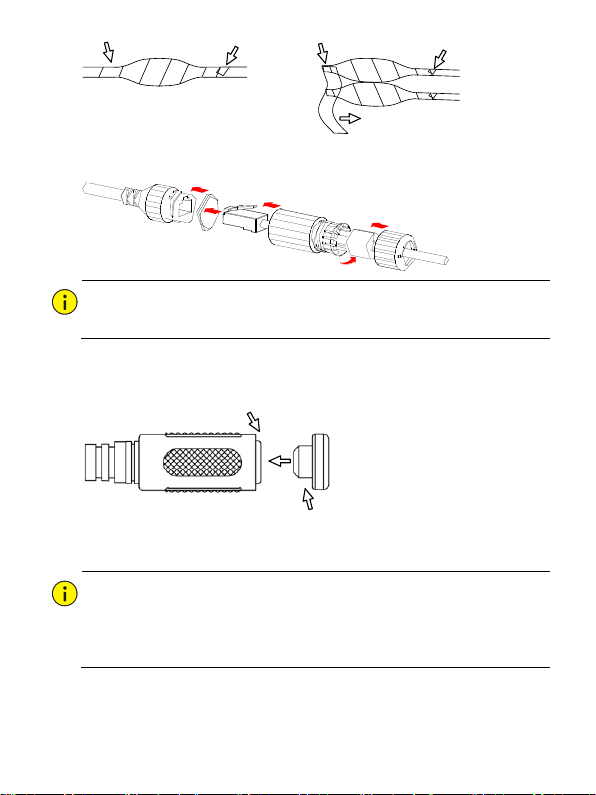
2. Waterproof the cables with self-adhesive waterproof tape.
(1) Fully stretch the waterproof tape at both ends.
(2) Wrap the connection part and the cable ends tightly with waterproof tape.
Make sure the tape is fully stretched during the process.
(3) Tighten the tape at both ends to prevent water leakage.
Connection part
Insulation tape
2
3. Install the supplied waterproof components to the network cable in sequence.
CAUTION!
You need to mount the rubber ring onto the network cable interface first.
4. If your camera has a DC cable and you will not use it, insert the plug into the
interface.
5. (Optional) After the waterproof treatment is completed, put the cables into a
waterproof junction box (purchased separately).
CAUTION!
⚫The cable connector must not be exposed and must be kept away from water.
⚫Restore and fasten the device after dismounting.
⚫Place the power adapter in a power distribution box.
Wrap the unused cables together into a bundle
Tighten Tighten
Waterproof tape
Tighten
DC interface
Plug

3
1Packing List
Contact your local dealer if the package is damaged or incomplete. The attachments
may vary with models, please see the actual model for details.
No.
Name
Qty
Unit
1
Camera
1
PCS
2*
Waterproof components(1)
1
Set
3*
Screw components(2)
1
Set
4*
Mount accessory (3)
1
Set
5
User manual
1
Set
Remarks:
* means optional and supplied with certain models only.
(1)Including one or more waterproof components such as tape and plug.
(2)Including one or more accessories such as screws and hex key.
(3)Including one or more items from drilling template, bracket adapter, anti-static
gloves, etc.
2Safety Instructions
Installation and removal of the unit and its accessories must be carried out by
qualified personnel. You must read all of the safety instructions before installation
and operation.
2.1 Precautions
⚫Use a power adapter or a PoE device that meets requirements. Otherwise, the
device may be damaged.
⚫Make sure the length of the power cable between the power adapter and the
camera is not too long, otherwise the voltage of the camera is lowered, causing
the camera to work abnormally. If it is required to lengthen the power cable,
lengthen the cable between the power adapter and the mains.
⚫Do not overbend the cables during the installation, otherwise, poor cable contact
may cause malfunction.
⚫When connecting to an external interface, use an existing connection terminal,
and ensure that the cable terminal (latch or clamp) is in good condition and

4
properly fastened. Ensure that the cable is not tense during mounting, with a
proper margin reserved to avoid poor port contact or loosening caused by shock
or shake.
⚫During transportation, special attention is required to protect the transparent
dome cover from friction, scratch and stain, etc. Do not remove the protective
film from the cover until mounting is finished. Remove the protective film before
powering on the device.
⚫Contact professionals for maintenance information. Do not attempt to dismantle
the device by yourself. We shall not assume any responsibility for problems
caused by unauthorized repair or maintenance.
2.2 Maintenance
⚫If there is dust on the front glass surface, remove the dust gently using an oil-
free brush or a rubber dust blowing ball.
⚫If there is grease or a dust stain on the front glass surface, clean the glass surface
gently from the center outward using anti-static gloves or an oil-free cloth. If the
grease or the stain still remains, use anti-static gloves or an oil-free cloth dipped
with detergent and clean the glass surface gently until it is clean.
⚫Do not use organic solvents (such as benzene and alcohol) to clean the
transparent dome cover.
3Appearance
The appearance and tail cable may vary with device model.
Type A
Type B
IP Network
Power interface
Network
interface

5
Type C
4Mount Your Camera
4.1 (Optional) Insert the Micro SD Card
For cameras that support Micro SD, you need to insert the Micro SD card after
opening the bottom cover of camera. Do not hot plug the Micro SD card after it is
inserted. Otherwise the camera or the SD card might be damaged.
For recommended SD card specifications, please contact your dealer or technical
support.
4.2 Wall Mount
You can adopt wall mount or pendant mount and purchase hardware accessories
Network interface
Power interface
DC12V IN
Network interface
Power interface
DC12V IN
Micro SD card slot

6
separately. The following part takes wall mount as an example. Pendant mount is
similar to wall mount and therefore is omitted here.
1. Locate the positions of the holes.
(1) Paste installation positioning sticker on the wall and align the cross center
to the hole in the wall.
(2) Lead the cables across the hole on the wall.
2. Drill holes on the wall.
(1) Use a Ø6-6.5mm drill bit.
(2) Drill 30 mm-depth guide holes according to the positions marked by sticker.
3. Mount the plastic rivets of self-tapping screws.
Knock the plastic rivets into the guide holes and ensure that they are tightened up.

7
4. Screw the locknut to loosen the universal joint before attaching your camera to
the wall.
5. Mount your camera onto the wall and connect all cables.
Lead tapping screws through the guide holes in the base and fix them on the wall by
using a screwdriver.
Locknut

8
6. Adjust the monitoring direction.
(1) Adjust the opening of the universal joints as required.
(2) Rotate the spherical hinge of the camera to get the desired monitoring
direction.
(3) Tighten the locknut.
NOTE!
The preceding installation process is for concealed installation, during which holes
are punched on the wall and cables are penetrated into the wall. If open installation
is adopted, cables are not penetrated into the wall but threaded out from the outlet
on one side of the base.
5Startup
After you have installed the device, connect one end of the power adapter
(purchased separately) to power supply, and then connect the other end to the
power interface to start up the device.
6Access Your Camera
1. Open your Web browser, enter the camera's IP address in the address bar, and
then press Enter. The default IP is 192.168.1.13.
2
3
1

9
1. In the login page, enter the default username and password (admin/123456),
then click Login.
NOTE!
⚫DHCP is enabled by default. If a DHCP server is used in your network, your
camera may be assigned an IP address, and you need to use the assigned IP
address to log in.
⚫You may need to install a plug-in at your first login. Please follow the on-screen
instructions to complete the installation and then open the browser again to
log in.
⚫The default password is intended only for your first login. To ensure security,
please change the password after your first login. You are strongly
recommended to set a strong password of at least nine characters including all
three elements: digits, letters and special characters.
⚫If the password has been changed, please use the new password to log in.
Indice
Altri manuali Gyration Telecamera di sicurezza

Gyration
Gyration CYBERVIEW 410T-TAA Manuale utente

Gyration
Gyration CYBERVIEW 411D-TAA Manuale utente

Gyration
Gyration Cyberview2000 Manuale utente

Gyration
Gyration CYBERVIEW 200B Manuale utente

Gyration
Gyration CYBERVIEW 411T-TAA Manuale utente

Gyration
Gyration Cyberview3010 Manuale utente

Gyration
Gyration CYBERVIEW 410D-TAA Manuale utente

Gyration
Gyration CYBERVIEW 411B-TAA Manuale utente

Gyration
Gyration Cyberview2010 Manuale utente


