
HID TECHNICAL SOLUTIONS 1126 Manuale utente
USER GUIDE:
1126 DESKTOP UHF
RFID READER WITH USB
www.tsl.com
Design • Development • Manufacture
TECHNOLOGY
SOLUTIONSUK LTD

1126 Desktop UHF Reader User Guide V1.31Copyright © 2021 Technology Solutions (UK) Ltd 2
TERMS & CONDITIONS
Copyright © 2021 Technology Solutions (UK) Ltd. All rights reserved.
No part of this publication may be reproduced or used in any form, or by any electrical or mechanical means,
without permission in writing from Technology Solutions (UK) Ltd. This includes electronic or mechanical means,
such as photocopying, recording, or information storage and retrieval systems. The material in this manual is
subject to change without notice.
Technology Solutions (UK) Ltd (TSL) reserves the right to make changes to any product to improve reliability,
function, or design. TSL does not assume any product liability arising out of, or in connection with, the application
or use of any product, circuit, or application described herein. No license is granted, either expressly or by
implication, estoppel, or otherwise under any patent right or patent, covering or relating to any combination,
system, apparatus, machine, material, method, or process in which TSL products might be used. An implied
license exists only for equipment, circuits, and subsystems contained in TSL products. TSL and the TSL logo are
registered trademarks of TSL. Other product names mentioned in this manual may be trademarks or registered
trademarks of their respective companies and are hereby acknowledged.
All software is provided strictly on an “as is” basis. All software, including firmware, furnished to the user is on
a licensed basis. TSL grants to the user a non-transferable and non-exclusive license to use each software or
firmware program delivered hereunder (licensed program). Except as noted below, such license may not be
assigned, sublicensed, or otherwise transferred by the user without prior written consent of TSL. No right to
copy a licensed program in whole or in part is granted, except as permitted under copyright law. The user shall
not modify, merge, or incorporate any form or portion of a licensed program with other program material, create
a derivative work from a licensed program, or use a licensed program in a network without written permission
from TSL. The user agrees to maintain TSL’s copyright notice on the licensed programs delivered hereunder, and
to include the same on any authorized copies it makes, in whole or in part. The user agrees not to decompile,
disassemble, decode, or reverse engineer any licensed program delivered to the user or any portion thereof.
TSL reserves the right to make changes to any software or product to improve reliability, function, or design.
TSL does not assume any product liability arising out of, or in connection with, the application or use of any
product, circuit, or application described herein.
www.tsl.com

1126 Desktop UHF Reader User Guide V1.31Copyright © 2021 Technology Solutions (UK) Ltd 3
History
Version Date Modifications
1.0 17/09/2010 Document creation
1.1 05/04/2011 Update to Inventory screen with addition of Save button.
1.2 18/09/2012 Photographs updated
Update demonstration and com port notes
1.3 01/10/2013 Added notes on ASCII 2.x protocol
CONTENT
Introduction 4
Parts of the 1126 UHF Reader 5
Antenna location and tag reading orientation 6
Installing the software 8
Driver installation 8
Demonstration software installation 8
Software Development 9
ASCII Protocol 2.x 9
UHF RFID SDK 9
Troubleshooting 10
Reader is slow to respond 10
USB serial port number too high 10
Technical specifications 11
Summary of specifications 11
Waste Electrical and Electronic Equipment (WEEE) 12
Warranty 12
About TSL 14
About 14
Contact 14
www.tsl.com

1126 Desktop UHF Reader User Guide V1.31Copyright © 2021 Technology Solutions (UK) Ltd 4
INTRODUCTION
Technology Solutions’ 1126 Desktop UHF Reader connects to a host computer over USB to provide the capability
of reading and writing EPCGlobal Class 1 Generation 2 transponders. All power is provided by the host computer.
www.tsl.com
1126 Desktop UHF Reader User Guide V1.31Copyright © 2021 Technology Solutions (UK) Ltd 5
PARTS OF THE 1126 UHF READER
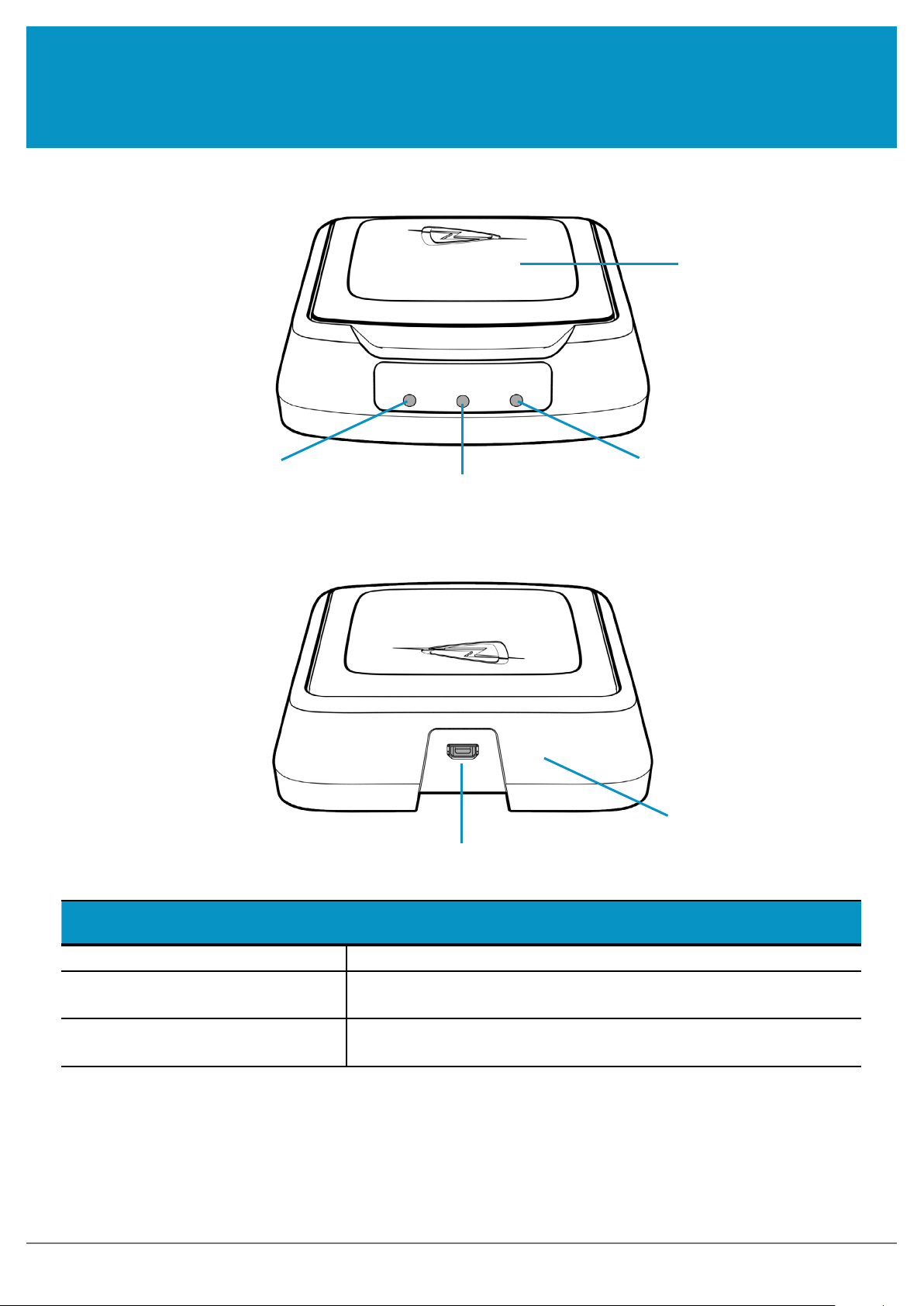
Power LED Tag read LED
Antenna
USB communication
LED
FIGURE 1: Front View
LED functions and colours
Power - Green Lights whilst the reader is powered by the host computer.
Tag read - Orange Flashes when a transponder has been read. May be deactivated under
software control.
USB communication - Red Flashes whilst data is being transferred between the reader and host
computer.
The buzzer is software controlled and can be used to indicate a successful tag read or given some other function.
For best performance the Desktop Reader should be plugged directly into the host computer with the USB cable
supplied. Using USB extension cables, low quality USB cables or unpowered hubs will reduce the power available
to the Desktop Reader and reduce the tag read rate.
FIGURE 2: Rear View
Tag read LED
Buzzer
(underneath reader)
www.tsl.com
1126 Desktop UHF Reader User Guide V1.31Copyright © 2021 Technology Solutions (UK) Ltd 6
ANTENNA LOCATION AND TAG READING ORIENTATION
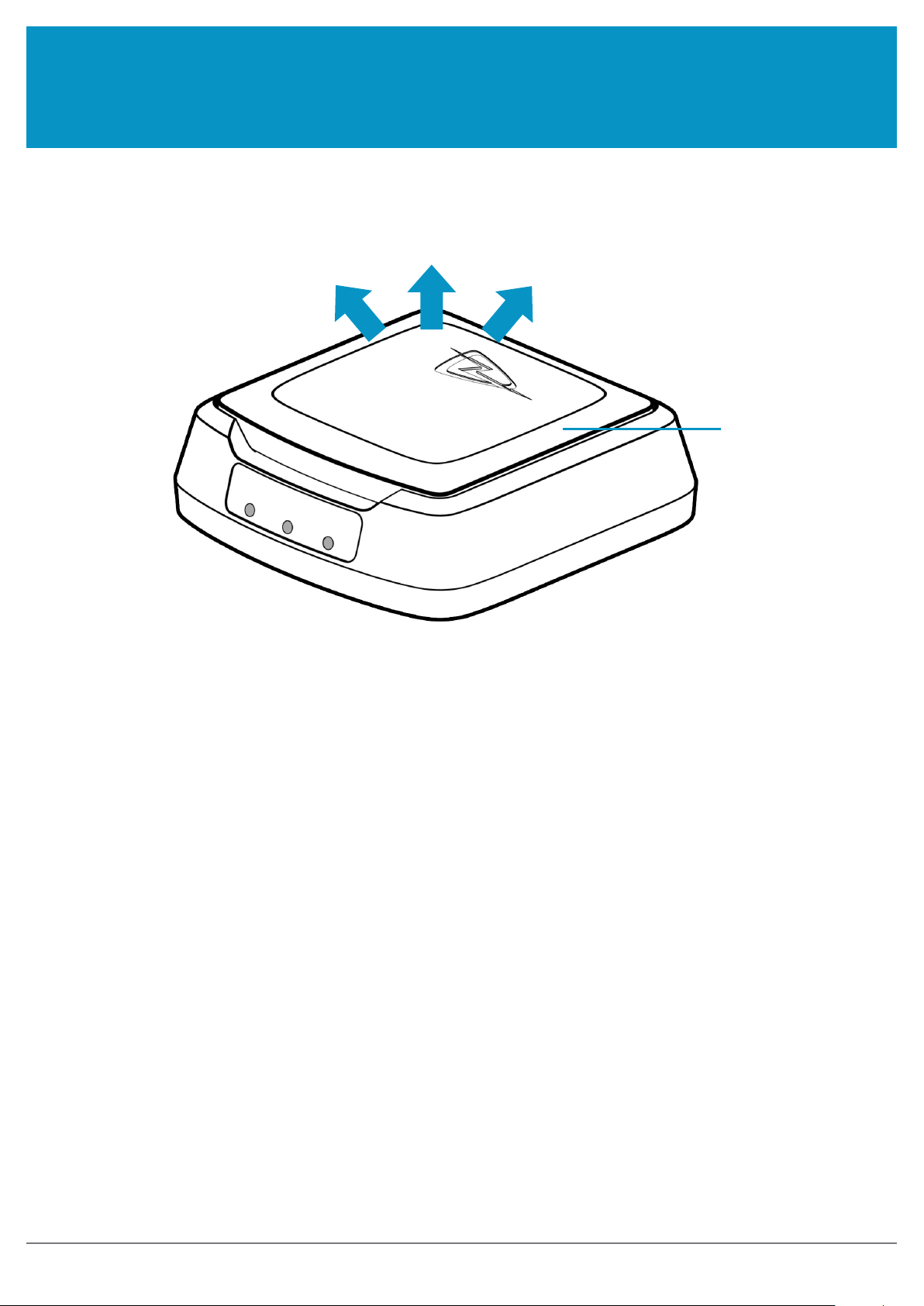
The antenna is located under the cover and reads upwards as shown below:
Tags are read optimally when they lie in a plane parallel to the antenna cover. The antenna is circularly polarised
which means that the tags can lie in any position on the plane. Tags which are aligned vertically will not be read
well. The pictures below illustrate good and bad tag orientations.
Antenna
location
Main read zone
www.tsl.com

1126 Desktop UHF Reader User Guide V1.31Copyright © 2021 Technology Solutions (UK) Ltd 7
CORRECT
CORRECT
INCORRECT
ANTENNA LOCATION AND TAG READING ORIENTATION www.tsl.com
1126 Desktop UHF Reader User Guide V1.31Copyright © 2021 Technology Solutions (UK) Ltd 8
INSTALLING THE SOFTWARE
DRIVER INSTALLATION
Demonstration software is provided for use with Windows XP, Vista and 7. The following instructions assume one
of these operating systems is being used. Drivers are available for other operating systems but no demonstration
software is provided. Contact Technology Solutions Support (suppor[email protected]) for further information.
Plug in the reader to a USB port capable of supplying 500mA. This will usually need to be a port on a computer
rather than a hub, unless the hub is powered.
The reader will be discovered and the driver software should be automatically located and installed (the computer
may need to connect to the internet to obtain the driver.)
The reader will be given a Virtual Com port (VCP) as part of the driver installation. If you have several devices
already connected to your computer (including Bluetooth devices) you may need to use Device Manager to find
out which VCP has been given to the reader.
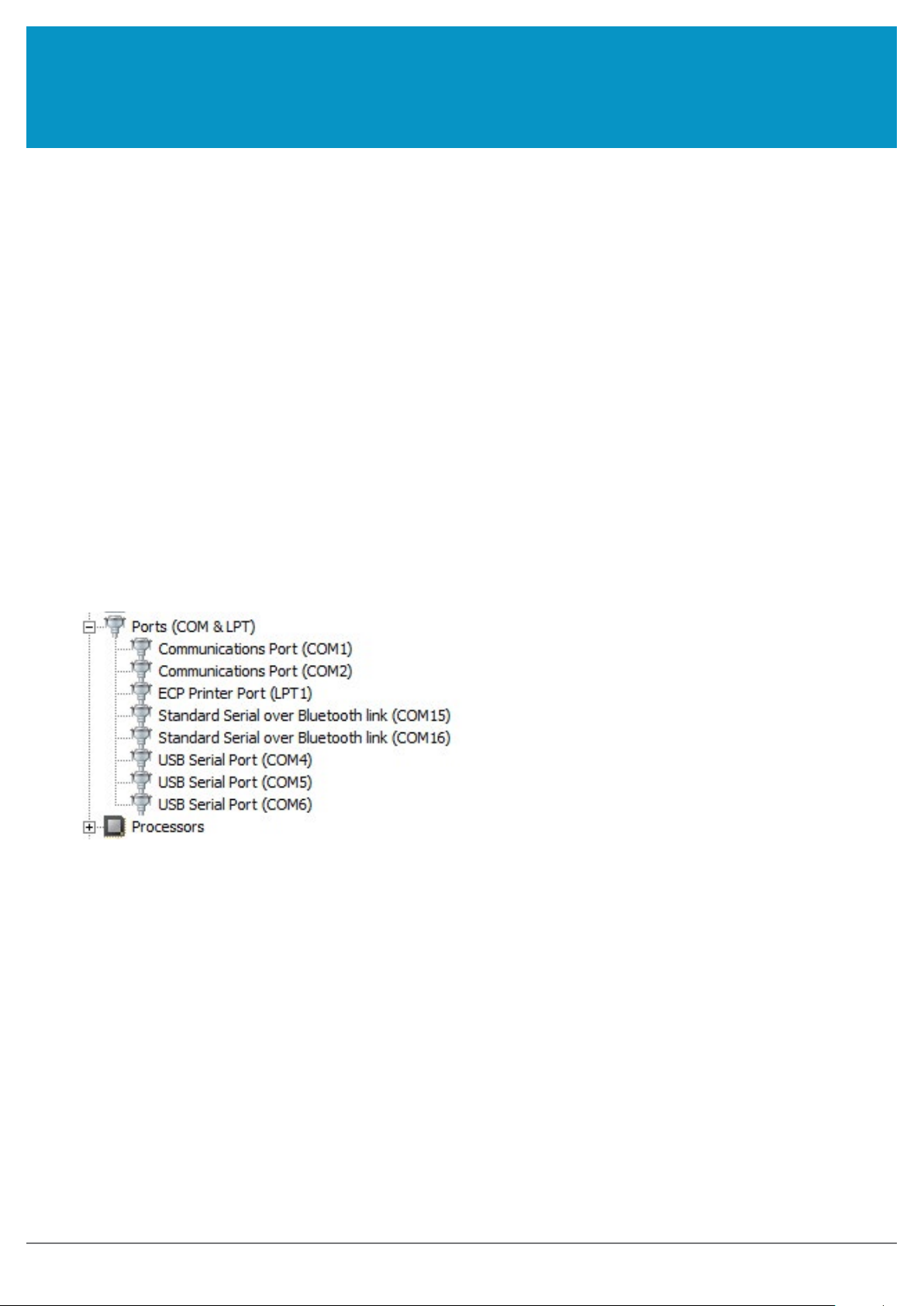
Navigate to Device Manager from ‘Start>Control Panel>Device Manager’ (or one of the many alternative ways).
Expand the section ‘Ports (COM & LPT)’ to see a list of the available ports. This will look similar, but not identical
to the one below:
Unplug the reader and one of the USB Serial Port entries will disappear. Plug it back in and the entry will reappear.
This is the VCP for the Desktop Reader.
To demonstrate the capabilities of the UHF RFID Desktop reader install and use the UHF ASCII Demo FX as
directed on the CD.
DEMONSTRATION SOFTWARE INSTALLATION
www.tsl.com

1126 Desktop UHF Reader User Guide V1.31Copyright © 2021 Technology Solutions (UK) Ltd 9
SOFTWARE DEVELOPMENT
ASCII PROTOCOL 2.X
UHF RFID SDK
The 1126 Desktop UHF Reader supports both Technology Solutions UHF RFID SDK and the Technology Solutions
ASCII 2.x Protocol.
The ASCII Protocol is a powerful yet easy to use way to command the UHF reader from a terminal application
on the desktop. This allows quick experimentation with the ASCII command set, the ASCII Protocol Explorer
application is provided for this purpose.
There is an SDK to develop applications using the ASCII protocol available to download along with sample
applications.
The UHF Desktop reader driver is presented as a USB virtual com port. Open the com port that the reader is
connected to at 115200 baud, 8 data bits, no parity, 1 stop bit with CTS/RTS hardware handshaking.
If required the 1126 Desktop UHF reader also supports the Technology Solutions RFID SDK. This SDK is available
for purchase and is supplied as part of the explorer kit.
INSTALLING THE SOFTWARE www.tsl.com
1126 Desktop UHF Reader User Guide V1.31Copyright © 2021 Technology Solutions (UK) Ltd 10
TROUBLESHOOTING
READER IS SLOW TO RESPOND
If the Desktop Reader pauses for a second or longer before responding to a command sent to it then the USB
connection may be introducing excessive voltage loss. The Desktop Reader pauses to allow an internal power
store to be recharged before doing a transponder read. A voltage drop in the cable used to connect the reader
slows down the recharge. For best performance the USB cable used should be short, good quality and not
connected through an unpowered hub.
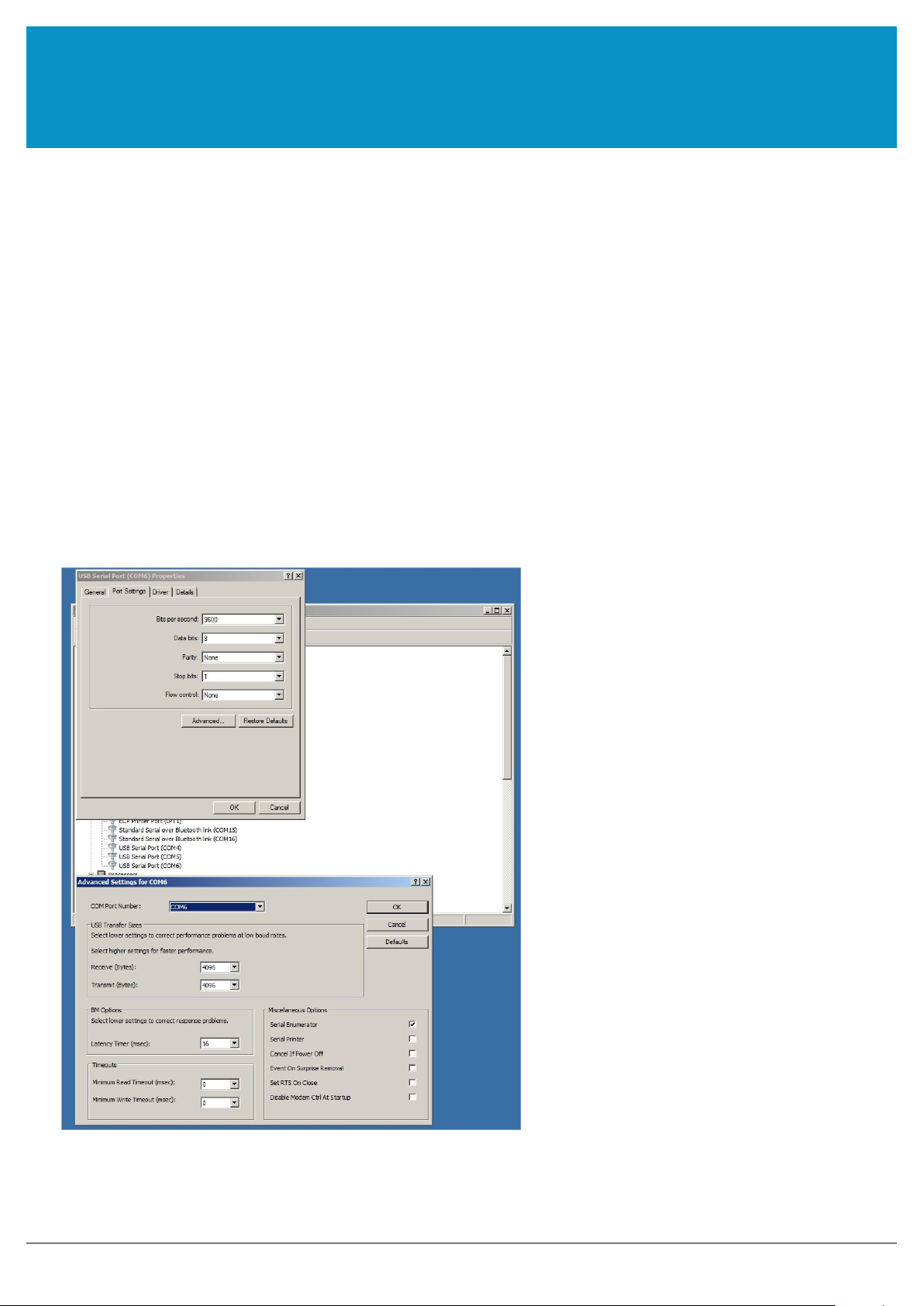
Select a spare COM port number below 16. This may still show as ‘In use’. So long as the device that was using it
has been disconnected it is safe to ignore the warning and click ‘OK’ to complete the change of port.
USB SERIAL PORT NUMBER TOO HIGH
In some cases where there have been a lot of other devices installed on the host computer the UHF reader may
be given a Virtual Com Port (VCP) with a higher number e.g. COM35. Some applications are unable to connect to
com ports greater than 16. To resolve this, navigate to Device Manager from ‘Start>Control Panel>Device Manager’
(or one of the many alternative ways). Expand the section ‘Ports (COM & LPT)’ to see a list of the available ports.
Right click on the Reader port and select ‘Properties’, then the ‘Port Settings’ tab and the ‘Advanced button’ to get
to the screen shown below:
www.tsl.com
Indice
Altri manuali HID Sistema RFID


