HKT A920 Guida di sicurezza

Version 1.0
Smart POS Terminal –A920
Starter Guide
智能 POS 終端機 –A920
入門指南

Version 1.0
Table of Contents 目錄
Table of Contents 目錄..............................................................................................................1
1. Power on & off / Reboot 電源開啟及關閉 /重啟 ............................................................1
2. Transaction 交易................................................................................................................2
2.1) Credit Card Payment 信用卡支付
i. Regular Payment
一般支付
....................................................................................................................3
ii. Tips Payment
小費支付
.........................................................................................................................3
iii. Tips Adjustment
小費調整
....................................................................................................................4
2.2) QR Code Payment 二維碼支付
i.Consumer-present QR code
客戶出示二維碼
......................................................................................5
ii. Merchant-present QR code
商戶出示二維碼
......................................................................................5
2.3) Octopus Card Payment 八達通卡支付
i. Regular Payment
一般支付
....................................................................................................................6
ii. Query Balance on Octopus Card
八達通餘額查詢
............................................................................6
3. Void Transaction 取消交易 ...............................................................................................7
4. Refund (Full / Partial) 退款 (全部/部分).........................................................................8
5. Settlement 結算.................................................................................................................9
6. Consolidated Merchant Portal 整合商戶報表................................................................10
7. Appendix 附錄 .................................................................................................................12
8. FAQ 常見問題..................................................................................................................14
Disclaimer 免責聲明:
1) All information contained in or produced by the HKT Smart POS and HKT Smart POS Consolidated Merchant Portal is for reference only;
HKT 智能POS 及HKT 智能POS 整 合 商 戶 報 表 載列或產生的所有資訊僅供參考之用;
2) HKT makes no warranties, express or implied, or representations as to the accuracy or completeness, and assumes no liability or responsibility for any error
or omission of such information.
HKT 對該等資訊的準確性或完整性作出任何明示或暗示的保證,並不會對該等資訊的任何錯誤或遺漏承擔任何責任。

Version 1.0 1
1. Power on & off / Reboot 電源開啟及關閉 /重啟
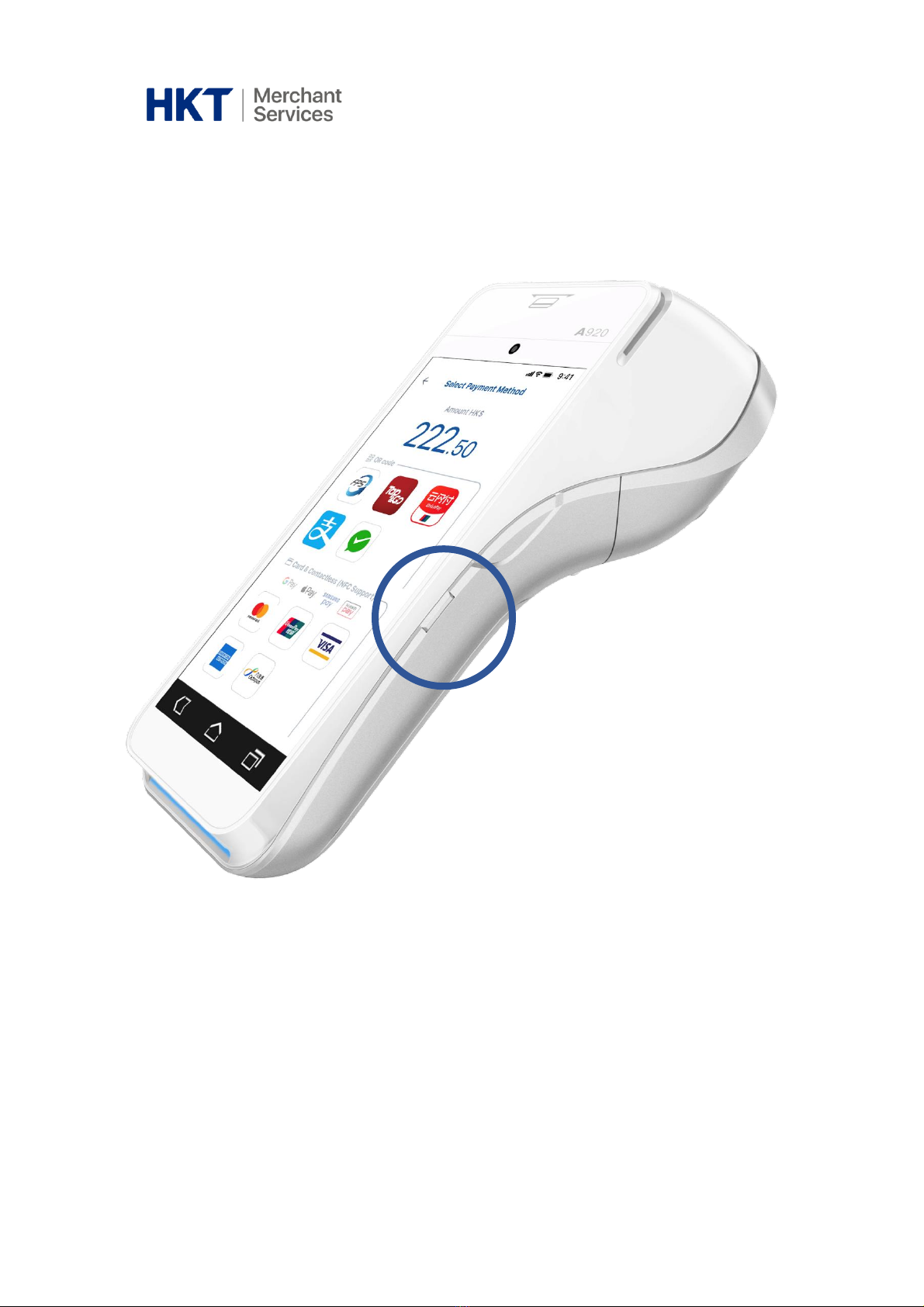
•Power button is on the right side of the Smart POS
•Long press the power button to switch on / shut down / reboot
•電源按鈕在智能 POS 的右側
•長按電源按鈕以開啟/關閉/重啟

Version 1.0 2
2. Transaction 交易
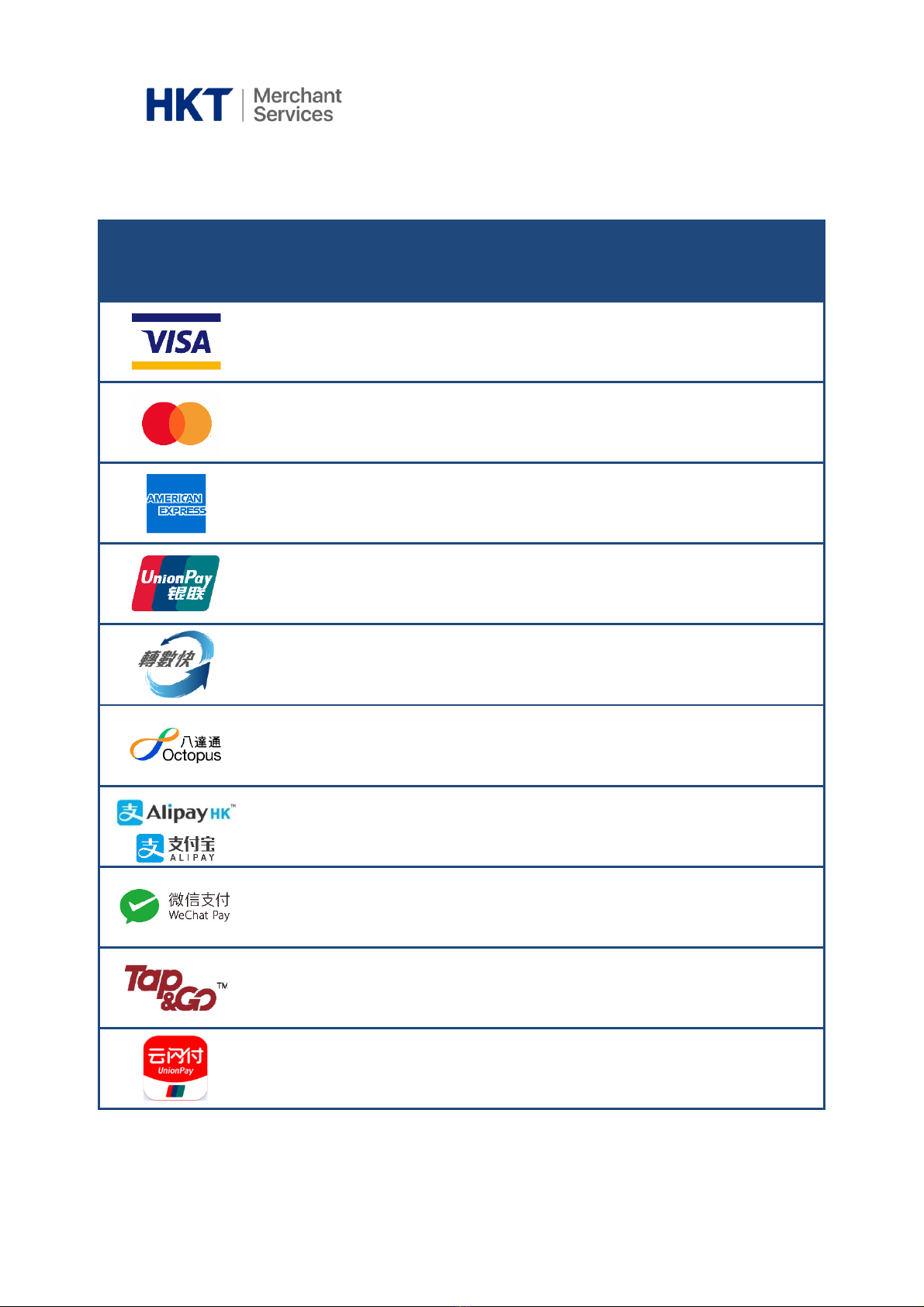
Payment Means
付款方式
Transaction
交易
Tips
小費
Void
取消交易
Full
Refund
全數退款
Partial
Refund
部分退款
Tips
Adjustment
小費調整
✓
✓
✓
✓
✓
✓
✓
✓
✓
✓
✓
✓
✓
✓
✓
✓
✓
✓
✓
✓
✓
✓
✓
✓
✓
✓
✓
✓
✓

Version 1.0 3
2.1) Credit Card Payment 信用卡支付
i. Regular Payment 一般支付
ii. Tips Payment 小費支付
Remarks
備註
1. Select “New Transaction”
1. 選擇 “New Transaction”
2. Enter the transaction amount
2. 輸入交易金額
3. Select the payment method
3. 選擇付款方法
4. Transaction complete
4. 交易完成
5. Print receipt
5. 打印收據
1. Select Visa / Mastercard/
American Express as the
payment method
1. 選擇 Visa / Mastercard / 美
國運通為支付方法
2. Enter the transaction amount
2. 輸入交易金額
3. Allow customers to select the
tip amount and confirm the
final payment amount
3. 讓客人選擇小費金額並確認
最終付款金額
4. Transaction complete
4. 交易完成
5. Print receipt
5. 打印收據
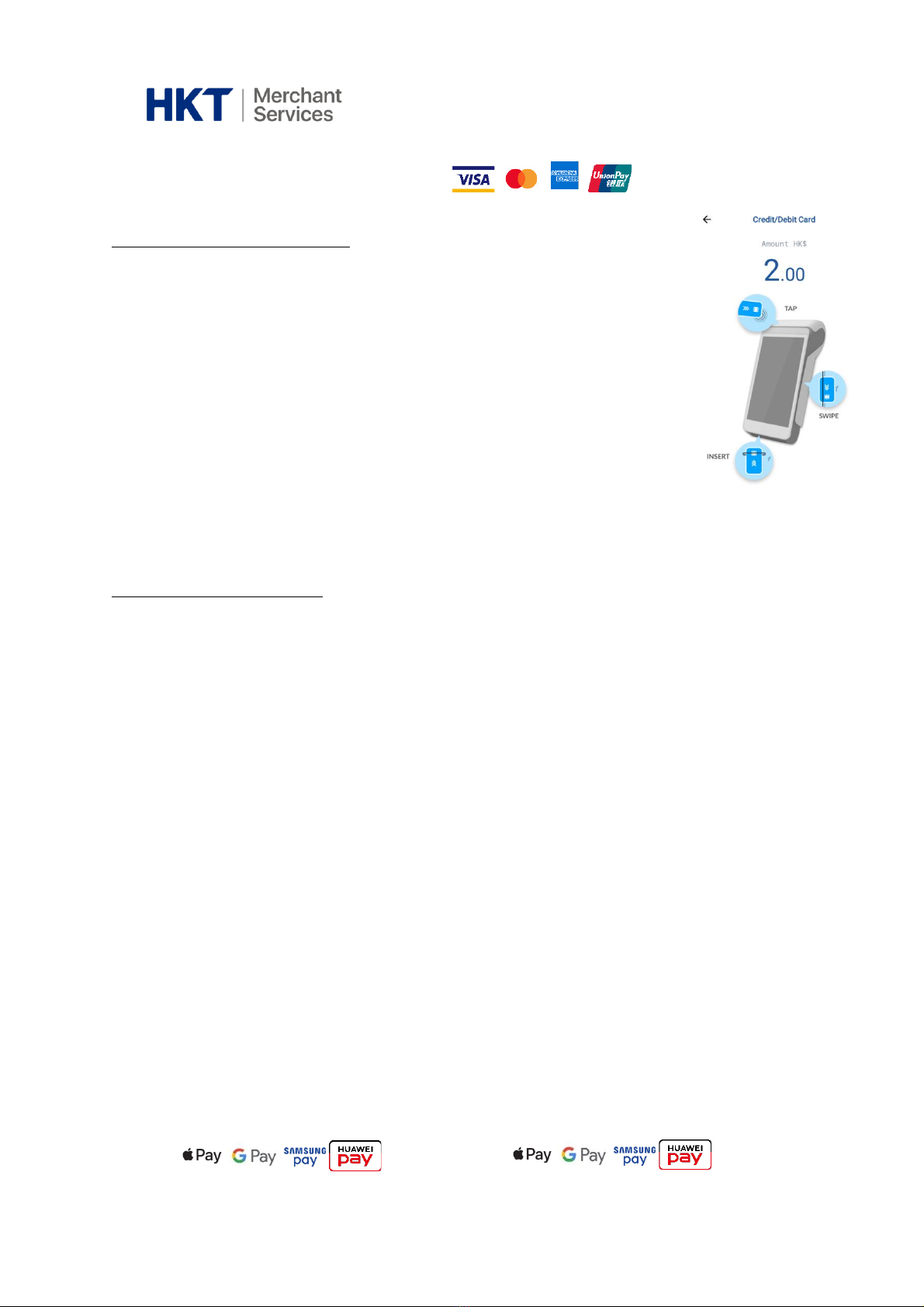
oTap*/ swipe / insert the card
* Support contactless payment
(NFC)
o拍卡*、刷卡或插卡
*
支援非接觸支付
(NFC)

Version 1.0 4
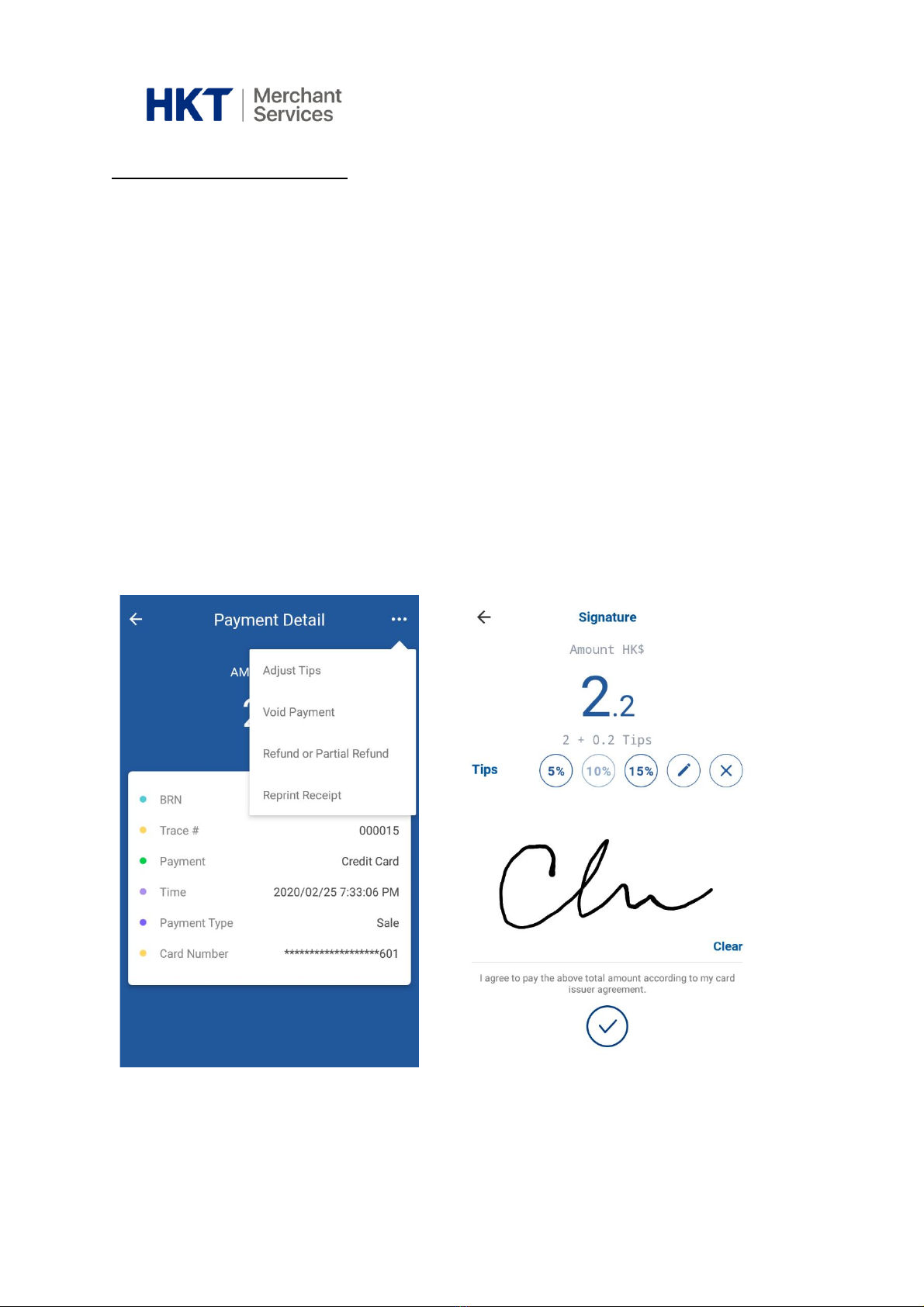
iii. Tips Adjustment 小費調整
1. Select “Transaction History”
1. 選擇 “Transaction History”
2. Select a transaction which you
want to adjust tips
2. 選擇需要調整小費的交易
3. Tap on the menu button in the
upper right and select “Adjust
Tips”
3. 點擊右上方的選單按鈕並選擇
“Adjust Tips”
4. Allow customers to adjust a tip
amount and sign for an
adjusted final payment amount
4. 讓客人調整小費金額並簽署確
認經調整的最終付款金額
5. Adjustment complete
5. 調整完成
6. Print receipt
6. 打印收據

Version 1.0 5
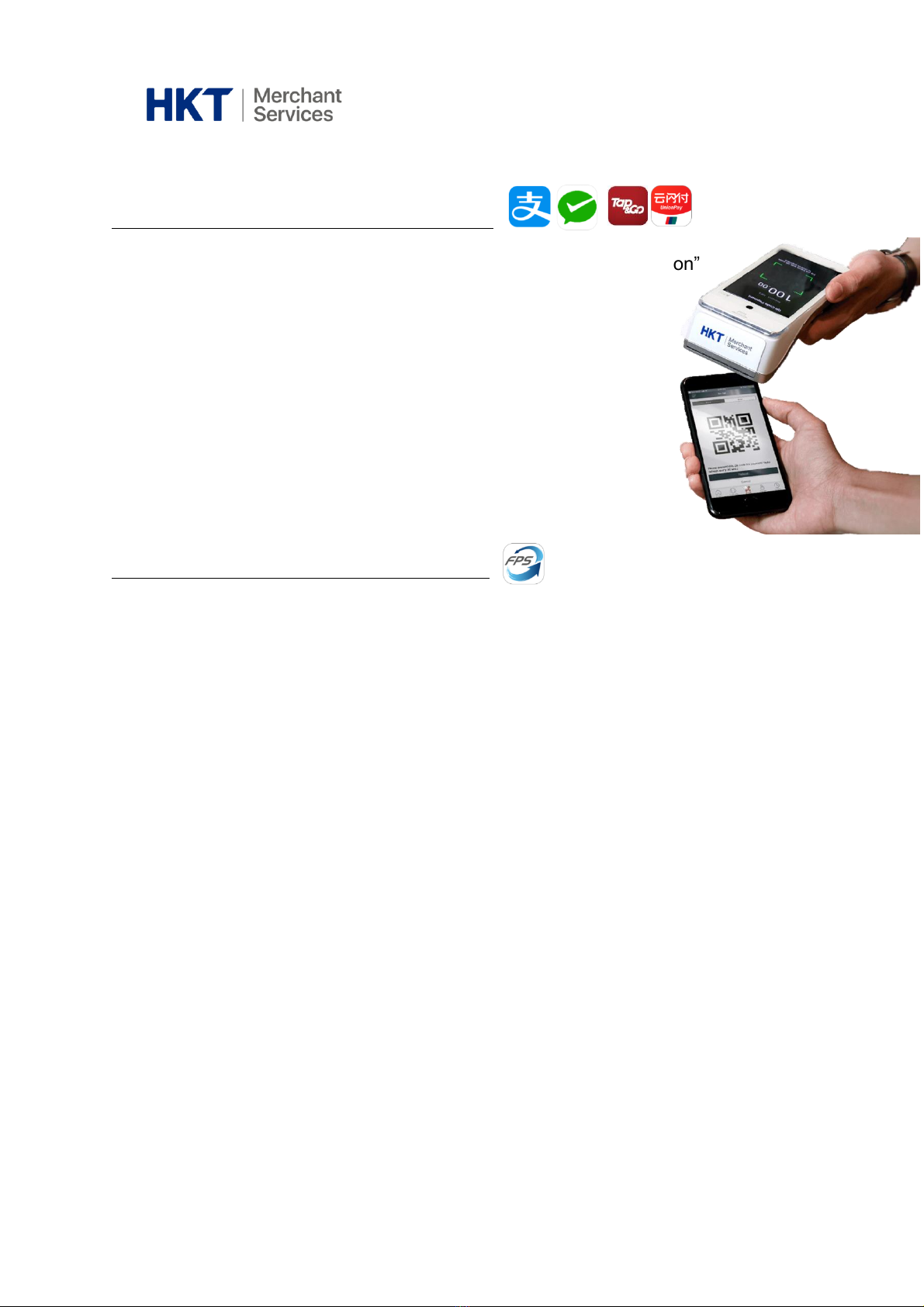
2.2) QR Code Payment 二維碼支付
i. Consumer-present QR code 客戶出示二維碼
ii. Merchant-present QR code 商戶出示二維碼
1. Select “New Transaction”
1. 選擇 “New Transaction”
2. Enter the transaction amount
2. 輸入交易金額
3. Select the payment method
3. 選擇付款方法
4. Scan the customer’s QR code
4. 掃描客人的二維碼
5. Transaction complete
5. 交易完成
6. Print receipt
6. 打印收據
1. Select “New Transaction”
1. 選擇 “New Transaction”
2. Enter the transaction amount
2. 輸入交易金額
3. Select the payment method
3. 選擇付款方法
4. Show your merchant QR code
for customer to scan
4. 向客人展示你的商戶二維碼作
掃描
5. Transaction complete
5. 交易完成
6. Print receipt
6. 打印收據

Version 1.0 6
2.3) Octopus Card Payment 八達通卡支付
i. Regular Payment 一般支付
ii. Query Balance on Octopus Card 八達通餘額查詢
Check remaining balance and the most recent 4 transactions
(Only applicable to the Octopus card which spent on this Smart POS before)
查詢餘額及最近 4次的交易紀錄
(只適用於曾在本機消費的八達通卡)
1. Select “New Transaction”
1. 選擇 “New Transaction”
2. Enter the transaction amount
2. 輸入交易金額
3. Select the payment method
3. 選擇付款方法
4. Tap the Octopus Card
4. 拍卡
5. Transaction complete
5. 交易完成
6. Print receipt
6. 打印收據

Version 1.0 7
3. Void Transaction 取消交易
1. Select “Transaction History”
1. 選擇 “Transaction History”
2. Select the transaction to void
2. 選擇需要取消的交易
3. Tap on the menu button in the
upper right and select “Void”
3. 點擊右上方的選單按鈕並選擇
“Void”
4. Enter the password
(Please refer to your welcome
mail)
4. 輸入密碼
(請參閱你的迎新電郵)
5. Confirm to void
5. 確認取消交易
6. Void complete
6. 取消交易完成
7. Print receipt
7. 打印收據

Version 1.0 8
4. Refund (Full / Partial) 退款 (全部/部分)
1. Select “Transaction History”
1. 選擇 “Transaction History”
2. Select a transaction which you
want to refund
2. 選擇需要取消的交易
3. Tap on the menu button in the
upper right and select “Refund
or Partial Refund”
3. 點擊右上方的選單按鈕並選擇
“Refund or Partial Refund”
4. Enter the password
(Please refer to your welcome
mail)
4. 輸入密碼
(請參閱你的迎新電郵)
5. Enter refund amount
(Full or partial amount of
transaction)
5. 輸入退款金額
(全部或部分的交易金額)
6. Ask customer to present the
credit card
(Only applicable to credit
cards)
6. 出示信用卡
(只適用於信用卡)
7. Ask customer to sign-off the
refund
7. 請客人為退款簽署
8. Confirm to refund
(*You may refund the same
transaction once and you
cannot void a refunded
transaction)
8. 確認退款交易
(*
你只能為同一交易退款一
次,亦不能取得已退款的交
易
)
9. Refund complete
9. 退款完成
10.Print receipt
10.打印收據
Indice