
HP f500g Manuale utente

f500g
Car Camcorder
User Manual

1
Contents
About this Guide ........................................................................... 3
FCC Statement .............................................................................. 3
WEEE otice .................................................................................. 3
CE Regulatory otice .................................................................... 4
otes on Installation .................................................................... 4
Caution ......................................................................................... 5
1 Introduction ................................................................... 6
1.1 Features ............................................................................ 6
1.2 Package Contents ............................................................. 6
1.3 Product Overview .............................................................. 7
2 Getting Started .............................................................. 8
2.1 Inserting the Memory Card ............................................... 8
2.2 Installing in Vehicles ......................................................... 9
2.2.1 Mount to Windshield ............................................. 9
2.2.2 Adjust the device position ...................................10
2.3 Connecting to Power .......................................................11
2.4 Powering the Camcorder On / Off ...................................12
2.4.1 Auto Power On/Off ..............................................12
2.4.2 Manual Power On/Off ..........................................12
2.5 Initial Settings .................................................................13
2.5.1 Set Automatic Recording .....................................13
2.5.2 Set the Date and Time .........................................13
2.5.3 Setting the Universal Time Code (UTC) ...............14
3 Using the Car Recorder .................................................. 15
3.1 Recording Videos ............................................................15
3.1.1 Record videos while driving ................................15
3.1.2 Driver Fatigue Alert .............................................15

2
3.1.3 Manual Video Recording ......................................16
3.1.4 Emergency Recording .........................................16
3.1.5 The Recording Screen..........................................17
3.1.6 Taking Photographs ............................................18
3.1.7 4 GRID FU CTIO DISPLAY in the LCD screen ......19
3.2 Playback Videos and Photos ...........................................20
3.2.1 Playing Videos .....................................................21
3.2.2 Viewing Photos ...................................................21
3.2.3 The Playback Screen ...........................................22
3.2.4 Deleting Files ......................................................23
4 Adjusting the Settings .................................................. 24
4.1 Using the Menu ...............................................................24
4.2 Menu Tree .......................................................................25
5 Installing the So tware ................................................. 29
6 SuperCar ...................................................................... 30
7 Speci ications .............................................................. 31

3
About this Guide
The content in this document is for information purpose and is subject to change without prior
notice. We made every effort to ensure that this User Guide is accurate and complete.
However, no liability is assumed for any errors and omissions that may have occurred.
The manufacturer reserves the right to change the technical specifications without prior notice.
FCC Statement
This equipment has been tested and found to comply with the limits for a Class B digital device,
pursuant to Part 15 of the FCC Rules. These limits are designed to provide reasonable protection
against harmful interference in a residential installation. This equipment generates, uses and can
radiate radio frequency energy and, if not installed and used in accordance with the instructions,
may cause harmful interference to radio communications. However, there is no guarantee that
interference will not occur in a particular installation. If this equipment does cause harmful
interference to radio or television reception, which can be determined by turning the equipment
off and on, the user is encouraged to try to correct the interference by one or more of the
following measures:
•Reorient or relocate the receiving antenna.
•Increase the separation between the equipment and receiver.
•Connect the equipment into an outlet on a circuit different from that to which the receiver is
connected.
•Consult the dealer or an experienced radio/TV technician for help.
This device complies with Part 15 of the FCC Rules. Operation is subject to the following two
conditions: (1) This device may not cause harmful interference, and (2) this device must accept
any interference received, including interference that may cause undesired operation.
FCC Caution: Any changes or modifications not expressly approved by the party responsible for
compliance could void the user's authority to operate this equipment.
WEEE Notice
Disposal o Waste Electrical and Electronic Equipment and/or Battery by users in
private households in the European Union
This symbol on the product or on the packaging indicates that this can not be
disposed of as a household waste. You must dispose of your waste equipment
and/or battery by handling it over to the applicable take-back scheme for the
recycling of electrical and electronic equipment and/or battery. For more
information about recycling of this equipment and/or battery, please contact your
city office, the shop where you purchased the equipment or your household waste
disposal service. The recycling of materials will help to conserve natural resources
and ensure that it is recycled in a manner that protects human health and
environment.

4
CE Regulatory Notice
Herewith confirm to comply with the requirements set out in the Council Directives on the
Approximation of the Laws of the Member States relating Electromagnetic Compatibility of Radio
and Telecom device (1995/5/EC); the Low Voltage Directive (2006/95/EC); the Restriction of The
Use of Certain Hazardous Substances in Electrical And Electronic Equipment Directive
(2002/95/EC), Turkish EEE Directive; the Commission Regulation (EC) o 1275/2008
implementing Directive 2005/32/EC of the European Parliament and of the Council with regard to
eco-design requirements for standby and off mode electric power consumption of electrical and
electronic household and office equipment, and the Directive 2009/125/EC of the European
parliament and of the council establishing a framework for the setting of eco-design
requirements for energy-related products.
Notes on Installation
1.
Install the device near the rear-view mirror to obtain the best open-field
view. Do OT install the camcorder in a location that will obstruct your
required driving view.
2.
Make sure that the lens is within the wiping range of the windscreen
wiper to ensure a clear view even when it rains.
3.
Do not touch the lens with your fingers. Finger grease may be left on the
lens and will result in unclear videos or snapshots. Clean the lens on a
regular basis.
4.
Do not install the device on a tinted window. Doing so may damage the
tint film.
5.
Make sure that the installation position is not hindered by the tinted
window.

5
Caution
Use the authorized charger only.
ever disassemble or attempt repair of this product. Doing so may
damage the camcorder, cause electric shock and void your product
warranty.
ever short-circuit the battery.
Set up time and date accurately before you use this device.
Exposing the camcorder to open flames can cause explosion.
Due to local laws and vehicles safety considerations, do not manually
operate the device while driving.
The results of GPS positioning are only for reference, and should not
affect the actual driving situation. The feature cannot ensure the
location accuracy.
GPS location accuracy may differ depending on weather and location
such as high buildings, tunnels, undergrounds, or forests.
GPS satellite signals cannot pass through solid materials (except glass).
Tinted window may affect the performance of the GPS satellite
reception.
GPS reception performance on each device may differ. The accuracy of
the location results from different devices.
Please use the SuperCar software with recorded video for the electronic
map.
The values displayed in this system, such as speed, position, and the
distance warning to the speed camera set points, may be inaccurate
due to the influence of surrounding environment. They are for your
reference only.
Hewlett-Packard Company is OT responsible for the loss of any
data/content during operation.
The firmware function in device are reference only, please follow the
actual road condition.
Before you start using the
Car Camcorder it is
assumed that you agree to the above
statement
s
.
6
1Introduction
Thank you for purchasing this advanced Car Recorder. This device is
specifically designed for real time video and audio recording when
driving.
1.1 Features
•Full HD camera (1920x1080 @ 30fps)
•2.4” LCD color screen
•Up to 140 ゚Wide angle lens
•Motion detection
•Automatic Emergency recording for collision detection
•Supports micro-SDHC up to 32GB (Class 6 or greater speed required
for HD video recording)
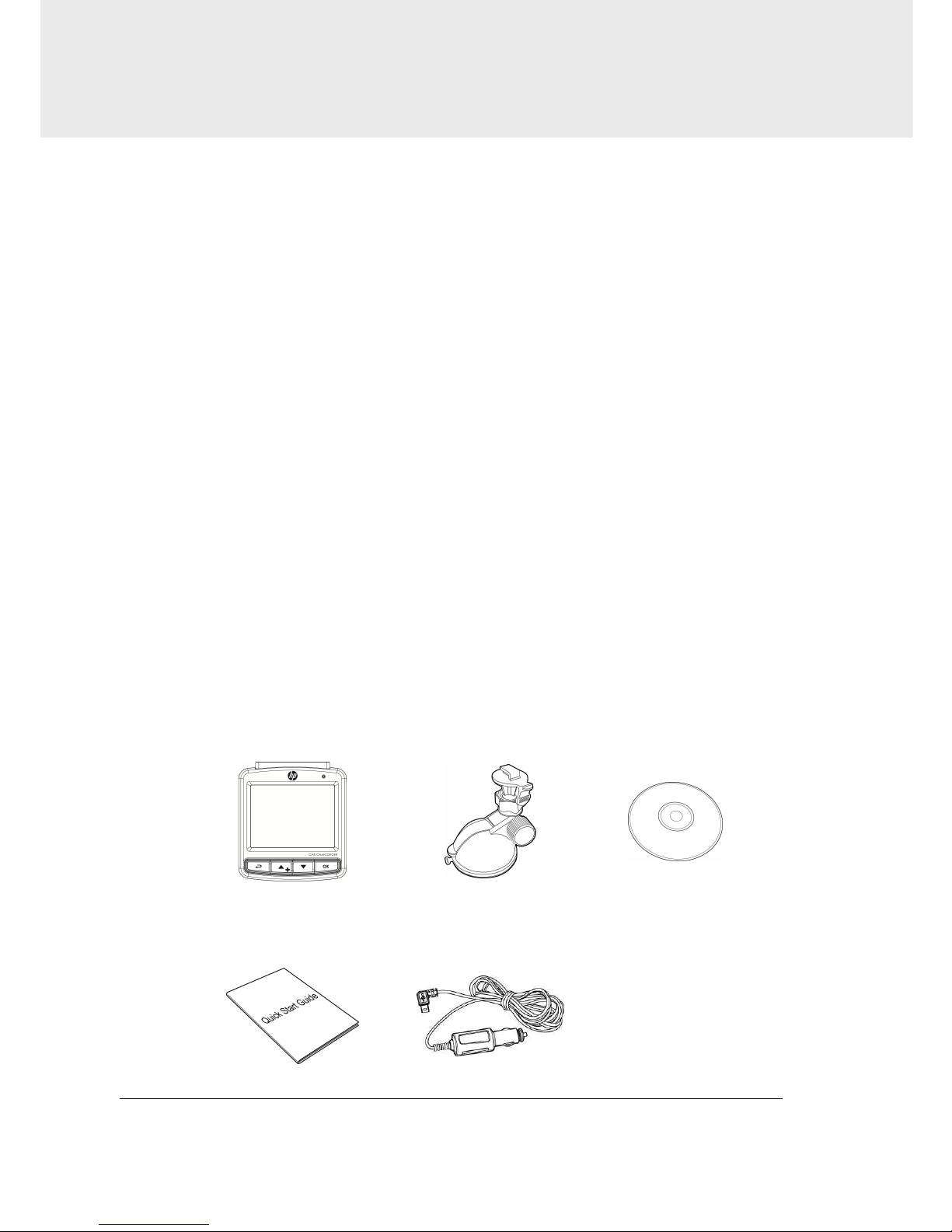
1.2 Package Contents
The package contains the following items. If there are any missing or
damaged items, contact your dealer immediately.
Car Recorder Bracket CD-ROM
Quick start guide Car adapter

7
1.3 Product Overview
No. Item No. Item
1 Bracket Socket 8 Up Button ( )
2 Power Button 9 Down Button ( )
3 Memory Card Slot 10 Enter Button ( )
4 USB Connector 11 Wide Angle Lens
5 HD(Mini HDMI) Connector 12 Microphone
6 Back Button ( ) 13 Speaker
7 LCD Panel
Note:
To operate the device, press the corresponding buttons (6,8,9,10) according to guide icons shown the
screen.
Top
and Bottom
View
s
Side (Left and Right)
View
s
Front View
Rear View
1
2
3
8
11
1
2
6
9
10
13
7
4
5

8
2Getting Started
2.1 Inserting the Memory Card
Insert the memory card with the gold contacts facing the back of the
camcorder. Push the memory card until it clicks into place. (Use class 6 or
above the micro SD cards for this camcorder; It is recommended to
format the micro SD cards before the initial use.)
To remove the memory card
Push the edge of the memory card inward until you hear/feel it click,
then allow it to push out until you can remove it from the slot.
Note:
1. Do not remove or insert the memory card when the device is powered on. This may damage the
memory card.
2. It is recommended to use a 32 GB, Class 6 speed
or above micro SD card.
3. It is recommended to format the micro SD cards before the initialuse.
9
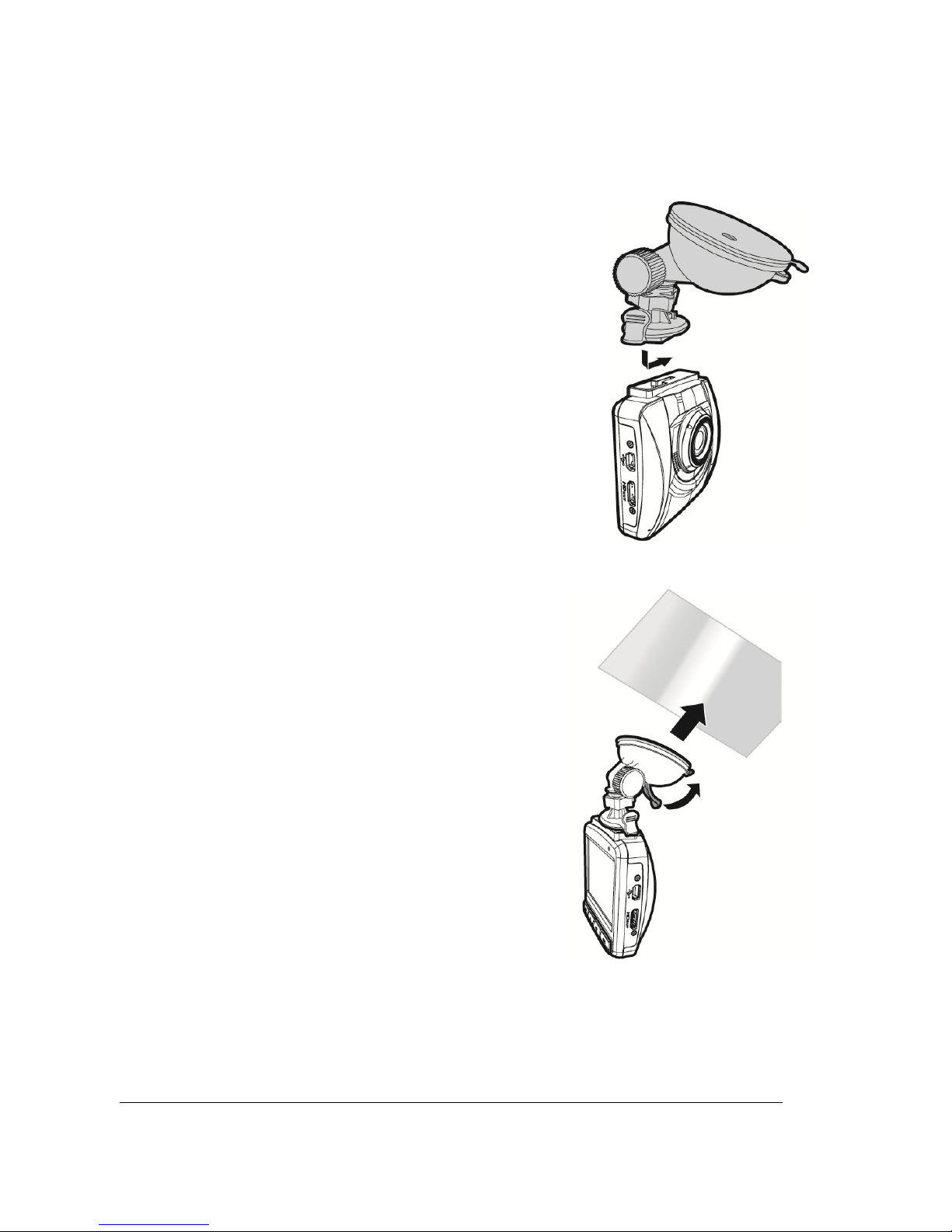
2.2 Installing in Vehicles
2.2.1 Mount to Windshield
1. Attach the bracket to the device.
Slide it into the bracket holder until you
hear a click.
2. With the suction-cup laying flat,
position the suction-cup on the
windshield.
3. Hold the base firmly on the
windshield and press down the clamp
to mount the car holder to the
windshield. Make sure the base is
securely locked in place.
Warning: Do not install the device on a tinted window. Doing so may
damage the tint film.
Indice
Altri manuali HP Telecamera da cruscotto


