
Huawei CD34 Manuale utente

Quick Start Guide
Quick Start Guide
Guide de démarrage rapide
Schnellstartanleitung
Guida di avvio rapido
Guía de inicio rápido
Klavye Hızlı Kullanım Kılavuzu
Instrukcja obsługi
Snabbstartguide
Kort startvejledning
Hurtigveiledning
Aloitusopas
Краткое руководство пользователя
คู่มือการใช้งานด่วน
Panduan Mulai Cepat
クイックスタートガイド
Guía de inicio rápido
Guide de démarrage rapide
CD34

Contents
English............................................................................................... 1
English (United Kingdom)................................................................ 5
Français..............................................................................................8
Deutsch............................................................................................ 12
Italiano..............................................................................................16
Español............................................................................................ 20
Türkçe...............................................................................................24
Polski................................................................................................29
Svenska............................................................................................33
Dansk................................................................................................36
Norsk ............................................................................................... 40
Suomi............................................................................................... 43
Русский ...........................................................................................46
............................................................................................ 53
Bahasa Melayu................................................................................ 58
日本語 ...............................................................................................62
Español (Latinoamérica).................................................................65
Français............................................................................................69
i
English
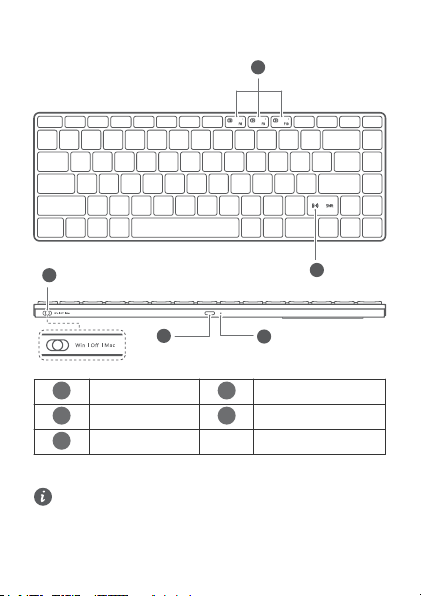
Introduction
1
3
4
2
5
1
Flash-Switch keys
2
Power switch
3
Huawei Share
4
USB-C port
5
Power indicator
Powering on
Turn the power switch to Win or Mac to power on the keyboard.
If the keyboard is connected to a Windows, EMUI, or Android device, it is
recommended that you turn the power switch to Win. If the keyboard is
connected to an iOS or macOS device, it is recommended that you turn the
power switch to Mac. Otherwise, there may be compatibility issues with
some keys.
1

Connecting
1Place the keyboard close to a device and press and hold any Flash-Switch key
for more than three seconds to start pairing. (After the keyboard is powered on
for the first time, it will automatically start pairing without the need for you to
press and hold a Flash-Switch key.)
2A prompt will then be displayed on the device. Follow the onscreen instructions
to finish pairing.
• The proximity pairing feature is available on devices running operating
systems such as Windows and EMUI. The actual support may vary
depending on the product.
• If a device does not support the proximity pairing feature, pair the
keyboard with the device via Bluetooth.
• You can also use a USB-C cable to connect the keyboard to the device.
Switching
The keyboard can be paired with a maximum of three devices via Bluetooth. To
switch between devices, press and hold the Flash-Switch key selected during
pairing. If the indicator blinks and is then steady on for five seconds, it indicates that
the switching is successful.
Charging
When the keyboard is being used wirelessly and the power indicator blinks red, it
indicates that the battery level is lower than 10%. You can use a USB-C cable that
supports charging to charge the keyboard.
The product is not delivered with a USB-C cable. You need to purchase a
USB-C cable separately.
More details
Visit https://consumer.huawei.com/en/support and search by device name to try
more features.
Safety Information
• Please consult your doctor and the device manufacturer to determine if using
your device may interfere with the operation of your medical device.
• Avoid using the device in a dusty, damp, or dirty place, or near a magnetic field.
• Ideal temperatures: 0°C to 35°C for operating, -10°C to +45°C for storage.
• The device nameplate is on the bottom of the device.
• Keep the battery away from fire, excessive heat, and direct sunlight. Do not
place it on or in heating devices. Do not disassemble, modify, throw, or squeeze
it. Do not insert foreign objects into it, submerge it in liquids, or expose it to
external force or pressure, as this may cause it to leak, overheat, catch fire, or
even explode.
• Do not attempt to replace the battery yourself — you may damage the battery,
which could cause overheating, fire, and injury. The built-in battery in your
device should be serviced by Huawei or an authorized service provider.
• Keep this device and its accessories that may contain small components out of
the reach of children. Otherwise, children may damage this device and its
accessories by mistake, or swallow the small components, which may cause
choking.
2

Disposal and recycling information
The symbol on the product, battery, literature, or packaging means that the
products and batteries should be taken to separate waste collection points
designated by local authorities at the end of the lifespan. This will ensure that EEE
waste is recycled and treated in a manner that conserves valuable materials and
protects human health and the environment. For more information, please contact
your local authorities, retailer, or household waste disposal service or visit the
website https://consumer.huawei.com/en/.
RF Exposure Information
Your device is a low-power radio transmitter and receiver. As recommended by
international guidelines, the device is designed to comply with the limits established
by the market that the device will be placed on.
EU Regulatory Conformance
Hereby, Huawei Device Co., Ltd. declares that this device CD34 is in compliance
with the following Directive: RED 2014/53/EU, RoHS 2011/65/EU. The full text of
the EU declaration of conformity, and most recent information about accessories &
software are available at the following internet address:
https://consumer.huawei.com/certification.
Frequency Bands and Power
Bluetooth 2400-2483.5 MHz: 13 dBm
NFC: 13.56 MHz
ISED Canada Compliance
ISED Statement
This device complies with CAN ICES-3 (B)/NMB-3(B).
This device complies with the Innovation, Science and Economic Development
Canada (ISED) license-exempt RSS standard(s). Operation is subject to the
following two conditions: (1) this device may not cause interference, and (2) this
device must accept any interference, including interference that may cause
undesired operation of the device.
Radiation Exposure Statement
This device complies with the Canada portable RF exposure limit set forth for an
uncontrolled environment and are safe for intended operation as described in this
manual. The further RF exposure reduction can be achieved if the product can be
kept as far as possible from the user body or set the device to lower output power if
such function is available.
Copyright © Huawei 2021. All rights reserved.
The Bluetooth® word mark and logos are registered trademarks owned by
Bluetooth SIG, Inc. and any use of such marks by Huawei Technologies Co., Ltd. is
under license. Huawei Device Co., Ltd. is an affiliate of Huawei Technologies Co.,
Ltd.
Other trademarks, product, service and company names mentioned may be the
property of their respective owners.
3

Privacy Policy
To better understand how we protect your personal information, please see the
privacy policy at https://consumer.huawei.com/privacy-policy.
ALL PICTURES AND ILLUSTRATIONS IN THIS GUIDE, INCLUDING BUT
NOT LIMITED TO THE DEVICE COLOR, SIZE, AND DISPLAY CONTENT,
ARE FOR YOUR REFERENCE ONLY. THE ACTUAL DEVICE MAY VARY.
NOTHING IN THIS GUIDE CONSTITUTES A WARRANTY OF ANY KIND,
EXPRESS OR IMPLIED.
4

English (United Kingdom)
Introduction
1
3
4
2
5
1
Flash-Switch keys
2
Power switch
3
Huawei Share
4
USB-C port
5
Power indicator
Powering on
Turn the power switch to Win or Mac to power on the keyboard.
If the keyboard is connected to a Windows, EMUI, or Android device, it is
recommended that you turn the power switch to Win. If the keyboard is
connected to an iOS or macOS device, it is recommended that you turn the
power switch to Mac. Otherwise, there may be compatibility issues with
some keys.
5

Connecting
1Place the keyboard close to a device and press and hold any Flash-Switch key
for more than three seconds to start pairing. (After the keyboard is powered on
for the first time, it will automatically start pairing without the need for you to
press and hold a Flash-Switch key.)
2A prompt will then be displayed on the device. Follow the onscreen instructions
to finish pairing.
• The proximity pairing feature is available on devices running operating
systems such as Windows and EMUI. The actual support may vary
depending on the product.
• If a device does not support the proximity pairing feature, pair the
keyboard with the device via Bluetooth.
• You can also use a USB-C cable to connect the keyboard to the device.
Switching
The keyboard can be paired with a maximum of three devices via Bluetooth. To
switch between devices, press and hold the Flash-Switch key selected during
pairing. If the indicator blinks and is then steady on for five seconds, it indicates that
the switching is successful.
Charging
When the keyboard is being used wirelessly and the power indicator blinks red, it
indicates that the battery level is lower than 10%. You can use a USB-C cable that
supports charging to charge the keyboard.
The product is not delivered with a USB-C cable. You need to purchase a
USB-C cable separately.
More details
Visit https://consumer.huawei.com/uk/support and search by device name to try
more features.
Safety Information
• Please consult your doctor and the device manufacturer to determine if using
your device may interfere with the operation of your medical device.
• Avoid using the device in a dusty, damp, or dirty place, or near a magnetic field.
• Ideal temperatures: 0°C to 35°C for operating, -10°C to +45°C for storage.
• The device nameplate is on the bottom of the device.
• Keep the battery away from fire, excessive heat, and direct sunlight. Do not
place it on or in heating devices. Do not disassemble, modify, throw, or squeeze
it. Do not insert foreign objects into it, submerge it in liquids, or expose it to
external force or pressure, as this may cause it to leak, overheat, catch fire, or
even explode.
• Do not attempt to replace the battery yourself — you may damage the battery,
which could cause overheating, fire, and injury. The built-in battery in your
device should be serviced by Huawei or an authorised service provider.
• Keep this device and its accessories that may contain small components out of
the reach of children. Otherwise, children may damage this device and its
accessories by mistake, or swallow small components, which may cause
choking.
6

Disposal and recycling information
The symbol on the product, battery, literature, or packaging means that the
products and batteries should be taken to separate waste collection points
designated by local authorities at the end of the lifespan. This will ensure that EEE
waste is recycled and treated in a manner that conserves valuable materials and
protects human health and the environment. For more information, please contact
your local authorities, retailer, or household waste disposal service or visit the
website https://consumer.huawei.com/en/.
RF Exposure Information
Your device is a low-power radio transmitter and receiver. As recommended by
international guidelines, the device is designed to comply with the limits established
by the market that the device will be placed on.
EU Regulatory Conformance
Hereby, Huawei Device Co., Ltd. declares that this device CD34 is in compliance
with the following Directive: RED 2014/53/EU, RoHS 2011/65/EU. The full text of
the EU declaration of conformity, and most recent information about accessories &
software are available at the following internet address:
https://consumer.huawei.com/certification.
UK Regulatory Conformance
Hereby, Huawei Device Co., Ltd. declares that this radio equipment is in
compliance with the relevant statutory requirements in the UK. The full text of the
declaration of conformity is available at the following internet address:
https://consumer.huawei.com/certification.
Frequency Bands and Power
Bluetooth 2400-2483.5 MHz: 13 dBm
NFC: 13.56 MHz
Copyright © Huawei 2021. All rights reserved.
The Bluetooth® word mark and logos are registered trademarks owned by
Bluetooth SIG, Inc. and any use of such marks by Huawei Technologies Co., Ltd. is
under license. Huawei Device Co., Ltd. is an affiliate of Huawei Technologies Co.,
Ltd.
Other trademarks, products, services and company names mentioned herein may
be the property of their respective owners.
Privacy Policy
To better understand how we protect your personal information, please see the
privacy policy at https://consumer.huawei.com/privacy-policy.
ALL PICTURES AND ILLUSTRATIONS IN THIS GUIDE, INCLUDING BUT
NOT LIMITED TO THE DEVICE COLOUR, SIZE, AND DISPLAY CONTENT,
ARE FOR YOUR REFERENCE ONLY. THE ACTUAL DEVICE MAY VARY.
NOTHING IN THIS GUIDE CONSTITUTES A WARRANTY OF ANY KIND,
EXPRESS OR IMPLIED.
7

Français
Présentation
1
3
4
2
5
1
Touches ash-switch
2
Interrupteur Marche/Arrêt
3
Huawei Share
4
Port USB-C
5
Voyant d'alimentation
Mise sous tension
Placez l'interrupteur Marche/Arrêt en position Win ou Mac pour mettre le clavier
sous tension.
Si le clavier est connecté à un appareil Windows, EMUI ou Android, il est
recommandé de mettre l'interrupteur en position Win. S'il est connecté à
un appareil iOS ou macOS, il est recommandé de mettre l'interrupteur en
position Mac. Sinon, il risque d'y avoir des problèmes de compatibilité
avec certaines touches.
8
Indice
Altri manuali Huawei Tastiera


