
iXsystems TrueNAS R50 Manuale

TrueNAS®R50 Basic Setup Guide
3rd Generation
Version 3.0

Copyright © 2022 iXsystems, Inc. All rights reserved. All trademarks are the property of their respective owners.
Contents
1 Introduction ����������������������������������������������������������������������������������������������������� 1
1�1 Safety ������������������������������������������������������������������������������������������������������� 1
1�2 Requirements ��������������������������������������������������������������������������������������������� 1
2 R50 Components ����������������������������������������������������������������������������������������������� 2
2�1 Front Ports and Indicators ������������������������������������������������������������������������������ 3
2�2 Rear Components and Ports ���������������������������������������������������������������������������� 3
3 Racking the R50 ������������������������������������������������������������������������������������������������ 4
3�1 Rack Requirements ��������������������������������������������������������������������������������������� 4
3�2 Install Cage Nuts ������������������������������������������������������������������������������������������ 4
3�3 Install the Assist Rails ������������������������������������������������������������������������������������ 4
3�4 Install the Rack Rails �������������������������������������������������������������������������������������� 5
3�5 Adjust the Rail Sleeve ������������������������������������������������������������������������������������ 5
3�6 Mount the R50 in the Rack ������������������������������������������������������������������������������ 5
3�7 Attach the Extended Ear Brackets (Optional) �������������������������������������������������������� 6
4 Managing Drives ����������������������������������������������������������������������������������������������� 7
4�1 Open the Drive Drawer ���������������������������������������������������������������������������������� 7
4�2 Install Hard Drives ���������������������������������������������������������������������������������������� 7
4�3 Close the Drive Drawer ���������������������������������������������������������������������������������� 8
4�4 Remove NVMe Trays ������������������������������������������������������������������������������������� 9
4�5 Install NVMe Drives ��������������������������������������������������������������������������������������� 9
4�6 Install NVMe Trays ���������������������������������������������������������������������������������������� 9
5 Cabling an R-Series System �������������������������������������������������������������������������������� 10
5�1 SAS Connections ���������������������������������������������������������������������������������������� 10
6 Connecting to the TrueNAS Web Interface ������������������������������������������������������������ 11
7 Additional Resources ���������������������������������������������������������������������������������������� 12
8 Contacting iXsystems ��������������������������������������������������������������������������������������� 12

Page 1
The 3rd Generation R50 is a 4U Hybrid Storage Array with 48 3�5” HDD bays, four 2�5” NVMe drive bays, redundant
power supplies, and a single, modular TrueNAS controller�
Your system comes with the TrueNAS operating system preloaded�
Review the safety considerations and hardware requirements before installing an R-Series system into a rack�
1 Introduction
1.1 Safety
1.2 Requirements
1.1.1 Static Discharge
1.1.2 Handling the System
We recommend these tools when installing an R-Series system in a rack:
• #2 Philips head screwdriver
• Flat head screwdriver
• Tape measure
• Level
• 16 standard M5 cage nuts (typically provided with square-hole racks)
We recommend at least two people lift an R-Series system�
Static electricity can build up in your body and discharge when touching conductive materials� Electrostatic Dis-
charge (ESD) is harmful to sensitive electronic devices and components� Keep these safety recommendations in
mind before opening the system case or handling non-hot-swappable system components:
• Turn o the system and remove power cables before opening the case or touching internal components.
• Place the system on a clean, hard work surface like a wooden tabletop� Using an ESD dissipative mat can also
help protect the internal components�
• Touch the metal chassis with your bare hand to dissipate static electricity in your body before touching any
internal components, including components not yet installed in the system� Using an anti-static wristband and
grounding cable is another option�
• Store all system components in anti-static bags�
You can nd more preventative tips and details about ESD at https://www�wikihow�com/Ground-Your-
self-to-Avoid-Destroying-a-Computer-with-Electrostatic-Discharge�
Never attempt to lift an R-Series system loaded with drives! Install the system in a rack before adding drives, and
remove drives before de-racking the system�
Hold the system from the sides or bottom whenever possible� Always be mindful of loose cabling or connectors,
and avoid pinching or bumping these elements whenever possible�
These instructions use “left” and “right” according to your perspective when facing the front of a system or rack�

Page 2
2 R50 Components
R50 Hybrid Storage Array
Rail Kit:
• 2 Fixed rackmount rails
• 12 M5 × 15mm screws
Accessory Kit:
• 2 IEC C13 to NEMA 5-15P power cords
• 2 IEC C13 to C14 cords
• 2 M5 Screws
• 1 Velcro cable tie set
• 1 Drawer Key
Up to 48 hard drives, depending on the
purchase (shipped separately)
TrueNAS units are carefully packed and shipped with trusted carriers to arrive in perfect condition�
If there is any shipping damage or missing parts, please take photos and contact iXsystems support immediately at
support@ixsystems�com, 1-855-GREP4-iX (1-855-473-7449), or 1-408-943-4100�
Please locate and record the hardware serial numbers on the back of each chassis for quick reference�
Carefully unpack the shipping boxes and locate these components:
Racking Hardware:
• 2 Assist rails with
• 8 M5 × 10mm screws
• 2 Extended ear bracket
• 4 M5 × 20mm racking screws
4 NVMe drive trays with up to 4 drives
installed

Page 3
2.1 Front Ports and Indicators
1� Power button/light
2� Network activity indicators
3� NMI Button
4� System ID button/light
5� Disk status indicators
6� USB 2�0 port
The lower section of the front panel has buttons and indicators to help control the system:
2.2 Rear Components and Ports
1� Serial port
2� 1Gb Ethernet OOBM port
3� Two USB 2�0 ports
4� Two USB 3�0 ports
5� Two RJ-45 10Gb networking ports
6� VGA monitor port
Power Supply 1
NVMe Drives
Power Supply 2 PCIe Slots

Page 4
3 Racking the R50
The R50 requires 4U of rack space and has a built-in rail system that provides access to the drive drawer�
The temporary assist rails require another 1U of rack space underneath the R50�
3.2 Install Cage Nuts
Cage nuts attach to holes in the rack posts, with the nut on the inside of the rack and “wings” pointed horizontally�
Attach four cage nuts in the rack front posts, two on each side. Place the rst cage nut in the middle of the top 1U
of the reserved 4U of rack space� Place the second cage nut in the middle of the bottom 1U of the reserved 4U of
rack space� Place the remaining two cage nuts in the same points on the other front rack post�
You need six cage nuts for each rear rack rail (twelve total)�
Starting from the topmost attach-point in the reserved 4U of rack space, skip the rst two attach points and
place cage nuts in the next three descending attach-points� Skip one attach-point, then place the last three cage
nuts in the next three descending attach-points� Repeat for the other rear rack rail�
3.1 Rack Requirements
The R50 requires an EIA-310-compliant rack� The front and rear rack posts can have a four-inch (101�6mm) tolerance
in four dierent depth congurations. See section “3.4 Adjust the Rail Sleeve”.
2U
1U
3U
4U
5U
2U
1U
3U
4U
5U
Reserved 4U for R50
Reserved 1U for assist rails
2U
1U
3U
4U
5U
2U
1U
3U
4U
5U
Reserved 4U for R50
Reserved 1U for assist rails
Front Cage Nut Placement Rear Cage Nut and Rail Placement
2U
1U
3U
4U
5U
2U
1U
3U
4U
5U
Reserved 4U for R50
Reserved 1U for assist rails
2U
1U
3U
4U
5U
2U
1U
3U
4U
5U
Reserved 4U for R50
Reserved 1U for assist rails
3.3 Install the Rack Rails
Remove the rack rails from the system. Fit a rail over the cage nuts on one rear rack post (the tab ts into the empty
slot between the cage nuts) and use six M5 × 15mm screws to secure it to the rack� Repeat for the other rail�
You need 16 standard M5 cage nuts to rack the R50 in a standard square-hole rack�

Page 5
3.5 Install the Assist Rails
At the front rack post, install an assist rail front tab into the middle space of the bottom 1U, then use two of the
M5 × 10mm screws to secure it to the rack� Extend the assist rail to the rear rack post and use two more screws to
secure it� Tighten the four bolts inside the assist rail to set the length� Repeat for the other rail�
M5 × 10mm
screws
3.4 Adjust the Rail Sleeve
The rail sleeve uses position 2 by default� To adjust it, remove the 12 screws (yellow circles) and move the sleeve to
the position that accommodates your rack depth (see table)�
Position Depth w/ Standard Ears Depth with 40mm Optional Extended Ears
127�5” - 32” 27” - 30 3/8”
2 (pictured ) 28 13/16” - 35 11/16” 27�5” - 34 1/8”
3 32�5” - 43 1/8” 30 15/16” - 37�5”
4 36 1/4” - 43 1/8” 34 5/8” - 41�5”
3.6 Mount the R50 in the Rack
Two people should lift the R50� Set the system onto the assist rails and align the rail sleeves with the rails� Slide the
system forward until it is ush with the front of the rack.
Pos. 1 Pos. 4Pos. 3

Page 6
3.7 Attach the Extended Ear Brackets (Optional)
Use four M5 × 20mm screws to secure each chassis ear bracket to the rack�
Once you mount the system in the rack, uninstall the assist rails from the rack�
The 3rd gen R50 is longer than previous models, so it ships with extended ear brackets to secure it in short racks�
If your rack is too short, remove the ve screws (two on the front, three on the side) holding each ear bracket on the
R50� Remove both ear brackets from the chassis and replace them with the extended ear brackets�
Secure the extended ear brackets to the chassis using the same ve screws the standard ear brackets used.
Front Screws Side Screws Extended Ear Bracket
M5 × 20mm
screws

Page 7
4 Managing Drives
The R50 drive drawer sits on internal rails and slides out of the system� Hard drives install into the drawer without
drive trays� The NVMe drives are on the back of the system, and use removable trays to mount drives in the system�
4.1 Open the Drive Drawer
4.2 Install Hard Drives
Push the blue release tab on a slot cover and lift� Gently grasp the inner tray and pull it up until it locks into place�
The R50 is certied to use WD Helium drives only. Align a hard drive with the connectors facing downwards into
the system, then slide the drive into the slot� Squeeze the plastic release tabs on each side of the tray, then push the
tray downwards to install the hard drive into the system� Close the slot cover and make sure it locks�
Warning: To prevent overheating, do not open the drawer for more than 1 minute with the system running�
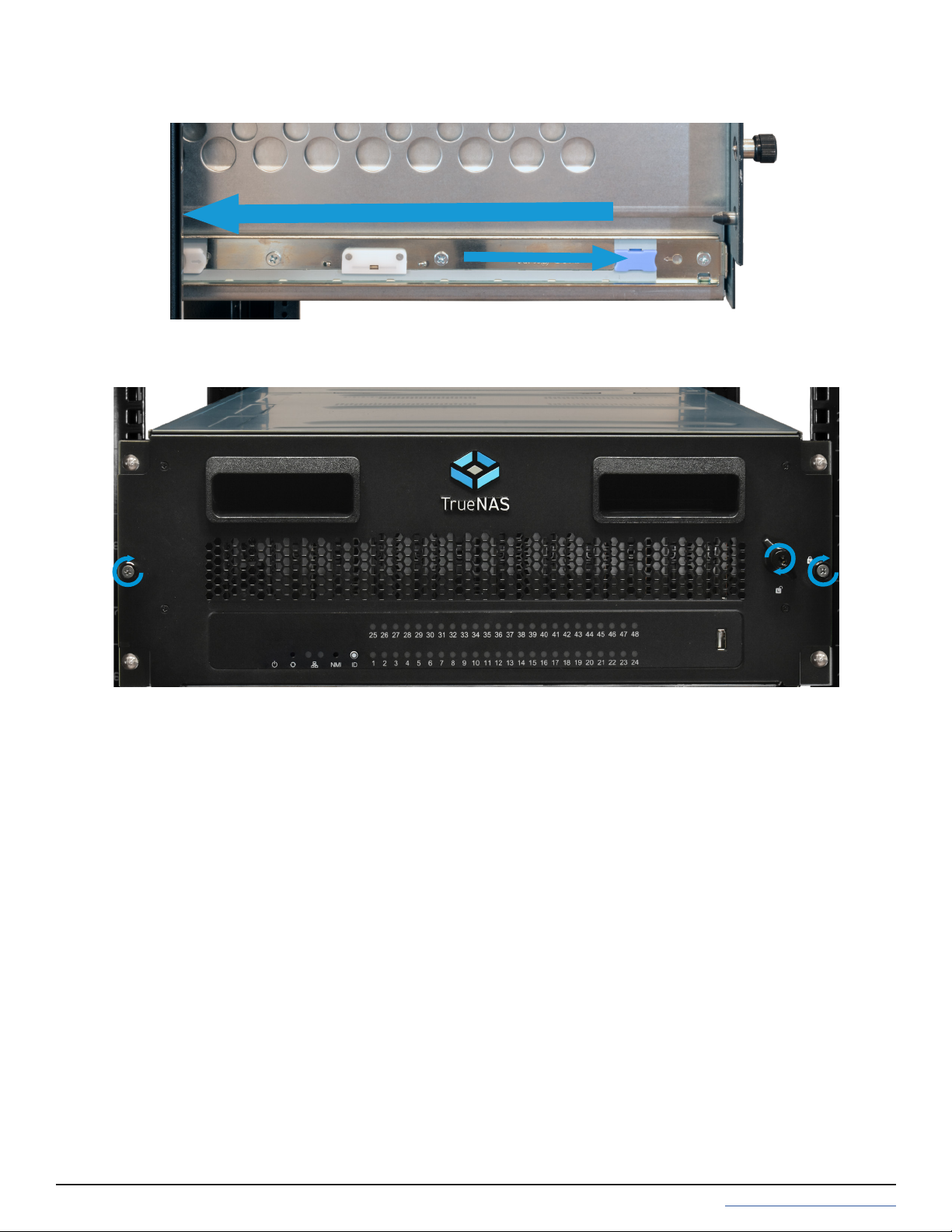
Unlock the front and loosen the captive thumbscrews, then use the handles to pull the drawer out�
Page 8
4.3 Close the Drive Drawer
Pull the blue release catches on each rail toward you, then push the drawer into the system�
To secure the drive bay and prevent it from accidentally opening, tighten the captive thumbscrews on the front of
the system� You can also use the included key to lock the drive drawer and prevent unauthorized access�
Indice
Altri manuali iXsystems Magazzinaggio

iXsystems
iXsystems FreeNAS Mini Manuale

iXsystems
iXsystems TrueNAS F Series Manuale utente

iXsystems
iXsystems TrueNAS 11.3-U5 Manuale utente

iXsystems
iXsystems TrueNAS F Series Manuale utente

iXsystems
iXsystems TrueNAS X Series Manuale

iXsystems
iXsystems TrueNAS ES12 Manuale

iXsystems
iXsystems FreeNAS Mini Manuale utente

iXsystems
iXsystems TrueNAS M Series Manuale

iXsystems
iXsystems TrueNAS Mini Series Manuale

iXsystems
iXsystems TrueNAS R Series Manuale


