
JR JR DSM 12x Istruzioni operative

1
APPLICATIONS AND
PROGRAMMING GUIDE
12-CHANNEL COMPUTER RADIO
SYSTEM WITH SPEKTRUM 2.4GHz DSM
TECHNOLOGY

2
Programming a model for the first time, especially with a new
radio, can be confusing. Following are programming guides
that give step-by-step instructions for programming a giant-
scale aerobatic airplane, an aircraft with dual flap setup, a
Helicopter with CCPM mixing and a full function sailplane.
Within each section, information is provided to program
various flap options, heading lock and conventional gain gyros,
programming a governor and programming a countdown timer
to start on throttle up. While there are an endless number of
programming methods and options, the following setup guide
provides the fundamental basis from which to build upon.
Important: This Applications Guide is intended to be used
as a supplement to the manual. For further details regarding
programming specifics please refer to the manual.
Following is a step-by-step programming guide for Giant-Scale
aerobatic aircraft. The specific example below gives setup
details for an aircraft with 4 aileron servos, 2 elevator servos,
and 2 rudder servos. Included is information on programming
a countdown timer to be activated upon throttle up. While this
setup guide is specific to Giant-Scale aircraft, setup of other
types will be similar.
Use the following to locate the correct locations for
the servos:
Programmable Smoke System- Channel 10/ Aux5
Rudder Servo 2- Channel 9/ Aux4
Left Aileron Servo 2- Channel 8/ Aux3
Right Aileron Servo 2- Channel 7/ Aux2
Left Elevator Servo- Channel 6/ Aux1
Left Aileron Servo 1- Gear CH5
Rudder Servo 1- Rudder CH4
Right Elevator Servo- Elevator CH3
Right Aileron Servo 1- Aileron CH2
Throttle Servo- Throttle CH1
Introduction
Giant-Scale Aerobatic Aircraft Setup Guide
Servo Connections
3
1. Press and hold the ENT button while turning on the power
switch to enter the System Mode List screen.
2. Using the roller, highlight 84. Model SEL and press the
roller to access the Model Select screen.
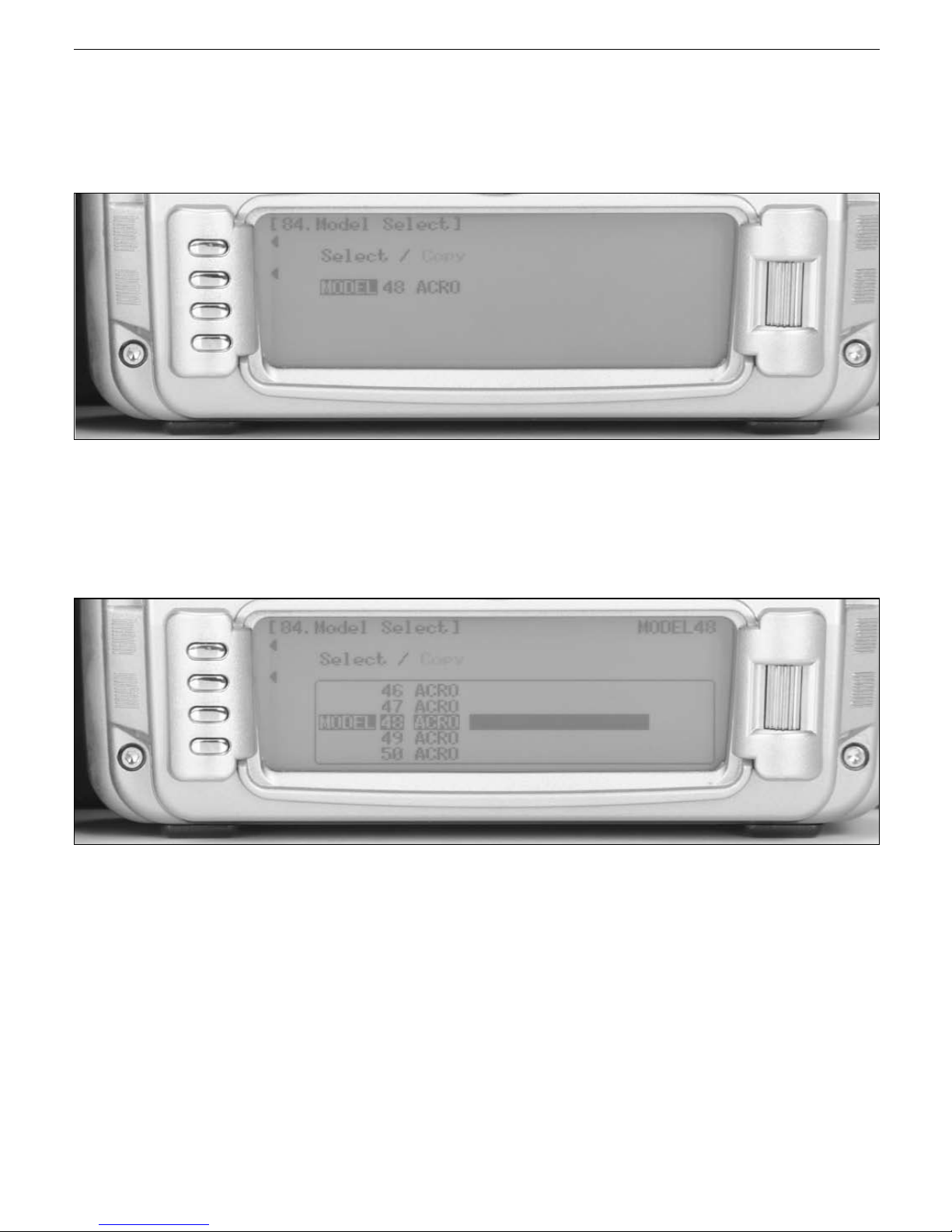
3. Rotate the roller to highlight MODEL then press the roller.
The following screen will appear.
4. Rotate the roller to highlight the desired model memory
(1 thru 50) then press the roller to select the highlighted
model memory.
Note: It is recommended that an unused model memory
be selected.
Step 1. Selecting a Model Memory

4
1. In System Mode List screen use the roller to highlight 89. Type
SEL. and press the roller to access the Type Select screen.
2. Rotate the roller to highlight ACRO then press the roller to
enter the ACRO program.
1. In System Mode List screen use the roller to highlight 28. MDL
Reset and press the roller to access the Model Reset screen.
2. Press the RESET button, then press YES to reset the model
memory to Factory Default settings.
Note: All programming in the selected model memory will
be reset to factory defaults.
Note: All programming in the selected model memory will
be reset to factory defaults.
Step 2. Selecting the Model Type (Acro)
Step 3. Resetting the Model Memory

5
1. In System Mode List screen use the roller highlight 81.
MDL Name and press the roller to access the Model Name
screen.
2. Rotate the roller to select the desired position to place a
letter or number (up to 16 characters) and press the roller
to access the Character screen.
3. Rotate the roller to select the desired number or letter and
press the roller to transfer that character to the selected
position.
4. Repeat until naming is complete. Press LIST to return to the
System mode list.
Step 4. Naming the Model

6
The Trim System Code 83 allows the adjustment of the trim
authority and also allows the flap trim and aux trim levers to
be turned on or off. An LST function when turned on causes
the aileron, elevator and rudder trim levers to only affect the
center and not affect the endpoints, which is desired for aircraft
to prevent over-driving the servos when trim is used. For most
40% aerobatic aircraft it is recommended to turn the flap trim
and aux trim off. The remaining settings are recommended
to be left at the default settings, 100% throttle, 4 for Aileron,
Elevator, and Rudder, and leave LST turned on. Once the aircraft
is trimmed using the default settings, the trim rate for Aileron,
Elevator, and Rudder can be reduced to 1 to allow for fine
adjustments of trim to perfectly trim the aircraft in flight.
Note: If a large amount of trim is required for the model,
LST trims will reduce the amount of throw in the direction
of the trim, and reduce control effectiveness in that
direction.
1. In System Mode List screen use the roller to highlight 83.
Trim SYS and press the roller to access the Trim System
screen.
2. Highlight ON next to Flap Trim and press the roller to
change this to OFF.
3. Highlight ON next to Aux Trim and press the roller to
change this to OFF. All other settings in Trim System should
be left in their factory default values.
Trim System
Step 5. Setting Up the Trim System

7
The flight mode name function code 92 can be used to rename
the flight modes throughout the system. This allows customized
programming for at-a-glance awareness of the current flight
mode. For instance Flight Mode 0 can be renamed 3-D, Flight
Mode 1 can be renamed SNAP, and Flight Mode 2 can be
renamed NORMAL (NORM). A short name can then be selected
from the complete flight mode name. Throughout the system,
the short name will be used as the name of the flight mode in
functions such as program mixes and other functions.
1. In System Mode List screen use the roller to highlight 92.
FM Name and press the roller to access the FM Name
screen.
2. Rotate the roller and highlight the first character, press the
roller, then rotate the roller to select the desired character.
Press the roller to select the desired character, and repeat
for each flight mode as desired. The Flight Mode name can
be up to 6 characters long.
Flight Mode Naming
Step 6. Flight Mode Naming

8
3. Rotate the roller and highlight the * and – marks as desired
under each Flight Mode name to select the abbreviated
short name. A * mark indicates the character will be used
in the short name, a – mark indicates the character will not
be used in the short name. The short name can be up to 4
characters long.

9
Device Select code 17 allows the activation of flight modes,
selecting a throttle hold switch, flap trim selection, flight mode
trim selection, and switch selection and activation for all aux
channels. Generally it is recommended for most aircraft to
begin setting up the aircraft by inhibiting all aux channels in
Device Select so that they can be used for dual functions in
the Wing Type menu. Flight modes can be activated in Device
Select; many flyers prefer to use the elevator dual rate switch
as the flight mode switch, though there are several switch
options that can be selected. Extra Flight modes (5 instead of
3) can be activated as well in the Device Select function, using
2 switches combined to select the desired flight mode in flight.
Generally most fliers use 3 flight modes. Flight mode trims
can be activated in Device Select. With Flight mode trims on,
trims will be independent for all flight modes, which allows the
aircraft to be trimmed in each flight mode. If the aircraft requires
different trim settings in each flight mode, activate this function.
Generally most giant-scale aerobatic aircraft do not require
different trim settings for each flight mode, so this is generally
turned off.
Note: If flight mode trims are active, it will be necessary to
trim the aircraft in all flight modes independently.
1. Press and hold the ENT button while turning on the power
switch to enter the System Mode List screen.
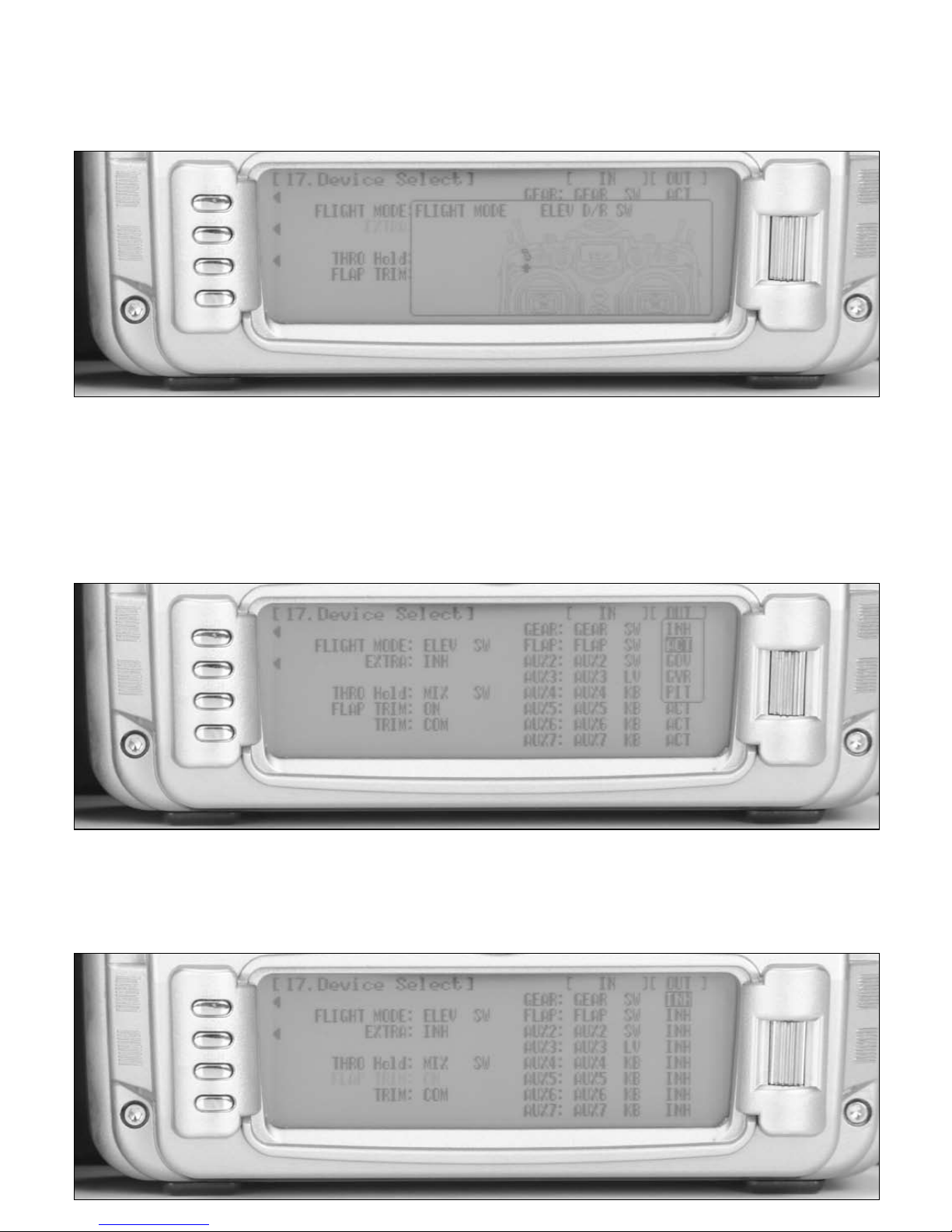
2. Using the roller highlight 17. DeviceSEL and press the
roller to access the Device Select screen.
Device Select
Step 7. Device Select Setup
10
3. Rotate the roller to highlight INH next to Flight Mode then
press the roller. The available switch positions screen will
appear.
4. Rotate the roller to select the Elevator D/R switch then press
the roller to select it. If another switch is desired, choose it
in the same manor.
5. Rotate the roller to highlight ACT next to Gear then press
the roller. The available functions list will appear.
6. Rotate the roller to select INH. Repeat for all the remaining
Aux channels.
Indice
Altri manuali JR Telecomando


