
Kent Scientific PhysioSuite Manuale utente
PhysioSuite®
Modular System
Fully integrated touch screen control and display
User’s Guide

©2019 Kent Scientific Corporation, Documentation Version 2.0 for On-Unit Help Version 5.03 and
Firmware Revision 2.00.00-60 August 2019
PhysioSuite®
Modular System
Fully integrated touch screen control and display
User’s Guide
Technical Help: 860-626-1172

TABLE OF CONTENTS
Introduction
System Components ...................................................................1
Navigating PhysioSuite® ............................................................. 2
System Customization
Custom Run Screen ..................................................................... 3
Alarms.............................................................................................4
RoVent®
Automatic Ventilator
Set Up Hardware.......................................................................... 6
Initial Set-Up ................................................................................. 7
Configure Settings....................................................................... 8
Procedure for Use ...................................................................... 10
Constant Flow Mode ................................................................. 11
Raw Override Mode ................................................................... 11
Troubleshooting ..........................................................................12
MouseSTAT®
Pulse Oximeter and Heart Rate Monitor
Set Up Hardware........................................................................ 14
Initial Set-Up ............................................................................... 14
Procedure for Use .......................................................................15
Troubleshooting ......................................................................... 16
MouseSTAT Sensor Maintenance ........................................... 16
TOC Continued ...

CapnoScan®
End-Tidal CO2 Monitor
Set Up Hardware.........................................................................17
Initial Set-Up ............................................................................... 19
Procedure for Use ..................................................................... 19
Troubleshooting ........................................................................ 20
CapnoScan Sensor Maintenance........................................... 20
RightTemp®
Temperature Monitor and Homeothermic Warming
Set Up Hardware.........................................................................21
Initial Set-Up ...............................................................................22
Procedure For Use .....................................................................23
Troubleshooting .........................................................................23
RightTemp Pad and Sensor Maintenance ............................24
Data Management
Connecting to a PC....................................................................25
History ..........................................................................................26
Analog Output............................................................................27
General Information
Contact ........................................................................................29
Product Warranty ......................................................................29
Satisfaction Guarantee ............................................................ 30
Specifications ............................................................................ 30
Index ....................................................................................33
1
Introduction
The PhysioSuite is not designed, intended or authorized for use in human applications.
System Components
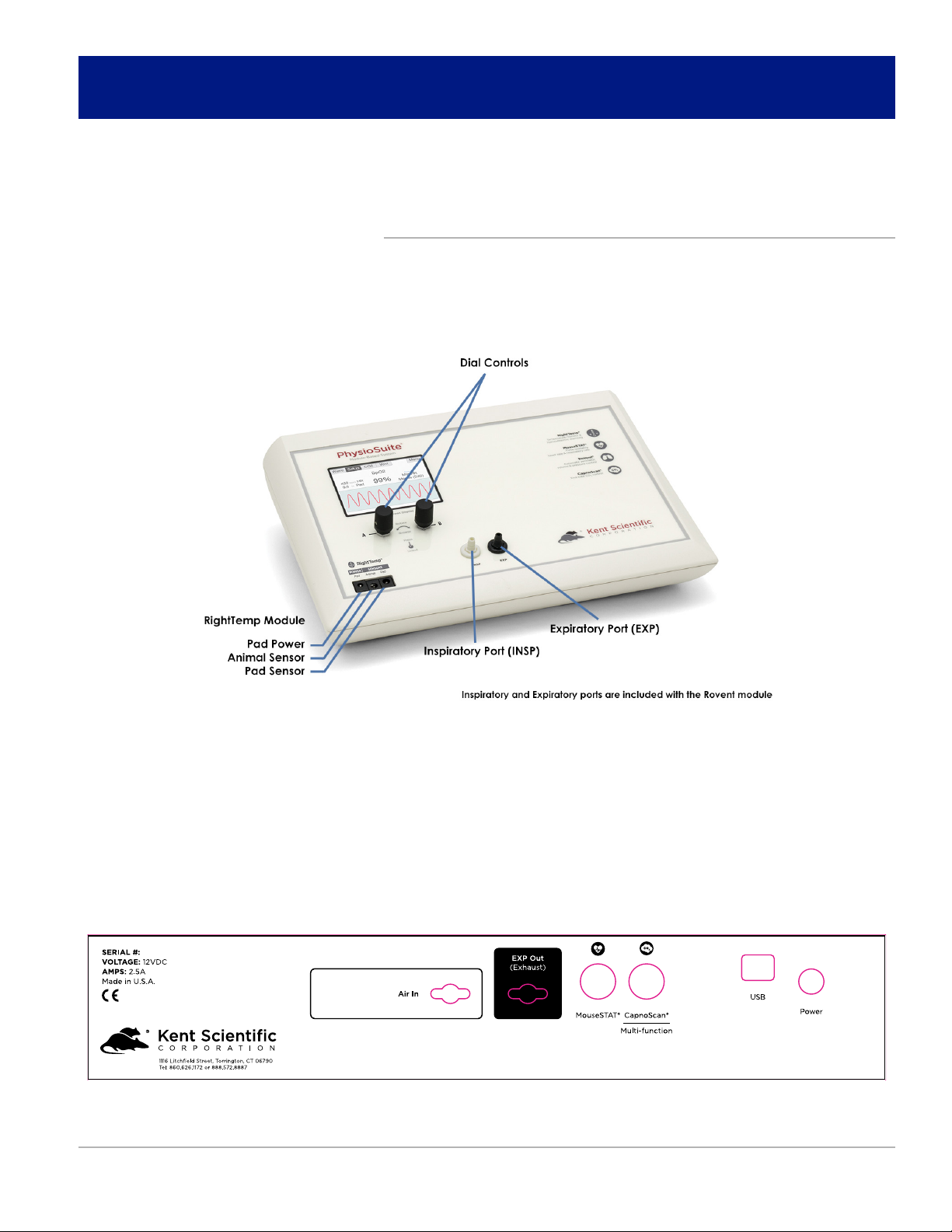
Front Panel
Back Panel
Note: If your PhysioSuite was purchased with RoVent, it will contain four airflow ports. If it was
not purchased with RoVent, these ports will be absent from the controller.
2
Navigating PhysioSuite®
Module Screens
The PhysioSuite Run screen has a designated screen for each installed module. Touch
the tabs along the top of the screen to view the parameters and important settings for
each module. Touch the tab again to open the module’s extended Setup Menu.
Touch Screen
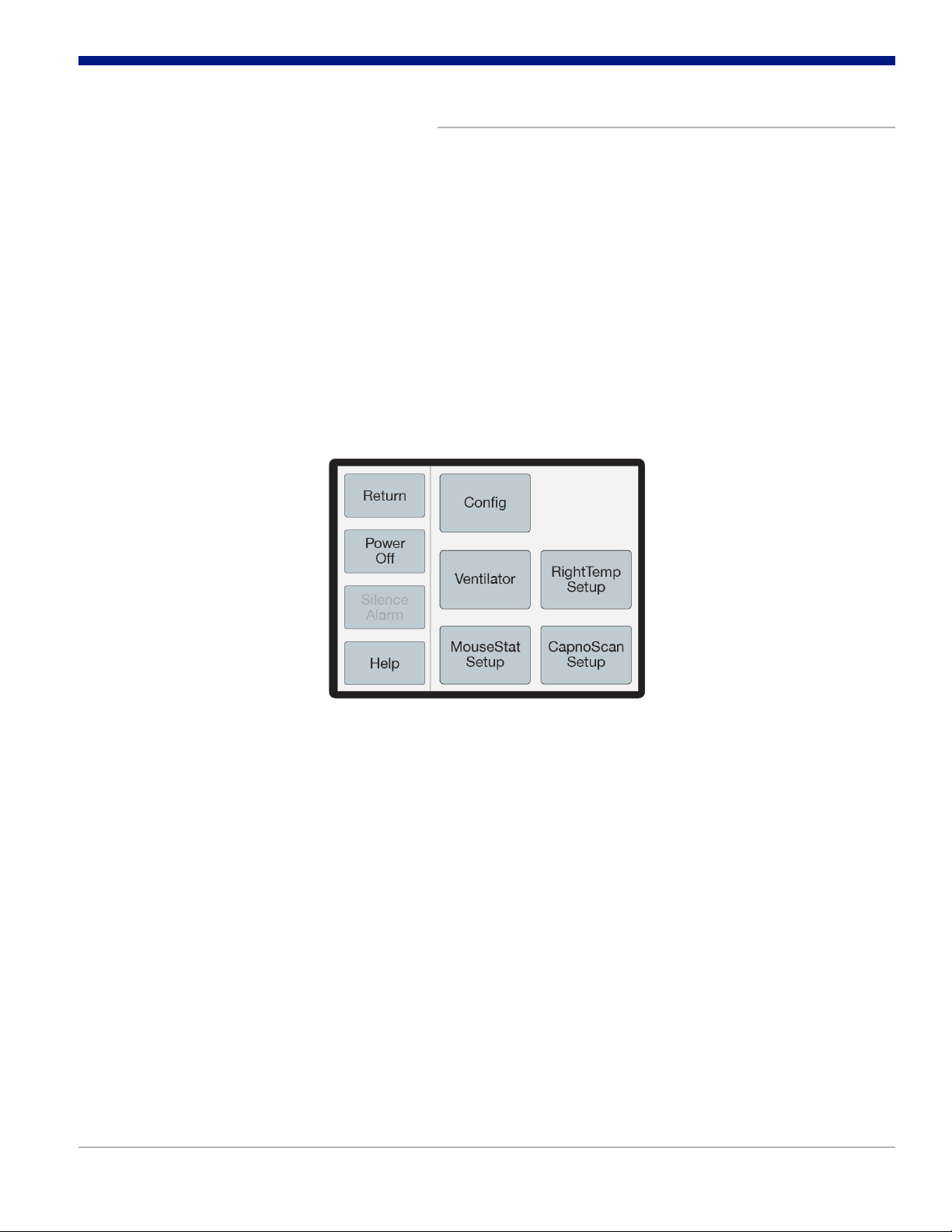
PhysioSuite Menu oers quick access to most features and settings. Touch the Menu
button on the top right corner of the Run Screen.
PhysioSuite Menu
(Available menu options may dier based on module configuration)

3
System Customization
Custom Run Screen
PhysioSuite allows you to configure your own Run Screen, allowing a combination of
parameters from any installed modules to appear on a single screen.
When using a Custom Run Screen, all settings need
to be entered from the Menu or congured with
Dial A and B.
To congure a Custom Run Screen:
1) From any Run Screen, touch Menu, then Config.
i Param Locations
Parameter locations allow you to decide where each parameter will be
displayed on the screen. Turn Dial A to scroll through the list of available
parameters, and turn Dial B to assign it to a location.
Press Dial A when finished.
ii Charts
Charts allow you to customize the graph that is displayed on the lower portion
of the Custom Run Screen. You can customize two independent charts.
Choose Chart Type to assign the parameter to be graphed, and Period to
assign a graph time point.
Touch Back when finished.
iii Set Ranges
The Range setting allows you to customize the graph axis. The Ranges set
here also apply to Analog Out. Turn Dial A to scroll through the list of
available parameters, and then turn Dial B to adjust the range.
Press Dial A when finished.
iv Dial Menu
The Dial Menu allows you to assign a dial command for your Custom Run
Screen. Turn Dial A to choose a setting you want to control for Dial A.
Touch >> to assign a setting to Dial B.
Touch Back when finished.
4
To use a dial command:
1. At the Run Screen, quickly turn the Dial assigned to the setting whose value
you want to change. The PhysioSuite beeps and the associated text becomes
blue.
2. Turn the Dial to increase or decrease the value for the assigned setting. After
3 seconds, the PhysioSuite beeps again and the command text returns to black.
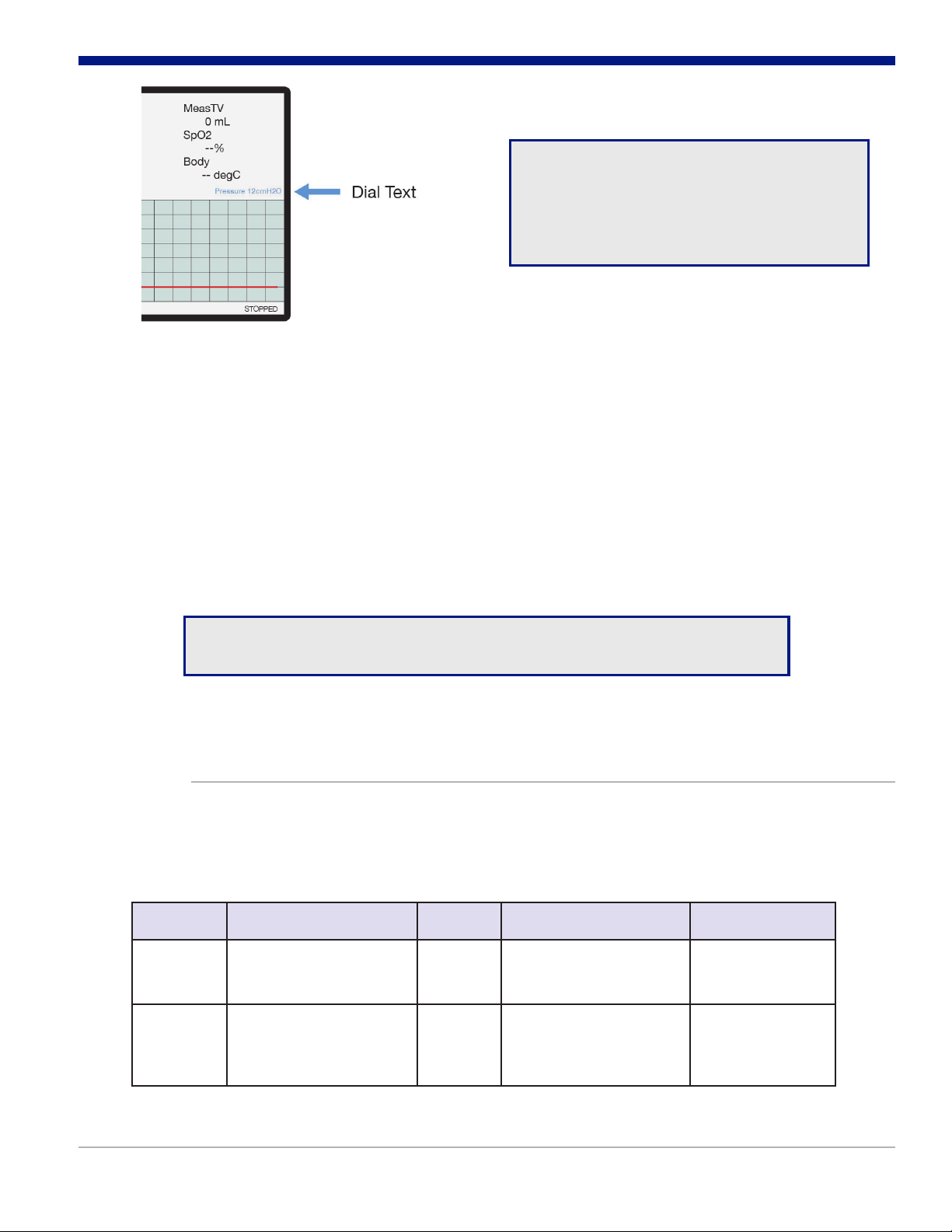
Small text on the run screen
displays the assigned Parameter
name for each Dial, if set, and its
current value.
Run Screen with Dial Function Text
As you turn a Dial, setting changes takes place immediately.
Alarms
The PhysioSuite Alarms alert you to certain conditions that might require attention.
There are two levels of alarms:
Level
Warning
Based On Banner Sound (If On) Congurable
Serious
Parameters or other
operating conditions
Parameters or other
operating conditions
Yellow
Red
1-beep pattern
3-beep pattern
Yes
Yes except for
system alarms

5
To congure a new Parameter alarm:
1) From any Run Screen, touch Menu then Config.
2) Touch Data Mgmt, then Alarms.
i Silence all Alarms
If you do not wish for the PhysioSuite to make an audible tone when an alarm
is triggered, you can create silent alarms. Turn Dial B to choose “Silence all
Alarms” or “Allow Sound”.
Touch Back when finished.
ii Parameter 1-4
Set a custom alarm based on any measured parameter. You may choose up
to 4. Press Dial A when finished configuring the following settings:
• Parameters: Choose a parameter to monitor by alarm.
• Action: Choose how the alarm will alert you (message and/or sound)
• Type: Choose status to trigger alarm
• Value: Set the threshold value
• Delay: Choose how long the value must meet the threshold before
triggering the alarm
• Clear: Choose how the alarm needs to be cleared
iii Fixed Alarms
The PhysioSuite includes a number of fixed alarms that alert you to scenarios
that require attention. The number of Fixed Alarms are dependent on the
number of modules installed. You may view and configure any of the Fixed
Alarms by selecting it, then pressing A to enter the Alarm Menu.
To clear a sounding alarm:
A triggered alarm produces a colored banner at the bottom of the screen describing
the cause of the alarm.
To silence the alarm:
1) Navigate to the corresponding Screen
2) Touch Setup, then Silence Alarm
OR
1) Touch Menu from any Run Screen
2) Touch Silence Alarm

6
RoVent®Automatic Ventilator
Set Up Hardware
C F
C F
If ventilating using ambient air (no vaporizer or compressed gas connection):
1. Remove the caps from rear ports and allow them to remain open to atmosphere.
2. Connect the Ventilator Tubing Adaptors to the ports, and attach the Intubation
Tubing.
The hub of a standard catheter endotracheal tube will slide over the end of the
white fitting.
If ventilating using an anesthetic gas vaporizer or compressed gas source:
1. Connect the Bypass Assembly to the rear ports of the PhysioSuite.
Note: The PhysioSuite RoVent is designed to operate with the ports at
neutral pressure. The Bypass Assembly is required to neutralize any
pressure buildup in the rear tubing. Backpressure can aect ventilator
function.
2. Connect the anesthetic vaporizer or compressed gas source to the Inlet side of
the Bypass, and a passive scavenging system (such as a charcoal canister) to the
exhaust port.
Note: Kent Scientific does not recommend connecting active scavengers
directly to the exhaust tubing.
3. Connect the Ventilator Tubing Adaptors to the ports, and attach the
Intubation Tubing.
The hub of a standard catheter endotracheal tube will slide over the end of the
white fitting.
Indice
Altri manuali Kent Scientific Attrezzature da laboratorio

Kent Scientific
Kent Scientific CODA Manuale utente

Kent Scientific
Kent Scientific MouseSTAT Jr Manuale utente

Kent Scientific
Kent Scientific CODA Manuale utente

Kent Scientific
Kent Scientific CODA Manuale utente

Kent Scientific
Kent Scientific SomnoSuite Manuale utente

Kent Scientific
Kent Scientific SomnoPath Manuale utente

Kent Scientific
Kent Scientific Rovent Jr. Manuale utente
Manuali Attrezzature da laboratorio popolari di altre marche


Agilent Technologies
Agilent Technologies 5800 ICP-OES Manuale utente

Endress+Hauser
Endress+Hauser Cleanfit CPA875 Manuale utente

NI
NI PXI-5422 Manuale

Collomix
Collomix Aqix Manuale utente

SPEX SamplePrep
SPEX SamplePrep 6875 Freezer/Mill Series Manuale utente

Ocean Insight
Ocean Insight FLAME-NIR+ Manuale utente


