KeyWest Technology KWT TM 2-1-DEVISOM Manuale utente

DEVIS (v.2) Operator’s Manual Keywest Technology Early Warning Systems
Keywest Technology
14563 W. 96th Terrace
Lenexa, Kansas 66215
800.331.2019
www.keywesttechnology.com
1
KWT TM 2
-
1
-
DEVISOM
14 Mar 03
Change 02
Table of Contents
Introduction 3
Connections 4
Operations 9
Store Presentations 10
Store Audio 13
Playback Tones 15
Playback Presentations 16
Presentation Hot Keys 17
Set Presentations & Tones 18
Presentation Slots 19
Audio Slots 20
GPI On/Off 20
Telephony & DTMF Setup 21
Pass Code 22
Level Settings 23
Auto-Answer 24
Dial-Up Control 24
Telephone Quick Reference Guide 25
DTMF Commands 26
Live Voice-Over 26
Clear DTMF Buffer 27
Audio Sources 28
Scheduler 29
Set Day-of-Week 30
Reset Day-Of-Week 32
Set Specific Date 33
Set System Clock/Date 34

DEVIS (v.2) Operator’s Manual Keywest Technology Early Warning Systems
Keywest Technology
14563 W. 96th Terrace
Lenexa, Kansas 66215
800.331.2019
www.keywesttechnology.com
2
KWT TM 2
-
1
-
DEVISOM
14 Mar 03
Change 02
Remote Control 34
IP Addresses 35
Remote Control Functions 36
Remote Maintenance Screen 37
Reprogram Slots 38
Reprogram Scheduler 38
Appendix A: Connect DEVIS to MHz RF-Switch (Courtesy Bruce Bradley) 40

DEVIS (v.2) Operator’s Manual Keywest Technology Early Warning Systems
Keywest Technology
14563 W. 96th Terrace
Lenexa, Kansas 66215
800.331.2019
www.keywesttechnology.com
3
KWT TM 2
-
1
-
DEVISOM
14 Mar 03
Change 02
Deployable Emergency Video Information
System (DEVIS)
DEVIS is a mobile, computer based system used to
display Microsoft PowerPoint™ Presentations over
CCTV, CATV, or broadcast video lines and
airwaves. The unit has two major modes of
operation—displaying normal, user-designed,
presentations and switching on user command to
emergency presentations. DEVIS is capable of
playing audio directly through it’s line-in
port, and overriding with emergency messages. It
features telephone dual-tone multi-frequency
(DTMF) control for switching presentations,
switching audio source, recording messages, and
playback of messages. The system is also
controllable via Ethernet, making it a flexible device,
accessible worldwide.
Part # Options
DEVIS Keyboard, Monitor, Mouse, any
commercially available software packages
FEATURES
??Composite NTSC and RGBHV output
??Integrated command & control software
??Stand-alone remote control software
??DTMF remote control
??Built-in LAN and Modem
??PowerPoint™ autoplay & switching
??Line-in & Mic audio loop through
??Record and playback voice messages over
video system
??Real-Time Live Voice-Over capable
??Record and playback alert tone signals
??GPI for external switcher triggering
(example: MegaHertz 1x8 Base band
switch)
??Capable of normal PC operations including
web services, email, etc…
??Ruggedized and redundant internal cooling
with integral air filtration
??Microsoft Windows2000 Pro™ based
system for security and stability
ORDERING INFORMATION
APPLICATIONS
??Deployed or front-line locations
requiring video based information
dissemination
??Any television system with need to
quickly relay alert, advice, or
emergency information to a
population
??Kiosk
??Dormitory, Barracks, Rec Center,
Clubs, TV & Movie Shelters, Tent
City, Command Post, Headquarters
private or public information server
??Anyplace video information is
needed, and real-time presentation
switching is required

DEVIS (v.2) Operator’s Manual Keywest Technology Early Warning Systems
Keywest Technology
14563 W. 96th Terrace
Lenexa, Kansas 66215
800.331.2019
www.keywesttechnology.com
4
KWT TM 2
-
1
-
DEVISOM
14 Mar 03
Change 02
CONNECTIONS
***CAUTION***
Unit is capable of operating on 110VAC to 240VAC, 60Hz/50Hz. Ensure you use only ground isolation main
power cable as provided. Inadequate power grounding can result in equipment damage or destruction and could
void warranty. Further, ensure your AC voltage supply socket is single-phase only at either 60Hz or 50Hz—
400Hz and 3-phase power can damage or destroy the unit.
****************************
WARNING
*****************************
Lethal operating voltages present at internal system power supply. Completely disconnect main power cord
prior to opening cover or removing any panels. Appropriately trained personnel only should attempt any
internal modifications, repairs, or service.
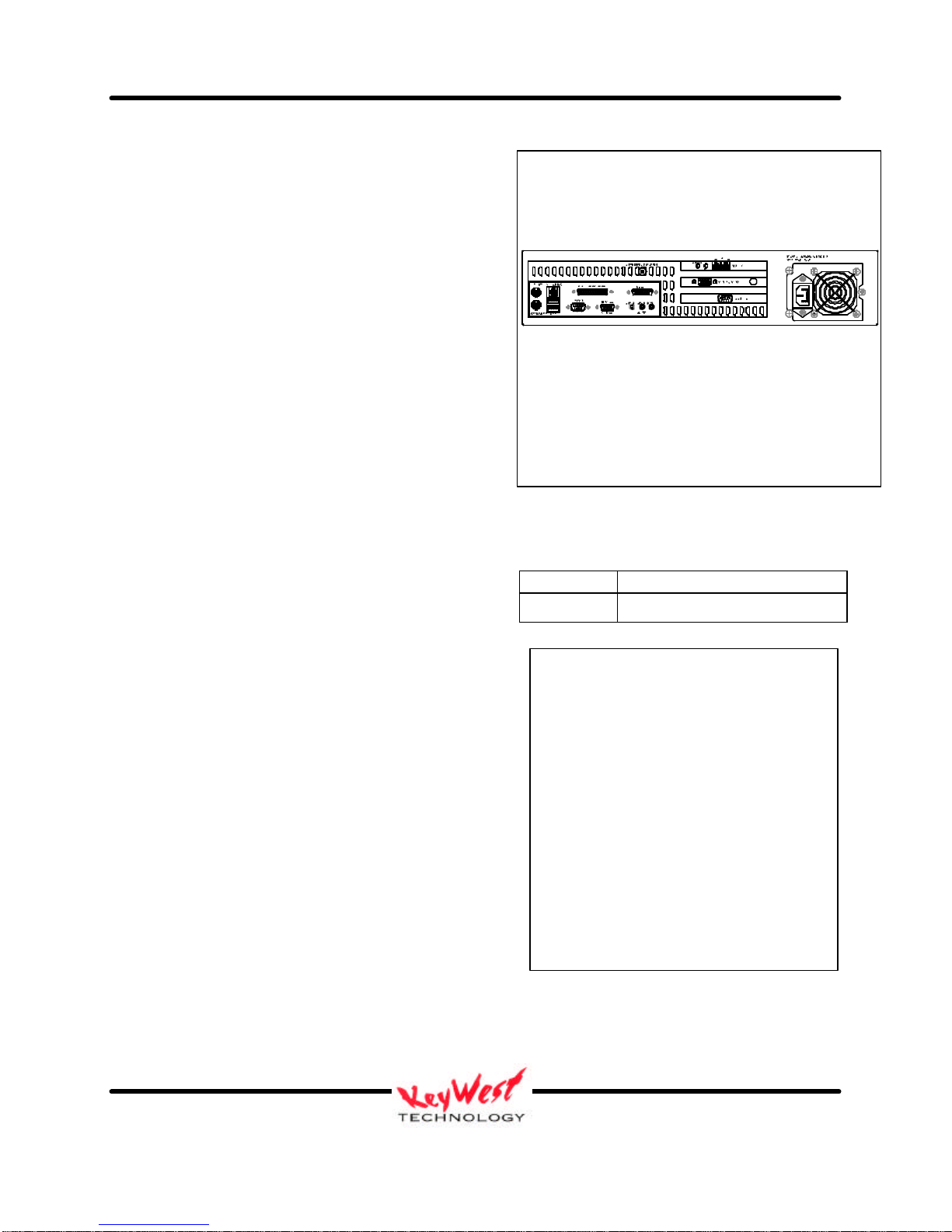
Figure 1
DEVIS Rear Panel Overview

DEVIS (v.2) Operator’s Manual Keywest Technology Early Warning Systems
Keywest Technology
14563 W. 96th Terrace
Lenexa, Kansas 66215
800.331.2019
www.keywesttechnology.com
5
KWT TM 2
-
1
-
DEVISOM
14 Mar 03
Change 02
Standard PC Connections (refer to figure 1, 1A and 1B)(* = required connection for DEVIS
normal operation—all other connections not marked with ‘*’ are optional)
*MOUSE: Standard PS/2 style mouse
*KEYBOARD: Standard PS/2 style keyboard
USB: Universal Serial Bus (any number of add-in peripherals such as printer, mouse, keyboard)
*PARALLEL PORT/GPI PORT: Can be standard printer port—for DEVIS, connect 25-Pin GPI
cable (included) for control of external switcher device
COMM 1: Standard RS-232 serial port
COMM 2: Standard RS-232 serial port
GAME PORT: Used for game controllers and some audio devices
*AUDIO LINE OUT: Connect with 1/4” Stereo plug to audio amplifier or switcher for audio
broadcast over cable or broadcast television system. Required if you desire audio on-air
capability.
*AUDIO LINE IN: Use 1/4” stereo plug to connect radio receiver, CD player, tape player, etc…
to line-in to loop through external audio source over the video presentation (Background
Music/Sound). This is the main audio input port for DEVIS operation. This is only required if
you desire audio over your normal PowerPoint™ presentations. Commonly used for simply
playing ambient audio during presentations.
*AUDIO MIC IN: Primary Voice Modem input for live real-time telephonic voice-over-video
functions. Can serve as microphone input or secondary audio source input
*COMPOSITE VIDEO OUTPUT: BNC connector outputting standard NTSC base band
composite video for use with BNC cables. This is main video output to be used in cable and
broadcast video applications.
*MODEM: Connect your telephone line to the modem port labeled “LINE”. This is mandatory
for DTMF dial-up control of the DEVIS. If desired, you can connect a land-line telephone to the
port labeled “PHONE”, which will allow use of the telephone while DEVIS is not being
communicated to—it is also handy to have a phone attached so you can hear the ring, giving you
an indication that someone is dialing into the DEVIS. DEVIS will answer the phone after the
first full ring. Connect a 1/4” stereo audio plug from the “speaker” jack to the sound card’s MIC
input (for real-time voice-over-video function).

DEVIS (v.2) Operator’s Manual Keywest Technology Early Warning Systems
Keywest Technology
14563 W. 96th Terrace
Lenexa, Kansas 66215
800.331.2019
www.keywesttechnology.com
6
KWT TM 2
-
1
-
DEVISOM
14 Mar 03
Change 02
*VGA PREVIEW: This is DEVIS’ normal VGA-style connector. It is an industry standard
High-Density 15pin connector, used to interface with any computer monitor. Video output of
this connector is not meant for a television, as it is progressive scan component type video (as
opposed to composite video on the BNC connector). This video output is referred to as RGBHV
(Red Green Blue Horizontal Vertical (sync pulses)).
*NETWORK: This is a 10/100 Base-T LAN connector. Connect your DEVIS to your network
via this port to allow for remote control of the device. If you have DEVIS connected this way,
you will need to set your IP addresses in the device. Factory default for the IP Address is:
10.0.0.100, and may be used on many intranet installations.
If you must change the IP address in your DEVIS, contact IT trained personnel. See Appendix A
for further information.
*110VAC –220VAC: Standard 3-prong ground isolation main power connection. Connect with
provided power cord to single-phase 60Hz/50Hz wall AC outlet. Custom cables for deployed
benches and racks may be manufactured, but must comply with common electrical code for
ground isolation plugs. Contact Civil Engineering or equivalent for special cable manufacture.
Connect this only when you are ready to run the unit, as it is set to “auto-power” (safety against
power outages). As soon as you plug in the AC, the device will power-up, boot-up, and begin to
run the software applications.

DEVIS (v.2) Operator’s Manual Keywest Technology Early Warning Systems
Keywest Technology
14563 W. 96th Terrace
Lenexa, Kansas 66215
800.331.2019
www.keywesttechnology.com
7
KWT TM 2
-
1
-
DEVISOM
14 Mar 03
Change 02
Figure 1A
Mouse
Keyboard
Network
GPI Out to Switch
To Modulator
or Switch
Audio Out to Modulator or Switch
Audio In from Radio, CD, etc…

DEVIS (v.2) Operator’s Manual Keywest Technology Early Warning Systems
Keywest Technology
14563 W. 96th Terrace
Lenexa, Kansas 66215
800.331.2019
www.keywesttechnology.com
8
KWT TM 2
-
1
-
DEVISOM
14 Mar 03
Change 02
Telephone Voice-Over Connection To Computer Monitor
RJ-11 Telephone Line-In
Figure 1B

DEVIS (v.2) Operator’s Manual Keywest Technology Early Warning Systems
Keywest Technology
14563 W. 96th Terrace
Lenexa, Kansas 66215
800.331.2019
www.keywesttechnology.com
9
KWT TM 2
-
1
-
DEVISOM
14 Mar 03
Change 02
DEVIS OPERATION
Should DEVIS be shut down through normal Windows™ means, you’ll need to power the unit
with the front panel momentary power switch. To do so, simply open the front door, press the
power switch and release. You should hear the fans begin to run, and LED indicators on the
front panel should illuminate.
The DEVIS control software will “auto-run” at boot up. After everything is initialized, you
should see the main application form appear on your video monitors.
Figure 2

DEVIS (v.2) Operator’s Manual Keywest Technology Early Warning Systems
Keywest Technology
14563 W. 96th Terrace
Lenexa, Kansas 66215
800.331.2019
www.keywesttechnology.com
10
KWT TM 2
-
1
-
DEVISOM
14 Mar 03
Change 02
Out of the box, DEVIS has sample presentations and sample tones installed. These are the file
names listed on the form in figure 2 and highlighted in figure 3.
Create your presentations on any other PC as you would normally and import them into DEVIS.
You will need to store them in the “C:\\DEVISFOL\PRESENTATIONS” folder so that DEVIS
can access them.
Access this folder now—you will see the sample presentations stored.
Figure 3
Figure 4
Figure 5
Indice
Altri manuali KeyWest Technology Proiettore