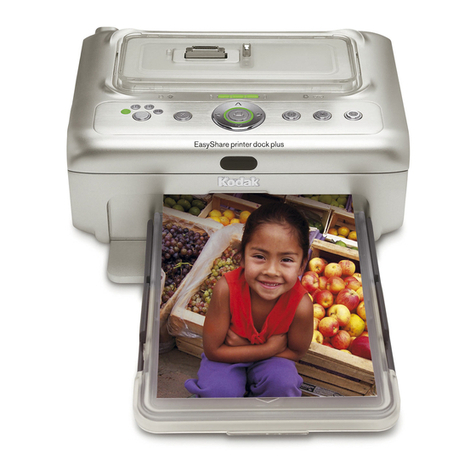
Kodak Apex 7015 Manuale utente

KODAK 7015 Photo Printer
7015 Photo Printer
User’s Guide

TM/MC/MR Licensed from Eastman Kodak Company: Kodak
Kodak Alaris Inc.
2400 Mount Read Blvd., Rochester, N.Y. 14615
© 2014 Kodak Alaris Inc.
All rights reserved. Printed in U.S.A.
P/N 4J6747

i
Table of Contents
1 Setting Up the Printer
Package Contents............................................................................................................................................ 1-1
Preparing the Printer for Use ........................................................................................................................1-2
Connecting the Cables .................................................................................................................................. 1-4
Connecting the Power Cable................................................................................................................. 1-4
Connecting the USB Cable..................................................................................................................... 1-4
Turning On the Printer ...................................................................................................................................1-5
Handling and Storing the Paper and Ribbons...........................................................................................1-5
Loading the Ribbons........................................................................................................................................1-5
Loading the Photo Ribbon .......................................................................................................................1-5
Loading the Backprinter Ribbon Cartridge..........................................................................................1-7
Loading the Paper..........................................................................................................................................1-14
Making a Test Print....................................................................................................................................... 1-17
2 Operating the Printer
Making Prints....................................................................................................................................................2-1
Handling and Storing Prints ..........................................................................................................................2-1
Operator Panel Lights.....................................................................................................................................2-1
Operator Panel Buttons.................................................................................................................................2-2
Printer Settings................................................................................................................................................2-3
3 Maintaining the Printer
Performing Routine Maintenance ...............................................................................................................3-1
Cleaning the Exterior ................................................................................................................................3-1
Cleaning the Thermal Print Head and the Peel Roller.....................................................................3-2
Cleaning the Paper Guide.......................................................................................................................3-3
Cleaning the Platen Roller ......................................................................................................................3-4
Cleaning the Cleaning Rollers ...............................................................................................................3-5
4 Troubleshooting
Resolving Operator Panel Error Messages ..............................................................................................4-2
Clearing a Paper Jam .....................................................................................................................................4-3

ii
Table of Contents
Recovering from a Power Interruption ..................................................................................................... 4-5
Appendix A: Additional Information
System Requirements....................................................................................................................................A-1
Printer Specifications .....................................................................................................................................A-1
Printer Supplies ..............................................................................................................................................A-2
Paper and Ribbon.....................................................................................................................................A-2
Thermal Printer Cleaning Kit ................................................................................................................A-2
Packing and Transporting the Printer.......................................................................................................A-3
Getting Help ....................................................................................................................................................A-3
Appendix B: Safety and Regulatory Information
Important Safety Information ...................................................................................................................... B-1
Safety Labels ....................................................................................................................................................B-2
Regulatory and Safety Compliance ............................................................................................................B-3
Safety ...........................................................................................................................................................B-3
Electromagnetic Compatibility (EMC) ...............................................................................................B-3
Noise Emission ..........................................................................................................................................B-5
Disposal.......................................................................................................................................................B-5
China RoHS ............................................................................................................................................... B-6

Setting Up the Printer
1-1
1
Setting Up the Printer
Package Contents
The KODAK 7015 Photo Printer is packaged with the following
items:
1. Printer
2. Trim tray (not installed)
3. Paper flange without gear (gray)
4. Spacer (gray)
5. Spacer (green)
6. Paper flange with gear (green)
1
3
2
6
4
5

1-2
Setting Up the Printer
Preparing the Printer for Use
IMPORTANT: The printer weighs approximately 63 lbs (29 kg) and is
heavier at the front than at the back. Use caution when
lifting or moving the printer.
NOTE: Keep the carton and packaging in case you ever need to
transport the printer.
1. Remove the tape from the top cover and paper door.
2. Slide the top cover latch release toward you.
3. Carefully open the top cover.
IMPORTANT: The top cover does not open beyond a 90° angle.
CAUTION:
There are sharp cutter blades inside the printer. Follow
instructions carefully to avoid touching any areas that may
be hazardous.

Setting Up the Printer
1-3
4. Check to make sure the paper guide is securely in place by
pressing down on each of the knobs. For steps on removing
and reinstalling the paper guide, see “Cleaning the Paper
Guide” on page 3-3.
5. Close the top cover.
6. Check the backprinter cover to make sure it is fully closed
7. Insert the trim tray into the printer as shown.
NOTE: If the backprinter cover is not fully closed, the trim tray
cannot be inserted or removed, and the printer will not
print.
Backprinter cover

1-4
Setting Up the Printer
Connecting the Cables
Connecting the Power
Cable
If you received more than one power cable with your printer, make
sure to use the correct power cable for your country.
1. Check that the power switch is turned off ( ).
CAUTION:
The power outlet must be grounded. An ungrounded outlet
can cause fire, electric shock, or harmful interference to
nearby electrical devices.
2. Connect the power cable to the power connector on the back
of the printer and to a grounded power outlet.
Connecting the USB Cable
1. Check that the power switch is turned off ( ).
2. Connect the USB cable that was included with the printer to
the USB connector on the back of the printer and to the USB
connector on the computer.

Setting Up the Printer
1-5
Turning On the Printer
Move the power switch to on ( | ).
On the operator panel, the orange Power light illuminates. If paper
and ribbon are loaded, a Ready message appears.
To turn off the printer, move the power switch to off ( ).
Handling and Storing the Paper and Ribbons
For the best quality prints, carefully handle and store the paper
and ribbons.
• To avoid fingerprints, handle the photo ribbon by the spool
ends. Handle the backprinter ribbon by the cartridge. Do not
touch the ribbon material. Do not touch the glossy side of the
paper.
• Store the paper and ribbons away from direct sunlight.
Loading the Ribbons
Loading the Photo Ribbon Make sure you have a KODAK 7000 Print Kit 5R (sold separately)
available. This kit contains the correct photo ribbon for your
printer (see “Printer Supplies” on page A-2).
1. Carefully open the top cover.
CAUTION:
The thermal head becomes extremely hot during normal
operation. Do not touch it.
2. If you are replacing the photo ribbon, remove the used ribbon.
NOTE: Images remain on the photo ribbon after printing. If you
need to maintain confidentiality, dispose of the used
ribbon appropriately.

1-6
Setting Up the Printer
3. Insert your fingers into the holes in the plastic wrapper on the
end of the photo ribbon. Remove the plastic wrapper from the
ribbon.
IMPORTANT: Do not remove the label from the ribbon at this time.
4. Push the bar code end of the supply spool onto the front spool
holder on the right.
5. Insert the left side of the supply spool onto the front spool
holder on the left. Align the notches on the supply spool with
the lugs on the spool holder.
6. Adjust the supply spool until the spool locks into the spool
holder.
7. Remove the label.
Plastic wrapper
Label
Indice
Altri manuali Kodak Stampante

Kodak
Kodak ESP C310 Manuale utente

Kodak
Kodak Photo Printer 6850 Manuale utente

Kodak
Kodak 8810 Manuale utente

Kodak
Kodak D4000 Manuale utente

Kodak
Kodak Ektascan 1120 Manuale utente

Kodak
Kodak 1200I Guida all'installazione

Kodak
Kodak Smile Manuale utente

Kodak
Kodak RP 30 Manuale

Kodak
Kodak 8650R THERMAL PRINTER Manuale

Kodak
Kodak Photo Printer 6850 Scheda tecnica

Kodak
Kodak XLS 8600 PS Manuale utente

Kodak
Kodak SRP 30 Manuale

Kodak
Kodak PPM200 Manuale utente

Kodak
Kodak EasyShare Printer Dock Plus Manuale utente

Kodak
Kodak verite 55 plus Scheda tecnica

Kodak
Kodak 805 Manuale utente

Kodak
Kodak ESP C310 Manuale utente

Kodak
Kodak NexPress M700 Manuale utente

Kodak
Kodak 8670 PS Manuale

Kodak
Kodak 7 Manuale utente