
LCD Concepts MES-6P-F Manuale utente
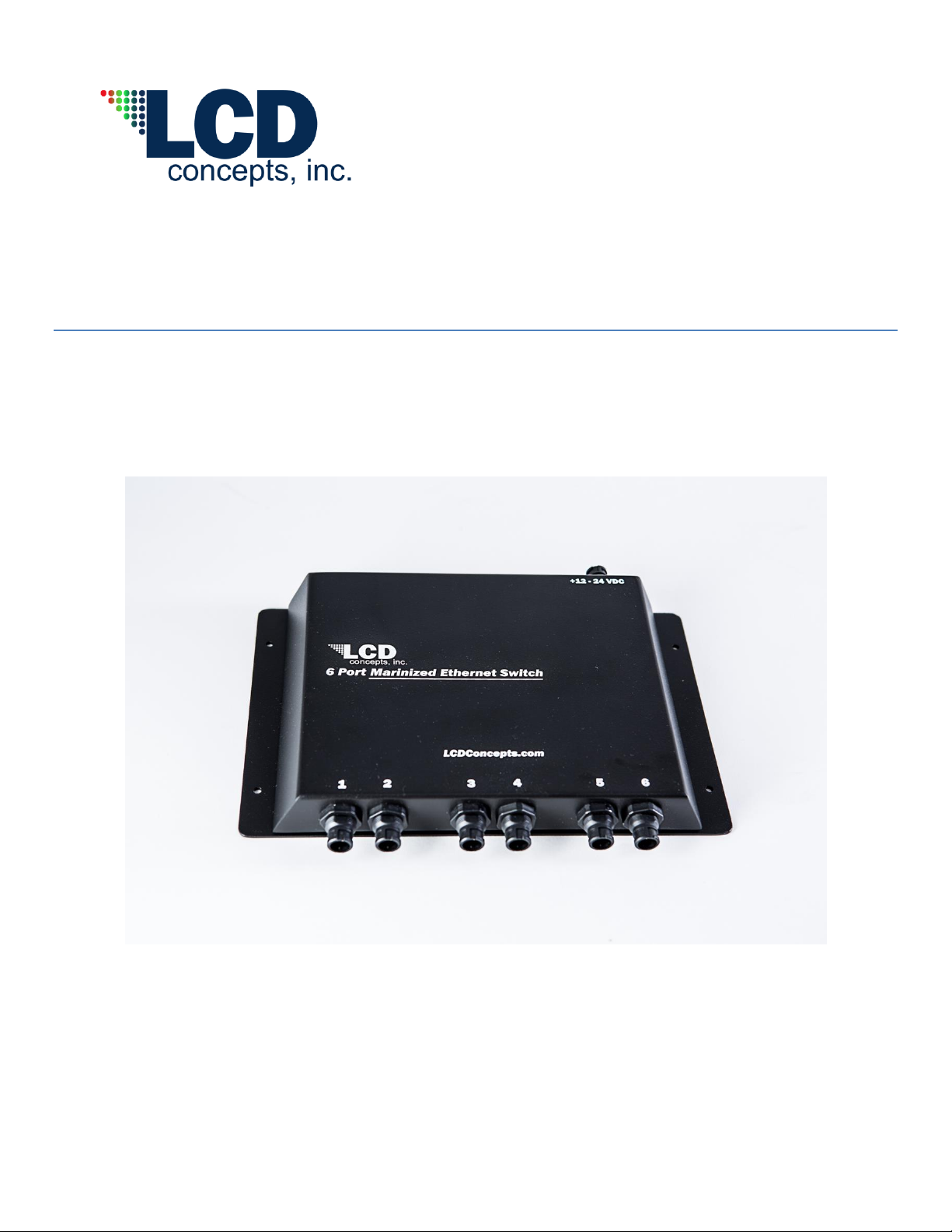
USER MANUAL
6-PORT SWITCH for Furuno NavNet 2
MODEL MES-6P-F
Version 1.0
LCD Concepts, Inc
2555 South Shore Blvd., Suite D
League City, Texas 77573
Phone: (281)334-5181 Fax (281)334-7257
E-Mail: Sales@LCDConcepts.com
www.LCDConcepts.com

2 | P a g e
Features of the MES-6P-F
6 Port Switch
Six N-Way 10M/100Mbps auto-detect Ethernet/Fast Ethernet ports
Each port automatically negotiates between 10BASE-T and 100BASE-TX network speeds
Each port automatically negotiates between full and half-duplex modes
Any port can act as an Up-link to Fast Ethernet or down-link to Ethernet
“Plug-and-Play” installation with no software configuration necessary
Housings are made with marine grade aluminum and are powder coated inside and out for
long life
Rugged construction sealed to IP67 standards (compliant) for splash and dust
The electronics inside are coated with a corrosion blocker to further ensure reliability
Operating at maximum packet filtering and forward rate, supports for Store-and Forward of
packet switching
Buffer memory, 256Kbytes per device
8K MAC address entries per device
1 year warranty
Technical Specifications
Complies with IP67 standards
IEEE 802.3 (10Base-T Ethernet) and IEEE 802.3u (100Base-T Fast Ethernet) Standards
Class B digital device, pursuant to FCC, Part 15
Operating temperature………………… 0-50 Degrees C
Input Voltage……………………………..12-24 VDC
Maximum relative humidity……………..90% Non-condensing
Maximum power consumption…………11.25 Watts
Installation of the MES-6P-F Switch
This section will explain how to connect Ethernet devices to your MES-6P-F switch and how to mount
the switch.
Mounting the Switch
The MES-6P-F can be mounted in any orientation such as a flat surface, a wall or under a desktop.
Four mounting holes are provided; two on each end of the switch. Use four #6 screws for this
purpose. Make sure that there is at least 4” of clearance between all connectors on the MES-6P-F
and the nearest surface or object to allow the Ethernet and power cables to be plugged in. The
added clearance will also facilitate troubleshooting.
Dimensions of switch: Length- 10 ½”, Width-8 ¼”, Depth- 1 ½”
Note: The width is measured from connector to connector

3 | P a g e
Connecting the Switch
PC to MES-6P-F
Connect the switch to a computer using a cable supplied by or purchased from Furuno with a
Furuno connector on one end and a RJ-45 connector on the opposite end.
Suggested Furuno cables: 000-159-689, 0.5 Meters
MES-6P-F to NavNet 2 or Other Ethernet Devices
The MES-6P-F can be connected to the NavNet 2 using the cables provided or purchased.
Suggested Furuno cables: 000-154-027, 1 Meter
000-154-049, 5 Meters
000-154-050, 10 Meters
The MES-6P-F can also be connected to other Ethernet devices using Furuno
cable/connectors and the appropriate RJ-45 adapter. The connection can be from any port on
the MES-6P-F to any of the MDI-X, 10Mbps or 100Mbps ports on another switch or other
device.
Port Speed and Duplex Mode
After plugging in the selected cable to a specific port, the MES-6P-F uses auto-negotiation to
determine the transmission mode, auto-detecting the network speed, 10Mbps or 100Mbps.
If the attached device does not support auto-negotiation or has auto-negotiation disabled, an auto-
sensing process is initiated to select the speed and half-duplex is selected.
Precautions
Switch to be installed 6’ from sources of electromagnetic noise (generators, etc.)
Not intended for prolonged submersion

4 | P a g e
Troubleshooting
Does the MES-6P-F switch have an uplink port?
An uplink port is not necessary. The MES-6P-F has Auto-MDI ports which automatically sense
the type of cable being used, i.e. a straight-through or a crossover cable.
What is the maximum length of Ethernet cable that can be used between the MES-6P-F
and other devices such as the NavNet 2, router, computer or another switch?
The maximum length between a computer, the NavNet 2 or other Ethernet device on a
network is 100 meters or about 328 feet. Keep in mind that this is a theoretical limit. Usually
the distance should be kept well below this limit.
How do I know what the IP address is?
After the MES-6P-F has been installed and connected to a computer, by default, the TCP/IP
settings should be set to obtain an IP address.
To verify the IP address follow the steps below:
1. From your Windows main screen, click on Start > Run.
2. In the Run box type cmd and click OK.
3. At the prompt, type ipconfig and press Enter. This will display the IP address,
subnet mask and default gateway of your switch.
4. Write the IP address down for troubleshooting purposes.
LCD Concepts, Inc
2555 South Shore Blvd., Suite D
League City, Texas 77573
Phone: (281)334-5181 Fax (281)334-7257
E-Mail: Sales@LCDConcepts.com
www.LCDConcepts.com
Indice


