LEGRAND C2G31030 Manuale utente

-
-
-
-
-
-


-.......................
- ..........................
..........................................................
...........................................
..........................
.............................................................
-.......................................
.........................................................
.............................
.............................................................
-............................
-..........................
.................................................
’ .....................................
...................
............................................................
-........................................
.....................................................
..............................
........................................................
-.
-.....
.................................................
...................................
.................
.......................................................
- .................................
.........................................................
................................
...............................................................

FRONT PANEL DESCRIPTION
1 Power LED On: Power is applied to the device.
Off: No power is applied to the device.
2 HDMI LED On: HDMI input signal is active.
Off: No HDMI signal input.
3 LINK LED On: HDBT link is normal.
Off/Blinking: No HDBT link or link error.
4 HDMI IN Connect to an HDMI source using an HDMI cable.
5 USB HOST Connect USB host PC.
REAR PANEL DESCRIPTION
6 HDBT OUT Connect to the HDBT receiver via a Cat 5e/6/6a/7 cable.
7 DC 12V
Connect to a DC 12V power adapter. With one-way PoH
function supported, the transmitter can be powered by the
receiver.
8 RS232 Connect to a RS232 enabled device for RS232 pass-
through or firmware upgrade.
9 RS232 DIP Switch
Set the function of RS232 port.
PASS THROUGH: RS232 port is used to command pass-
through via HDBT. Users can use API command to
upgrade transmitter’s MCU firmware in this mode.
UPDATE: RS232 port is used to update Valens firmware of
transmitter and receiver.
Transmier Transmier
-
-

Receiver
Receiver
FRONT PANEL DESCRIPTION
1 POWER LED On: Power is applied to the device.
Off: No power is applied to the device.
2 STATUS LED Blinking: The device is working properly.
Off: The device is not working properly.
3 HDCP LED On: HDCP protected content is being transmitted.
Blinking: Non-HDCP protected content is being transmitted.
Off: No content is being transmitted.
4 LINK LED On: HDBT link is normal.
Off/Blinking: No HDBT link or link error.
5 RS232 DIP
Switch
Set the function of RS232 port.
Pass-through (Default): RS232 port is used to pass RS232
commands over HDBT.
MCU: RS232 port is used to update receiver’s MCU firmware.
VS: RS232 port is used to update Valens firmware of transmitter
and receiver.
REAR PANEL DESCRIPTION
6 DC 12V Connect to a DC 12V power adapter. With one-way PoH function
supported, the transmitter can be powered by the receiver.
7 HDBaseT IN Connect to HDBT OUT of the transmitter via a Cat 5e/6/6a/7 cable.
8 RS232 For RS232 pass-through or firmware upgrade.
9 HDMI OUT Connect to an HDMI display device.
10 AUDIO OUT Unbalanced stereo audio output.
PASS-THROUGH: Reserved.
DE-EMBED: For audio de-embedding from the HDMI output.
11 4x USB
DEVICE
Connect to USB devices such as keyboard, mouse, USB camera, etc.
Note: USB ports support USB 2.0 standards with a maximum of 1.4A
for the top two ports and 0.6A on the bottom two ports. USB cameras
are recommended to be connected into one of the top two 1.4A ports.
-
-
①②③④⑤⑥⑦⑧⑨⑩⑪

• HDMI 1.4 with 4K at 60Hz, 4:2:0, 8bit and HDCP 2.2 compliant
• Supports signal transmission up to 35m/115 for 4K and 60m/197 for 1080P via a single
Cat 5e/6 cable
• Supports signal transmission up to 40m/131 for 4K and 70m/230 for 1080P via a single
Cat 6a/7 cable
• Supports one-way PoH, the transmier can be powered by the receiver
• Supports USB pass-through and RS232 pass-through via HDBT port
• Provides high power USB device ports, supporng higher power for connected USB devices
• Supports rmware upgrade through RS232 port, and can be set through the DIP switch
Note:
• Before installaon, please ensure the unit is disconnected from the power source.
• The height of installaon should not exceed 2 meters from the ground.
Installaon steps:
1. Aach the installaon bracket to the enclosure using the screws that were provided
in the package separately.
2. The bracket is aached to the enclosure as shown.
3. Repeat steps 1-2 for the other side of the unit.
4. Aach the brackets to the surface you want to mount to using screws (not included).
• 1 x Transmier
• 1 x Receiver
• 1 x DC 12V Power Adapter with US, UK,
EU and AU Cables
• 1 x Phoenix Connector (3.5mm, 2 Pins)
• 2 x Phoenix Connector (3.5mm, 3 Pins)
• 1 x 1 – Gang US Socket Cover, White
(with Screws)
• 2 x Mounng Brackets (with screws)
• 1 x Manual
-
-

Warnings:
• Before wiring, disconnect the power from all devices.
• During wiring, connect and disconnect the cables gently.
Steps for device wiring:
1. Connect HDBT OUT port of the transmier to HDBT IN port of
the receiver via a single Cat 5e/6/6a/7 cable.
2. Connect an HDMI source to the HDMI IN port of the
transmier.
3. Connect an HDMI display to HDMI OUT port of the receiver.
4. Connect addional funcons opons.
• USB pass-through: Connect USB host PC to HOST port of the
transmier, and connect USB devices such as keyboard and
mouse to USB DEVICE ports of the receiver. The connected
USB devices can be connected to the host PC.
• RS232 pass-through: Set both the DIP switches of the
transmier and receiver to PASS-THROUGH posion,
connect a RS232 enabled device such as a PC to RS232 port
of the transmier and receiver respecvely.
5. Connect the provided DC 12V power adapter to the receiver.
Note: With one-way PoH funcon supported, the transmier can
be powered by the receiver, no addional power adapter is needed
to be connected to the transmier.
6. Power on all aached devices.
-
-

-
RS232 ports can be used for bi-direconal RS232 signal pass-through between the transmier
and receiver. Set both DIP switches of the transmier and receiver to the posion of PASS-
THROUGH. Connect RS232 enabled devices (such as PC) to RS232 ports of the transmier and
receiver. API commands can be sent to the transmier from transmier side or receiver side.
Before execung the API commands through RS232, please ensure RS232 interface of the device
and the connected PC are congured correctly.
Note: In Pass-through mode, API commands can also be sent to the transmier from transmier side or receiver side to change baud
rate, get its rmware version or upgrade its MCU, etc.
Pins and wiring gures are as follows:
-
-
RS232 default seng areas are as follows:

-
-
The transmier/receiver supports rmware upgrading through RS232 port. Please contact your supplier to get the latest upgrade tool
“Legrand Product Firmware Updater”.
Warning: Do not power o the device during upgrading process.
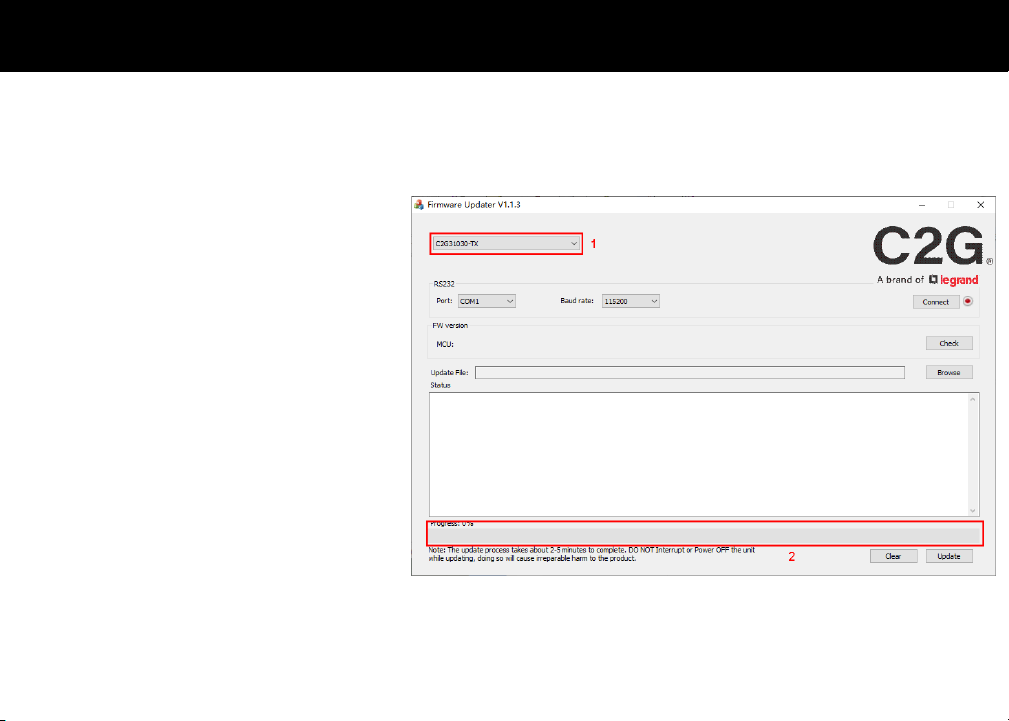
To upgrade MCU rmware of the device, perform the following:
1. Before upgrading the receiver, please set the DIP switch of the receiver to the posion of “MCU”.
2. Connect the transmier/receiver to a PC using a USB Type-A to 3-pin phoenix connector cable.
3. Connect the power adapter provided to the receiver, and power on all the devices.
Note: If the transmier isn’t connected with the receiver, it needs to be connected to another power adapter (not included in the package).
4. Click to run the “Legrand Product Firmware Updater” soware. The following window will appear on the next page:

-
-
“”:
•
-
-
•
• “”
•
“”
•
•
•
•
Indice
Lingue:
Altri manuali LEGRAND Trasmettitore

LEGRAND
LEGRAND 412006 Manuale utente

LEGRAND
LEGRAND C2G31019 Manuale utente

LEGRAND
LEGRAND C2G RapidRun 60218 Manuale utente

LEGRAND
LEGRAND C2G C2G30014 Manuale utente

LEGRAND
LEGRAND C2G 30019 Manuale utente

LEGRAND
LEGRAND C2G30030 Manuale utente

LEGRAND
LEGRAND Tynetec ZXT870 Manuale utente

LEGRAND
LEGRAND MY HOME 883 31 Manuale utente