
LinQTab LQP7 Manuale utente
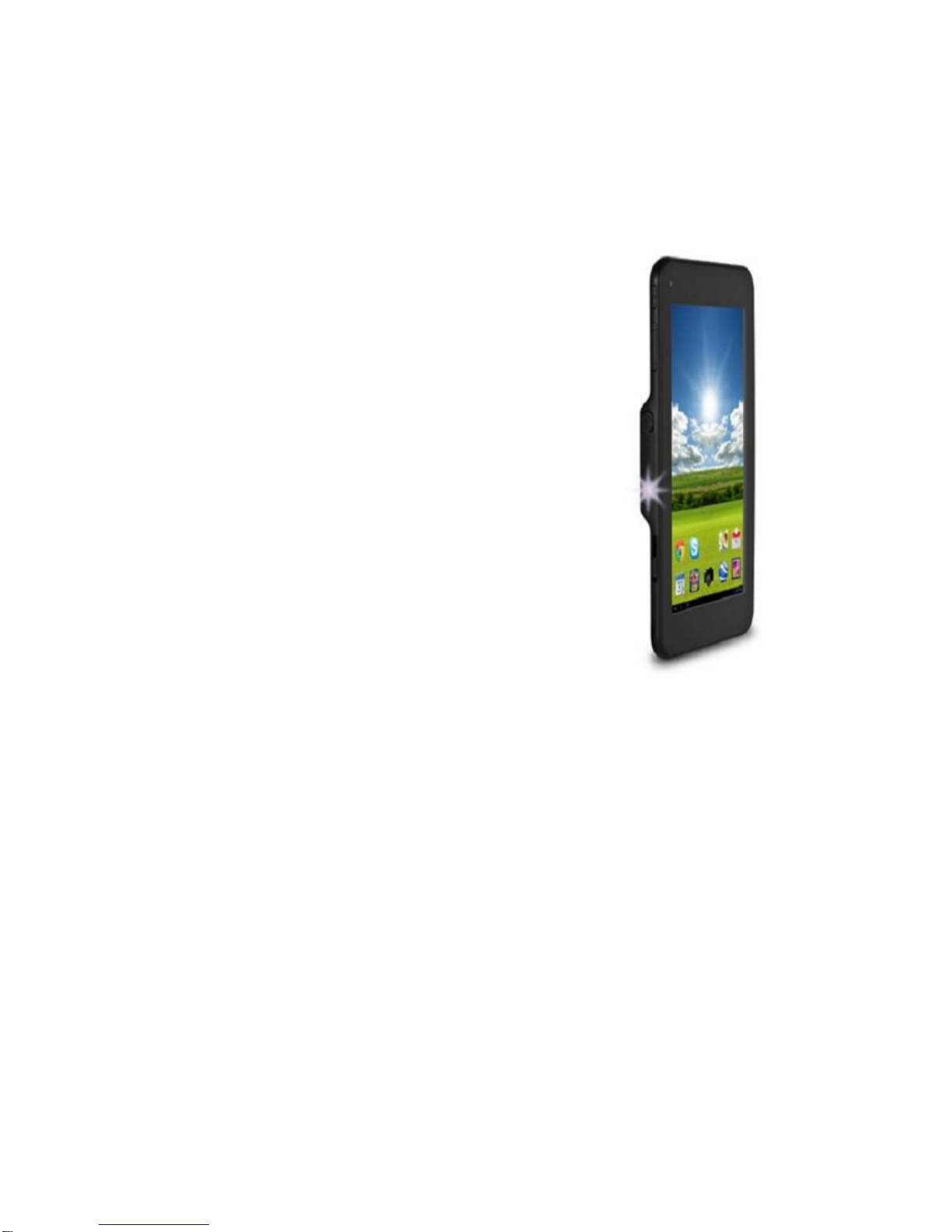
1
LinQTab
LQP7/LQP7H
Projector Tablet
User Manual
Please read this manual before operating your device, and keep it for future reference.

2
Copyright
© LinQTab is a registered trademark of eXiom Technologies and its related entities.
The Bluetooth® word mark, figure mark (stylized “B Design”), and combination mark (Bluetooth
word mark and “B Design”) are registered trademarks and are wholly owned by the Bluetooth
SIG.
microSD™ and the microSD logo are Trademarks of the SD Card Association.
Wi-Fi, the Wi-Fi CERTIFIED logo, and the Wi-Fi logo are registered trademarks of the Wireless
Fidelity Alliance, Inc.

3
Table of Contents
General notices foruse............................................................................................................................5
Disclaimer...............................................................................................................................................5
Getting Started........................................................................................................................................5
BoxContents.......................................................................................................................................5
Battery Charging..................................................................................................................................6
Poweron.............................................................................................................................................6
Hibernate............................................................................................................................................6
Shutdownandforcedshutdown..........................................................................................................7
AppsvsWidgets..................................................................................................................................7
Understanding yourtablet LQP7/LQP7H..................................................................................................8
TopViewsoftablet..............................................................................................................................8
Bottom View of tablet .........................................................................................................................9
SideViewsoftablet...........................................................................................................................10
HomeScreen.....................................................................................................................................11
NavigationButtons............................................................................................................................11
Status / Notification Information Area...............................................................................................11
Favourite Tray Icons ..........................................................................................................................12
OtherIcons........................................................................................................................................13
Touchscreenoperations.......................................................................................................................13
Screenunlock....................................................................................................................................14
Startapplication................................................................................................................................16
TabletSettings.......................................................................................................................................17
Connectto Wi–Fi network(Settings > WiFi).......................................................................................19
Connect tablet to Bluetooth devices (Settings > Bluetooth) ...............................................................20
Setupmultipleusers(Settings>Users)..............................................................................................20
Reset the tablet to original factory state (Settings > Backup & reset).................................................21
CheckTabletSpecifications(Settings>Abouttablet).........................................................................21
Connectto thecomputer ......................................................................................................................21
Customizing the Home screen...............................................................................................................22

4
Insert/RemovemicroSD™card..............................................................................................................23
Keeping your device secure...................................................................................................................23
Frequently Asked Questions..................................................................................................................24
How to create a folder.......................................................................................................................24
How to secure your tablet .................................................................................................................24
How to uninstall an app.....................................................................................................................24
How to extend the life of our battery.................................................................................................25
How do I install software on the tablet, like my favourite game.........................................................25
Can I use my tabletwithoutinternet connection ...............................................................................25
How to launch “Google Now”............................................................................................................25
How to watch YouTube videos...........................................................................................................25
Option1: LiveStreaming...............................................................................................................25
Option2: Watch offline-DownloadwithYouTube app..................................................................26
Option3: Watch offline-DownloadwithTubeMateapp ...............................................................26
How to watch movies on your tablet .................................................................................................27
Option1: LiveStreaming................................................................................................................27
Option 2: Stream and Download...................................................................................................27
Option 3: Have your own library ofmovies....................................................................................28
Troubleshoot.........................................................................................................................................28
Tabletstopsresponding.....................................................................................................................28
An app stops responding ...................................................................................................................28
Tabletdoesnot turn on.....................................................................................................................30
Customerservice...................................................................................................................................31

5
General notices for use
This product is a highly advanced electronics device. Disassembly, customization or
repairs without the appropriate knowledge and precautions can lead to dangerous
situations with chance of damaging the product and causing serious personal injuries.
Avoid use in extreme conditions such as high or low temperatures, high humidity or
moist environments and around magnetic fields. Also avoid long-time exposure to
sunlight.
Only use the manufacturer permitted accessories to avoid damages to the product and
possibly warranty loss.
Please follow the relevant local environmental regulations to deal with obsolete
machines and accessories.
Use a protective folder to avoid extreme physical shocks to the device (i.e. of dropping).
Disclaimer
The screenshots in this manual are for reference only. They may be made on a device
with a different resolution or hardware configuration than yours and therefore can be
slightly different that the final product.
The manufacturer takes no responsibility for loss ofinformation or data caused by
hardware or software failure. The user is responsible for performing timely backups of
important data.
All information and images used in this user manual are provided ‘as is’ and are subject
to change without notice.
The manufacturer accepts no liability for the information offered in this document.
Getting Started
Box Contents
LinQTab LQP7 or LQP7H projector tablet
Device charger
USB cables
Leather case (optional)
Metal Stand (optional)
6
Battery Charging
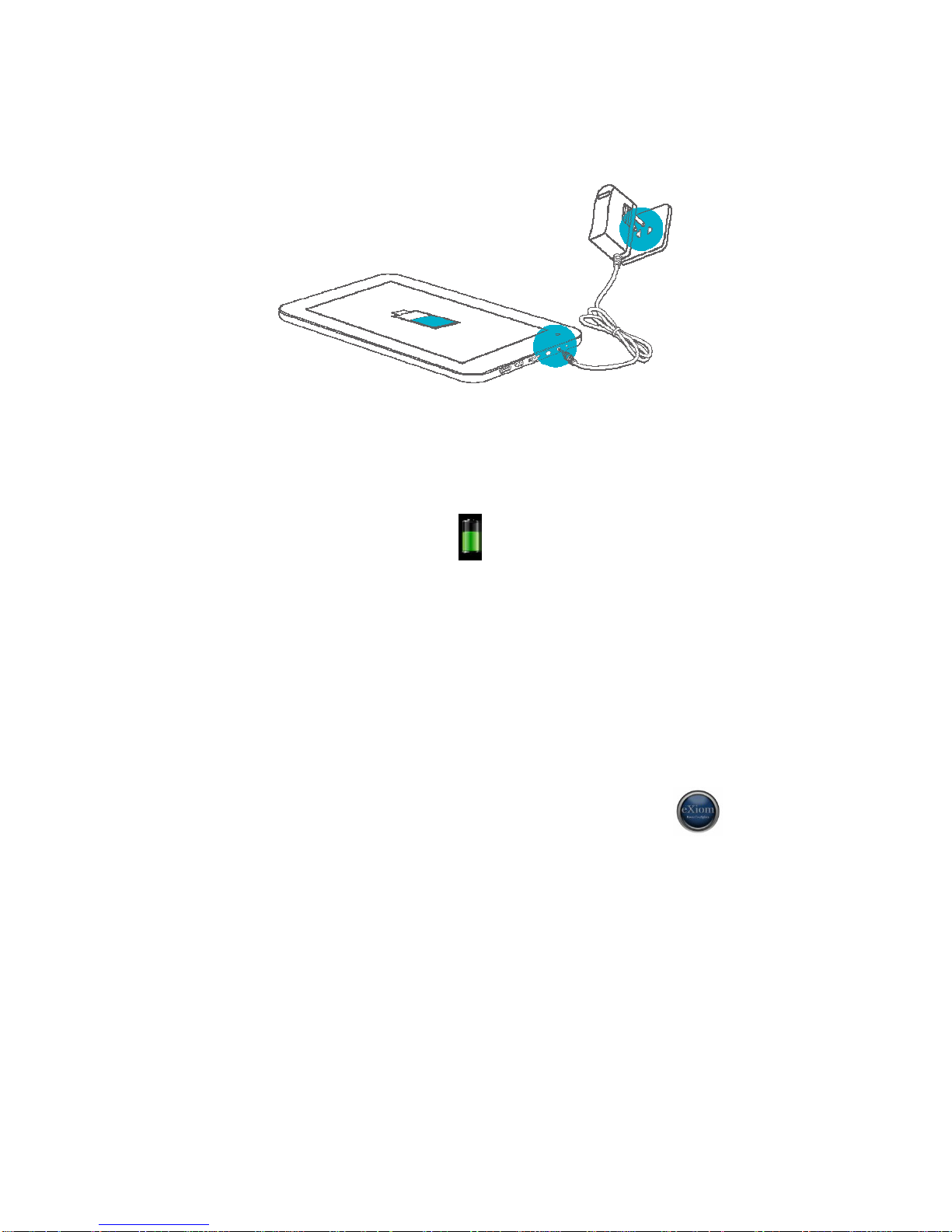
Battery Charging Diagram
Please make sure that the battery is fully charged before your first use. To charge the battery,
please connect the matching charger to a power outlet and insert the DC jack end into the
charge interface of LQP7/LQP7H. After a few seconds, the eXiom logo appears on the screen
follow by a picture of a battery being charged. After a few seconds the screen will
go blank. While the battery is charging, you can view thecharging progress by pressing
the power button.
Once the charging is completed, please unplug the charger from LQP7/LQP7H and the power
supply connection.
Power on
Hold down the power button until the eXiom logo appears on the screen.
Wait for a few seconds for the system start up to complete. Unlock the tablet to enter the
home screen.
Hibernate
Once booted up, a short press of the power button will put the LQP7/LQP7H to hibernate state.
During hibernation, LQP7/LQP7H will turn off the screen and enter into the standby condition,
where it will consume very little power. Another short press of power button will bring the
LQP7/LQP7H out of hibernation and you can continue with your operation.

7
Shutdown and forced shutdown
If you are not using the LQP7/LQP7H for several days, we recommend you to shutdown the
tablet. Hold down the power button for twoseconds, and select “Power off” from the pop-up
window “Tablet options” to completely shut down the LQP7/LQP7H.
In case of a system crash and the LQP7/LQP7H stops responding to your commands, please
hold down the power button for more that10 seconds to forced shutdown. You need to reboot
the LQP7/LQP7H after a forced shutdown.
Apps vs Widgets
Apps are shortcuts placed on the Home screen and used to open applications installed
on your tablet.
Widgets are apps with special functionality that displays content that is updated
frequently. You can view the updated content without opening the widget.
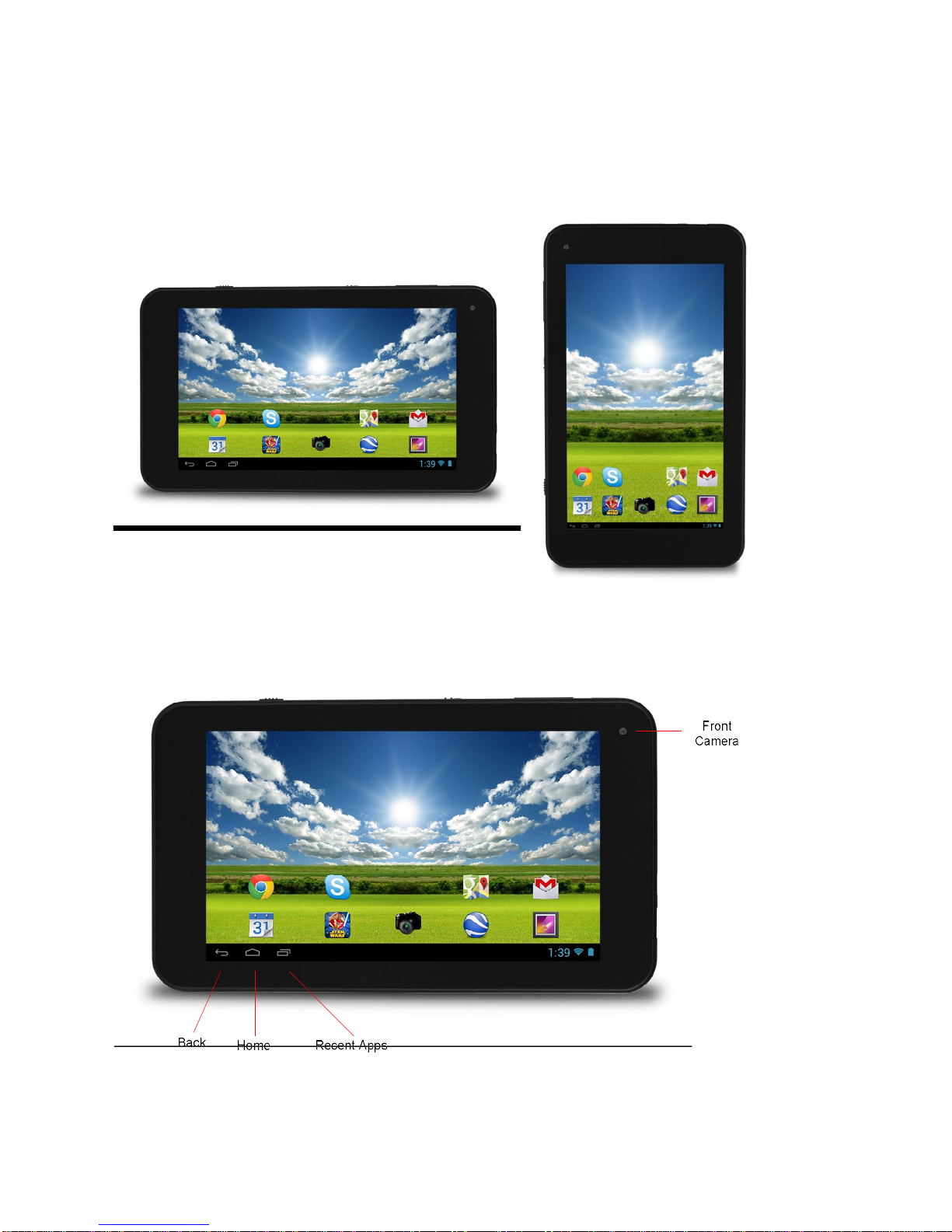
To view all apps and widgets, touch the All apps icon. There is a tabfor the Apps and
another tab for the Widgets
8
Understanding your tablet LQP7/LQP7H
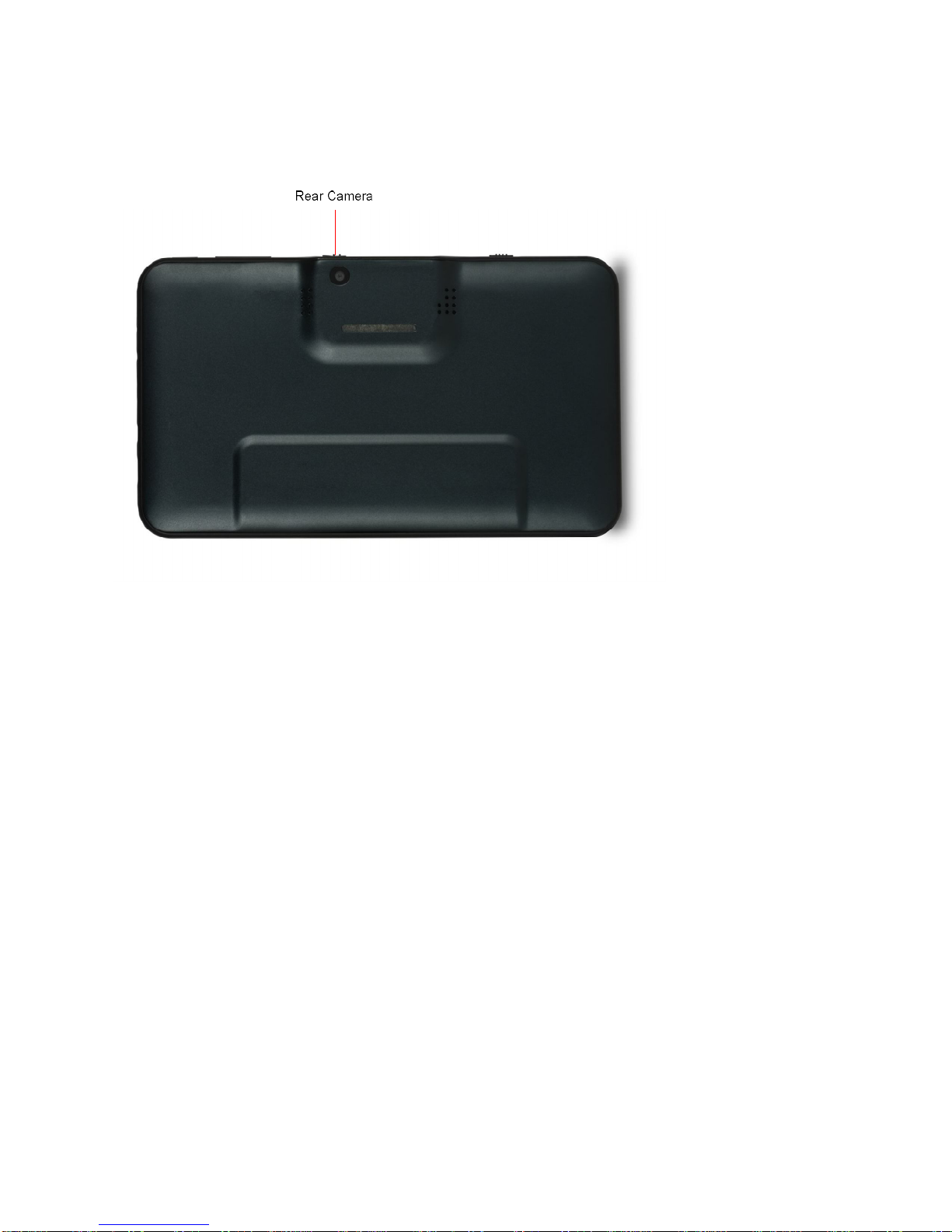
Top Views of tablet
9
Bottom View of tablet

10
Side Views of tablet
Power Button Long press to turn on/off LQP7/LQP7H
Shortpress for hibernating/awakening LQP7/LQP7H
Volume +/- Increase/Decrease the volume
Projector on/off Turn on/off the projector
Projector Lens DLP Pico projection
Focus Slider Adjust the projector focus
Questo manuale è adatto per i seguenti modelli
1
Indice
Altri manuali LinQTab Tavoletta


