
MACDEV DROID Manuale utente

OWNERS MANUAL

Droid Owners Manual
V1.02
Copyright Mac Developments Pty. Ltd. 2008
All rights reserved
No part of this document may be copied or reproduced in any form or by any means without the
prior written consent of Mac Developments Pty. Ltd.
Notice is hereby given that this manual is part of the article owned in whole by Mac Developments
Pty. Ltd., known as indicated in this manual and drawings. All rights of manufacture and reproduc-
tion of such articles or any part thereof are reserved by Mac Developments Pty Ltd. Neither said
article nor any part thereof may be manufactured or reproduced without the written authorization
from Mac Developments Pty. Ltd. All proprietary rights and information are the sole property of
Mac Developments Pty. Ltd.
MacDev, Cyborg, Conquest, Gladiator, MatchStick, Droid and Sonic are all registered trademarks
of Mac Developments Pty Ltd.
Statement of Liability
Mac Developments Pty. Ltd. Makes no warranties with respect to this documentation and dis-
claims any implied warranties of merchantability or tness for a particular purpose. The informa-
tion in this document is subject to change without notice. Mac Developments Pty. Ltd. assumes
no responsibility for its resale or safe handling. Mac Developments Pty. Ltd. assumes no respon-
sibility for physical injury or property damage resulting from its use.

Warranty
The Droid marker is covered by the MacDev 12 month warranty against
manufacturing defects. The Droid is guaranteed free of manufacturing
defects for a period of twelve (12) consecutive months beginning immedi-
ately after purchase from a registered retailer. The solenoid is warranted
for a period of thirty (30) days after the date of purchase. If a manufactur-
ing defect is detected, the defective part will be either repaired or replaced
at no cost to the owner. The Droid warranty is not transferrable in the
event of 2nd hand sales - the warranty may only be claimed by the original
retail purchaser. The Droid warranty does not cover damage due to theft, misadventure or opera-
tor error/abuse.
To make a successful warranty claim, the owner must produce their warranty card and proof of
purchase. Caution!
Contents
Know your Droid
Quick Setup
Using your Droid
Advanced Setup
Maintenance
Parts List
Troubleshooting
This is not a toy. Misuse may cause serious injury or death. Eye protection designed
specically for paintball must be worn by user and persons within range. Recommend
18 years or older to purchase. Persons under 18 must have adult supervision.
READ OWNER’S MANUAL BEFORE USING. 2

CONTENTS
Know your Droid (Page 5)
All users should read this section to learn the parts of your Droid and their names.
Quick Setup (page 7)
Learn how to set your Droid up for use the rst time.
Switching your Droid on and off
Firing your Droid
Understanding the beam sensor
Disabling the beam sensor
Installing a preset air system
Turning the air on and off
Using a loader with your Droid
Installing a loader onto your Droid
Removing your loader
Using your Droid (Page 10)
Essential reading on how to use your Droid marker.
Adjusting the velocity
Adjusting the trigger
Replacing the battery
Advanced Setup (Page 11)
A section for those who are comfortable with making ne adjustments to the Droid marker.
About the tourney lock
Programming the Droid Software
Setting the Debounce
Setting the Dwell

Setting the Fire Mode
Setting the Rate of Fire (ROF)
Setting the Loader Delay
Setting the Anti Mechanical Bounce (AMB)
Setting the Anti Bolt Stick (ABS)
Setting the Ramp Start
Setting the Cycle Filter
Setting the Eye Mode
Setting the Bolt Tracking Delay
Setting the Test Mode Dwell
Resetting the Software
Maintenance (Page 17)
Maintaining your purchase is essential to long term product satisfaction.
Basic cleaning
Maintaining the drive train
Maintaining the inline regulator
Parts List (Page 21)
An exploded view of your Droid with parts labelled.
Troubleshooting (Page 25)
Solving common difculties.
Common problems and solutions
Technical assistance
Parts and Accessories
Enhance the Droid experience with a range of genuine accessories and spare parts.
4
Contents
Know your Droid
Quick Setup
Using your Droid
Advanced Setup
Maintenance
Parts List
Troubleshooting

KNOW YOUR DROID
1
23
4
56
7
9
8
10
11
12
13
14
15
16
17
18

Your Droid marker has been CNC milled from a solid billet of 6061 aircraft
grade aluminium, representing the highest quality workmanship available in
aluminium manufacturing. The milling has been performed by a 3D surfacing
machine, with each marker taking many hours to produce.
Please take the time to learn the parts of your Droid, it will help you when read-
ing this manual.
Numbered basic parts as shown in the gure on the left:
1. Matchstik 2 piece barrel
2. Feed clamp lever (used to afx your loader)
3. Feed clamp adjuster screw
4. Top locating screw (must be removed before disassembly of the drive train
5. Eye cover and screw (covering the beam sensor used to detect paintballs)
6. End cap
7. On/Off switch
8. Indicator LED
9. Wrap around grip (covering the battery and electronics)
10. Venting ASA (used to attach your preset air system)
11. Venting ASA on/off cap (used to turn the air on or off)
12. Straight push-t hose tting
13. Air hose
14. 90 degree swivel push-t hose tting
15. Velocity adjustment screw
16. Inline regulator (Gladiator reg)
17. Vertical ASA
18. Feed Tube 6
Contents
Know your Droid
Quick Setup
Using your Droid
Advanced Setup
Maintenance
Parts List
Troubleshooting

QUICK SETUP
Switching your Droid on and off
The on/off switch is located on the upper section of the rear of the frame. This
slide switch should be switched towards the barrel of the marker to switch the
marker on. Slide the switch the opposite direction to switch the marker off. Suc-
cessful power up is indicated by the LED on the side of the wrap around grip.
Firing your Droid
If a Paintball is loaded in your Droid, and the power is switched on, you may
re the Droid by pulling the trigger. If a paintball is not loaded, then you need to
either load one, or read the section below on disabling the beam sensor.
Understanding the beam sensor
Your Droid is equipped with a visible light sensor to determine if a paintball is
correctly loaded. This system is used to prevent accidental ball breakage due to
misloaded paintballs. The LED indicator on the side of your grip will show you
the status of the beam sensor:
Green: Ball is loaded
Red: Ball is not loaded
Flashing Orange: Sensor malfunction
Flashing Red: Sensor disabled
Disabling the beam sensor
To disable the sensor (for dry ring), hold the trigger in until the indicator LED
begins ashing red. You can re-enable the beam sensor the same way.
Ball
Loaded
No Ball
Loaded

Installing a Preset Air System
Your MacDev Droid comes equipped with a high quality venting ASA (Air Sys-
tem Adaptor) that is designed for use with commercially available Air/Nitrogen
systems.
The venting ASA that is included with your Droid uses a screw cap to turn the
air from your preset system on or off. Before installing your preset air system,
you must unscrew the ASA cap by approximately 3 turns (do not unscrew it
further, as the cap can come off completely).
Once this is done, carefully screw your air system into the ASA until it stops.
Turning the air on and off
To pressurise your Droid marker, screw the ASA cap down until it stops. This
will depress the pin on the end of your air system and pressurise the marker
(provided you have sufcient air in your air system).
WHEN SCREWING YOUR AIR SYSTEM INTO THE ASA, THE
THREADS SHOULD BE LOOSE. IF AT ANY POINT THEY BECOME
TIGHT, DO NOT FORCE THE THREADS, THIS MAY CAUSE DAMAGE
TO YOUR SYSTEM OR YOUR DROID MARKER!
NOTE: WHEN YOU UNSCREW THE ASA CAP, YOUR MARKER USU-
ALLY STORES ONE SHOT. POINT THE MARKER IN A SAFE DIREC-
TION AND FIRE OFF THAT SHOT BEFORE ENTERING A SAFE AREA.
8
Contents
Know your Droid
Quick Setup
Using your Droid
Advanced Setup
Maintenance
Parts List
Troubleshooting

Using a loader with your Droid
Your Droid Marker can operate using any commercially available loader.
The software and beam sensor will compensate for the speed of the hopper,
together ensuring that the marker res as quickly as the loader allows.
All Droid markers are equipped with a cam lever clamping feed tube. This
system allows the easy installation and removal of your loader. You will need
to adjust the feed tube to suit the loader that you have.
Installing a loader onto your Droid
Open the cam lever as shown. This should allow your loader neck to t into
the feed tube as shown. If your feed tube does not t into the feed tube, then
you may have to loosen the adjustment screw slightly. Once your loader is
pushed all the way down into the feed tube, close the cam lever. If your loader
is loose, you may now tighten the adjustment screw (by turning clockwise) to
tighten the loader in place.
Removing your loader
Open the clamp by swinging the lever on its hinge. This will loosen the loader
and allow you to remove it easily. If it does not remove easily, then it means
that you have the clamp adjustment screw overtightened.
DO NOT OVER TIGHTEN YOUR FEED CLAMP! OVERTIGHTENING
MAY RESULT IN DAMAGE TO YOUR LOADER.
Insert of feed tubes and
loaders here
Indice
Altri manuali MACDEV Attrezzatura da paintball
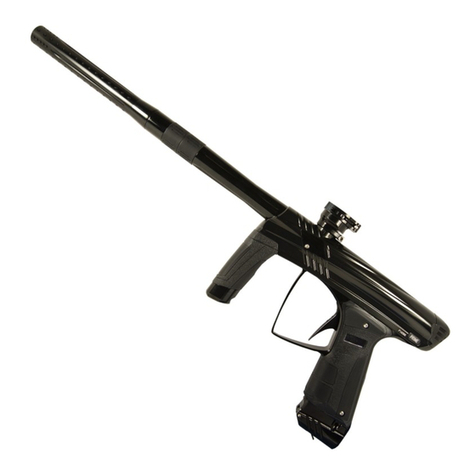
MACDEV
MACDEV PRIME Manuale utente

MACDEV
MACDEV Cyborg RX Manuale utente

MACDEV
MACDEV TACTICAL DRONE Manuale utente
MACDEV
MACDEV CYBORG 6 Manuale utente

MACDEV
MACDEV CLONE Manuale utente

MACDEV
MACDEV XDR Manuale utente

MACDEV
MACDEV DRONE DX Manuale utente

MACDEV
MACDEV CYBORG Manuale utente

MACDEV
MACDEV PRIME XTS Manuale utente
Manuali Attrezzatura da paintball popolari di altre marche

PLANET ECLIPSE
PLANET ECLIPSE EGO LV1 Manuale utente

PLANET ECLIPSE
PLANET ECLIPSE GEO CS1 Manuale utente

First Endeavor Paintball
First Endeavor Paintball The Quest Manuale utente

PMI
PMI Piranha VTL Manuale utente

Proto
Proto SLG ULTRALITE Manuale utente

Bob Long Technologies
Bob Long Technologies Alias Intimidator Manuale utente


