MicroLinks Tech microscope Manuale utente

MICROLINKS TECHNOLOGY CO.,LTD
User’s Manual
Installing MICROSCOPE Device Operates Manual
MLTC
2012/02/05 Update Ver.2.6A

Microscope Installation Instruction http://www.ViTiny.com
2
Copyright © 2008-2011 MicroLinks Technology Corp.
Contents
1. Please insert CD in CD-Rom.......................................................................................................3
2. Install/Uninstall MICROSCOPE application program...........................................................5
2.1 Install application program................................................................................................5
2.1.1 Start setup program................................................................................................5
2.1.2 Welcome to the MICROSCOPE Setup Wizard .....................................................5
2.1.3 Choose installation route........................................................................................6
2.1.4 Now installing program .........................................................................................6
2.1.5 Install Completed...................................................................................................7
2.1.6 After installation completed...................................................................................7
2.2 Uninstall MICROSCOPE AP .........................................................................................8
2.2.1 Choose MICROSCOPE AP’s Uninstall as Fig. 2-8...............................................8
2.2.2 Confirm to Uninstall MICROSCOPE....................................................................8
2.2.3 Uninstalling MICROSCOPE AP ...........................................................................8
2.2.4 Finish Uninstall......................................................................................................9
3. Uninstall MICROSCOPE Driver.............................................................................................10
3.1 Install driver.....................................................................................................................10
3.1.1 Start setup driver..................................................................................................10
3.1.2 Welcome to use USB video device setup wizard.................................................11
3.1.3 Now installing......................................................................................................11
3.1.4 Install Completed.................................................................................................12
3.1.5 After installation completed.................................................................................12
3.2 Uninstall MICROSCOPE Driver.................................................................................13
3.2.1 Prepare to Uninstall. See Fig. 3-9........................................................................13
3.2.2 Confirm to remove the MICROSCOPE Driver...................................................13
3.2.3 In process of uninstall..........................................................................................14
3.2.4 Finish Uninstall MICROSCOPE driver...............................................................14

Microscope Installation Instruction http://www.ViTiny.com
3
Copyright © 2008-2011 MicroLinks Technology Corp.
1. Please insert CD in CD-Rom
The package provides setup CD. If the setup CD is missing or damaged, please download setup
files from http://www.vitiny.com. Please see the following steps to complete the MICROSCOPE
installation.
Step 1: Please insert CD into CD-Rom. .
Step 2: Install MICROSCOPE application program.
Step 3: Install MICROSCOPE driver.
To uninstall MICROSCOPE AP and driver in your PC, please follow below 2 steps to
complete the Uninstall.
Step 1: Uninstall MICROSCOPE AP.
Step 2: Uninstall MICROSCOPE USB digital video driver.
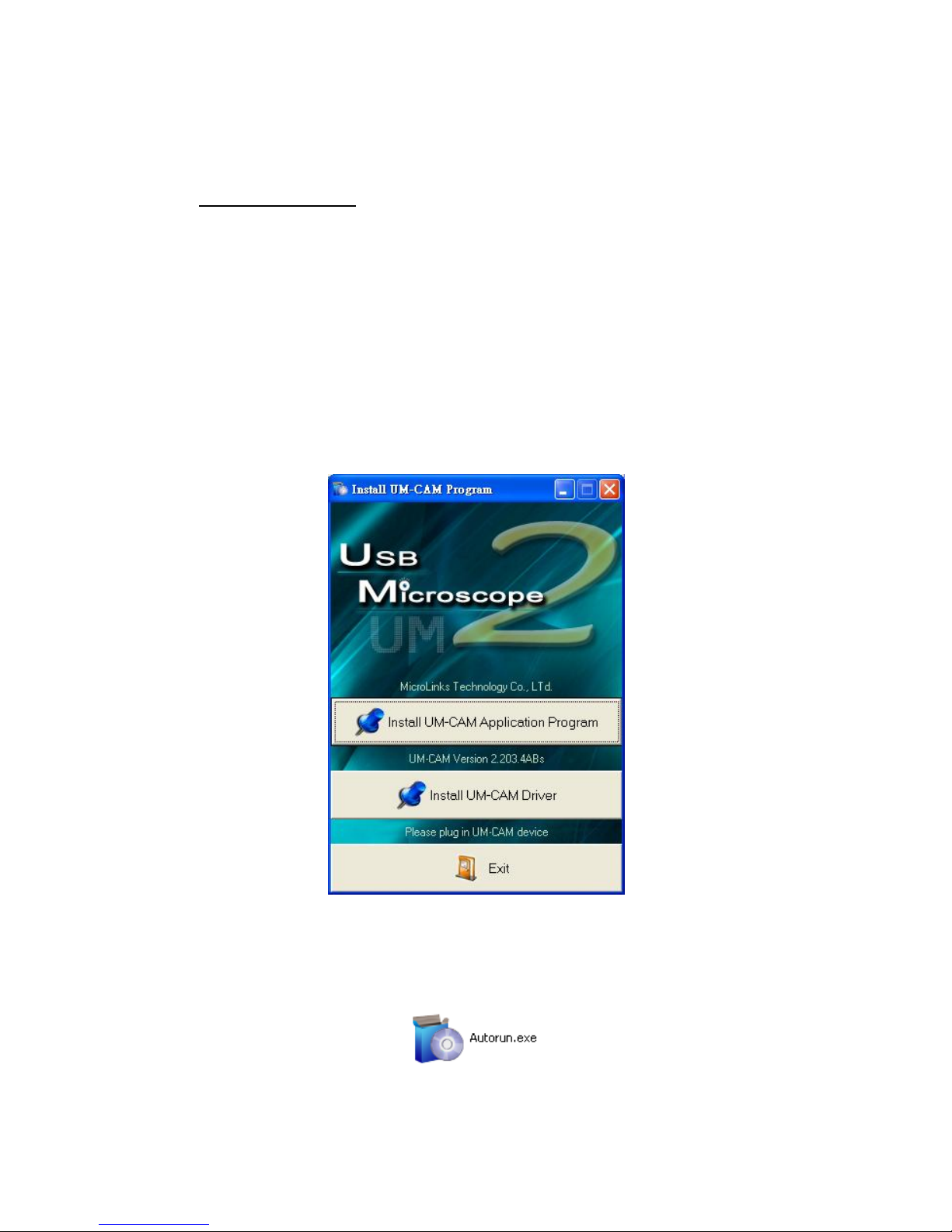
Please insert the product CD to the CD-Rom. The computer will read the CD automatically and
will pop up a window shown below:
Fig.1-1 Setup window
If the shown setup window does not pop up, please open the files on the CD from your desktop
and choose Autorun.exe file(see fig 1-2), then the same window (Fig 1-1) will pop up.
Fig.1-2 Autorun.exe icon

Microscope Installation Instruction http://www.ViTiny.com
4
Copyright © 2008-2011 MicroLinks Technology Corp.

Microscope Installation Instruction http://www.ViTiny.com
5
Copyright © 2008-2011 MicroLinks Technology Corp.
2. Install/Uninstall MICROSCOPE application program
Please select the Fig 1-1 Install program and setup application program button to install
MICROSCOPE program.
2.1 Install application program
2.1.1 Start setup program
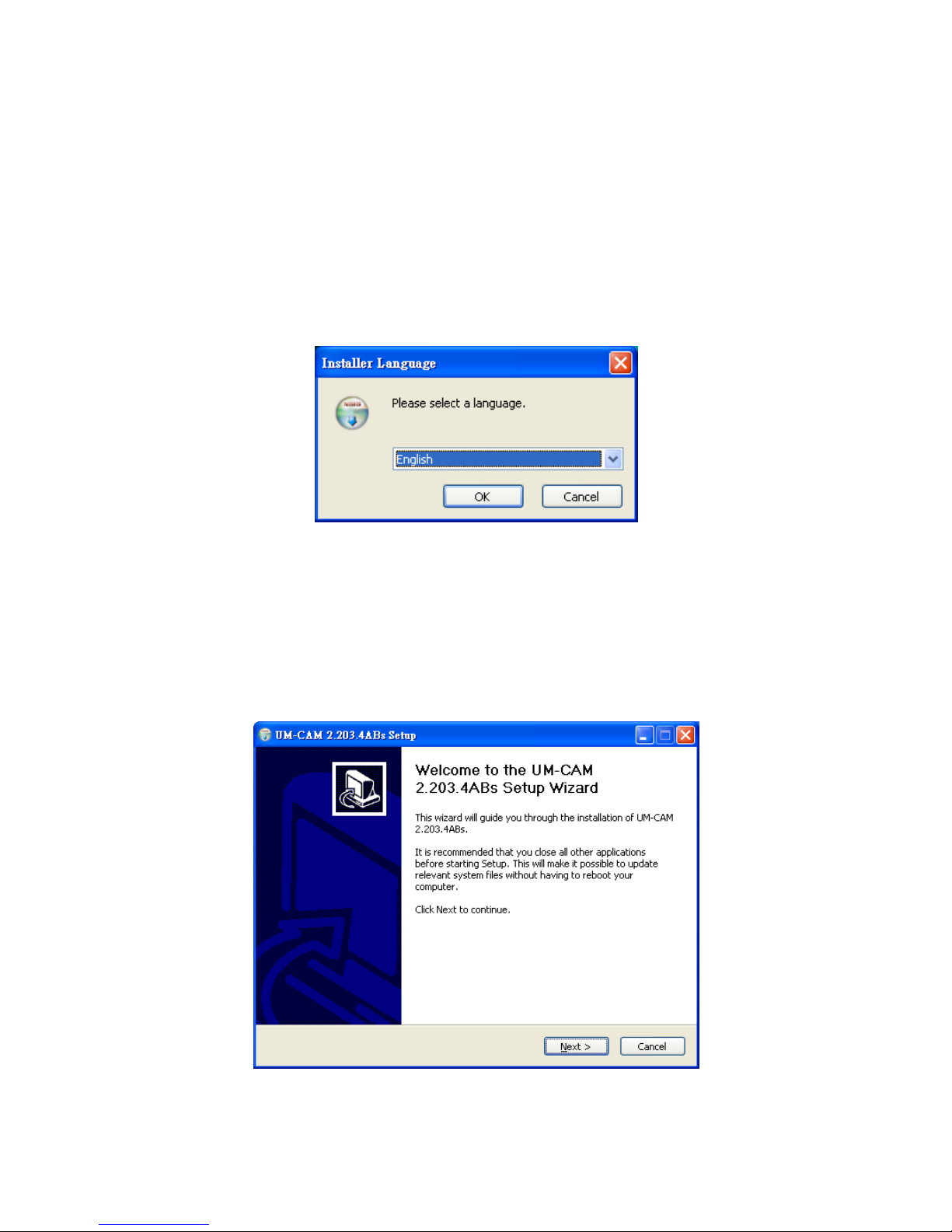
Click setup application program, after it will pop up (please select a language) window on
Fig.2-1, the initial language will follow up the pc OS system. If you want to cancel setup please
click “Cancel” then click “OK”.
Fig.2-1 Setup language window
2.1.2 Welcome to the MICROSCOPE Setup Wizard
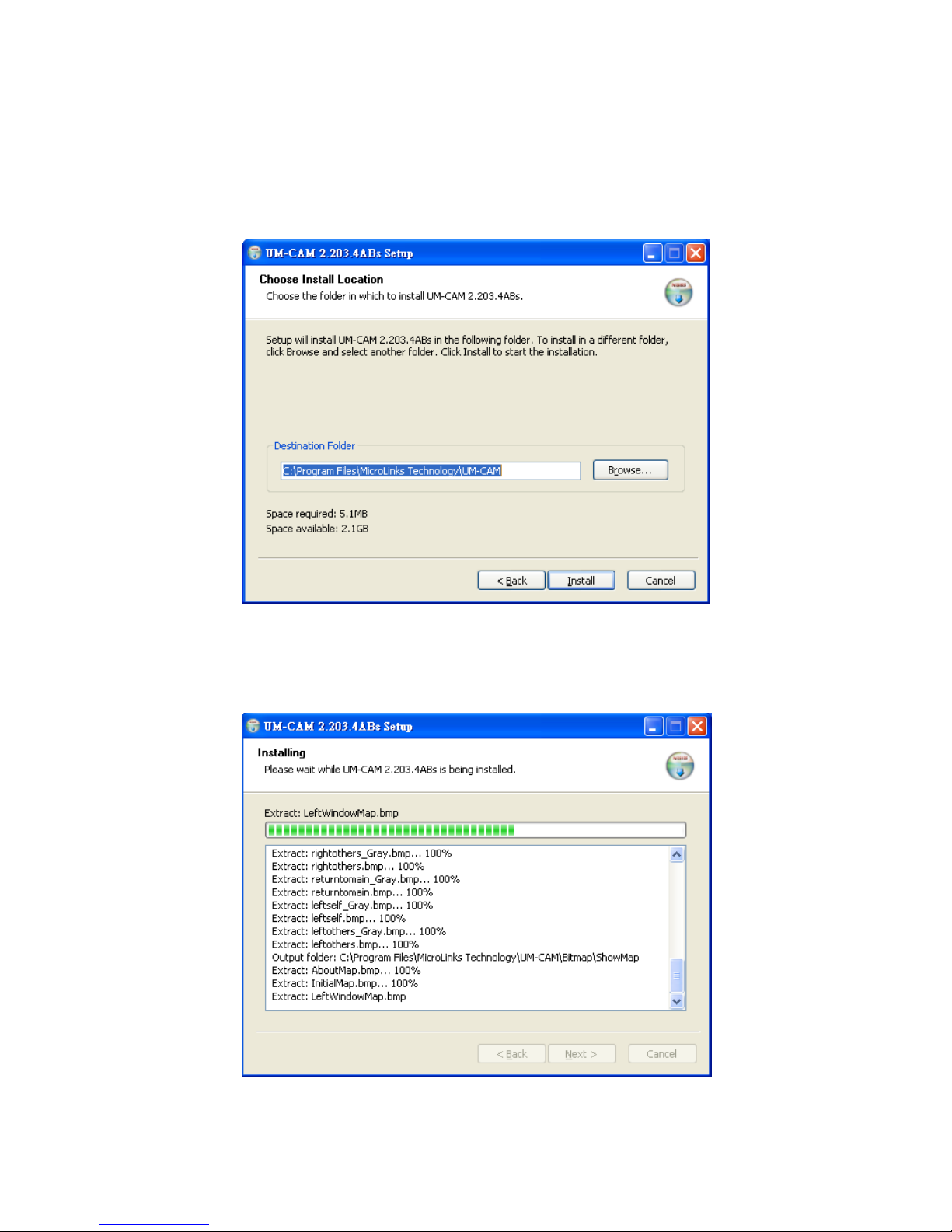
After choosing the language, go to welcome to the MICROSCOPE setup wizard window
see Fig.2-2, then please click “Next” then continue. If want to cancel please click “Cancel”
button. In the following figs, “name”represents MICROSCOPE’s application program name,
“X.XXX.XXXx”represents the application program version.
Fig. 2-2 Welcome to the MICROSCOPE setup wizard

Microscope Installation Instruction http://www.ViTiny.com
6
Copyright © 2008-2011 MicroLinks Technology Corp.
2.1.3 Choose installation route
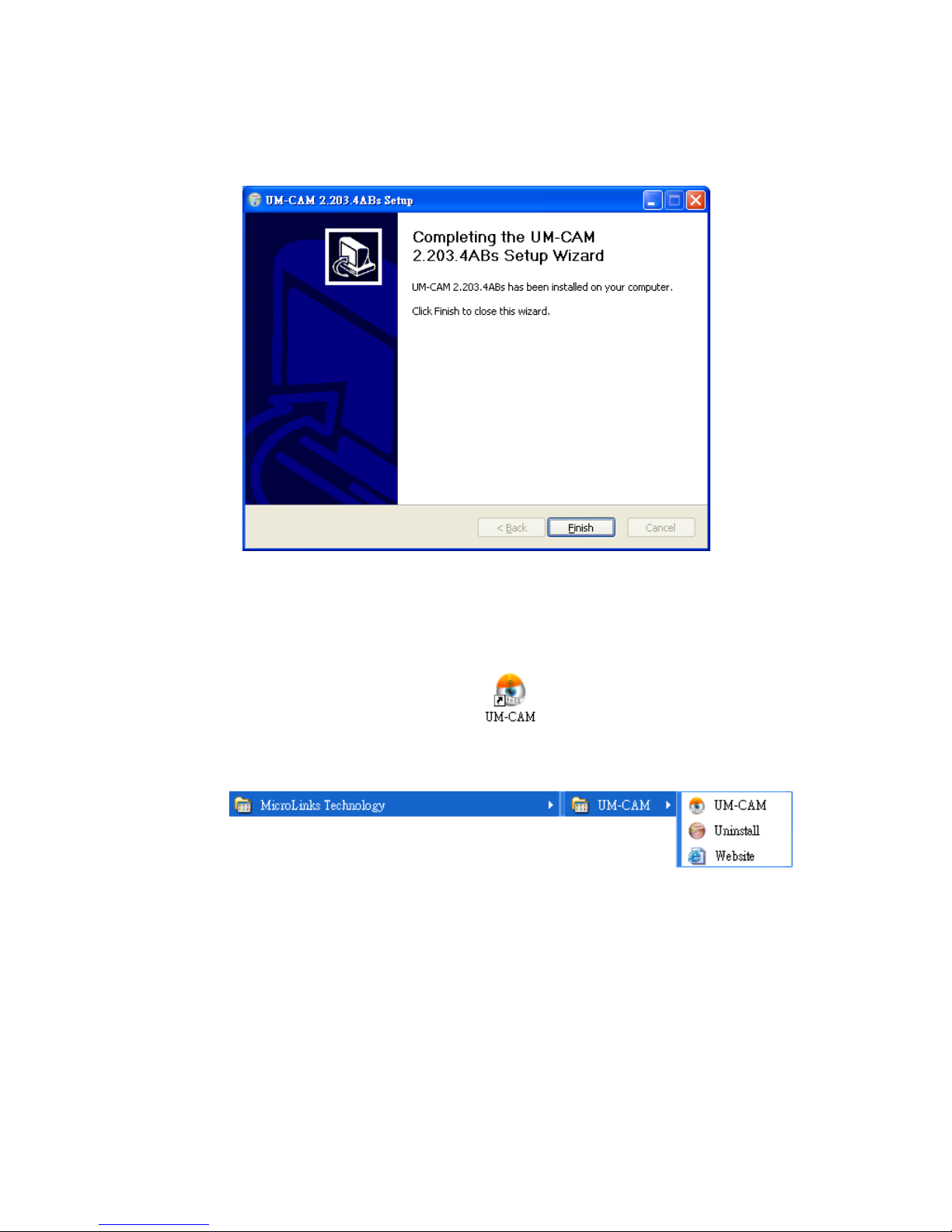
Next step please choose the installation route window see Fig.2-3. If want to change file
route click “Browse” to change setup path, then please click “install” then start installing.
Fig. 2-3 Choose installation route
2.1.4 Now installing program
Continue install wizard will start installing program as directory Fig.2-4.
Fig.2-4 Now installing

Microscope Installation Instruction http://www.ViTiny.com
7
Copyright © 2008-2011 MicroLinks Technology Corp.
2.1.5 Install Completed
When the MICROSCOPE program complete installation Fig.2-5. Please click “Finish”.
Fig.2-5 MICROSCOPE wizard install complete
2.1.6 After installation completed
MICROSCOPE application program shortcut will show on the Desktop as Fig.2-6.
Fig.2-6 MICROSCOPE shortcut
Or go “Start”-> All Programs-> MicroLinks Technology ->MICROSCOPE (see Fig 2-7).
Fig.2-7 MICROSCOPE in All Programs

Microscope Installation Instruction http://www.ViTiny.com
8
Copyright © 2008-2011 MicroLinks Technology Corp.
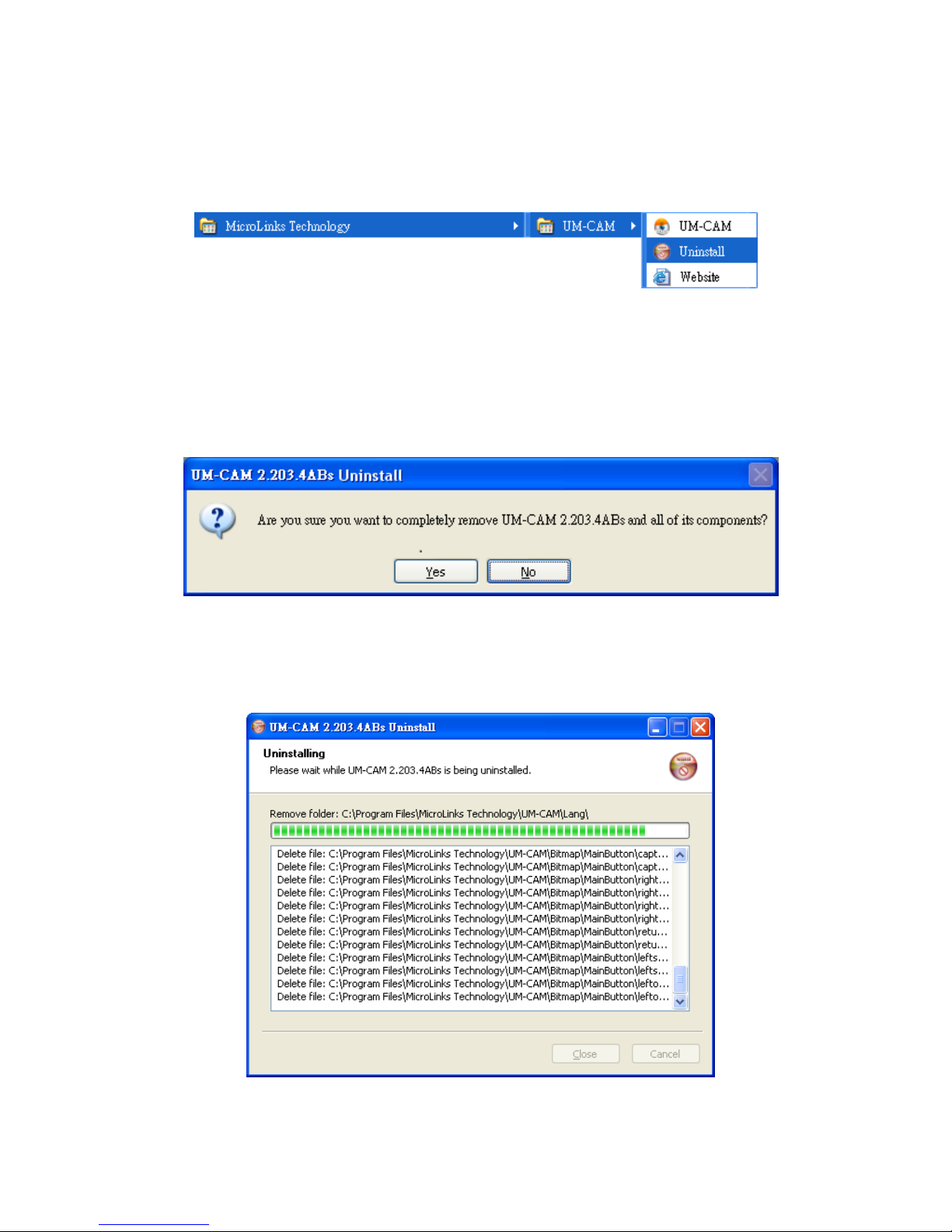
2.2 Uninstall MICROSCOPE AP
2.2.1 Choose MICROSCOPE AP’s Uninstall as Fig. 2-8
Fig.2-8 MICROSCOPE AP Uninstall
2.2.2 Confirm to Uninstall MICROSCOPE
Please make sure if you want to completely remove MICROSCOPE application program.
See Fig.2-9
Fig.4-2
2.2.3 Uninstalling MICROSCOPE AP
In processing of uninstall the MICROSCOPEAP, see Fig.2-10
Fig.2-10 In process

Microscope Installation Instruction http://www.ViTiny.com
9
Copyright © 2008-2011 MicroLinks Technology Corp.
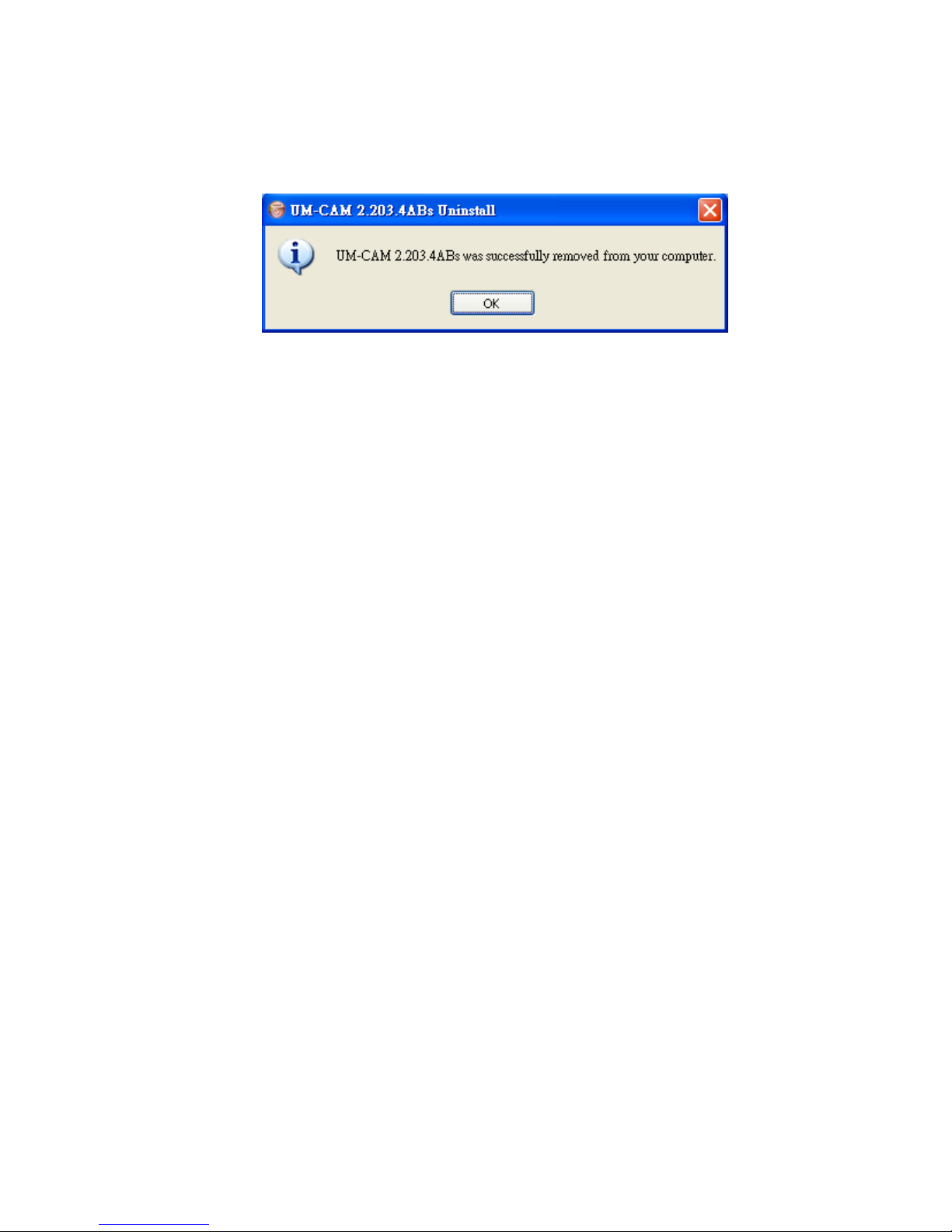
2.2.4 Finish Uninstall
MICROSCOPE AP was successfully removed from your PC, please click OK to finish.
Fig. 2-11 Uninstall Completed

Microscope Installation Instruction http://www.ViTiny.com
10
Copyright © 2008-2011 MicroLinks Technology Corp.
3. Uninstall MICROSCOPE Driver
The driver is optional one, if you install it, you can have more additional functions added to the
MICROSCOPE AP.
Attention: Before install diver, please connect MICROSCOPE to the computer. If not, you can’t
install the program.
3.1 Install driver
3.1.1 Start setup driver
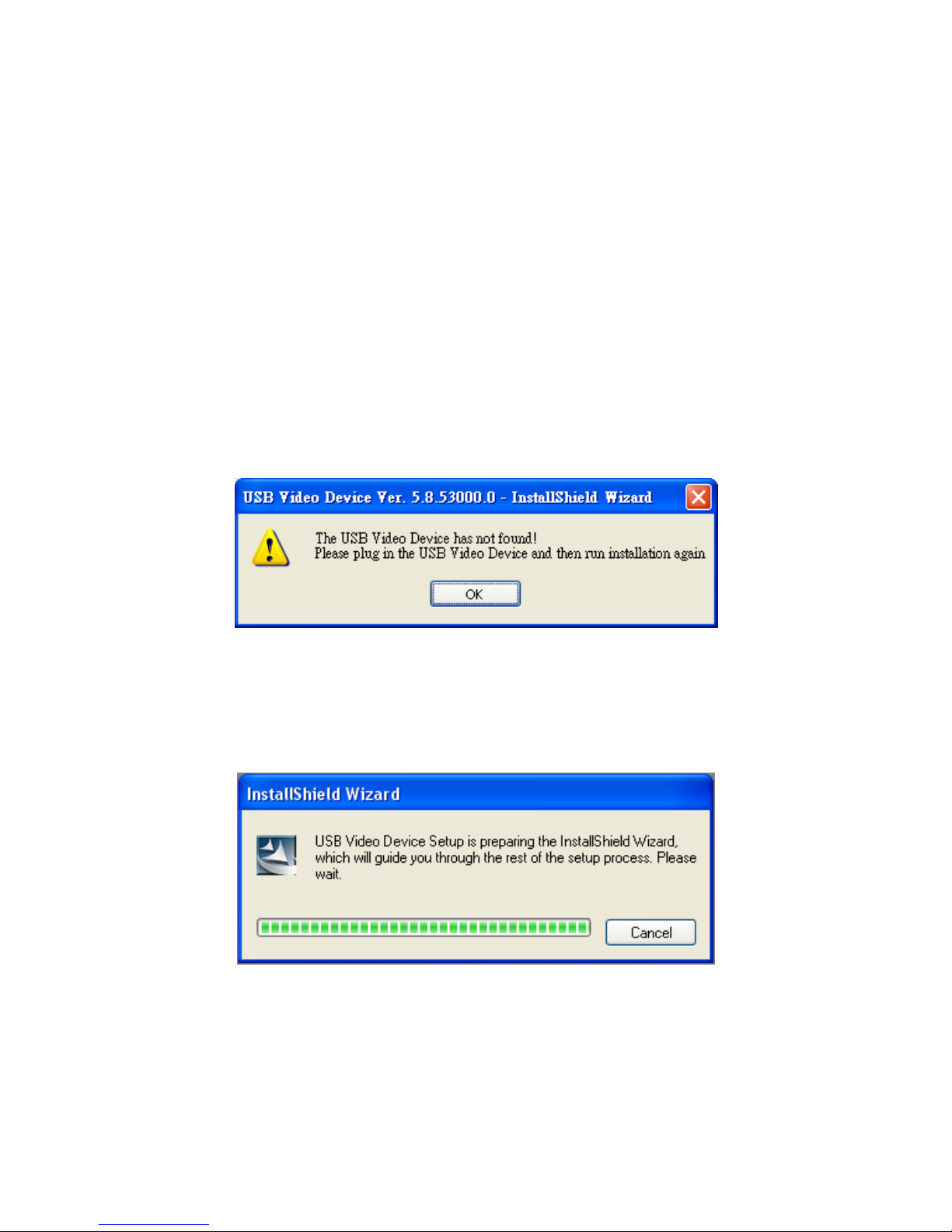
Please select Fig.1-1 to start Installing MICROSCOPE drive. Firstly please make sure to
connect MICROSCOPE to a pc. Otherwise, it will pop up Fig.3-1. Note: Please use the USB
cable from the gift box, do not use extension USB cable while connect microscope with a PC.
Fig.3-1 Not found MICROSCOPE step up
After click setup MICROSCOPE driver button, it will pop up Fig.3-2, now be ready to install the
window. If cancel installation, please click “cancel” button.
Fig.3-2 Getting ready to install
Indice
Manuali Software popolari di altre marche

PS Audio
PS Audio PowerPlay Manuale del proprietario

Brady
Brady LOCKOUT PRO 3.0 Manuale di servizio

Avaya
Avaya Interaction Center Manuale utente

Texas Instruments
Texas Instruments TI-83 Plus Silver Edition Manuale

Novell
Novell GROUPWISE 8 - INTERNET AGENT Manuale utente

Oracle
Oracle Application 9i Manuale utente

Acer
Acer RDM Manuale utente

Canon
Canon Vixia HF21 Manuale utente

Canon
Canon ZR950 Manuale utente

Samsung
Samsung Auto Backup Manuale utente

Polycom
Polycom Vortex EF2201 Istruzioni per l'installazione e il funzionamento

Brocade Communications Systems
Brocade Communications Systems Brocade 8/12c Manuale utente