
Mobility Electronics iGo Stowaway Manuale utente


Setting up the Keyboard .................................................3
Before You Begin....................................................................................3
Installing the Software............................................................................3
Keyboard Description.............................................................................4
Configuring the Keyboard to Your Device....................5
Enabling the Keyboard Driver................................................................5
Secured Connections.............................................................................6
Unsecured Connections.........................................................................8
Other Features ......................................................................................10
Power Efficient Modes..........................................................................12
Firmware Upgrade ................................................................................13
Reconnecting the Stowaway keyboard.......................14
Unsecured Mode Settings....................................................................15
Customizing Your Keyboard ........................................16
Input Method Toolbar ...........................................................................16
Keyboard Control Panel.......................................................................17
Disabling the Stowaway Keyboard......................................................18
Secure Connection Overview ..............................................................18
Keyboard Status Light..........................................................................19
Using the Stowaway keyboard.....................................20
Moving the Cursor/Highlighting Text..................................................20
On-Screen Button and Editing Shortcuts...........................................21
Launching and Navigating Applications.............................................21
Windows Mobile 2003 Menu Navigation.............................................22
Windows Mobile 5.0 Menu Navigation................................................22
Toolbar Navigation ...............................................................................23
Other Shortcuts.....................................................................................23
International and Extended Character Set..........................................24
Frequently Asked Questions........................................25
Legal Notices..................................................................27
Trademarks............................................................................................27
Warranty ................................................................................................28
Important Battery Information .............................................................30
Important Notes about BluetoothDevices..........................................31
Regulatory Notices ...............................................................................31
Features and Specifications Summary........................38
Stowaway Bluetooth Owner’s Manual for Windows Mobile
Page 2
Setting up the Keyboard
Before You Begin
Before you install the Stowaway keyboard and mouse software for Pocket PC
2003/Windows Mobile 5.0:
¾ActiveSync 4.0 or greater is required to install the keyboard driver
application.
¾Disable or uninstall any other keyboard or mouse applications
that you have previously installed on your mobile device.
¾Ensure there is at least 250 KB of memory on your mobile device. To
check the available memory, tap Start¼Settings¼System¼Memory.
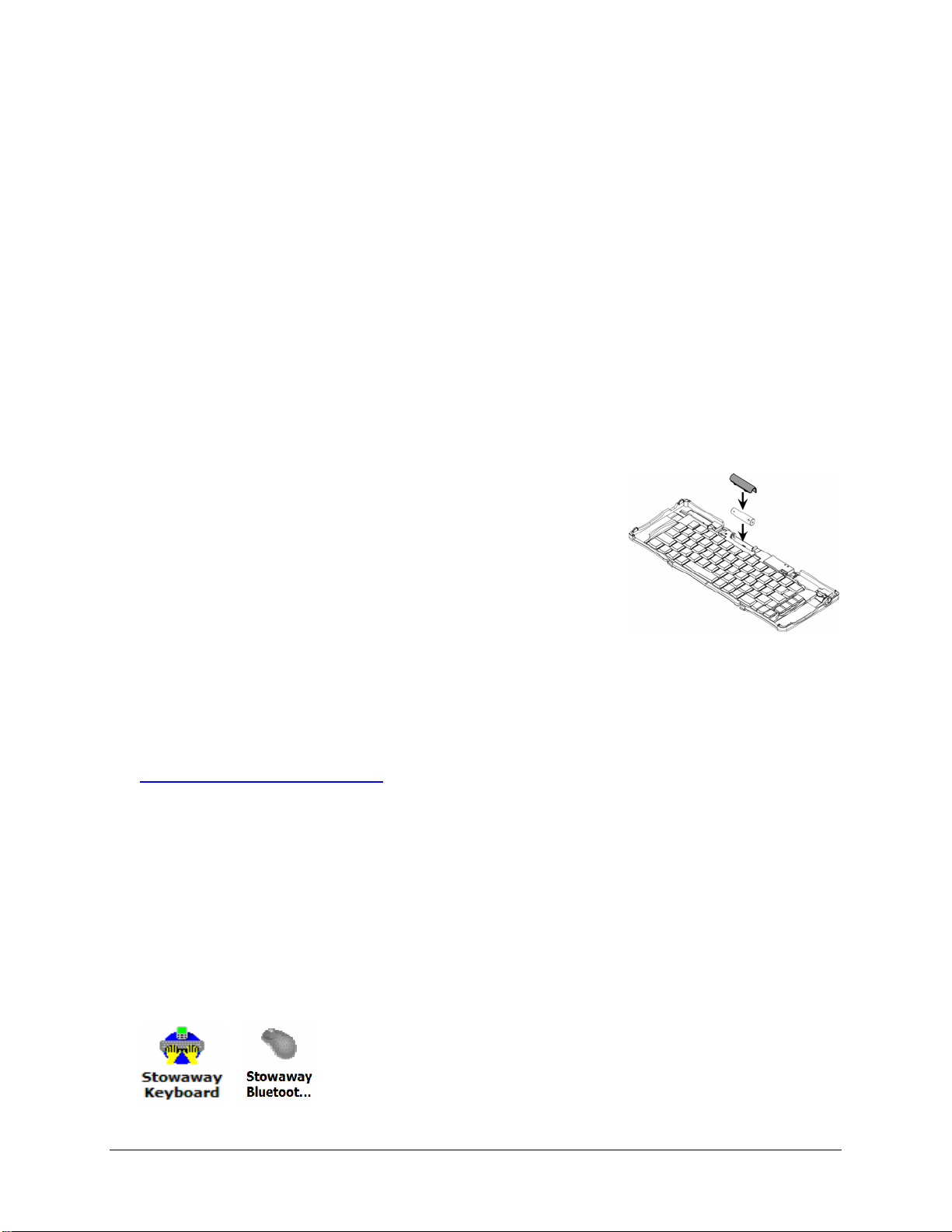
¾Insert the AAA battery (included) beneath the
battery cover of the Stowaway keyboard.
Installing the Software
1. Connect your mobile device to its synchronization cradle/cable and
establish a connection between the computer and your mobile device
using ActiveSync.
2. Insert the Stowaway CD-ROM into the CD-ROM drive on your PC.
Alternately, if your device has internet access you may browse to:
www.thinkoutside.com and the website will automatically detect the
correct driver for your device and offer it for download.
3. Follow the on-screen instructions to complete the installation.
NOTE: The driver must be installed in Main Memory on your device
(default location) to function properly.
4. When the installation is complete, you will be prompted to reset your
mobile device.
5. After the driver is successfully installed and the mobile device is reset,
the keyboard driver and mouse icons will appear in the Programs
window.
Stowaway Bluetooth Owner’s Manual for Windows Mobile
Page 3

Keyboard Description
Stowaway Bluetooth Owner’s Manual for Windows Mobile
Page 4

Configuring the Keyboard to Your Device
NOTE: The Bluetooth connection between the mobile device and
keyboard must be set up through the Stowaway keyboard/mouse
driver.
ENABLING THE KEYBOARD DRIVER
1. To enable the Stowaway keyboard, tap the
Enable button on the Config screen of the
keyboard application. This will open the
Keyboard Setup Screen.
2. When the Device Setup Screen is shown,
select the Bluetooth wireless keyboard
option and tap Setup. This will show the
Bluetooth Keyboard Status Page of the
Stowaway keyboard application. You may
also open that page by selecting the BT tab.
3. When Setup begins, the driver will enable the
mobile device’s Bluetooth system software; this
is also known as the Bluetooth Stack.
Stowaway Bluetooth Owner’s Manual for Windows Mobile
Page 5
The following section deals strictly with Secure Connections. By default the
Secure box is checked in the driver and is the recommended method, as it
provides the best security and reconnection.
SECURED CONNECTIONS
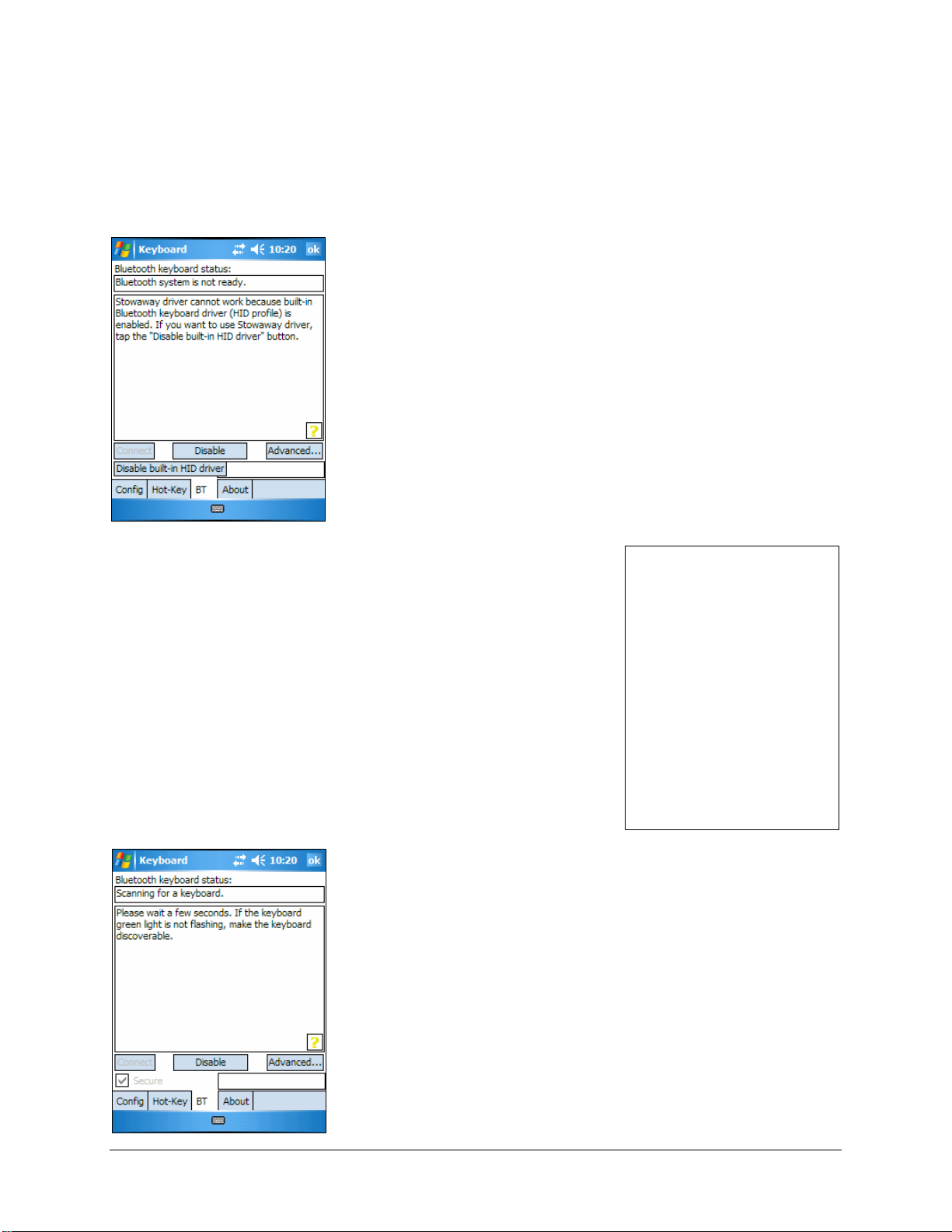
1. On mobile devices with Windows Mobile 5.0
you may see a screen warning that the
Stowaway Keyboard driver will not work
with the built-in Bluetooth Keyboard driver.
You must tap Disable built-in HID driver
in order to get the full functionality of the
keyboard.
2. A Secure connection requires authentication
by entering the same passkey on the mobile
device and then on the keyboard. A Secure
connection allows automatic reconnection.
Before starting the connection make sure the
keyboard is Discoverable by the mobile
device. To do this, press the Discoverable
button on the keyboard until the green LED
(above the <0> key) flashes once per second.
Then tap the Connect button on the screen.
3. The mobile device will scan for the Stowaway
Keyboard. Once it is discovered, a prompt will
display allowing you to enter the passkey.
Stowaway Bluetooth Owner’s Manual for Windows Mobile
Page 6

4. You will be prompted for a passkey and will see
a Bluetooth Passkey dialog box. Enter a
passkey of your own choosing (of 1-9 digits)
using the mobile device’s on-screen keyboard
and tap OK. Then, type the same passkey
number on the Stowaway keyboard. When
finished, press the <Enter> key.
NOTE: The passkey must contain only digits,
for example 111.
5. If the passkey is not entered correctly, the
connection will fail. In this case you will need to
repeat steps 1-4 from above.
NOTE: Please, make sure that the passkey is
entered on-screen first, tap OK and then follow
with the passkey on the keyboard. When
finished, press the <Enter> key on the
keyboard.
6. The keyboard is now paired and available for
use. If the keyboard is closed, the mobile
device is turned off or either is idle too long the
connection will be broken. To reconnect, make
sure both devices are powered on and within
range, then press a key to reestablish the
connection. If reconnection fails tap the
Connect button on the BT status page.
NOTE: It may take 2-3 seconds for the
connection to be reestablished after a key
press.
Stowaway Bluetooth Owner’s Manual for Windows Mobile
Page 7

UNSECURED CONNECTIONS
The following sequence may depend on the settings in your Bluetooth
Manager and which Bluetooth stack is present on your mobile device. For
more information see Unsecured Mode Settings.
1. Make the keyboard discoverable by pressing
the Discoverable button on the keyboard until
the green LED (above the <0> key) flashes
once per second. Make sure the Secure box is
not checked and tap the Connect button on
the screen.
2. The mobile device will scan for the Stowaway
Keyboard.
3. After the connection is made you may be
prompted to verify the connection by typing
123 on the keyboard.
Stowaway Bluetooth Owner’s Manual for Windows Mobile
Page 8

4. Depending on the mobile device’s Bluetooth
Accessibility Settings and Bluetooth Stack
you may see this screen next. Tapping Make
PDA accessible will set the Bluetooth
Accessibility Settings to allow automatic
reconnection of the mobile device and the
keyboard when both are powered on and in
range.
NOTE: This is a vulnerable configuration;
please see Unsecured Mode Settings for more
information.
5. If you choose Make PDA accessible you will
be prompted with this warning screen, tap Yes
to finish making the connection.
6. If you choose not to Make PDA accessible by
tapping Cancel or No you will be warned that
future connections between the mobile device
and the keyboard will need to be set up
manually before each use.
Stowaway Bluetooth Owner’s Manual for Windows Mobile
Page 9

OTHER FEATURES
1. The Bluetooth Status Page displays the
current state of the Bluetooth connection
between your mobile device and the Stowaway
keyboard. You can enable and disable the
connection, and enter text to test the
connection. Keyboard battery strength and
firmware version are also displayed here. For
more information on the Advanced tab see
Power Efficient Modes.
2. On the Bluetooth Status Page the keyboard
battery information is displayed. The two states
of the battery are:
a. Normal – This is the most common state
of the battery.
b. Critical – This means the batteries are in
imminent danger of no longer functioning.
3. If the keyboard batteries reach a critical state a
message will be displayed on the Today screen.
NOTE: The keyboard will display a RED LED
above the <0> key to show when the battery
does not have enough power for the Bluetooth
radio to function.
Stowaway Bluetooth Owner’s Manual for Windows Mobile
Page 10
Indice
Altri manuali Mobility Electronics Tastiera


