Munters GreenNet Manuale utente

Installation and User Manual
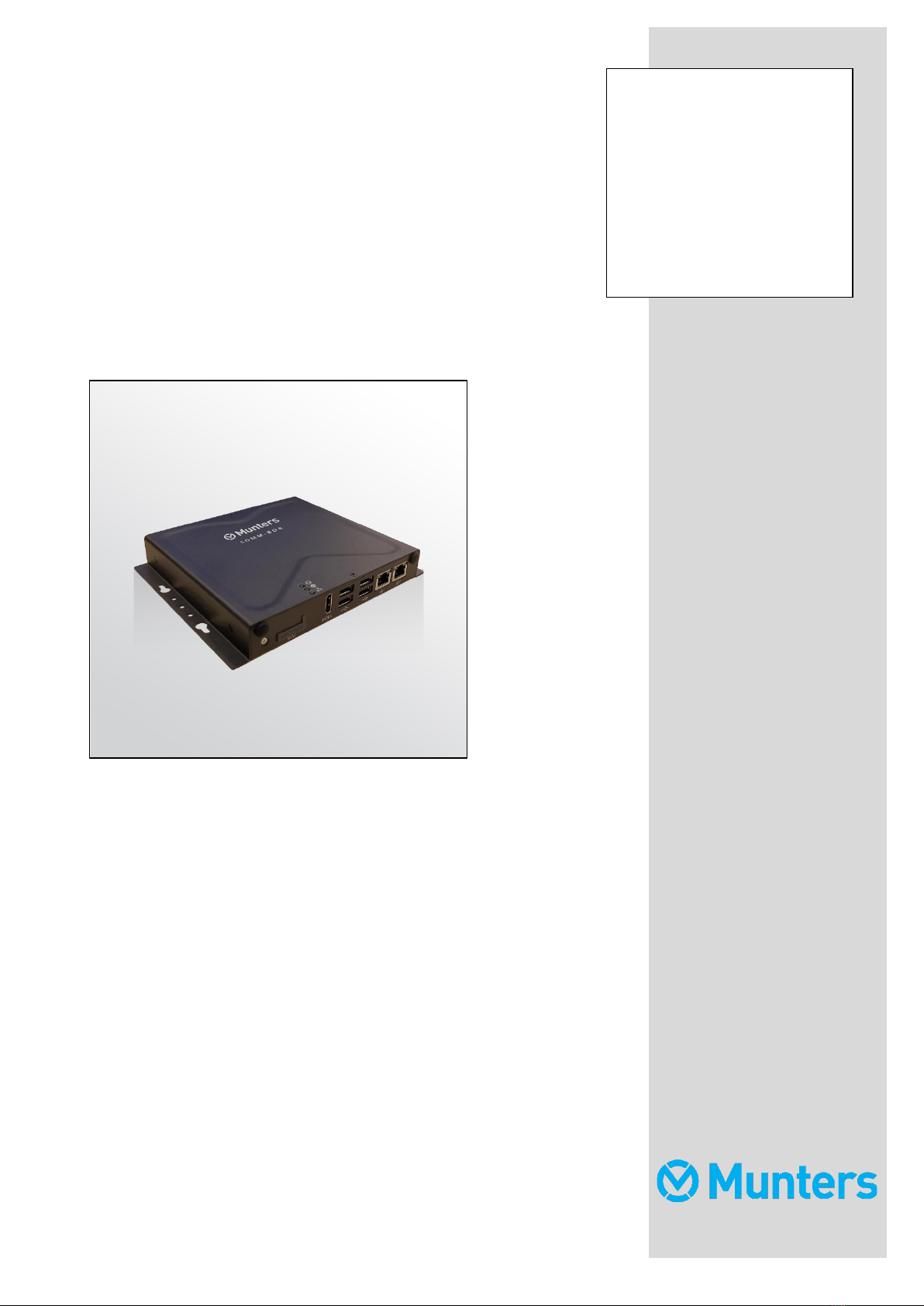
Green Net & Comm-Box
Controller Software
Ag/MIS/UmEN-2740-05/19 Rev 1.3
P/N: 116793
GreenNet/
Comm-Box

© Munters AB, 2019 2
Green Net & Comm-Box
Installation and User Manual
Rev 1.3, 10/2021
This manual for use and maintenance is an integral part of the apparatus together with the attached
technical documentation.
This document is destined for the user of the apparatus: it may not be reproduced in whole or in part,
committed to computer memory as a file or delivered to third parties without the prior authorization of the
assembler of the system.
Munters reserves the right to effect modifications to the apparatus in accordance with technical and legal
developments.

© Munters AB, 2019 3
Index
chapter page
1INTRODUCTION ------------------------------------------------------------------------------------------------------------------------------------------5
1.1 Disclaimer--------------------------------------------------------------------------------------------------------------------------------------------------------------------------------
5
1.2 Introduction-----------------------------------------------------------------------------------------------------------------------------------------------------------------------------
5
1.3 Notes -----------------------------------------------------------------------------------------------------------------------------------------------------------------------------------------
5
2COMM-BOX---------------------------------------------------------------------------------------------------------------------------------------------------6
2.1 Junction Box---------------------------------------------------------------------------------------------------------------------------------------------------------------------------
6
2.2 What Comes in the Package---------------------------------------------------------------------------------------------------------------------------------------
6
3COMM-BOX HARDWARE INSTALLATION------------------------------------------------------------------------------------------ 7
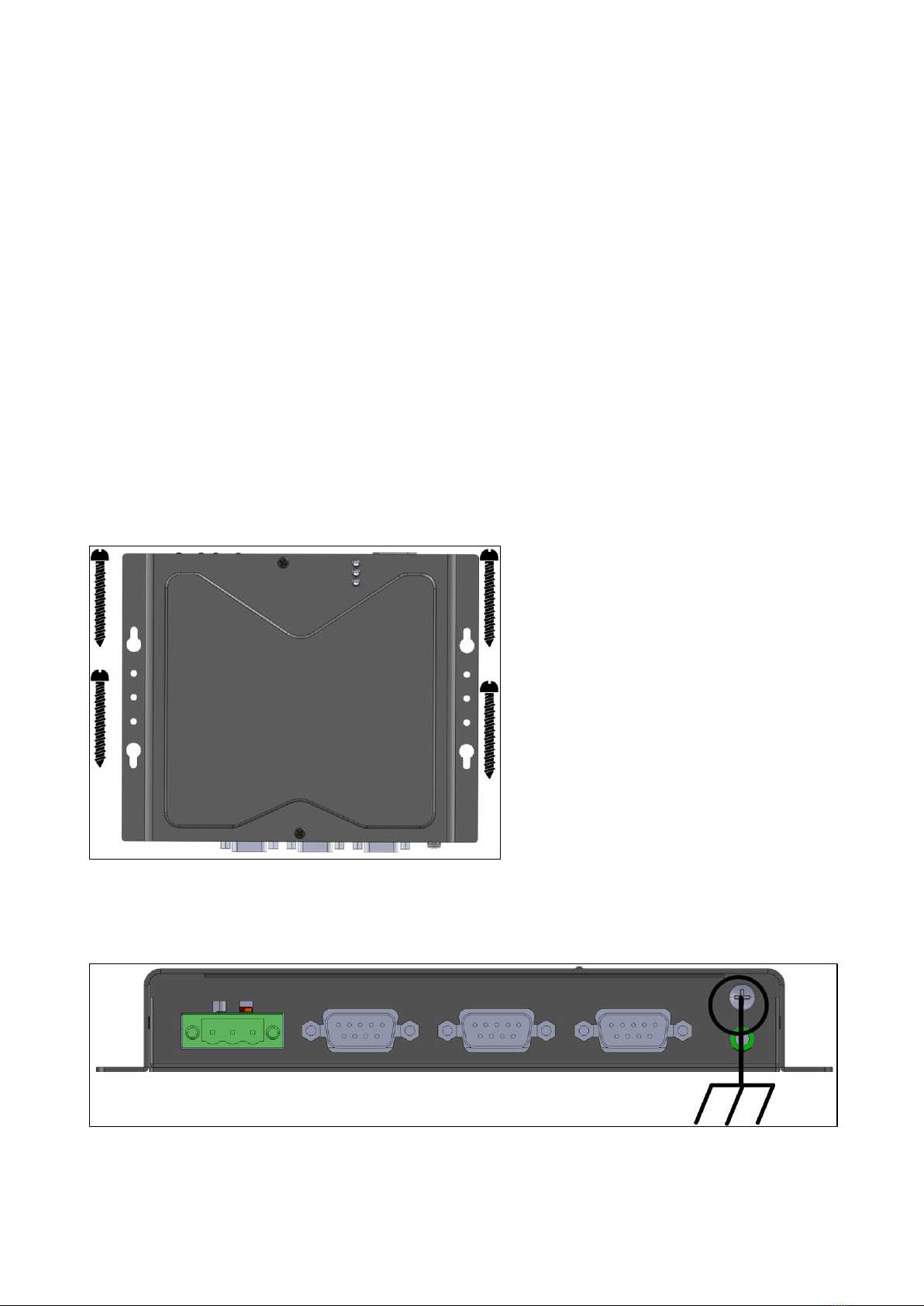
3.1 Mounting the Comm-Box -----------------------------------------------------------------------------------------------------------------------------------------------
7
3.2 Grounding-------------------------------------------------------------------------------------------------------------------------------------------------------------------------------
7
3.3 Connecting the Comm-Box to the Internet -----------------------------------------------------------------------------------------------------------
8
3.4 Connecting the Comm-Box to a Peripheral Device ----------------------------------------------------------------------------------------
8
3.5 Connecting the Comm-Box to a Controller----------------------------------------------------------------------------------------------------------
8
3.5.1 Controller to Junction Box Wiring...................................................................................................
9
3.5.2 Comm-Box to Junction Box Wiring.................................................................................................
9
4COMM-BOX COMMUNICATION------------------------------------------------------------------------------------------------------ 12
4.1 TeamViewer Definition--------------------------------------------------------------------------------------------------------------------------------------------------
12
4.1.1 Setting up TeamViewer: Silver Sticker ID...................................................................................
12
4.1.2 Setting up TeamViewer: Retrieved ID .........................................................................................
14
4.1.3 Technical Support...............................................................................................................................
17
4.2 SIM Card and Modem Definition--------------------------------------------------------------------------------------------------------------------------
18
5NETWORK SETUP ------------------------------------------------------------------------------------------------------------------------------------- 21
6PC SOFTWARE CONFIGURATION----------------------------------------------------------------------------------------------------- 23
6.1 Tools ----------------------------------------------------------------------------------------------------------------------------------------------------------------------------------------
23
6.1.1 Language ..............................................................................................................................................
23
6.1.2 Setup Menus........................................................................................................................................
24
6.1.3 Network Setup ....................................................................................................................................
24
6.1.4 Siren Activation...................................................................................................................................
24

© Munters AB, 2019 4
6.1.5 SMS Alarm Setting ............................................................................................................................
24
6.1.6 SMS Setting..........................................................................................................................................
26
6.1.6.1 Communicating via Cellular or Mobile from your Cellular Phone............................
27
6.1.7 Farm Name ..........................................................................................................................................
27
6.1.8 Set Controller Name.........................................................................................................................
28
6.1.9 Collect Main Screen .........................................................................................................................
28
6.1.10 Setting Block Size.........................................................................................................................
29
6.1.11 Delay Setting .................................................................................................................................
29
6.2 Quick Access Buttons----------------------------------------------------------------------------------------------------------------------------------------------------
29
6.2.1 Main Screen.........................................................................................................................................
30
6.2.2 Settings...................................................................................................................................................
30
6.2.3 Graph.....................................................................................................................................................
30
6.2.3.1 Creating a New Category .........................................................................
31
6.2.3.2 Creating a New Graph.............................................................................
31
6.2.3.3 Editing a Graph......................................................................................
32
6.2.3.4 Sensor Settings in GreenNet .......................................................................
32
6.2.3.5 Changing the Time Frame ..........................................................................
33
6.2.3.6 Saving the Template.................................................................................
34
6.2.3.7 Exporting to Excel....................................................................................
34
6.2.3.8Saving a the Graph as an Image .................................................................
34
6.2.3.9 Printing the Graph ...................................................................................
34
6.2.3.10 Graph Appearance .................................................................................
34
6.2.3.11 File .....................................................................................................
34
6.2.4 Print..........................................................................................................................................................
35
6.2.5 Active Alarms.......................................................................................................................................
35
6.2.6 Zone selection for Green Climate................................................................................................
35
6.2.7 Hot Keys ................................................................................................................................................
35
6.2.8 Collect ....................................................................................................................................................
36
6.2.9 History ....................................................................................................................................................
37
6.2.10 Load Settings to the Controller................................................................................................
37
6.2.11 Save Settings from Controllers................................................................................................
38
6.2.12 Send To............................................................................................................................................
38
6.2.13 Switch Between Controller Types...........................................................................................
39
7WARRANTY------------------------------------------------------------------------------------------------------------------------------------------------- 40

© Munters AB, 2019 5
1Introduction
1.1 Disclaimer
Munters reserves the right to make alterations to specifications, quantities, dimensions etc. for production
or other reasons, subsequent to publication. The information contained herein has been prepared by
qualified experts within Munters. While we believe the information is accurate and complete, we make no
warranty or representation for any particular purposes. The information is offered in good faith and with
the understanding that any use of the units or accessories in breach of the directions and warnings in this
document is at the sole discretion and risk of the user.
1.2 Introduction
Congratulations on your excellent choice of using the Green Net software and Comm-Box
Communication Device!
In order to realize the full benefit from this product it is important that it is installed, commissioned and
operated correctly. Before installation or using the device, this manual should be studied carefully. It is
also recommended that it is kept safely for future reference. The manual is intended as a reference for
installation, commissioning and day-to-day operation of the Munters equipment.
1.3 Notes
Date of release: July 2019
Munters cannot guarantee to inform users about the changes or to distribute new manuals to them.
All rights reserved. No part of this manual may be reproduced in any manner whatsoever without the
expressed written permission of Munters. The contents of this manual are subject to change without notice.

© Munters AB, 2019 6
2Comm-Box
Comm-Box provides complete access to your Munters controllers, including monitoring and control
capabilities, from any computer.
2.1 Junction Box
Connecting a Comm-Box directly to a controller requires a Junction Box. Refer to Connecting the Comm-
Box to a Controller, page 8.
•RS-485 Network: 904-99-00037 COMMBOX -POU- JUNCTION BOX RS485
2.2 What Comes in the Package
•Comm-Box
•Power supply cables 115VAC and 230VAC
•Ethernet cable

© Munters AB, 2019 7
3Comm-Box Hardware Installation
This document details how to install Munters' Comm-Box unit. Installation consists of:
•Mounting the Comm-Box
•Grounding
•Connecting the Comm-Box to the Internet
•Connecting the Comm-Box to a Peripheral Device
•Connecting the Comm-Box to a Controller
NOTE
No software installation is required.
3.1 Mounting the Comm-Box
•Using the screws provided, mount the unit.
•Connect the ground cable to the dedicated ground terminal.

© Munters AB, 2019 8
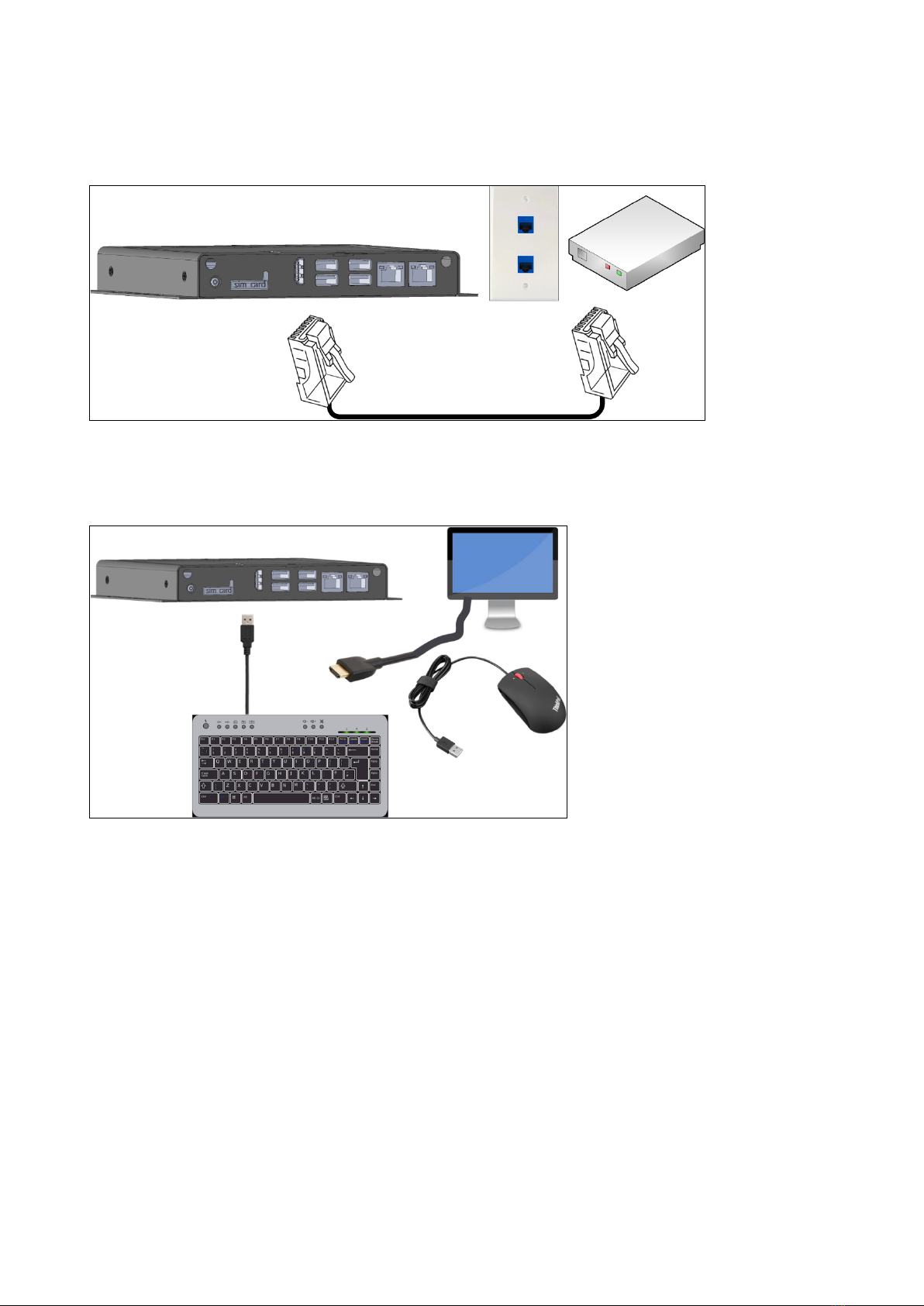
3.3 Connecting the Comm-Box to the Internet
•Connect the Comm-Box to your Internet connection/modem.
If required, connect a screen, keyboard, or mouse to the Comm-Box (via the USB/HDMI ports).
The only step in installing a Comm-Box that requires wiring is if the Comm-Box is connected directly to a
controller (instead of to a communication unit). In this situation the Comm-Box must be wired to the
controller communication card.
WARNING!
Disconnect the power before beginning!
WARNING!
Only an authorized electrical technician may perform this procedure!
•Controller to Junction Box Wiring
•Comm-Box to Junction Box Wiring

© Munters AB, 2019 9
3.5.1 CONTROLLER TO JUNCTION BOX WIRING
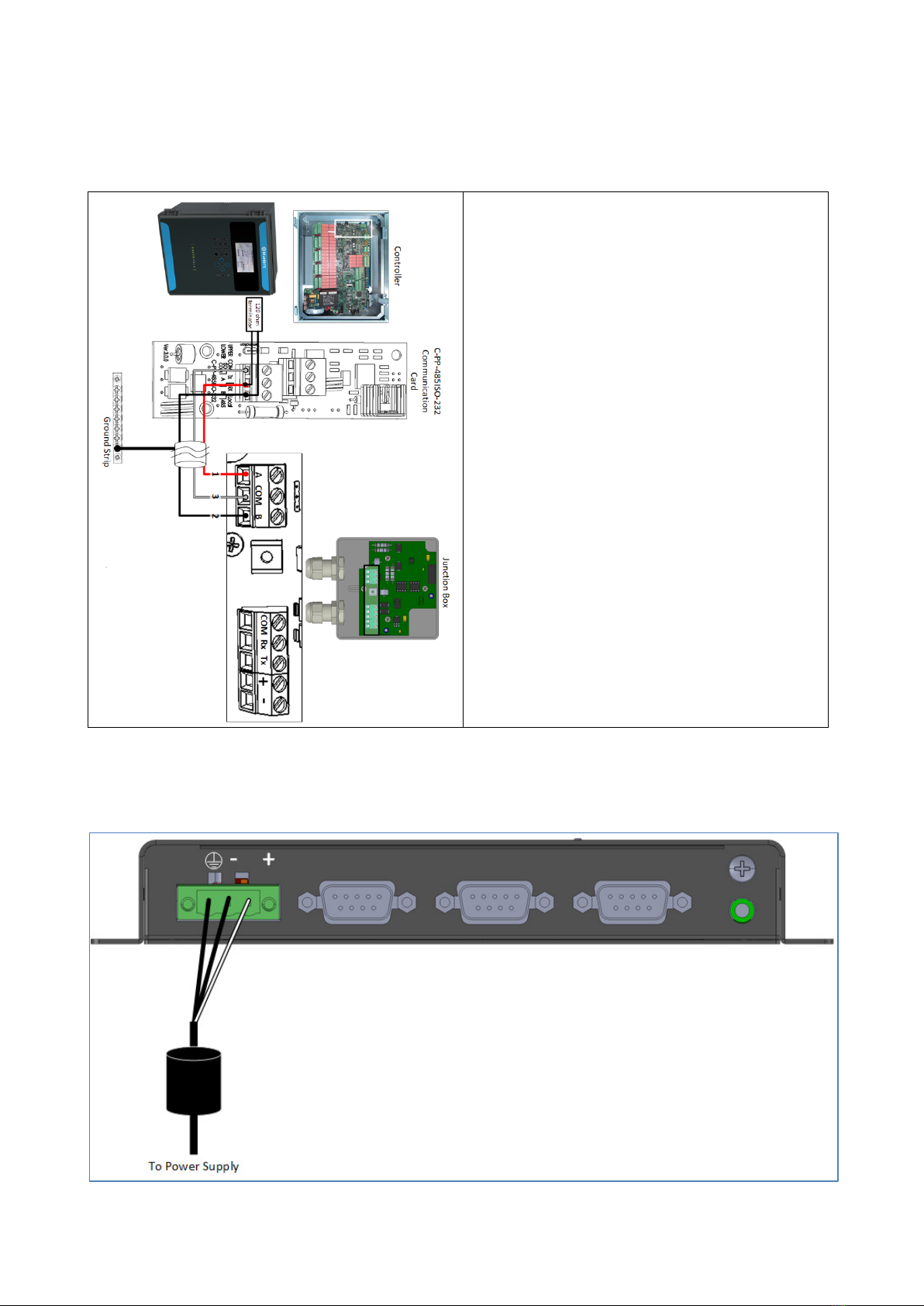
•In the controller, connect the Comm-Box to the controller's communication card. Refer to the
following illustrations.
1. The cable between the external connection
box and the controllers should be a 3 wire
twisted shielded cable (22 or 24 AWG).
2. Connect the wiring as follows:
oCOM to COM
oThe Comm-Box A port is connected to
Controller's A port.
oThe Comm-Box B port is connected to
Controller's B port.
3. The final controller in any chain or branch
requires a 120 ohm terminator.
4. Connect the cable shield wire to the controller
ground strip.
Figure 1: RS-485 Wiring
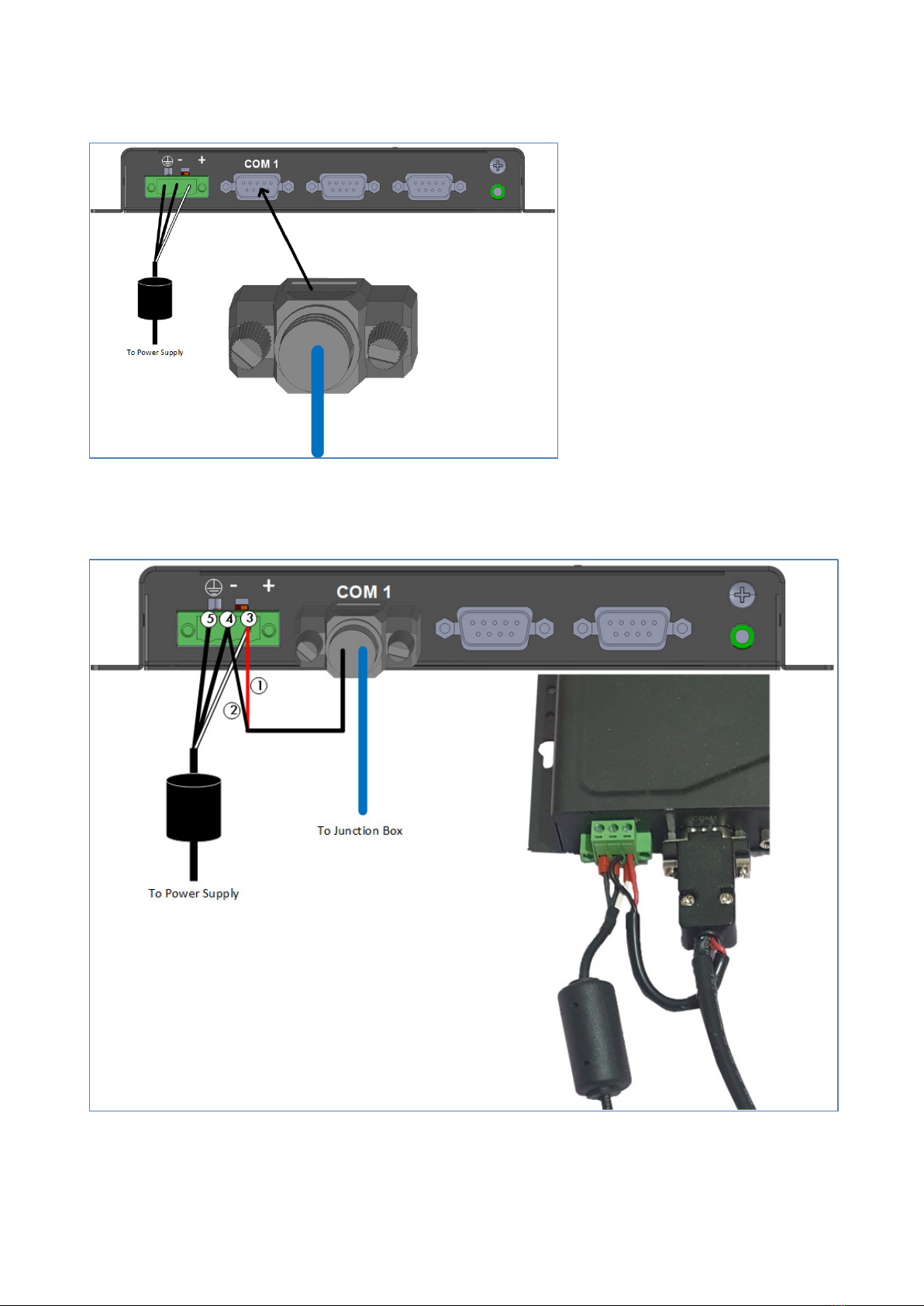
•The Comm-Box comes with the power supply wired to the unit. See Figure 2.
Figure 2: Comm-Box power supply wiring

© Munters AB, 2019 10
1 Insert the Junction Box 9-Pin Connector into COM1 (see Figure 3).
Figure 3: Insert 9 Pin Connector
2. Insert the two wires coming from the Junction Box cable into the ports (see Figure 4 and
Figure 5).
Figure 4: Junction Box Wiring to Comm-Box
Questo manuale è adatto per i seguenti modelli
2
Indice
Manuali Software popolari di altre marche

PS Audio
PS Audio PowerPlay Manuale del proprietario

Brady
Brady LOCKOUT PRO 3.0 Manuale di servizio

Avaya
Avaya Interaction Center Manuale utente

Texas Instruments
Texas Instruments TI-83 Plus Silver Edition Manuale

Novell
Novell GROUPWISE 8 - INTERNET AGENT Manuale utente

Oracle
Oracle Application 9i Manuale utente

Acer
Acer RDM Manuale utente

Canon
Canon Vixia HF21 Manuale utente

Canon
Canon ZR950 Manuale utente

Samsung
Samsung Auto Backup Manuale utente

Polycom
Polycom Vortex EF2201 Istruzioni per l'installazione e il funzionamento

Brocade Communications Systems
Brocade Communications Systems Brocade 8/12c Manuale utente