Network Instruments Matrix Manuale utente

Matrix™
User Guide

ii | Matrix™ (pub. 25.Apr.2014)
Matrix Switch
Trademark Notices
©2014 Network Instruments,® LLC. All rights reserved. Network Instruments, Observer®, Gen2™, Link Analyst, and Observer
Infrastructure and all associated logos are trademarks or registered trademarks of Network Instruments, LLC.
Open Source Copyright Notices
Portions of this product include software written by the University of Cambridge, Copyright © 1997-2012 University of Cambridge
All rights reserved. Redistribution and use in source and binary forms, with or without modification, are permitted provided that the
following conditions are met:
Portions of this product include software developed by the OpenSSL Project for use in the OpenSSL Toolkit. (http://www.openssl.org/),
Copyright © 1998-2013 The OpenSSL Project. All rights reserved.
Portions of this product include software written by the University of Cambridge, Copyright © 1997-2013 University of Cambridge All
rights reserved.
Redistribution and use in source and binary forms, with or without modification, are permitted provided that the following conditions
are met: Redistributions of source code must retain the above copyright notice, this list of conditions and the following disclaimer.
Redistributions in binary form must reproduce the above copyright notice, this list of conditions and the following disclaimer in the
documentation and/or other materials provided with the distribution.
Neither the name of the University of Cambridge nor the name of Google Inc. nor the names of their contributors may be used to
endorse or promote products derived from this software without specific prior written permission.
THIS SOFTWARE IS PROVIDED BY THE COPYRIGHT HOLDERS AND CONTRIBUTORS AS IS AND ANY EXPRESS OR IMPLIED WARRANTIES,
INCLUDING, BUT NOT LIMITED TO, THE IMPLIED WARRANTIES OF MERCHANTABILITY AND FITNESS FOR A PARTICULAR PURPOSE ARE
DISCLAIMED. IN NO EVENT SHALL THE COPYRIGHT OWNER OR CONTRIBUTORS BE LIABLE FOR ANY DIRECT, INDIRECT, INCIDENTAL,
SPECIAL, EXEMPLARY, OR CONSEQUENTIAL DAMAGES (INCLUDING, BUT NOT LIMITED TO, PROCUREMENT OF SUBSTITUTE GOODS
OR SERVICES; LOSS OF USE, DATA, OR PROFITS; OR BUSINESS INTERRUPTION) HOWEVER CAUSED AND ON ANY THEORY OF LIABILITY,
WHETHER IN CONTRACT, STRICT LIABILITY, OR TORT (INCLUDING NEGLIGENCE OR OTHERWISE) ARISING IN ANY WAY OUT OF THE USE
OF THIS SOFTWARE, EVEN IF ADVISED OF THE POSSIBILITY OF SUCH DAMAGE.
Limited Warranty—Hardware
Network Instruments, LLC. (Network Instruments) warrants this hardware product against defects in materials and workmanship for
a period of 90 days (1 year for nTAPs) from the date of shipment of the product from Network Instruments, LLC. Warranty is for depot
service at Network Instruments corporate headquarters in Minneapolis, MN or London, England. Warranties and licenses may give you
more coverage in certain local jurisdictions; Network Instruments also offers extended warranties as part of its maintenance agreement
program.
If a defect exists during the initial warranty period or prior to expiration of a pre-paid maintenance program, at its option Network
Instruments will (1) repair the product at no charge, using new or refurbished replacement parts, or (2) exchange the product with
a product that is new or which has been manufactured from new or serviceable used parts and is at least functionally equivalent to
the original product. A replacement product assumes the remaining warranty of the original product or 60 days, whichever provides
longer coverage for you. When a product or part is exchanged, any replacement item becomes your property and the replaced item
becomes Network Instruments' property.
The information in this manual is furnished for informational use only, is subject to change without notice, and should not be
construed as a commitment by Network Instruments, LLC. Network Instruments, LLC assumes no responsibility or liability for any
errors or inaccuracies that may appear in this manual. Network Instruments, LLC does not warrant that the hardware will meet your
requirements or that the operation of the hardware will be uninterrupted or that the hardware will be error-free.
Network Instruments, LLC SPECIFICALLY DISCLAIMS ALL OTHER WARRANTIES, EXPRESSED OR IMPLIED, INCLUDING BUT NOT
LIMITED TO, IMPLIED WARRANTIES OF MERCHANTABILITY AND FITNESS FOR A PARTICULAR PURPOSE. IN NO EVENT SHALL Network
Instruments, LLC BE LIABLE FOR ANY LOSS OF PROFIT OR ANY OTHER COMMERCIAL DAMAGE, INCLUDING BUT NOT LIMITED TO
SPECIAL, INCIDENTAL, CONSEQUE1NTIAL, OR OTHER DAMAGES.
Network Instruments, LLC makes no other warranty, expressed or implied.
Limited Warranty—Software
Network Instruments, LLC (DEVELOPER) warrants that for a period of sixty (60) days from the date of shipment from DEVELOPER: (i)
the media on which the SOFTWARE is furnished will be free of defects in materials and workmanship under normal use; and (ii) the
SOFTWARE substantially conforms to its published specifications. Except for the foregoing, the SOFTWARE is provided AS IS. This
limited warranty extends only to END-USER as the original licensee. END-USER's exclusive remedy and the entire liability of DEVELOPER
and its suppliers under this limited warranty will be, at DEVELOPER or its service center's option, repair, replacement, or refund of the
SOFTWARE if reported (or, upon request, returned) to the party supplying the SOFTWARE to END-USER. DEVELOPER does not warrant
that the software will meet END-USER requirements, and in no event does DEVELOPER warrant that the SOFTWARE is error free or that
END-USER will be able to operate the SOFTWARE without problems or interruptions.
Should DEVELOPER release a newer version of the SOFTWARE within 60 days of shipment of the product, DEVELOPER will update the
copy of the SOFTWARE upon request, provided request is made by the licensed END-USER within the 60 day period of shipment of
the new version. This update may consist of a CD or a manual or both at the discretion of DEVELOPER. END-USER may be charged a
shipping fee for updates.


| iii
The information in the SOFTWARE manuals is furnished for informational use only, is subject to change without notice, and should not be
construed as a commitment by DEVELOPER. DEVELOPER assumes no responsibility or liability for any errors or inaccuracies that may appear in
any SOFTWARE manual.
This warranty does not apply if the software (a) has been altered, except by DEVELOPER, (b) has not been installed, operated, repaired, or
maintained in accordance with instructions supplied by DEVELOPER, (c) has been subjected to abnormal physical or electrical stress, misuse,
negligence, or accident, or (d) is used in ultrahazardous activities.
DISCLAIMER. EXCEPT AS SPECIFIED IN THIS WARRANTY, ALL EXPRESS OR IMPLIED CONDITIONS, REPRESENTATIONS, AND WARRANTIES
INCLUDING, WITHOUT LIMITATION, ANY IMPLIED WARRANTY OF MERCHANTABILITY, FITNESS FOR A PARTICULAR PURPOSE, NONINFRINGEMENT
OR ARISING FROM A COURSE OF DEALING, USAGE, OR TRADE PRACTICE, ARE HEREBY EXCLUDED TO THE EXTENT ALLOWED BY APPLICABLE LAW.
The above warranty DOES NOT apply to any beta software, any software made available for testing or demonstration purposes, any temporary
software modules or any software for which DEVELOPER does not receive a license fee. All such software products are provided AS IS without
any warranty whatsoever. This License is effective until terminated. END-USER may terminate this License at any time by destroying all copies of
SOFTWARE including any documentation. This License will terminate immediately without notice from DEVELOPER if END-USER fails to comply
with any provision of this License. Upon termination, END-USER must destroy all copies of SOFTWARE. DEVELOPER makes no other warranty,
express or implied.
Liability
IN NO EVENT WILL DEVELOPER OR ITS SUPPLIERS BE LIABLE FOR ANY LOST REVENUE, PROFIT, OR DATA, OR FOR SPECIAL, INDIRECT,
CONSEQUENTIAL, INCIDENTAL, OR PUNITIVE DAMAGES HOWEVER CAUSED AND REGARDLESS OF THE THEORY OF LIABILITY ARISING OUT OF
THE USE OF OR INABILITY TO USE THE SOFTWARE EVEN IF DEVELOPER OR ITS SUPPLIERS HAVE BEEN ADVISED OF THE POSSIBILITY OF SUCH
DAMAGES.
DEVELOPER SHALL NOT BE LIABLE FOR MATERIAL, EQUIPMENT, DATA, OR TIME LOSS CAUSED DIRECTLY OR INDIRECTLY BY PROPER OR
IMPROPER USE OF THE SOFTWARE. IN CASES OF LOSS, DESTRUCTION, OR CORRUPTION OF DATA, DEVELOPER SHALL NOT BE LIABLE. DEVELOPER
DOES NOT TAKE ANY OTHER RESPONSIBILITY.
In no event shall DEVELOPER's or its suppliers' liability to END-USER, whether in contract, tort (including negligence), or otherwise, exceed the
price paid by END-USER. The foregoing limitations shall apply even if the above-stated warranty fails of its essential purpose.
DEVELOPER SPECIFICALLY DISCLAIMS ALL OTHER WARRANTIES, EXPRESSED OR IMPLIED, INCLUDING BUT NOT LIMITED TO, IMPLIED
WARRANTIES OF MERCHANTABILITY AND FITNESS FOR A PARTICULAR PURPOSE. IN NO EVENT SHALL DEVELOPER BE LIABLE FOR ANY LOSS OF
PROFIT OR ANY OTHER COMMERCIAL DAMAGE, INCLUDING BUT NOT LIMITED TO SPECIAL, INCIDENTAL, CONSEQUENTIAL, OR OTHER DAMAGES.
DEVELOPER’S liability to the END-USER under this agreement shall be limited to the amount actually paid to DEVELOPER by END-USER for the
SOFTWARE giving rise to the liability.
Ownership and Confidentiality
END-USER agrees that Network Instruments, LLC owns all relevant copyrights, trade secrets and all intellectual property related to the
SOFTWARE.
Technical Support
US & countries outside Europe (800) 526-7919 | (952) 358-3800 [email protected]
UK and Europe +44 (0) 1959 569880 [email protected]
Support hours are 9:00 am to 5:00 pm (local time for each office).
Network Instruments provides technical support during the warranty term for our products. Extended Warranty and Maintenance programs
include Technical Support services and are available for all commissioned products.
For current information and complete manuals, go to www.networkinstruments.com/support/.
Suggestions are welcomed. Many of the improvements made to our products have originated as end user suggestions. Please submit detailed
suggestions in writing to: [email protected] or by fax at: (952) 358-3801. Please submit any corrections to or criticism of
Network Instruments’ publications to: [email protected] or by fax at (952) 358-3801.

iv | Table of Contents (pub. 25.Apr.2014)
Table of Contents
Chapter 1: Getting Started............................................................................................................................................. 6
Matrix technical specifications.........................................................................................................................................................................7
Supported QSFP/SFP/SFP+ media types............................................................................................................................................... 9
How to connect Matrix to your network.....................................................................................................................................................9
How to set IPv4 network settings................................................................................................................................................................10
How to set IPv6 network settings................................................................................................................................................................10
How to set the system time and date....................................................................................................................................................... 11
Chapter 2: Layouts........................................................................................................................................................ 13
Understanding layouts..................................................................................................................................................................................... 13
How to edit a layout................................................................................................................................................................................... 13
How to create an additional layout.......................................................................................................................................................14
How to activate a different layout.........................................................................................................................................................15
How to import a layout................................................................................................................................................................................... 15
How to export a layout....................................................................................................................................................................................15
Chapter 3: Ports............................................................................................................................................................. 17
How to connect ingress and egress ports................................................................................................................................................17
How to connect a network port to a tool port.................................................................................................................................17
How to connect many ports to the same rule..................................................................................................................................17
How to define a tool port............................................................................................................................................................................... 18
How to define a network port...................................................................................................................................................................... 19
How to set port link speeds...........................................................................................................................................................................19
Chapter 4: Rules.............................................................................................................................................................20
Understanding rules..........................................................................................................................................................................................20
How to create a rule....................................................................................................................................................................................20
How to edit a rule........................................................................................................................................................................................ 21
How to apply a rule in an inactive layout...........................................................................................................................................21
How to apply a rule in the active layout.............................................................................................................................................22
Chapter 5: Filters........................................................................................................................................................... 23
How to create a filter........................................................................................................................................................................................23
How to bind a filter to a rule.........................................................................................................................................................................23
How to edit a filter.............................................................................................................................................................................................24
Understanding filters and filtering.............................................................................................................................................................. 24
Chapter 6: Users and Groups....................................................................................................................................... 26
How to set a user authentication scheme................................................................................................................................................26
How to authenticate locally..................................................................................................................................................................... 27
How to authenticate using LDAP...........................................................................................................................................................27
How to authenticate using Active Directory..................................................................................................................................... 28
How to authenticate using NIMS...........................................................................................................................................................28
How to authenticate using RADIUS...................................................................................................................................................... 28
How to authenticate using TACACS+...................................................................................................................................................28
How to change the administrator password...........................................................................................................................................29
How to add users............................................................................................................................................................................................... 29
How to edit a user............................................................................................................................................................................................. 29
How to import users......................................................................................................................................................................................... 30

| v
How to delete a user........................................................................................................................................................................................ 30
How to add a user group................................................................................................................................................................................30
How to edit a user group................................................................................................................................................................................31
How to delete a user group...........................................................................................................................................................................31
Chapter 7: Replication...................................................................................................................................................32
How to replicate network traffic.................................................................................................................................................................. 32
Understanding network traffic replication............................................................................................................................................... 33
Chapter 8: Aggregation and Speed Conversion.........................................................................................................34
How to aggregate network links..................................................................................................................................................................34
Understanding network link aggregation................................................................................................................................................ 35
How to perform speed conversion............................................................................................................................................................. 35
Understanding speed conversion................................................................................................................................................................36
Chapter 9: Load Balancing............................................................................................................................................37
How to load balance.........................................................................................................................................................................................37
How to load balance by conversation................................................................................................................................................. 37
How to load balance by packet volume............................................................................................................................................. 38
Understanding the load balancing process.............................................................................................................................................39
Chapter 10: Packet Deduplication............................................................................................................................... 40
How to deduplicate packets.......................................................................................................................................................................... 40
How to direct the Matrix to identify duplicate packets.................................................................................................................40
How to enable packet deduplication in a rule................................................................................................................................. 41
Understanding packet deduplication...................................................................................................................................................41
What is deduplication and why do I need it?..............................................................................................................................41
Scenario 1: Receiving network traffic from multiple routers................................................................................................. 42
Scenario 2: Receiving network traffic from multiple VLANs...................................................................................................42
Chapter 11: Packet Trimming.......................................................................................................................................43
How to trim packets..........................................................................................................................................................................................43
Chapter 12: Firmware....................................................................................................................................................45
How to upgrade the firmware...................................................................................................................................................................... 45
Chapter 13: Licensing....................................................................................................................................................46
Understanding the licensing process.........................................................................................................................................................46
How to request a new license.................................................................................................................................................................46
How to relicense the device.....................................................................................................................................................................47
Index............................................................................................................................................................................... 48

6 | Matrix™ (pub. 25.Apr.2014)
Chapter 1: Getting Started
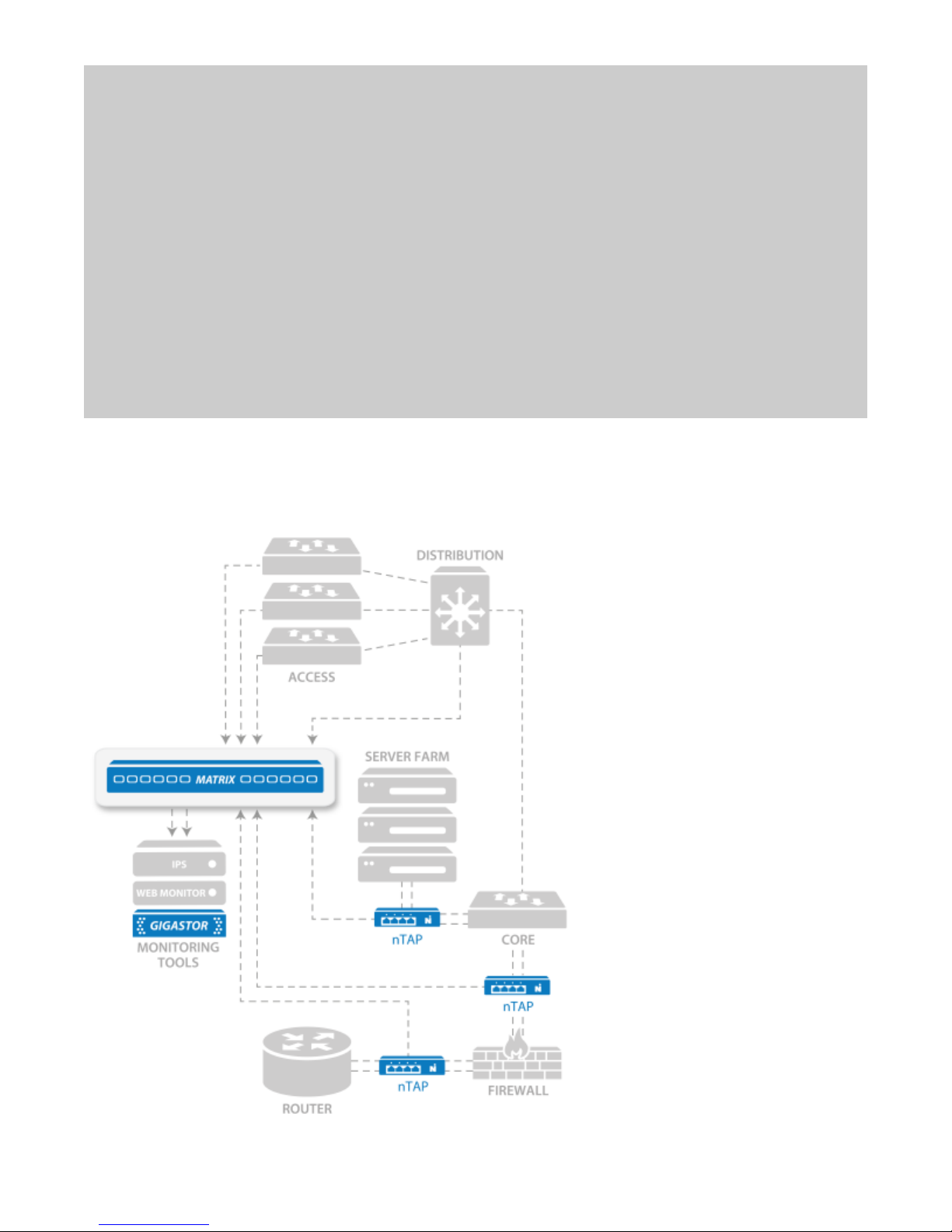
The Matrix is a network management switch that can filter, de-duplicate, trim and time stamp inbound traffic
and replicate, aggregate, or load-balance outbound traffic before sending it to your network and security
monitoring tools.
Figure 1: Matrix in your network

Matrix technical specifications | 7
The Matrix can perform multiple operations on inbound data before it is transmitted out tool ports:
Filter traffic of interest to specific analysis devices: filters are created using open source BPF Unix-
based language and/or an intuitive GUI interface. Filter traffic by variables, including clients or servers,
applications, packet length, or ports, and incorporate Boolean logic.
De-duplication: eliminate redundant packets to streamline monitoring efficiency and reduce the
amount of redundant data sent, analyzed, and stored. Configurable de-duplication definitions gives you
options (for example: ignore MAC address pair, TTL, and more) to create de-duplication rules for your
environment.
Packet trimming: discarding portions of the packet, such as payload data, for improved storage of data
or to mitigate possible security/legal/privacy concerns related to sensitive payload data retention.
Flexible packet time stamping: use a variety of sources, including GPS time synchronization, IEEE 1588
Precision Time Protocol (PTP), or Network Time Protocol (NTP).
Outbound data can also be flexibly directed using:
Replication (one-to-many): Copying a single inbound stream to multiple tool ports, great for
transmitting identical data to distinct monitoring appliances
Aggregation (many-to-one): Combining multiple streams of network traffic into a single outbound
stream for more efficient tool analysis
Load balancing (many-to-many): Apply dynamic routing via packet or conversation to logically
distribute network traffic to multiple tool ports; extending the life of legacy monitoring devices and
ensuring traffic spikes do not result in oversubscription and/or dropped packets
These capabilities are managed using a drag-and-drop GUI that accelerates the Matrix configuration process
by placing all traffic manipulation in a single rule block rather than scattering it across inbound and outbound
ports. It also facilitates the display of network-tool interconnects and corresponding traffic operations that
makes even the largest, most complex monitoring infrastructure straightforward to visualize and update. These
rules are all managed in a central library for use by the entire monitoring team and can be imported or exported.
Matrix provides three user or product interfaces:
HTML5 web UI
Command line interface (CLI)
RESTful API: Designed into the product from its inception, the Matrix RESTful API provides third-party
solutions access to all the configuration and management capabilities found in the web UI and CLI.
Matrix technical specifications
A Port Block
Speed
Light that indicates the speed for the port block. If no light is lit for the port block, that port
block is unlicensed.
B Port Status Light that shows whether that specific port is active. When it blinks, there is traffic on the
port. The faster the blinking, the faster the traffic. When it is dark, the port is not enabled.
C Port Block Group of four ports that are assigned a speed (for instance, 1 Gb or 10 Gb). All ports in the
port block must be of the same speed; it cannot have mixed speeds. The 10 Gb licenses
float, meaning that if you insert a 10 Gb SFP+ into a port, that port block will be 10 Gb. If
you license two 10 Gb port blocks, the first two port blocks with 10 Gb SFP+s in them are
licensed at 10 Gb. If you insert a 10 Gb SFP+ into a third port block, it remains at 1 Gb and

8 | Matrix™ (pub. 25.Apr.2014)
there will be a warning in the logs and web interface. If you remove one of the first two 10
Gb SFP+s, the third port block upgrades to 10 Gb. If you require mixed speeds, use 1 Gb in
one port block and 10 Gb in a different port block. You can then combine them using rules
and filters.
D Power Press and hold for three seconds to turn the device ON or OFF.
To reset to factory defaults, unplug the power cables. Press and hold the Power button.
While holding the Power button, insert the power cable. Continue holding until the device
beeps twice.
E RESET/PWR/
MGMT
RESET: Reset button. Press to clear the memory and restart the device when the device is
not responding. Use instead of turning off or unplugging the device if there is a problem
or before restoring to factory defaults.
PWR: Power. When solid green, both power supplies are functioning as expected. When
solid orange, one of the power supplies is OFF or not functioning properly. Different from
the PWR light on the rear of the device.
MGMT: Ethernet (management) port. When solid green, an Ethernet cable is connected.
When unlit, no cable is connected and no changes can be made to the settings through
either the web UI or CLI.
F Power
supplies
Redundant auto-selecting 100-240 volt power supplies are standard.
G MUTE Mute button to silence the alarm.
H RST Reset button. Use to clear the memory and restart the device when the device is not
responding. Use instead of turning off or unplugging the device if there is a problem or
before restoring to factory defaults.
I PWR/RDY/
ALARM
PWR: Power. Different than the PWR light on the front of the case and useful when
troubleshooting web or CLI interface connectivity issues. When solid green, the web and
SSH servers are running. When unlit, no power is present for those servers.
RDY: Ready. This light indicates that the web server and SSH server are running so that the
web UI and CLI are accessible. This light blinks during a factory reset; otherwise it is solid
green.
ALARM: Alarm. When this green light flashes, the device is in an alarmed state (for example,
failed power supply). There are no current alarms if the light is dark.
J MGMT Ethernet (management) port. Used when configuring the device, which is done through
the web user interface (HTTPS) or command line interface (SSH). The left light is solid
yellow when an Ethernet cable is connected. The right light blinks green with activity.
K GPS Port for attaching an optional Network Instruments GPS timing device.
Dimensions 19 in (W) x 1.73 in (H) x 18 in
48.26 cm (W) x 4.39 cm (H) x 45.72
cm
Power
consumption
Input voltage: 100V-240V auto
select
Input frequency: 50/60Hz
93w (317 Btu/h)
Weight 17 lbs (7.7 kg) Supported
media

Supported QSFP/SFP/SFP+ media types | 9
Operating
Temperature
32° F (0° C) to 104° F (40° C) Optical/Fiber Multimode or Single-mode
1 Gb (SX or LX)
10 Gb (SR, LR, ZR)
Humidity 35-85% (non-condensing) Copper 100/1000 Ethernet
Supported QSFP/SFP/SFP+ media types
Some products require an SFP module. These are the supported media types.
40 Gb QSFP Transceivers
40GBASE-SR4
10 Gb Ethernet SFP+ Transceivers
10GBASE-SR
10GBASE-LR
10GBASE-ER
1 Gb Ethernet SFP Transceivers
1000BASE-SX
1000BASE-LX
1000BASE-TX
License The device is pre-licensed at the factory. The license enables ports in blocks
of four starting at port 1. It also indicates the number of blocks that are 10 Gb-
capable. If you have eight ports licensed, you may only use ports 1-8. Ports 9-24
remain dark and unusable even if you insert an SFP module. If you need more
ports or blocks of 10 Gb, you can request a license upgrade.
IP Address 192.168.1.10. Must use HTTPS in a web browser or SSH. HTTP will fail.
Default User/password admin/admin
Self-signed certificate Network Instruments uses a self-signed certificate. When connecting to the
device, your web browser may issue a warning about the site being "untrusted"
or that there is a problem with the "security certificate." This is a harmless
message that may be ignored. You see that message because the site uses a
self-signed certificate. See your web browser's documentation for adding the IP
address as a trusted source.
How to connect Matrix to your network
Before you can configure or use the Matrix, you must complete the basic installation by connecting power
cables and inserting SFP modules.
1. Insert the two power cables (F).
2. Connect an RJ-45 Ethernet cable to the MGMT port (J).
3. Insert the SFP or SFP+ modules into the ports (C).

10 | Matrix™ (pub. 25.Apr.2014)
4. Connect the appropriate network cables to the SFP or SFP+ modules.
5. Press the Power switch (D) on the front of the device.
The PWR and MGMT lights turn green to indicate the device is ready to use.
You successfully connected the device to your network.
Next, change the network settings.
How to set IPv4 network settings
The Matrix must be added to your network like other devices. Use the network settings page to set IPv4 settings
for IP address and netmask, gateway, host name, and more.
The Matrix is an active network device (unlike a typical optical TAP for instance). The Matrix has a hardware
address and requires an IPv4 address assignment to join your network. However, IPv6 can optionally be enabled
and used side-by-side with IPv4—the matrix supports native dual-stack. Address assignments can be manually
configured or dynamically assigned using DHCP or DHCPv6.
1. Starting in the dashboard, click System.
2. Click Network.
3. In Hostname, type a host name for the Matrix.
4. (Optional) Use DHCP for address assignments:
a. Select DHCP.
The manual configuration settings become hidden.
b. Click Save.
DHCP is enabled. No further configuration is necessary.
5. In IP Address, type the IP address the Matrix must use.
6. In Netmask, type the full netmask associated with the chosen IP address.
7. In Gateway, type the IP address of the gateway the Matrix must use.
8. In DNS Address 1, type the IP address of a DNS server.
The IPv4 address of at least one DNS server is required. If two servers are declared, the first server is used
unless unreachable.
Note: Example: 8.8.8.8
9. (Optional) In DNS Address 2, type the IP address of a DNS server.
10. Click Save.
You successfully added the Matrix to your network with IPv4 settings. The changes take effect immediately.
How to set IPv6 network settings
The Matrix must be added to your network like other devices. Use the network settings page to set IPv6 settings
for IP address and prefix, gateway, host name, and more.
The Matrix is an active network device (unlike a typical optical TAP for instance). The Matrix has a hardware
address and requires an IPv4 address assignment to join your network. However, IPv6 can optionally be enabled
Indice
Altri manuali Network Instruments Interruttore