New Star NS-1105IPEXT Manuale utente

1, 8 & 16 PORT DIGITAL IP KVM SWITCH
User Manual
NS-1105IPEXT
NS-841HDI
NS-1641HDI
www.newstar.nl

Table of Content
INTRODUCTION .............................................................................................. 2
FEATURES....................................................................................................... 2
BEFORE YOU BEGIN...................................................................................... 2
Package Contents.......................................................................................................... 2
Required Cables and Hardware .................................................................................... 2
Optional.......................................................................................................................... 2
QUICK START GUIDE ..................................................................................... 3
INSTALLING THE NEWSTAR DIGITAL KVM VIA IP ..................................... 9
Disabling Mouse Acceleration on the Managed Computers........................................ 10
NETWORK CONFIGURATION METHODS EXPLAINED.............................. 10
Web Configuration Using DHCP.................................................................................. 10
Terminal Configuration Using a Serial Cable............................................................... 11
CONFIGURING THE KVM FOR YOUR NETWORK...................................... 12
Using the LAN Port ...................................................................................................... 12
Using the Web Interface .............................................................................................. 12
Using the Terminal Interface via Serial Port ................................................................ 18
ACCESSING THE VNC INTERFACE ............................................................ 19
Web Interface............................................................................................................... 19
Native VNC Client ........................................................................................................ 20
SSH Tunnel (with Native VNC client) .......................................................................... 20
USING THE VNC MENU ................................................................................ 21
Welcome Window ........................................................................................................ 21
Bribar Feature .............................................................................................................. 21
Main Menu ................................................................................................................... 22
VirtKeys Menu.............................................................................................................. 23

Video Tuning Menu...................................................................................................... 24
ACCESSING KVM FEATURES ..................................................................... 25
Cascade Configuration ................................................................................................ 25
OSD Operations........................................................................................................... 26
Hot Key Commands..................................................................................................... 30
Selecting a Computer .......................................................................................... 30
Auto Scan ........................................................................................................... 30
Manual Scan ...................................................................................................... 30
Scan Rate ............................................................................................................ 30
Keyboard Typematic Rate ................................................................................... 30
Audio Stick ........................................................................................................... 31
Changing Your Configuration............................................................................... 31
TROUBLESHOOTING ................................................................................... 32
SPECIFICATIONS.......................................................................................... 35
SUPPORTED PROTOCOLS.......................................................................... 36
WARRANTY INFORMATION......................................................................... 37
REGULATORY COMPLIANCE STATEMENTS ............................................ 37
APPENDIX A: ABOUT SECURITY CERTIFICATE WARNINGS .................. 38
APPENDIX B: USING THE ADVANCED VIDEO TUNING FEATURE .......... 39
APPENDIX C: GETTING PEAK PERFORMANCE........................................ 41
APPENDIX D: USING OPTIONAL SERIAL SUPERVISOR DEVICES ......... 42
NOTE: Since firmware for our NewStar Digital KVM via IP Products is constantly
evolving to offer more functionality and improvements, some of the
options and instructions presented in this manual may differ from your unit.
To obtain the latest documentation and support information for our
NewStar Digital KVM via IP products, please visit www.newstar.nl

2
----- Introduction
Thank you for purchasing NewStar NewStar Digital KVM via IP series with integrated
KVM. Using the Internet or your TCP/IP enabled network, you can now remotely monitor
and control critical PC servers and workstations using an industry-standard Web browser
or VNC client.
----- Features
ySupports industry-standard networking and management protocols such as TCP/IP and
SNMP
yOffers secure management options including SSL encryption, SSH tunneling, and
RADIUS authentication
yPlatform independent: can be managed using any Java-enabled Web browser
yOne remote management point for multiple computers
----- Before You Begin
This section describes the cables and other hardware that you may wish to use when
setting up and configuring your new NewStar Digital KVM via IP. We suggest you review
this section carefully before beginning the installation process.
Package Contents
Your package should contain the following:
y1 x NewStar NewStar Digital KVM via IP unit
y1 x Power Adapter
y1 x AC Cord for Power Adapter
y1 x User’s Manual
y1 x Rack Mount kit of Standard 19” 1U ( for 8/16 ports only )
y1 x Screw Package ( for 8/16 ports only )
yOne Set of Foot Pad
y1 x DB9 RS-232 null modem serial cable ( optional )
Required Cables and Hardware
Depending on your needs, you may need one or more of the following cables:
1 x Ethernet cable (10/100 Mbits/sec Category 5 or better Ethernet cable)
Optional
yThere are many different lengths for PS/2 or USB cables available:
1.8, 3.0, 6.0, 10.0, 15.0 m

3
----- Quick Start Guide
For this Quick Start Guide, we offer three different easy step-by-step ways, letting you
setup this unit very quickly.
The First Way : If you don’t have DHCP (Dynamic Host Configuration
Protocol)
Step 1. Connect the CAT-5 cable to the LAN port on the rear panel of NewStar Digital
KVM via IP. And, connects the opposite end of the CAT-5 cable to the hub.
Step 2. Set the IP address of a computer connected on the same network as NewStar
Digital KVM via IP to a similar unused address like 192.168.1.124 and the subnet
mask of 255.255.255.0.
a. Right click on "My Network Places", and select "Properties". You will get the
following screen:

4
b. Right click on "Local Area Connection", and select "Properties" .
c. Double click on "Internet Protocol (TCP/IP)".

5
d. Click “Advanced…” , then click “Add…” to add up the IP address of
“192.168.1.124”, and the Subnet mask of “255.255.255.0”.
Step 3. From that computer, open a web browser and go to https://192.168.1.123. Login
using "admin" for both username and password.
Step 4. Click on the Admin/Setup button then Network configuration (IP address,
netmask, gateway). From here you can set the IP address as needed.
The Second Way: If you have DHCP (Dynamic Host Configuration Protocol)
Step 1. Please have your MAC address. You can find it on a white sticker on the bottom of
the NewStar Digital KVM via IP. Here is an example, 00-0E-C5-00-08-1A.
Step 2. Power on the NewStar Digital KVM via IP and connected to the network via LAN
port on the rear panel. The DHCP will automatically assign an IP address for the
NewStar Digital KVM via IP.
Step 3. Access the DHCP log from your file server. A simple DHCP log looks similar to the
following:

6
Step 4. From the above DHCP log, you can easily find the DHCP assigned an IP to the
NewStar Digital KVM via IP, 192.168.22.4. Once you have located this IP
address, do NOT power off the NewStar Digital KVM via IP or your DHCP server
since it might lease a different IP address.
Step 5. Simply open a web browser and type https://192.168.22.4 to access your NewStar
Digital KVM via IP. Login using “admin” for both username and password.
The Third Way: Using the HyperTerminal via Serial Port
Step 1. Connect the DB9 RS-232 null modem serial cable (optional) to the serial port on
the rear panel of NewStar Digital KVM via IP. And, connects the opposite end of
the cable to the serial port (COM1, COM2…) of your computer.
Step 2. From your computer, select “HyperTerminal” as following.

7
Step 3. If you never setup your HyperTerminal before, it will ask you to input your phone
area code, please feel free to do so, and then click “OK”, you will get the following
screen. Please type any name you prefer, for example, “abc”.
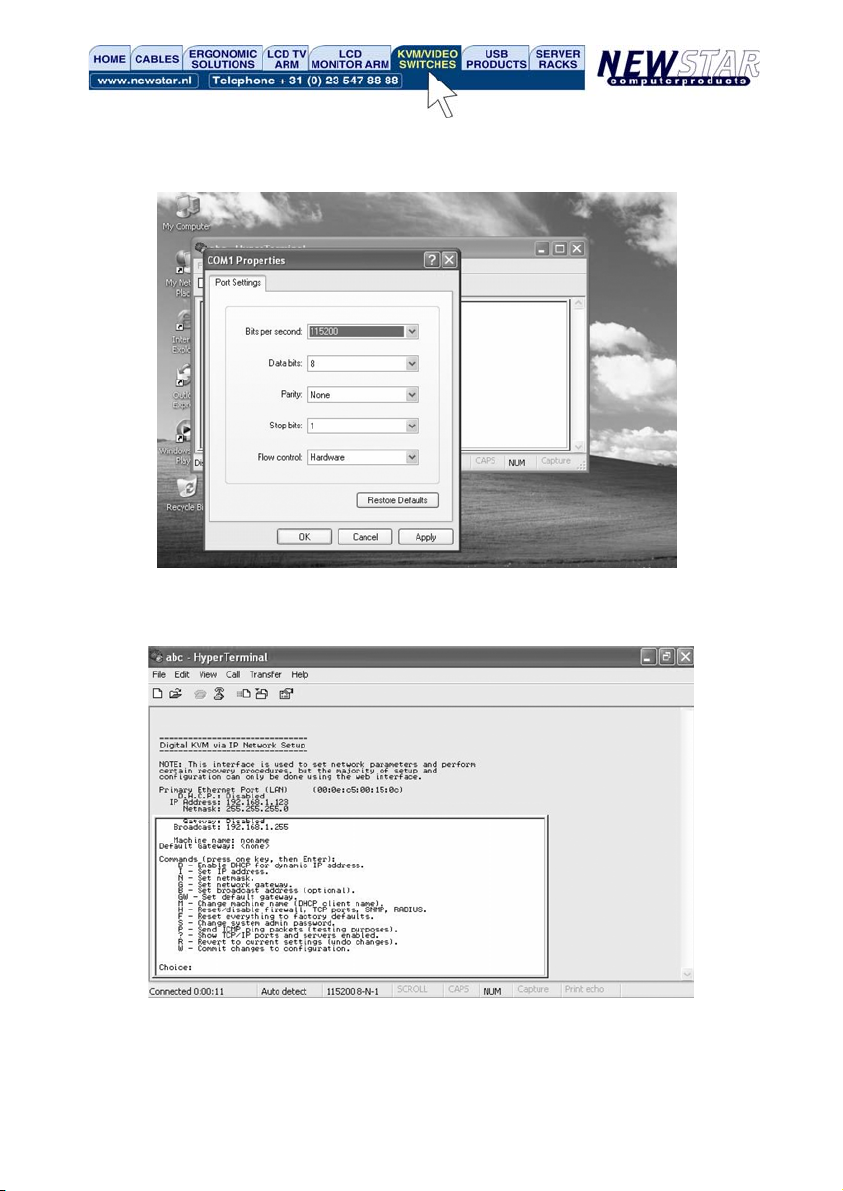
Step 4. Choose the proper serial port you connect.

8
Step 5. Change “Bits per second” to 115200.
Step 6. Press “Enter”, you will get the following screen.
Step 7. Follow the instruction on the screen. For example, simply type “I” for setting your IP,
type “M” for changing the machine name, and so on. Here is a reminder for you,
please type “W” after you made any change.
Questo manuale è adatto per i seguenti modelli
2
Indice
Altri manuali New Star Interruttore

New Star
New Star NS231USB Manuale utente

New Star
New Star NS421HDMIR Manuale utente

New Star
New Star NS832DM Manuale utente

New Star
New Star 4-PORT USB2.0 AUTO SWITCH Manuale utente

New Star
New Star NS-211KA Manuale utente

New Star
New Star NS-431H Manuale utente

New Star
New Star NS-211Micro-USB Manuale utente

New Star
New Star CS221 Manuale utente

New Star
New Star NS-431D Manuale utente

New Star
New Star NS-411KA Manuale utente