
OfficeMate ExamWriter 7.3 Manuale utente

ExamWRITER 7.0/7.1/7.2/7.3 Enhancements 1
ExamWRITER7.0/7.1/7.2/7.3
Enhancements
In this document:
•User Security, 3
•Patient Information Center, 5
•Vision/Rx, 10
•ExamWRITER Editor, 18
•Patient Quick List, 19
•Diagnosis/Procedure Coding, 22
•Quick Code, 24
•Patient History, 24
•Reason for Visit, 27
•Plan - Management, 28
•Examination, 29
•Products, 30
•Product Setup, 31
•Preferences, 32
•Medication Maintenance, 35
•Template Maintenance, 35
•ExamWRITER Control Center, 36
•Business Names, 37
•Auto Letters, 37
•Code Maintenance, 38
•Addendum, 38
•Equipment Interfaces, 38
•Eyemaginations, 38
•Other, 39

ExamWRITER 7.0/7.1/7.2/7.3 Enhancements
ExamWRITER 7.0/7.1/7.2/7.3 Enhancements 2
OfficeMate Software Solutions announces the newest version of ExamWRITER! In
addition to resolving several known issues in previous versions of ExamWRITER,
this updated version improves upon ExamWRITER’s current robust attributes and
offers useful new features and expanded functionality. For additional information on
ExamWRITER features, training, and integration with OfficeMate, contact
OfficeMate Software Solutions at www.officemate.net or 800.942.5353.
Notes •ExamWRITER 7.x requires the following system specifications:
−Windows®XP Professional or Windows®2000 Professional
for workstations
−1024 x 768 monitor and video adapter screen resolution
For a complete list of system specifications, go to
http://www.officemate.net/PDFs/System Specifications.pdf.
•If you are upgrading from ExamWRITER 5.x to 7.x, ensure that you
have read the ExamWRITER 5.1 and 6.4 Enhancement documents
located at www.officemate.net/support_ex_resources.aspx. In order
for you to understand and use all of the new features that were
implemented in each ExamWRITER version, you must read each
version’s enhancement list.

ExamWRITER 7.0/7.1/7.2/7.3 Enhancements
User Security
ExamWRITER 7.0/7.1/7.2/7.3 Enhancements 3
User Security
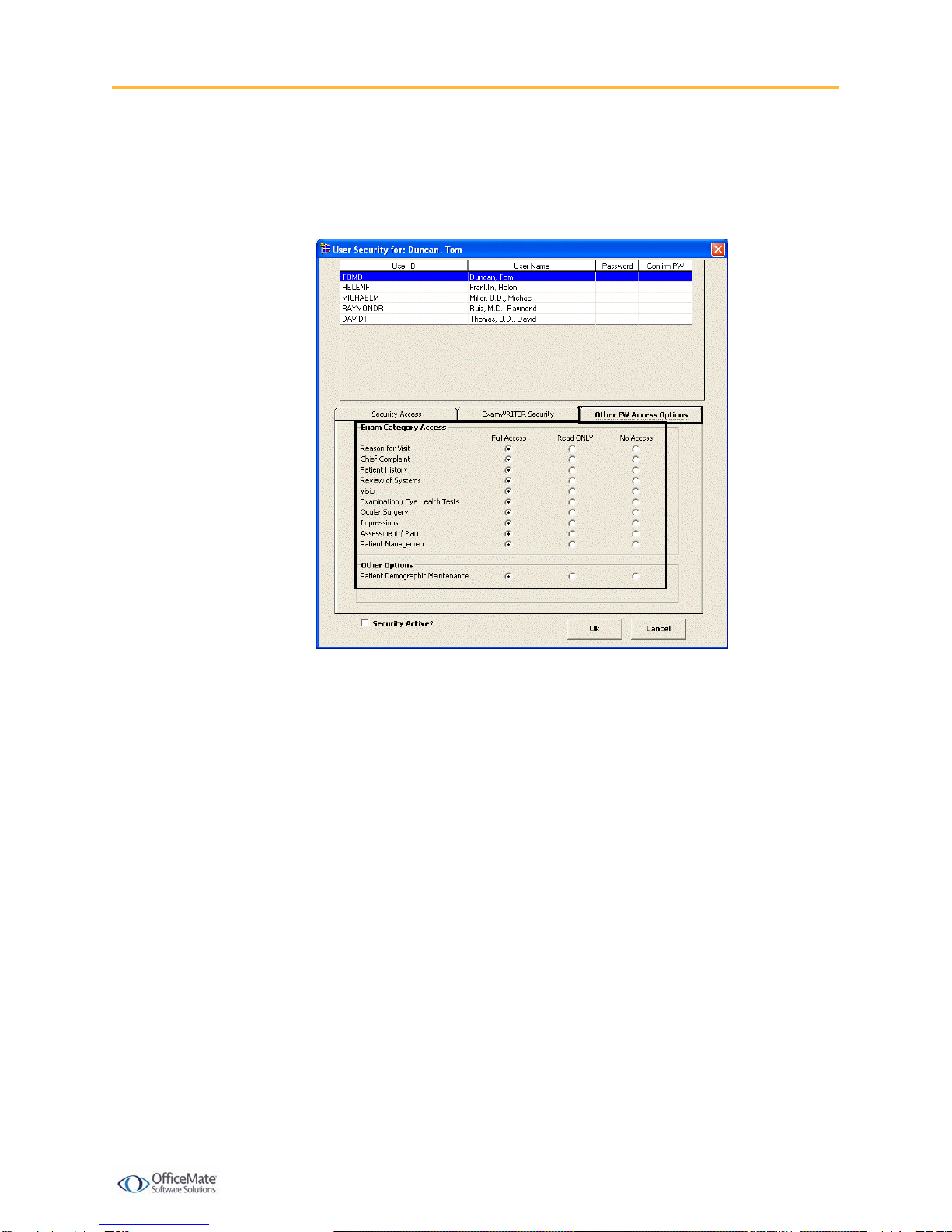
The redesigned User Security window contains the following new features:
•Ability to assign access privileges for the following tasks:
−Editing exam text and auto letter sequences
−Coding exams
−Closing and finalizing exams
−Printing and viewing exams
−Printing auto letters
−Maintaining eDocuments
−Viewing correspondence history
ExamWRITER 7.0/7.1/7.2/7.3 Enhancements
User Security
ExamWRITER 7.0/7.1/7.2/7.3 Enhancements 4
•Ability to assign full, read only, and no access privileges to specific exam
categories.
•Ability to assign full, read only, and no access privileges to patient demographic
maintenance in the standalone version of ExamWRITER.

ExamWRITER 7.0/7.1/7.2/7.3 Enhancements
Patient Information Center
ExamWRITER 7.0/7.1/7.2/7.3 Enhancements 5
Patient
Information
Center
The improved Patient Information Center contains the following new features:
•Ability to view the date the patient was last dilated.
•Ability to record historical blood pressure, pulse, pachymetry, CD ratio, and IOP
values under the Glaucoma Elements tab.
To record historical Glaucoma elements, click the Enter Hx buttons.
•Ability to delete blood pressure, pulse, pachymetry, CD ratio, and IOP values
under the Glaucoma Elements tab.
To delete Glaucoma elements, right-click on an element and click Yes.
•Ability to copy the Glaucoma element graph displayed to the clipboard and
paste it into another document, preview the printed version of the graph, and
print the graph using the three icons above the graph.
•Ability to right-click on a Current Therapeutic Rx and refill it under the
Med/Surgical Hx tab.
•Ability to modify the Sig and Quantity of a prescription when you refill it
through the Med/Surgical Hx tab.
Note You cannot record observations for blood pressure, pulse,
pachymetry, CD ratio, and IOP after clicking the Enter Hx
buttons on the Glaucoma Elements tab. To record observations
for these elements, you must be in the patient’s exam record.
Note If you delete historical Glaucoma elements from the Patient
Information Center, they will also be deleted in finalized exams.

ExamWRITER 7.0/7.1/7.2/7.3 Enhancements
Patient Information Center
ExamWRITER 7.0/7.1/7.2/7.3 Enhancements 6
•Ability to quickly distinguish discontinued medications and medications to
which the patient is allergic under the Med/Surgical Hx tab.
•Ability to mark or unmark medications as being discontinued under the
Med/Surgical Hx tab.
To mark or unmark a medication as being discontinued, right-click on the
medication in the Medication History, Medical Hx, Surgical Hx, Ocular Hx, or
Ocular Surgical Hx table and select Discontinue or Remove Discontinue.
You can also mark medications as being discontinued from the Patient Systemic
Medications and Patient Ocular Medications windows. For more information on
marking medications as being discontinued from these windows, go to Patient
History on page 24.
ExamWRITER 7.0/7.1/7.2/7.3 Enhancements
Patient Information Center
ExamWRITER 7.0/7.1/7.2/7.3 Enhancements 7
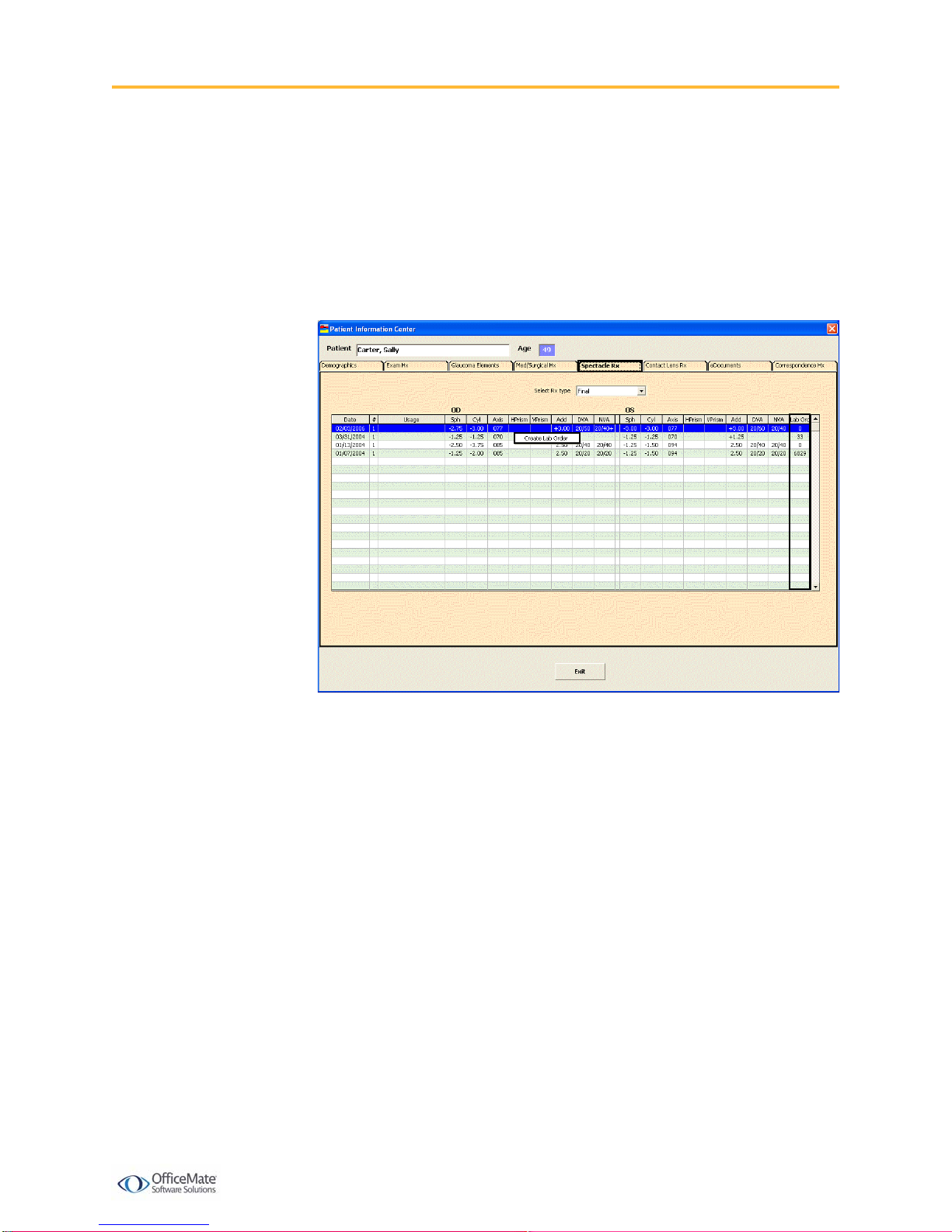
•Ability to view spectacle lab order numbers and create lab orders for final and
alternate prescriptions under the Spectacle Rx tab. You can only create lab orders
under this tab for finalized exams (if one has not already been created).
To create a lab order for a finalized exam, find a patient with a finalized exam,
click the Patient Hx icon on the ExamWRITER Control Center, (do not click
the Patient Hx icon from within an exam), right-click on a finalized exam final
or alternate Rx, and select Create Lab Order. An addendum is created in the
finalized exam noting that you have created a lab order.

ExamWRITER 7.0/7.1/7.2/7.3 Enhancements
Patient Information Center
ExamWRITER 7.0/7.1/7.2/7.3 Enhancements 8
•Ability to view contact lens lab order numbers and create lab orders for final and
trial prescriptions under the Contact Lens Rx tab. You can only create lab orders
under this tab for finalized exams (if one has not already been created).
To create a lab order for a finalized exam, find a patient with a finalized exam,
click the Patient Hx icon on the ExamWRITER Control Center, (do not click
the Patient Hx icon from within an exam), right-click on a finalized exam final
or trial Rx and select Create Lab Order. An addendum is created in the
finalized exam noting that you have created a lab order.

ExamWRITER 7.0/7.1/7.2/7.3 Enhancements
Patient Information Center
ExamWRITER 7.0/7.1/7.2/7.3 Enhancements 9
•Ability to attach electronic documents to specific exam records.
To attach an electronic document to a specific exam record, click the
eDocuments tab in the Patient Information Center and click Add or click the
Images, Drawing and Graphic category bar on the ExamWRITER chart
window and click New. Select a document type and exam, select the Attach
Document to Exam check box (if desired), type notes in the Notes text box
(if desired), click Browse to select a document, and click OK.
•Ability to open and edit electronic documents attached to exams from the
Patient Information Center and the ExamWRITER chart window.
To open and edit electronic documents that are attached to exams, click the
eDocuments tab in the Patient Information Center and double-click on a
document in the Patient Electronic Documents table or click the Images,
Drawing and Graphic category bar on the ExamWRITER chart window and
double-click on a document.

ExamWRITER 7.0/7.1/7.2/7.3 Enhancements
Vision/Rx
ExamWRITER 7.0/7.1/7.2/7.3 Enhancements 10
Vision/Rx
The improved Vision/Rx tab contains the following new features:
•Ability to post charges for final soft and rigid contact lenses and final and
alternate spectacles to a fee slip in OfficeMate without creating a lab order.
To post charges without creating a lab order, record an Rx and click Post
Charges ONLY. The Rx charges are transferred to an OfficeMate fee slip
where they are automatically priced. This feature is good to use for
non-inventory items.
•Ability to view previous contact lens orders in the Contact Lens History window.
Note In order to view the Post Charges ONLY button and post charges
without creating a lab order, you must have selected the Yes radio
buttons for the OfficeMate Interface options preferences. For
more information on these preferences, go to Preferences on page
32.
Questo manuale è adatto per i seguenti modelli
4
Indice
Manuali Software popolari di altre marche


PS Audio
PS Audio PowerPlay Manuale del proprietario

Brady
Brady LOCKOUT PRO 3.0 Manuale di servizio

Avaya
Avaya Interaction Center Manuale utente

Texas Instruments
Texas Instruments TI-83 Plus Silver Edition Manuale

Novell
Novell GROUPWISE 8 - INTERNET AGENT Manuale utente

Oracle
Oracle Application 9i Manuale utente

Acer
Acer RDM Manuale utente

Canon
Canon Vixia HF21 Manuale utente

Canon
Canon ZR950 Manuale utente

Samsung
Samsung Auto Backup Manuale utente

Polycom
Polycom Vortex EF2201 Istruzioni per l'installazione e il funzionamento

Brocade Communications Systems
Brocade Communications Systems Brocade 8/12c Manuale utente