Oki OL810e Manuale utente

Chapter 0
Copyright Information
Publications Department
OKIDATA
532 Fellowship Road
Mount Laurel, New Jersey 08054
OKIDATA is a registered trademark of Oki Electric Industry Company, Ltd.;
Marque déposée de Oki Electric Industry Company, Ltd.; Marca Registrada, Oki Electric Industry
Company, Ltd.
OKIPRO II, Micro Docs II, and Bar Codes Plus II are Trademarks of OKI Electric Inductry Company, Ltd.
Energy Star is a trademark of the United States Environmental Protection Agency
TrueType and AppleTalk are registered trademarks of Apple Computer Company
Hewlett-Packard, HP, and LaserJet are registered trademarks of Hewlett-Packard Company.
IBM is a registered trademark of International Business Machines Corp.
Microsoft and MS-DOS are registered trademarks and Windows is a trademark of Microsoft Corporation.
WordPerfect is a registered trademark of Novell, Inc.
Word and Works are registered trademarks of Microsoft Corporation.
Architext is a trademark of Architext, Inc.
Bitstream is a registered trademark and Fontware is a trademark of Bitstream, Inc.
Fontware is licensed to Bitstream, Inc., in West Germany, France, and the United Kingdom by Electronic Printing
Systems, Ltd.
Compugraphic is a registered trademark of Agfa Corporation
Intellifont is a registered trademark of Compugraphic Corporation.
Glyphix is a trademark of SWFTE International.
Portions of software ©1994-1995 Adobe Systems Incorporated. All Rights Reserved. Adobe is a trademark of
Adobe Systems Incorporated and may be registered in certain jurisdictions.
ZIP Code is a registered trademark of the United States Postal Service.

Revision Information
Every effort has been made to ensure that the information in this document is complete, accurate, and
up-to-date. OKIDATA assumes no responsibility for the results of errors beyond its control. OKIDATA also
cannot guarantee that changes in software and equipment made by other manufacturers and referred to in this
guide will not affect the applicability of the information in it. Mention of software products manufactured by
other companies does not necessarily constitute endorsement by OKIDATA.
©Copyright 1995 by OKIDATA. All rights reserved.
First edition May, 1995.
Written and produced by the OKIDATA Publications Department. Please address any comments to:

Important Safety Instructions
IMPORTANT SAFETY INSTRUCTIONS
Your OKIDATA printer has been carefully designed to give you years of safe, reliable performance. As
with all electrical equipment, however, there are a few basic precautions you should take to avoid
hurting yourself or damaging the printer:
- Read the setup and operating instructions in this handbook carefully. Be sure to save it for
future reference.
- Read and follow all warning and instruction labels on the printer itself.
- Unplug the printer before you clean it. Use only a damp cloth; do not use liquid or aerosol
cleaners.
- Place your printer on a firm, solid surface. If you put it on something unsteady, it may fall
and be damaged; if you place it on a soft surface, such as a rug, sofa, or bed, the vents
may be blocked, causing the printer to overheat.
- To protect your printer from overheating, make sure all openings on the printer are not
blocked. Dont put the printer on or near a heat source, such as a radiator or heat register.
If you put it in any kind of enclosure, make sure it is well ventilated
- Do not use your printer near water, or spill liquid of any kind into it.
- Be certain that your power source matches the rating listed on the back of the printer. If
you're not sure, check with your dealer or with your local power company.
- Your printer has a grounded, 3-prong plug as a safety feature, and it will only fit into a
grounded outlet. If you cant plug it in, chances are you have an older, non-grounded
outlet; contact an electrician to have the outlet replaced. Do not use an adapter to defeat
the grounding.
- To avoid damaging the power cord, dont put anything on it or place it where it will be
walked on. If the cord becomes damaged or frayed, replace it immediately.
- If you're using an extension cord or power strip with the printer, make sure that the total of
the amperes required by all the equipment on the extension is less than the extension's
rating. The total ratings of all equipment plugged into the outlet should not exceed 15
amperes.
- Do not poke anything into the ventilation slots on the printer; you could get a shock or
cause a fire.
- Aside from the routine maintenance described in this handbook, don't try to service the
printer yourself; opening the cover may expose you to shocks or other hazards. Don't make
any adjustments other than those outlined in the handbookyou may cause damage
requiring extensive repair work. See Problem Solving in this manual for information on how
to get your printer serviced by qualified OKIDATA technicians.
- If anything happens that indicates that your printer is not working properly or has been
damaged, unplug it immediately and follow the procedures in the Handbook for having
your printer serviced. These are some of the things to look for:
The power cord or plug is frayed or damaged.
Liquid has been spilled into the printer, or it has been exposed to water.
The printer has been dropped, or the cabinet is damaged.
The printer doesn't function normally when you're following the operating
instructions.

Federal Communications Commission
Radio Frequency Interference Statement for 120-Volt Models
WARNING: This equipment has been tested and found to comply with the limits for a Class B digital
device, pursuant to Part 15 of the FCC Rules. These limits are designed to provide reasonable
protection against harmful interference in a residential installation. This equipment generates, uses
and can radiate radio frequency energy and, if not installed and used in accordance with the
instructions, may cause harmful interference to radio communications. However, there is no guarantee
that interference will not occur in a particular installation. If this equipment does cause harmful
interference to radio or television reception, which can be determined by turning the equipment off
and on, the user is encouraged to try to correct the interference by one or more of the following
measures:
- Reorient or relocate the receiving antenna.
- Increase the separation between the equipment and receiver.
- Connect the equipment into an outlet on a circuit different from that to which the receiver
is connected.
- Consult the dealer or an experienced radio/TV technician for help.
Note: It is the responsibility of the user to obtain the required shielded cable in order to ensure
compliance of this equipment with FCC regulations
.
Changes or modifications not expressly approved by Okidata may void your authority to operate this
device.
Industry Canada
Radio Interference Statement for 120-Volt Models
This apparatus complies with the Class B limits for radio interference as specified in the Industry
Canada Radio Interference Regulations.
Cet appareil est conforme aux critères établis pour la Classe B en ce qui concerne les interférences
radio, tel que spécifié par Industry Canada dans les Règlements relatifs aux Interférences Radio.
Federal Communications Commission Department of Communications
Radio Frenquency Interference Statement for 230/240-Volt Models
WARNING: This equipment has been tested and found to comply with the limits for a Class A digital
device, pursuant to Part 15 of the FCC Rules. These limits are designed to provide reasonable
protection against harmful interference when the equipment is operated in a commercial environment.
This equipment generates, uses and can radiate radio frequency energy and, if not installed and used in
accordance with the instructions, may cause harmful interference to radio communications.
Operation of this equipment in a residential area is likely to cause harmful interference in which case
the user will be required to correct the interference at his own expense.
Note: It is the responsibility of the user to obtain the required shielded cable in order to ensure
compliance of this equipment with FCC regulations.
Changes or modifications not expressly approved by Okidata may void your authority to operate this
device.

Industry Canada
Radio Interference Statement for 230/240-Volt Models
This apparatus complies with the Class A limits for radio interference as specified in the Industry
Canada Radio Interference Regulations.
Cet appareil est conforme aux critères établis pour la Classe A en ce qui concerne les interférences
radio, tel que spécifié par Industry Canada dans les Règlements relatifs aux Interférences Radio.

OL810e Features
Congratulations! You have selected a high speed printer with excellent paper handling and
outstanding print quality. Your printers features include:
- 8 PPM output
- True 600 dpi print resolution, plus 600 x1200 resolution for graphics
- HP LaserJet 4 compatibility (PCL5e)
- 2 MB of memory with Enhanced Memory Management, expandable to 34MB
- 35 PCL and 10 TrueType Scalable resident fonts, plus Bar Code fonts
- 250 sheet universal/legal paper tray and manual feed for envelopes and special
documents
- High speed bi-directional (IEEE1284) Centronics parallel interface
RS232C Serial interface
- Auto-interface switching for multi-port setups
- Font card slot for adding additional fonts
- Ozone-free operation and Energy Star compliance for saving power
- Custom drivers for major software applications

Chapter 1
Select a Suitable Place for your Printer
- A firm surface such as a table or desktop
- Space to open the cover and pull out the paper tray and the rear output extender
- Air circulation around the printer to prevent overheating
- A nearby power source
- Room temperature of 50° to 90°F (10° to 32°C).
- Relative Humidity of 20- 80%
- No direct sunlight

Check the Contents
Check the Contents
Unpack your printer. The shipping box should contain:
- Okidata OL810e Printer (with Image Drum Cartridge installed)
- Software Support Driver Diskette
- Toner Cartridge
- Printer Handbook
- Black light- shield bag (for storing image drum if printer must be shipped)
- Power Cord
If you are missing anything, contact your dealer.

Remove the Image Drum Protective Paper
Press the cover release button and lift the cover (1). Lift out the image drum cartridge. Do not touch
the drums green surface (2). Remove the protective paper from the image drum (3). Reinstall the
cartridge into the printer.

Remove Protective Film from the Control Panel
Remove Protective Film
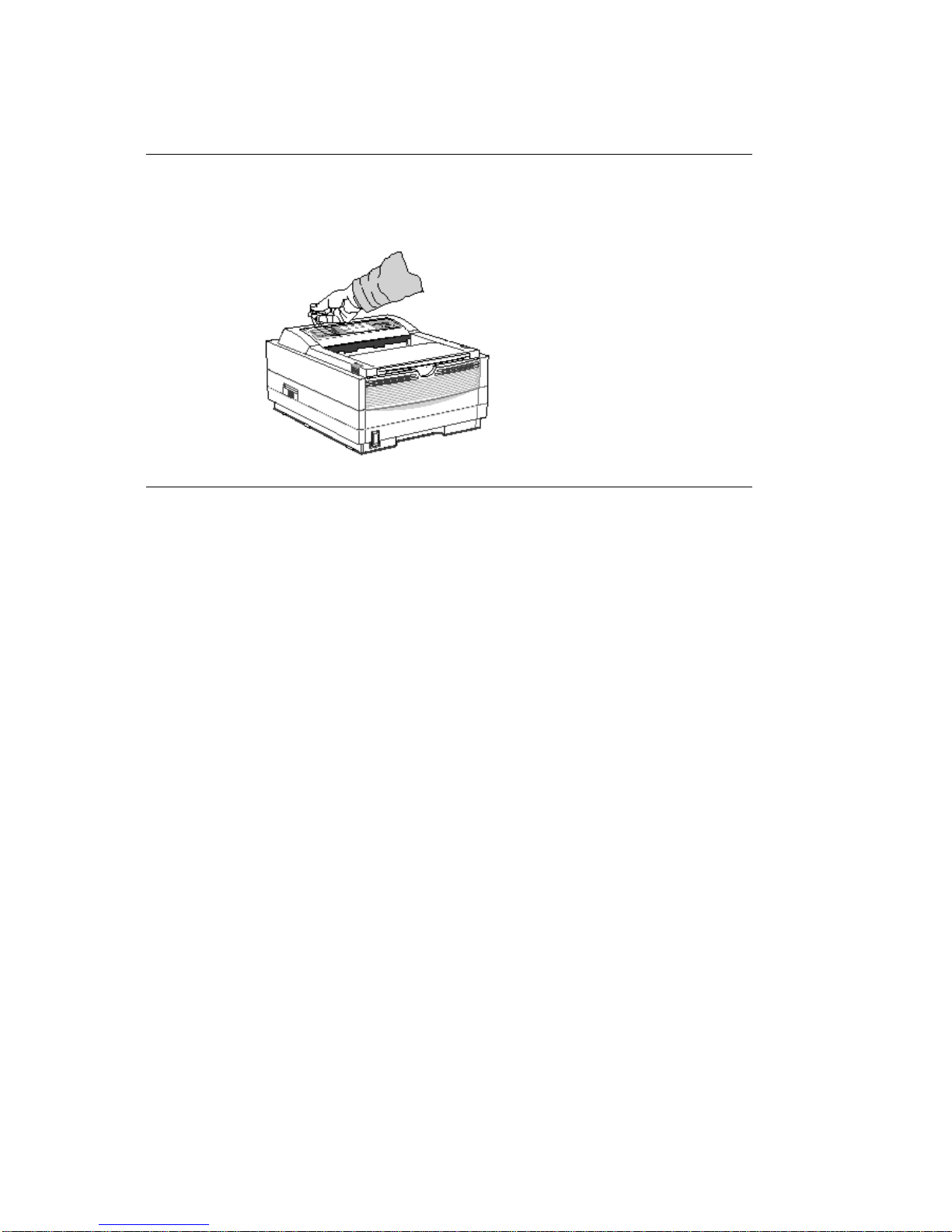
LIft up the corner and peel the protective plastic film from the control panel.
Indice
Altri manuali Oki Stampante

Oki
Oki C6100dn Manuale utente

Oki
Oki Thermal A3+ Colour Desktop Printer DP-7000 Manuale utente

Oki
Oki C7300 Manuale utente

Oki
Oki C7350hdn Manuale utente

Oki
Oki OKIPAGE 12i Series Manuale utente

Oki
Oki C9600hdn Guida alla configurazione

Oki
Oki C7400n Manuale utente

Oki
Oki PT390 Manuale utente

Oki
Oki GL408e Manuale utente

Oki
Oki OKIPAGE 10e Manuale utente

Oki
Oki B 6100 Manuale utente

Oki
Oki C711cdtn Manuale utente

Oki
Oki ML280eco Manuale utente

Oki
Oki C9600hnColorSignage Manuale utente

Oki
Oki OKICOLOR 8 Manuale utente

Oki
Oki B411dn Manuale utente

Oki
Oki PAGE 6E Guida di riferimento

Oki
Oki MAC TECHNICAL REFERANCE C7350 Manuale utente

Oki
Oki MPS9650c Manuale di servizio

Oki
Oki Okicolor8 Manuale utente