Pentax PHOTO Browser 3 Manuale utente

Operating Manual (Version 3.6)

Thank you for purchasing this PENTAX Digital Camera.
This is the manual for “PENTAX PHOTO Browser 3” and “PENTAX PHOTO Laboratory
3” software for your Windows PC or Macintosh for enjoying images created with your
camera. Please read the separate camera operating manual and this manual before
using your camera, “PENTAX PHOTO Browser 3”, or “PENTAX PHOTO Laboratory 3”,
in order to get the most out of all the features and functions.
Keep the camera operating manual and this manual safe, as they can be valuable tools
in clarifying and helping you to understand all the camera capabilities.
Regarding copyrights
Images taken using this camera that are for anything other than personal enjoyment cannot
be used without permission according to the rights as specified in the Copyright Act. Please
take care, as there are even cases where limitations are placed on taking pictures even for
personal enjoyment during demonstrations, performances or of items on display. Images
taken with the purpose of obtaining copyrights also cannot be used outside the scope of
use of the copyright as laid out in the Copyright Act, and care should be taken here also.
Regarding trademarks
• PENTAX, K-m/K2000 and smc PENTAX are trademarks of HOYA CORPORATION.
• PENTAX PHOTO Browser, PENTAX PHOTO Laboratory and SDM are trademarks
of HOYA CORPORATION.
• Microsoft and Windows are registered trademarks of Microsoft Corporation in the
United States and other countries. Windows Vista is either a registered trademark or
trademark of Microsoft Corporation in the United States and/or other countries.
• Macintosh and Mac OS are trademarks of Apple Inc., registered in the U.S. and other
countries.
• SDHC logo is a trademark.
• This product includes DNG technology under license by Adobe Systems
Incorporated.
• The DNG logo is either registered trademarks or trademarks of Adobe Systems
Incorporated in the United States and/or other countries.
• All other brands or product names are trademarks or registered trademarks of their
respective companies.
Regarding PictBridge
PictBridge allows the user to connect the printer and digital camera directly, using the
unified standard for the direct printout of images. You can print images directly from the
camera through a few simple operations.
Disclaimer
• HOYA is not responsible for any damages resulting from the direct or indirect use of
this software or repercussive damages, damage to data, programs or other intangible
property, loss of profit or anticipated profit, or dispute with a third party resulting from
the use of this software.
• The specifications of this software are subject to change without notice.
Symbols used in this manual have the following meanings:
The screen pictures shown in this manual may differ depending on the type of computer used.
Gives information that is useful to know.
Gives cautions and notes about the operation.

1
Enjoying Your Digital Camera Pictures..............................2
Provided Software ................................................................4
Software Provided ................................................................................... 4
System Requirements ............................................................................. 5
Installing the Software .........................................................7
When Using Windows ............................................................................. 7
When Using Macintosh ........................................................................... 9
Saving Images on Your Computer....................................11
Saving Images by Connecting Your Camera and Computer
(For Windows) ....................................................................................... 11
Saving Images by Connecting Your Camera and Computer
(For Macintosh) ..................................................................................... 15
Other Methods for Saving Images......................................................... 17
PENTAX PHOTO Browser 3 ...............................................18
Opening PENTAX PHOTO Browser 3 .................................................. 18
About the PENTAX PHOTO Browser Window...................................... 19
Transferring Images .............................................................................. 30
Viewing Images ..................................................................................... 31
Main Image View Window ..................................................................... 35
Managing Image Files and Folders ....................................................... 46
Saving a List of Image Data .................................................................. 52
Continuous Image Playback in a Slideshow ......................................... 54
Printing an Image .................................................................................. 57
Changing the PENTAX PHOTO Browser 3 Settings............................. 64
PENTAX PHOTO Laboratory 3 ..........................................70
Opening PENTAX PHOTO Laboratory 3 .............................................. 70
About the PENTAX PHOTO Laboratory Window.................................. 72
Selecting a RAW File to Process .......................................................... 79
Easily Modifying RAW Files .................................................................. 83
Setting RAW File Processing Conditions .............................................. 84
Saving Image Files ................................................................................ 90
Saving Image File Adjustment............................................................... 91
Recalling Image File Adjustment........................................................... 92
Printing .................................................................................................. 93
Changing the PENTAX PHOTO Laboratory 3 Settings......................... 99
Glossary ............................................................................103
Contents

2
MF
AF
Enjoying Your Digital Camera Pictures
You can use a computer to organize and edit the pictures captured with
your digital camera.
You can transfer your
images using a built-in
card slot + PC card
adapter or a card reader.
• Remove the card from
the camera. When
transferring images on
the card to a computer
with another device,
make sure to review the
user manual
accompanying that
device.
Connect your camera directly to a
PictBridge-compatible printer using the
USB cable. (Not available on w.)
Direct Print
Connect your camera to a TV,
DVD recorder or other audiovisual
equipment using an AV cable to
view and/or record images.
View and record images on
AV equipment
You can have prints made from
images recorded on your card
at a photo store.
• Set DPOF settings on your
camera, and get prints from
your photo store.
• Select the images for prints.
Use your photo store
Connect your camera
to a computer using
the USB cable to copy
the camera images to
a computer.
Your computer is...
• equipped with a standard USB
interface.
• using Windows XP/Windows Vista
or Mac OS X Ver. 10.3 or later.

3
You can use your e-mail software to attach and send images
by e-mail, or post the images on your website.
Use your image data
• See the operating manual of your e-mail
software for details on how to make
attachments to e-mails.
• See the operating manual of the software
you are using for details on how to use
images on your website.
Use your printer
You can use your printer to
print images transferred to
your computer.
Some printers can print
directly from SD Memory
Cards.
• For details, see the
operating manual of the
printer you are using.
Images transferred to the computer can
be saved onto a CD-R or other media.
Save your image data
PENTAX PHOTO Browser 3 (p.18 - p.69)
PENTAX PHOTO Laboratory 3 (p.70 - p.102)
• View images • Organize and save images
• Print images • Rename all
• Save all image data
•
PENTAX-specification RAW file processing*
Use a commercially-available image editing
software to perform image editing operations.
* You can also perform file processing
operations for DNG files taken with
PENTAX digital cameras and DNG
files converted with PENTAX PHOTO
Browser 3.

4
Provided Software
The provided CD-ROM (S-SW84) contains the following software:
• PENTAX PHOTO Browser 3
• PENTAX PHOTO Laboratory 3
PENTAX PHOTO Browser 3
(9 languages: English, French, German, Spanish, Italian, Russian,
Chinese [traditional and simplified], Korean, Japanese)
PENTAX PHOTO Browser 3 is software for viewing, printing and
managing images taken on your digital camera and saved on your
computer.
Files with extensions .bmp (BMP), .jpg (JPEG), .pef (Files recorded in
PENTAX’s exclusive digital-camera RAW format. Hereafter “PEF”), .pct
(PICT), .png (PNG), .tif (TIFF) and .dng (DNG) are supported.
PENTAX PHOTO Browser 3 can perform the following tasks:
• Save image files under the same or a new name, change file names and
file types, copy, cut, paste, rotate and delete.
• Create new folders, change folder names, copy, cut, delete and paste.
• Save image data list.
• Check image data.
• View PEF files and DNG files easily.
• Print images.
You can also start PENTAX PHOTO Laboratory 3 from within PENTAX
PHOTO Browser 3.
This manual describes PENTAX PHOTO Browser 3 and PENTAX PHOTO
Laboratory 3 with screen images from Windows XP.
The operation of these software applications is nearly the same on Macintosh
with the exception of some keys. For information on Macintosh-specific
instructions, see the sections labeled “For Macintosh” or the online help.
Software Provided

5
PENTAX PHOTO Laboratory 3
(9 languages: English, French, German, Spanish, Italian, Russian,
Chinese [traditional and simplified], Korean, Japanese)
This application supports a number of image processing functions for use
with PEF and DNG files including data conversion, color adjustment, and
image compensation, and further allows you to save these images in
formats compatible with other commercial image browsing and editing
software. You can also print PEF and DNG files.
PENTAX PHOTO Laboratory 3 can also be run as a standalone
application.
We recommend the following system requirements to install PENTAX
PHOTO Browser 3 and PENTAX PHOTO Laboratory 3, transfer images
from your camera to a computer and process images.
Computer with Windows XP (Home Edition/Professional/x64 Edition) SP2
or Windows Vista preinstalled (USB 2.0 port must be standard equipment)
* Your camera can be connected to your computer with a USB cable to
transfer images with Windows 2000. However, PENTAX PHOTO
Browser 3 and PENTAX PHOTO Laboratory 3 are not available.
• CPU : Pentium 4 or higher
(Pentium 4 2.0 GHz or higher recommended)
• RAM : 1.0 GB or more
• Monitor : 1280×1024 pixels or more with 24-bit full color
(approximately 16.77 million colors)
• Free Disk Space : 250 MB or more (500 MB or more recommended)
You can only perform image processing operations for DNG files taken with
PENTAX digital cameras and DNG files converted with PENTAX PHOTO
Browser 3.
DNG (Digital Negative) is a general-purpose, publicly-available RAW file
format designed by Adobe Systems.
System Requirements
Windows System Requirements

6
Macintosh with Mac OS X 10.3 or later preinstalled (USB 2.0 port must be
standard equipment)
* Your camera can be connected to your computer with a USB cable to
transfer images with Mac OS X 10.2. However, PENTAX PHOTO
Browser 3 and PENTAX PHOTO Laboratory 3 are not available.
• CPU : PowerPC G5 or higher
(Dual CPU or Intel Core processor recommended.
Universal Binary format)
• RAM : 1.0 GB or more
• Monitor : 1280×1024 pixels or more with 24-bit full color
(approximately 16.77 million colors)
• Free Disk Space : 250 MB or more (500 MB or more recommended)
We recommend using AC adapter (sold separately) when the camera is
connected to the computer. If the battery becomes depleted during image
transfer, the image data or SD Memory Card may be damaged.
Macintosh System Requirements
We recommend using AC adapter (sold separately) when the camera is
connected to the computer. If the battery becomes depleted during image
transfer, the image data or SD Memory Card may be damaged.

7
Installing the Software
Here is the procedure for installing PENTAX PHOTO Browser 3 and
PENTAX PHOTO Laboratory 3.
PENTAX PHOTO Browser and PENTAX PHOTO Laboratory can
overwrite earlier versions of this software.
Make sure to install PENTAX PHOTO Browser 3 and PENTAX PHOTO
Laboratory 3 on the provided CD-ROM (S-SW84) in order to use RAW
files shot with the e/y.
When multiple accounts have been setup in Windows XP/Windows Vista
or Mac OS X, log on with an account that has administrative rights before
installing the software.
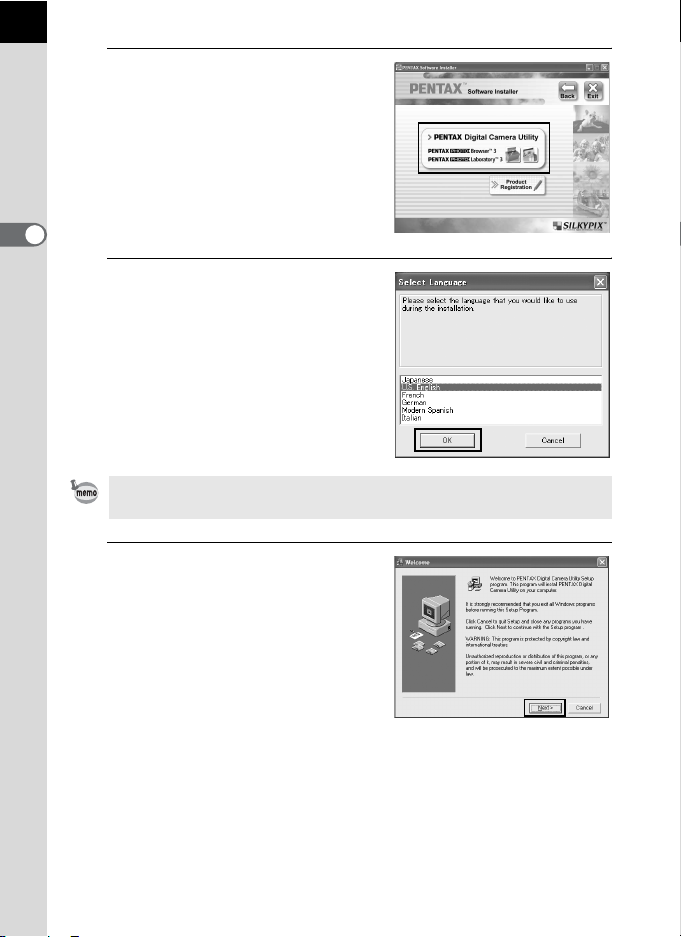
1
Turn your computer on.
Close any other software that is open.
2
Place the provided CD-ROM (S-SW84) into the CD-ROM
drive on your computer.
The PENTAX Software Installer screen appears.
3
You can choose the languages
from the displayed screen.
The software selection screen
appears.
When Using Windows
• If the PENTAX Software Installer screen does not appear
Display the PENTAX Software Installer screen following the steps below.
1) Click [My Computer] from the start menu.
2) Double-click the [CD-ROM drive (S-SW84)] icon.
3) Double-click [Setup.exe].

8
4
Click [PENTAX Digital Camera
Utility].
5
Select the desired language in
the Select Language screen
and click [OK].
6
The installer starts. Click
[Next].
Follow the instructions on the screen
and continue with the installation.
Some operating environments select the language automatically. Continue
with the installation in step 6. The installer starts.
Altri manuali per PHOTO Browser 3
2
Questo manuale è adatto per i seguenti modelli
1
Indice
Altri manuali Pentax Software
Manuali Software popolari di altre marche

PS Audio
PS Audio PowerPlay Manuale del proprietario

Brady
Brady LOCKOUT PRO 3.0 Manuale di servizio

Avaya
Avaya Interaction Center Manuale utente

Texas Instruments
Texas Instruments TI-83 Plus Silver Edition Manuale

Novell
Novell GROUPWISE 8 - INTERNET AGENT Manuale utente

Oracle
Oracle Application 9i Manuale utente

Acer
Acer RDM Manuale utente

Canon
Canon Vixia HF21 Manuale utente

Canon
Canon ZR950 Manuale utente

Samsung
Samsung Auto Backup Manuale utente

Polycom
Polycom Vortex EF2201 Istruzioni per l'installazione e il funzionamento

Brocade Communications Systems
Brocade Communications Systems Brocade 8/12c Manuale utente