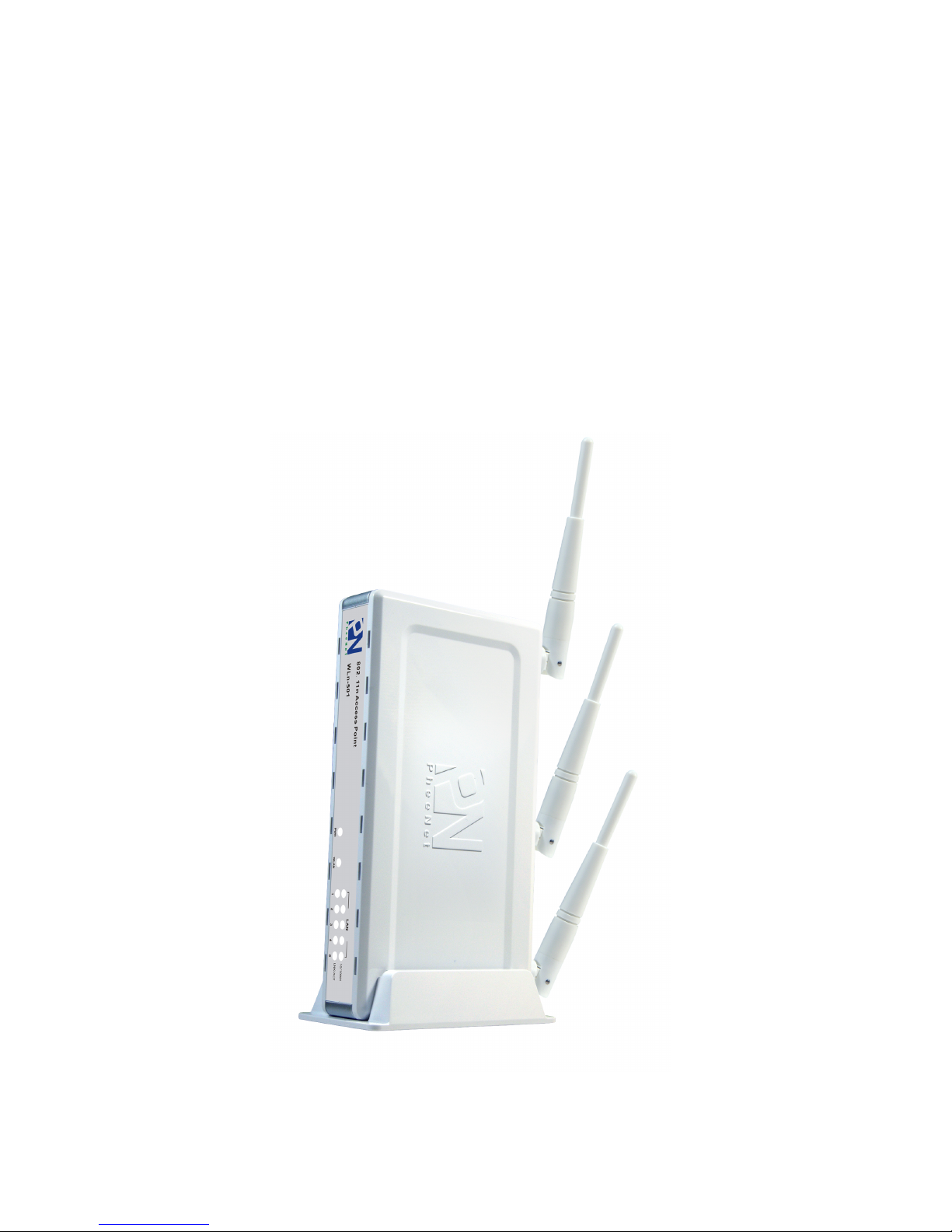
PheeNet WLn-501 Manuale utente

802.11n Wireless
Access Point
User Manual WLn-501
ver.1.0

1
COPYRIGHT
Copyright ©2005/2006 by this company. All rights reserved. No part of this
publication may be reproduced, transmitted, transcribed, stored in a retrieval
system, or translated into any language or computer language, in any form or
by any means, electronic, mechanical, magnetic, optical, chemical, manual or
otherwise, without the prior written permission of this company
This company makes no representations or warranties, either expressed or
implied, with respect to the contents hereof and specifically disclaims any
warranties, merchantability or fitness for any particular purpose. Any software
described in this manual is sold or licensed "as is". Should the programs prove
defective following their purchase, the buyer (and not this company, its
distributor, or its dealer) assumes the entire cost of all necessary servicing,
repair, and any incidental or consequential damages resulting from any defect
in the software. Further, this company reserves the right to revise this
publication and to make changes from time to time in the contents thereof
without obligation to notify any person of such revision or changes.

2
C A T A L O G
Chapter I: Product Information.....................................................................................4
1-1 Product Introduction........................................................................................4
1-2 Safety Information...........................................................................................6
1-3 System Requirements ......................................................................................7
1-4 Package Contents.............................................................................................8
1-5 Familiar with your new wireless access point.................................................9
Chapter II: System and Network Setup........................................................................11
2-1 Setup Network Connection between Wireless Access Point and your
Computer..............................................................................................................11
2-2 Connecting to wireless access point by web browser....................................12
2-2-1 Windows 95/98/Me IP address setup .................................................12
2-2-2 Windows 2000 IP address setup.........................................................14
2-2-3 Windows XP IP address setup............................................................16
2-2-4 Windows Vista IP address setup.........................................................18
2-2-5 Connecting to Web Management Interface ........................................21
2-3 View System Status and Information ............................................................23
2-4 Select an Operating Mode for Wireless Access Point ...................................25
2-4-1 AP Mode.............................................................................................27
2-4-2 AP Bridge-Point to Point Mode..........................................................29
2-4-3 AP Bridge-Point to Multi-Point Mode ...............................................31
2-4-4 AP Bridge-WDS Mode.......................................................................33
2-5 WPS Setting...................................................................................................36
2-6 Advanced Wireless Settings...........................................................................39
2-7 Wireless Security (Data Encryption) .............................................................42
2-7-1 Disable Security .................................................................................44
2-7-2 WEP ...................................................................................................45
2-7-3 WPA Pre-shared Key..........................................................................47
2-7-4 WPA RADIUS....................................................................................49
2-7-5 802.1x Authentication ........................................................................51
2-8 Radius Server.................................................................................................53
2-9 MAC Filtering ...............................................................................................56
2-10 System Utilities............................................................................................58
2-10-1 Change Password .............................................................................58
2-10-2 IP Address of the Wireless Access Point ..........................................59
2-10-3 DHCP Server....................................................................................61


3
Chapter III: Advanced Configuration..........................................................................63
3-1 Configuration Backup and Restore................................................................63
3-2 Firmware Upgrade.........................................................................................64
3-3 System Reset..................................................................................................65
Chapter IV: Appendix...................................................................................................66
4-1 Hardware Specification .................................................................................66
4-2 Troubleshooting.............................................................................................67
4-3 Glossary.........................................................................................................69
4-4 FCC Statement...............................................................................................73

4
Chapter I: Product Information
1-1 Product Introduction
Thank you for purchasing this wireless access point! With this high
cost-efficiency wireless access point, computers and wireless devices
which are compatible with 802.11 Draft-N wireless network standard can
connect to existing wired Ethernet network via this wireless access point,
at the speed of 300Mbps.
Easy install procedures allows any computer users to setup a network
environment in very short time - within minutes, even inexperienced
users. Just follow the instructions given in this user manual, you can
complete the setup procedure and release the power of this access point
all by yourself!
This access point is also capable to operate in ‘Wireless Bridge’ mode.
You can use it to expand the scope of your network wirelessly! When you
want to build connection between two wired networks, you can use this
function to establish connection by a pair or more wireless access point,
to connect all networks together.
Other features of this access point including:
•Compatible with IEEE 802.11b/g/Draft-N wireless network standard -
works with other 802.11b/g/Draft-N wireless access points.
•High speed wireless network, six times faster than conventional
802.11g wireless network (300Mbps)
•Allow wireless devices to connect to existing wired network and share
Internet and other network resources.
•Five wired Ethernet LAN ports (10/100M)
•Supports DHCP server function.
•Supports wireless data encryption (WEP/WPA).
•Supports MAC address filtering (Only allow specific wireless device of
your choice to connect to this access point).

5
•Supports RADIUS server, only allow users listed in your authorization
server to use wireless network.
•Supports WPS (Wi-Fi Protected Setup), simplifies wireless client setup
procedures. Even inexperienced user can setup wireless network
without network technician’s help!
•Easy to use web-based GUI (Graphical User Interface) for network
configuration and management purposes.
•Remote management function allows configuration and upgrades from
a remote computer (over the Internet)
•Auto MDI / MDI-X function for all wired Ethernet ports.
•Three high-gain antenna (antenna angle adjustable).

6
1-2 Safety Information
In order to keep the safety of users and your properties, please follow the
following safety instructions:
1. This access point is designed for indoor use only; DO NOT place this
access point outdoor.
2. DO NOT put this access point at or near hot or humid places, like
kitchen or bathroom. Also, do not left this access point in the car in
summer.
3. DO NOT pull any connected cable with force; disconnect it from the
access point first.
4. If you want to place this access point at high places or hang on the wall,
please make sure the access point is firmly secured. Falling from high
places would damage the access point and its accessories, and warranty
will be void.
5. Accessories of this access point, like antenna and power supply, are
danger to small children under 3 years old. They may put the small parts
in their nose or month and it could cause serious damage to them. KEEP
THIS ACCESS POINT OUT THE REACH OF CHILDREN!
6. The access point will become hot when being used for long time (This
is normal and is not a malfunction), DO NOT put this access point on
paper, cloth, or other flammable materials.
7. There’s no user-serviceable part inside the access point. If you found
that the access point is not working properly, please contact your dealer
of purchase and ask for help. DO NOT disassemble the access point,
warranty will be void.
8. If the access point falls into water when it’s powered, DO NOT use
your hand to pick it up. Switch the electrical power off before you do
anything, or contact an experienced electrical technician for help.
9. If you smell something strange or even see some smoke coming out
from the access point or power supply, remove the power supply or
switch the electrical power off immediately, and call dealer of purchase
for help.

7
1-3 System Requirements
zComputer or network devices with wired or wireless network interface
card.
zWeb browser (Microsoft Internet Explorer 4.0 or above, Netscape
Navigator 4.7 or above, Opera web browser, or Safari web browser).
zAn available AC power socket (100 – 240 V, 50/60Hz)

8
1-4 Package Contents
Before you starting to use this access point, please check if there’s
anything missing in the package, and contact your dealer of purchase to
claim for missing items:
□ Wireless Access point (main body, 1 pcs)…………………..…… 1
□ User manual (1 pcs) …………….……………………………… 2
□ A/C power adapter (1 pcs) ……………………………………..... 3

9
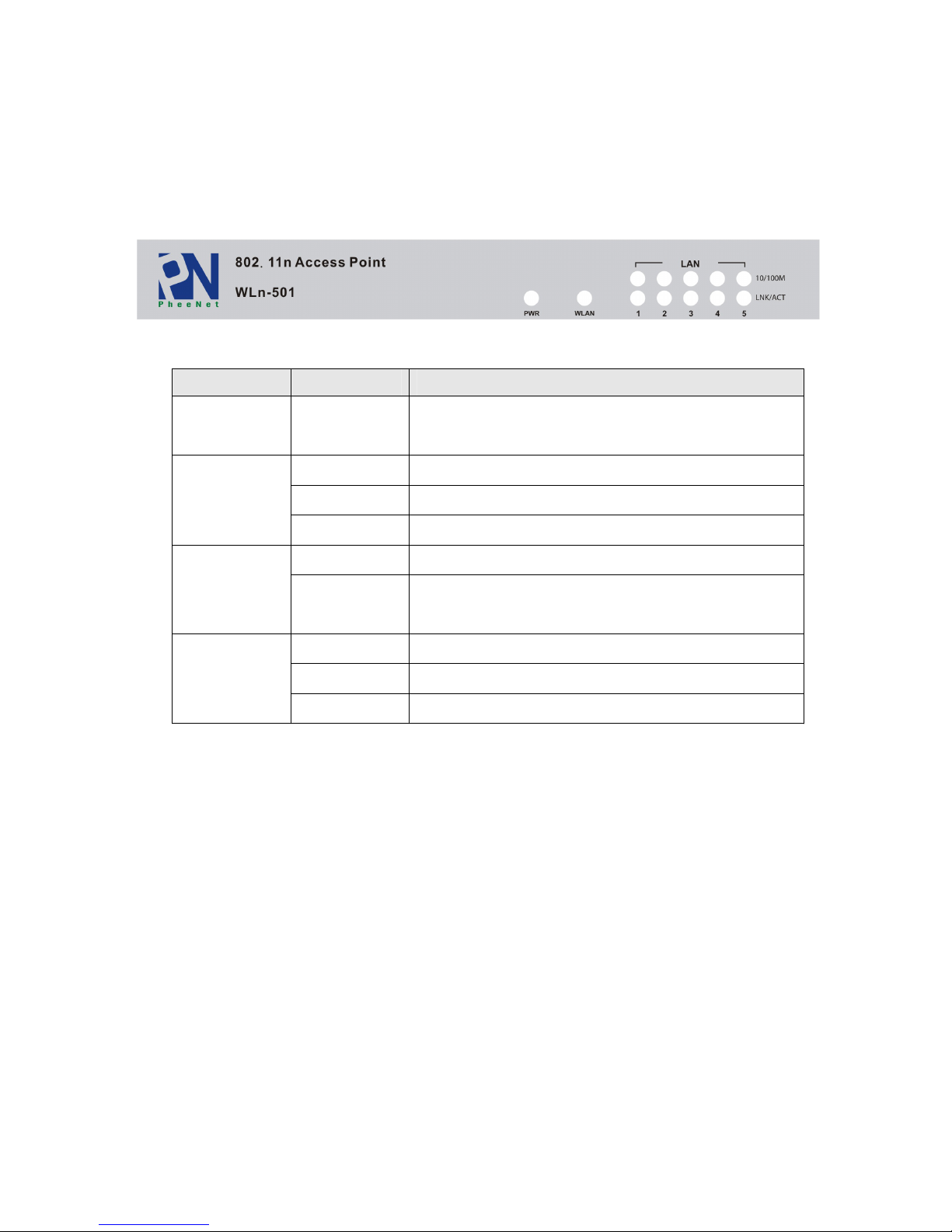
1-5 Familiar with your new wireless access point
Front Panel
LED Name Light Status Description
PWR ON Access point is switched on and correctly
powered
On Wireless network is switched on
Off Wireless network is switched off
WLAN
Flashing Wireless LAN activity (transferring data)
On LAN port is running at 100Mbps LAN
10/100M
1-5
Off LAN port is running at 10Mbps
On LAN port is connected
Off LAN port is not connected
LAN
LNK/ACT
1-5Flashing LAN activity (transferring data)
Indice
Altri manuali PheeNet Punto di accesso wireless