
PQI A400 Manuale utente

Users’
’’
’ Manual
A400
Wireless Portable USB Drive
Version:1.0

2
Contents
Introduction...................................................................................................................3
Package Contents ..........................................................................................................4
Features .........................................................................................................................5
Supported File For ats.................................................................................................5
Syste Require ents ...................................................................................................6
Know Your Air Pen.........................................................................................................7
Charging the Battery .....................................................................................................8
Connecting Your Co puter...........................................................................................8
Re ove Air Pen fro Your Co puter ..........................................................................8
Installing the Air Pen App: PQI Air Pen+.......................................................................9
Connecting to the Air Pen ........................................................................................... 11
Using the PQI Air Pen+ App ........................................................................................13
Air Pen: browsing files.........................................................................................13
I age: browing pictures...........................................................................16
Music: search for usic............................................................................18
Video: watching ovies...........................................................................19
File list.......................................................................................................20
Settings .....................................................................................................21

3
Introduction
Thank you for purchasing the PQI Air Pen, a portable storage device with both WiFi and U B
connectivity. With the WiFi function, Air Pen allows you to move data to and from WiFi-enabled
handheld devices such as iPhone, iPad, iPod touch, Android smart phones and tablet computers.
Air Pen can connect to as many as 5 devices within a 15-meter radius and transfer digital media and
files among them wirelessly, so you can easily share the contents with your friends and family. It also
doubles as a portable WiFi access point that enables business travelers to share Internet connection
with smart phones or tablet computers on the road.
Note:
(1) Battery time may vary due to number of users and types of contents transferred.
(2) Actual WiFi speed may vary due to the environment conditions, transmission distance and number
of users.
4
Package Contents
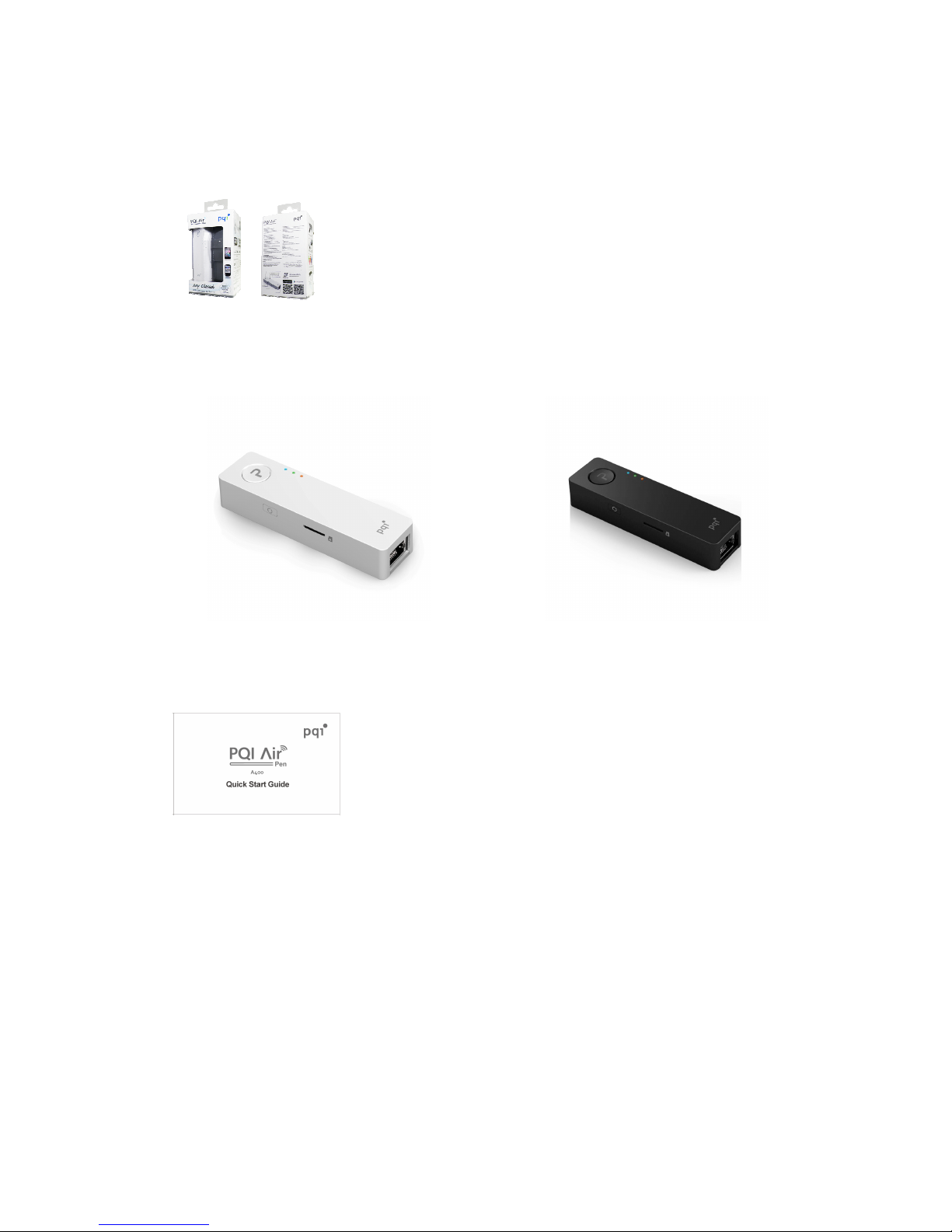
Air Pen
or
Quick Start Guide

5
Features
Photo browsing
Document browsing
Music playing
Video playing
Wi-Fi WPA2 encryption support
upports to up to 5 devices for wireless file transmission
iO and Android support
iO app available
Android app available
Wireless sharing of photo, video, music and document files
Long-life lithium-ion battery for video playing of up to over 2 hours
ecure WiFi encryption and authentication
WiFi access point functions with the built-in Ethernet port
Supported File For ats
The supported file formats vary according to the client system type:
Supported For ats on iOS devices:
Docu ents: .pdf, .txt, .doc, .docx, .xls, .xlsx, .ppt, .pptx
I ages and photos: .jpg, .png
Music: . p3, .wav, .aif
Videos: . p4, . ov
Supported For ats on Android devices:
Docu ents: .pdf, .txt, .doc, .docx, .xls, .xlsx, .ppt, pptx
I ages and photos: .jpg, .png, b p, .gif
Music: . p3, . p4, .3gp, .wav, .ogg, .i y, .aif
Videos: . p4, .3gp

6
Syste Require ents
Required OS for file trans ission to/fro the Air Pen via USB:
Microsoft Windows® XP
Microsoft Windows Vista®
Microsoft Windows® 7
Microsoft Windows® 8
Mac® O X 10.5 or newer
Linux® Kernel 2.4 or newer
Required obile OS for Air Pen+ app:
iO :
iPhone 3G , 4, 4 , 5, iPod touch (4
th
Generation) and iPad, iPad 2, New iPad (iO 4.0 or newer
recommended).
Android:
Android 2.1 or newer.
7
Know Your Air Pen
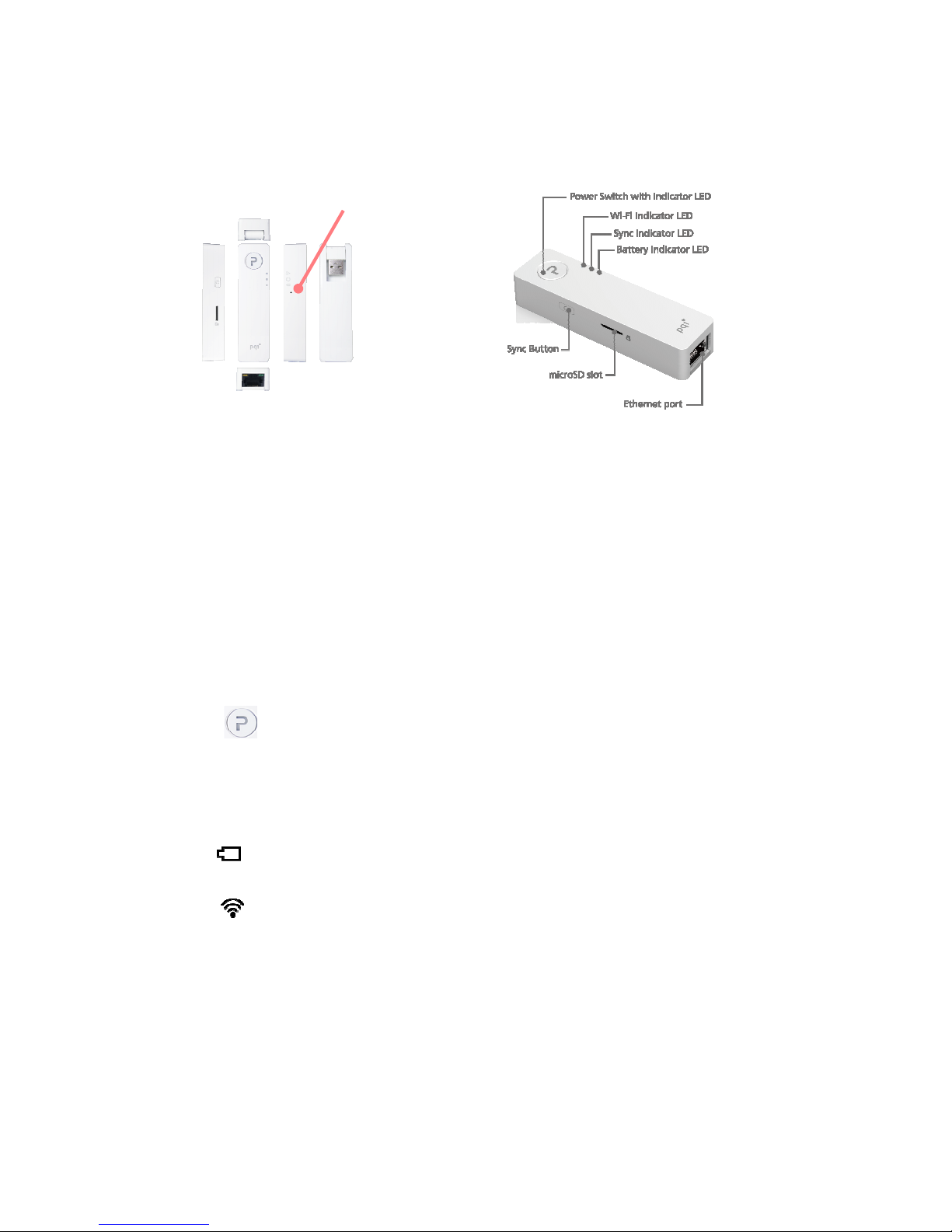
Power switch ON: to activate Wi-Fi functions
OFF: Air Pen performs as a U B drive for data storage
USB interface For battery charging and file transfer.
Note: the WiFi function can be activated when the Air Pen is being charged via the
U B interface, but U B can not trasfer files at the same time. Please deactivate the
WiFi function first to use the U B interface for file transfer.
LED indicator
1. Power: BLUE when the power is on.
AMBER when the power is on and is charging.
AMBER when the power is off and is charging, DIMMED when charging
is completed.
2. Battery: RED when the remaining power is lower than 20%.
3. Wi-Fi: BLUE blinking when WiFi is activated, BLUE blinking quickly when data
transmission is in progress.
Reset: Press and hold 3 to 5 seconds to revert the Air Pen to the factory settings. Reset the
Air Pen will not affect or cause loss to the stored files.
Reset Button

8
Charging the Battery
Please fully charge the battery of your Air Pen before first use.
You can use a U B charger or the U B port on your computer; check the battery LED indicator for
charging status.
Connecting Your Co puter
Air Pen will start to charge once connected to your computer. There are two charging modes
depending on the on/off status of the WiFi function:
(1) Wi-Fi OFF: Air Pen can be used as a U B thumb drive when the WiFi function is deactivated. You
can drag files into the Air Pen to copy.
(2) Wi-Fi ON: WiFi function actived while the battery is being charged.
Re ove Air Pen fro Your Co puter
Windows:
Right-click the U B icon on the lower-right of the Task Bar, select
“
afely Remove Hardware
”
to
disconnect the Air Pen.
Mac:
Drag the disk icon to the Trash to safely disconnect the Air Pen.
9
Installing the Air Pen App: PQI Air Pen+
PQI Air Pen+ is a companion multimedia app developed exclusively for the PQI Air Pen. Both iO and
Android users can use it to access files stored in the Air Pen wirelessly. PQI Air Pen+ categorizes image,
music and video files in the Air Pen, so you can find the ones you need more quickly.
Installing PQI Air Pen+ on iOS
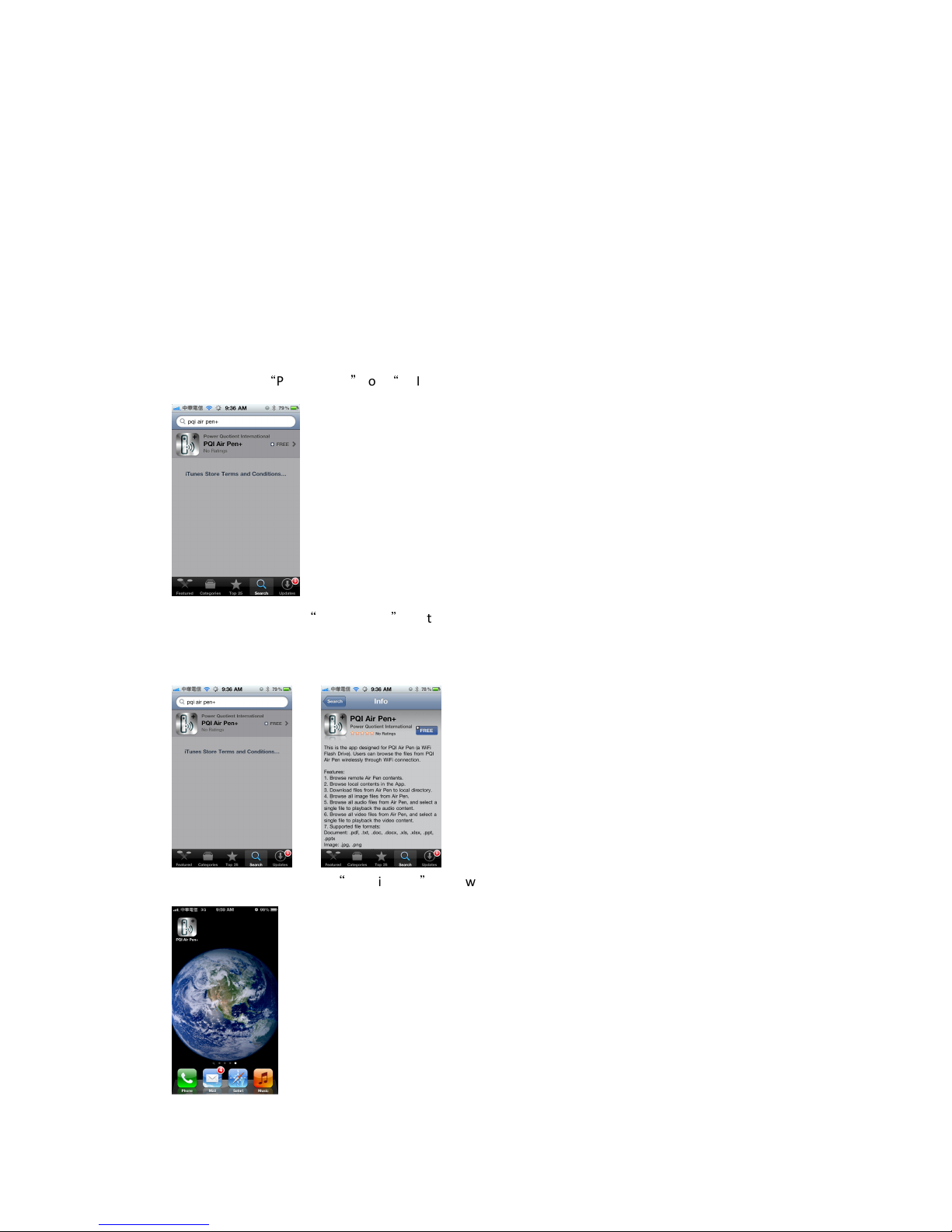
1. earch for
“
PQI Air Pen+
”
or
“
PQI” in the App tore on you iO device.
2. When you locate
“
PQI Air Pen+
”
, enter the download screen, press the “FREE” button and then
press “IN TALL APP” to start installation.
3. When completed, the
“
PQI Air Pen+
”
icon will appear on the system screen of your iO device.
10
Installing PQI Air Pen+ on Android
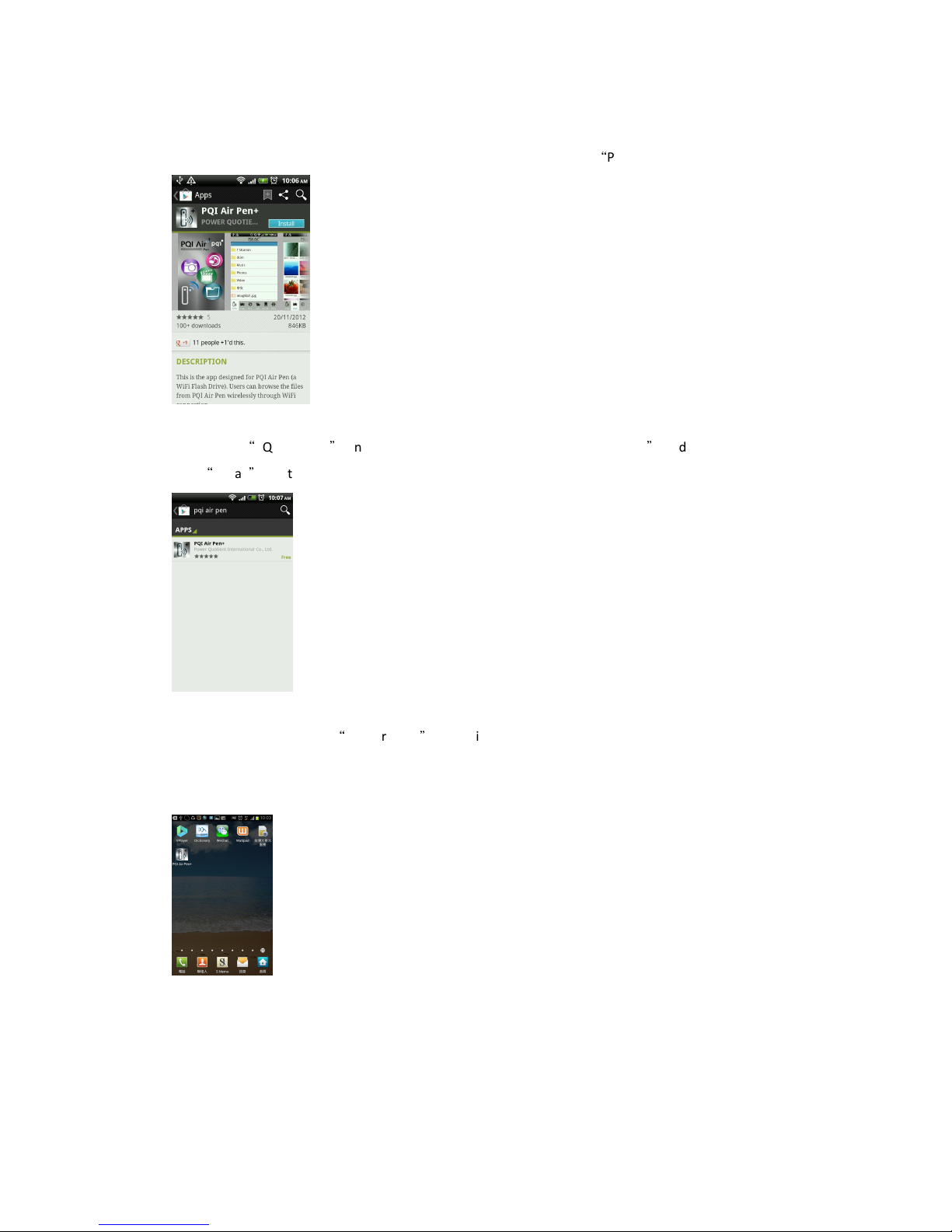
1. Enter the Google Play store on your Android device and search for
“
PQI Air Pen+” or “PQI”.
2. Locate
“
PQI Air Pen+
”
and enter the download screen. Choose “Free App
”
and then press
“
Install
”
to start installation.
3. When completed, the
“
PQI Air Pen+
”
icon will appear on the system screen of your Android
device.
Indice


