
Prestel SW-P51 Manuale utente

USER MANUAL
Prestel SW-P51
5x1 4K60 Presentation Switcher with
HDMI and HDBaseT output

1/31
Thank you for purchasing this product
For optimum performance and safety, please read these instructions caref-
ully before connecting, operating or adjusting this product. Please keep this
manual for future reference.
Surge protection device recommended
This product contains sensitive electrical components that may be damaged
by electrical spikes, surges, electric shook, lighting strikes, etc. Use of surge
protection systems is highly recommended in order to protect andextend the
life of your equipment.
Table of Contents
1. Introduction...........................................................................................
2. Features.................................................................................................
3. Package Contents.................................................................................
4. Specifications........................................................................................
5. Operation Controls and Functions......................................................
5.1. Front Panel.....................................................................................
5.2. Rear Panel......................................................................................
5.3. OSD MENU.....................................................................................
5.4. Remote Control & IR Operations.................................................
5.5. Auto-Switching function...............................................................
5.6. VGA/YPbPr/CVBS input................................................................
5.7. Connection of Microphone...........................................................
5.8. Operation of RS-232 Control........................................................
5.9. Web GUI Control............................................................................
6. HDBT Receiver.......................................................................................
7. Connection Diagram.............................................................................
2
2
2
3
4
4
5
7
16
17
18
18
21
26
29
31
1/31

1. Introduction
2. Features
☆HDMI 2.0b, HDCP 2.2 compliant
☆3xHDMI, 1xVGA(YPbPr/CVBS), 1xDisplayPort, 1xMIC In, 4xunbalance
audio input
☆HDMI and HDBaseT(70M) outputs (Mirrored)
☆HDMI/DP video resolutions up to 4K2K@60Hz(4:4:4),4K2K@30Hz, 1080p
@120Hz
☆VGA resolutions up to 1920x1200@60Hz
☆Output resolutions up to 4K2K@30Hz
☆Support automatic and manual switching modes
☆Supports EDID management
☆Supports pass-through of PCM 2CH
☆Touch Panel button, WebGUI, IR remote, Desk Plate and RS-232 control
3. Package Contents
①1× 5x1 4K60 Presentation Switcher
②1× HDBT Receiver
③2× Mounting ears
④1x Remote Control
⑤2x IR Receiver Cables(with carrier wave)
⑥2x IR Emitter Cables
⑦1x 24V/1A Power Adapter
⑧1x 3RCA(Female) to D-SUB(Male) Cable
⑨1x User Manual
The 5x1 4K60 Presentation Switcher supports 5 inputs including 3 HDMI ports,
1 VGA(YPbPr/CVBS) and 1 DisplayPort, scaling to HDMI and HDBaseT outp-
uts (Mirrored). It offers flexibility application of audio which includes unbalance
audio, MIC In and line out. The audio processor offers auto-mixer and auto-
gain control to mix or reduce background audio in order to enhance major au-
dio source. The system could be controlled and configured easily via Telnet,
WebGUI, IR remote and RS-232. This switcher is a suitable solution for pres-
entation purpose at classroom and conference room.
2/31
4. Specifications
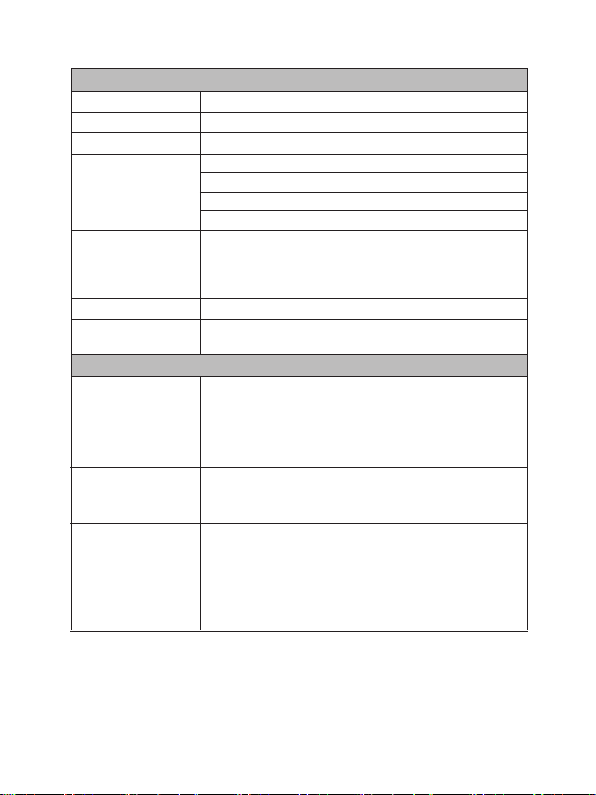
HDMI Compliance HDMI 2.0b
Technical
DP Compliance DisplayPort 1.2a
HDCP Compliance HDCP 2.2 and HDCP 1.4
Video Input
Resolutions
HDMI/DisplayPort: up to 4K2K@50/60Hz(4:4:4)
CVBS: PAL/NTSC3.58/NTSC4.43/SECAM/PAL M/PAL N
YPBPR: 480i to1080p
VGA: 640x480/60 to1920x1200/60
HDMI/HDBT
OutputResolutions
4K2K/30,4K2K/25,1920x1080p60, 1920x1080p50,
1280x720p/60, 1280x720p/50, 1024x768/60,1280x
800/60, 1360x768/60,1400x1050/60,1680x1050/60,
1920x1200/60
Audio Formats LPCM 2.0CH
ESD Protection Human body model — ±8kV (air-gap discharge) &
±4kV (contact discharge)
Connections
Input ports
3x HDMI Type A [19-pin female]
1x Display Port [female]
1x VGA [female]
1 x MIC input[3-pin phoenix port]
5x Stereo inputs [3-pin phoenix port]
Output ports
1x HDMI Output Type A [19-pin female]
1x HDBaseT Out [RJ45]
1x Stereo Output [3-pin phoenix port]
Control interfaces
1x IR in [3.5mm mini jack]
1x IR out [3.5mm mini jack]
1x CONTACT IN [6-pin phoenix port]
1x RS-232 [3-pin phoenix port
1x Web GUI [RJ45]
1x USB Type A [5-pin female]
3/31
5. Operation Controls and Functions
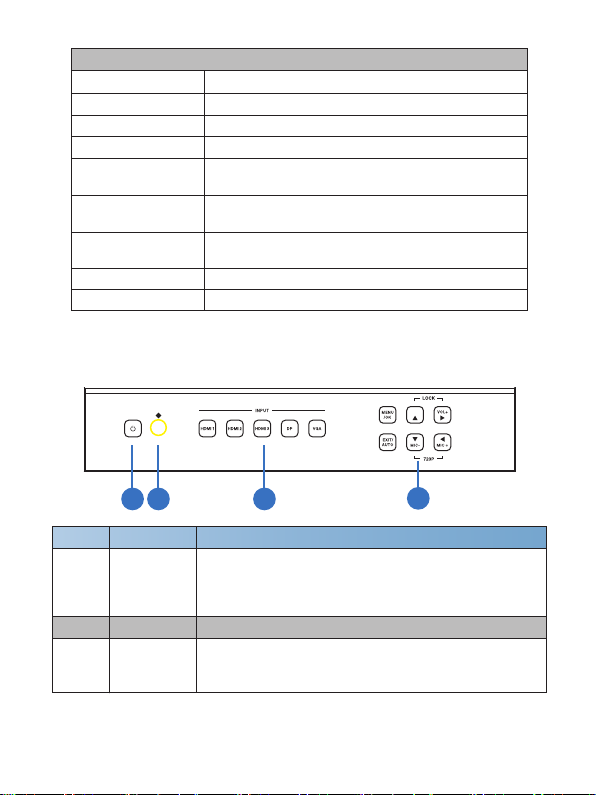
Connections
Housing Metal
Color Black
Dimensions 150mm [W] x 220mm [D] x 44mm [H]
Weight 1250 [g]
Power Supply DC 24V/1A Adaptor
(US/EU standards, CE/FCC/UL certified)
Power Consumption 9W [Main unit]
18W [Main unit + HDBaseT Receiver]
Operation
Temperature 32 - 104°F / 0 - 40°C
Storage temperature -4 - 140°F / -20 - 60°C
Relative Humidity 20 - 90% RH (no condensation)
5.1 Front Panel
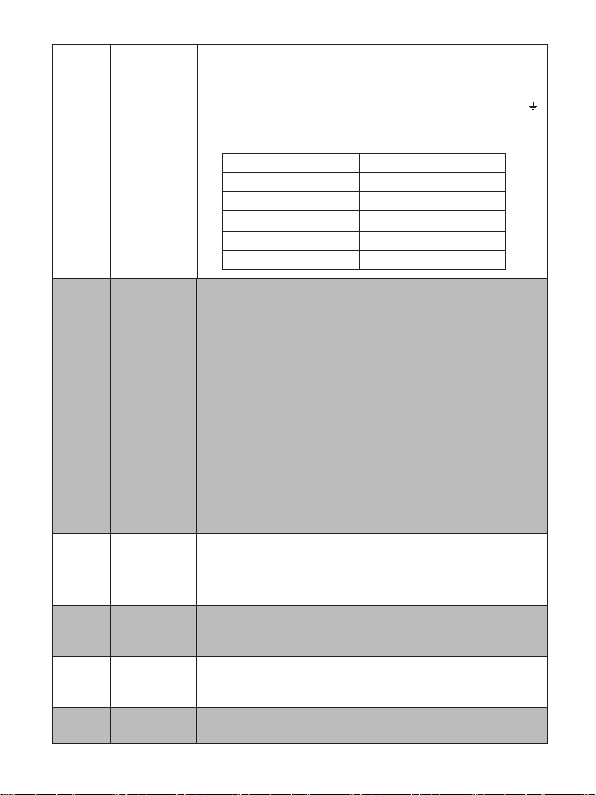
VO L-
34
Number Name Function description
1 2 3 4
Power button
and indicator
1
When this device is switched to the standby mode by
pressing Power button, the indicator will illuminate red.
When switching to power on mode, the indicator will
illuminate blue.
2 IR Window Receiving IR signal from remote control.
3Input Source
buttons
Press these buttons for source selection. The active
source will be illuminated to corresponding indicators
on the front panel.
4/31

4Operation
buttons
● Pressing “OK/MENU” button enters the OSD immedi-
ately. Then the user can navigate using the 4-way arrow
buttons. A new OSD setting is confirmed by pressing
“OK/MENU” button.
● Pressing "EXIT/AUTO" will exit OSD when OSD is
displayed. Pressing "EXIT/AUTO" 5 seconds for auto
switch on/off. When the button LED light on, means
auto switch on.
● Pressing “MIC-/+” button decreases or increases MIC
volume. Pressing “VOL+/-“ button increases or decrea-
ses “Master volume”.
● Pressing “MIC-“ and “MIC+” buttons simultaneously
will resets the switcher HDMI/HDBT output resolution to
720P/60.
● Pressing “VOL-“ and “VOL+” buttons simultaneously
will lock/unlock the front panel, these two button LED
will light on when the front panel is lock on.
5.2 Rear Panel
LAN
HD B T /P o C
3456
12
34
Number Name Function description
1 Control ports
● LAN: This port is the link for Web GUI control; connect
to an active Ethernet link with an RJ45 terminated cable.
● RS-232: Serial control port, 3P captive screw connec-
tor, connects with a control device (such as a computer)
to control the switcher or other device connected with
the HDBT receiver.
● IR IN: Connects with IR receiver cable (with carrier
wave), to receive IR signals sent by the IR remote or
remote controller of other input/output device.
5/31
● IR OUT: Connects with IR emitter cable used for con-
trolling the local source device or the switcher.
● CONTACT IN: This input control reserving for direct
source input selection. Connect ground pin (mark as
on panel) with following pin number for individual source
selection.
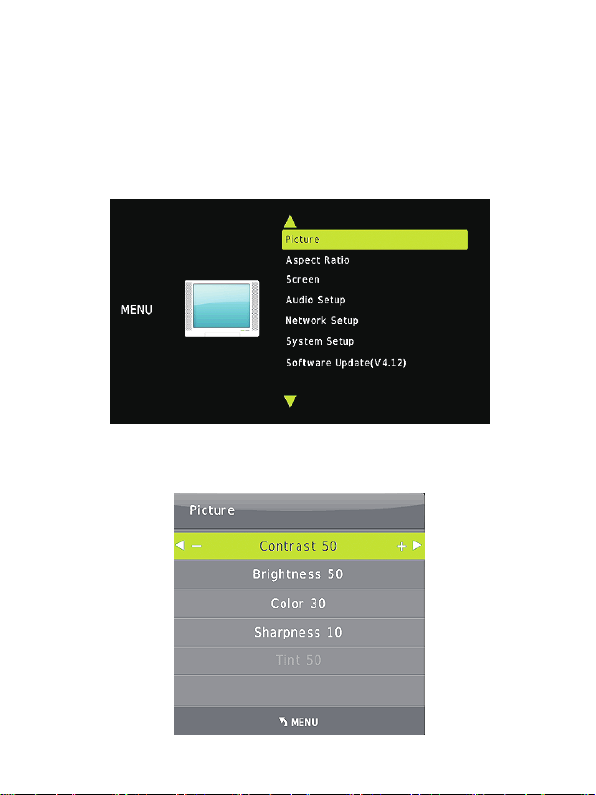
Pin number Source
Pin 1
Pin 2
Pin 3
Pin 4
Pin 5
HDMI1
HDMI2
HDMI3
Display Port
VGA/YPbPr/CVBS
2 Audio Ports
● OUT: The audio comes from the input audio correspo-
nding to the selected video source and mixed with MIC
audio. Connects with amplifier for audio source broad-
casting.
● EXT1/EXT2/EXT3/EXT4/EXT5: Select the external
analog audio on OSD/WebGUI and insert the audio to
HDMI1/2/3/DP/VGA video source then output to display
and analog audio output port. The VGA Source select
the EXT5 as default audio input.
● MIC IN: Plug microphone in for audio source output.
● 48V/MIC/Line : 48V phantom power mode (connects
with phantom condenser microphone), MIC mode
(connects with dynamic microphone and electrets
condenser microphone) and LINE mode (connects with
wireless microphone or line audio input).
3 Output Ports
● HDBT Out: Connects with compatible Receiver for
video and / or audio output. Support 24V POC function.
● HDMI Out: Connect to an HDMI display or AV Recei-
ver for video and/or audio output.
4 Input Ports
These video input ports include 3 HDMI inputs, 1 Display
Port input &1 VGA input. VGA port support VGA, YPbPr
and CVBS format. Factory default is VGA format.
5 USB Port
USB port connects with USB flash disk or other storage
that contains the software update file to update the sys-
tem firmware.
6 Power Plug the 24V DC power supply into the unit and connect
the adaptor to an AC outlet.
6/31
5.3 OSD MENU
The switcher provides a powerful OSD operation menu. Press MENU button
on IR remote to enter in OSD menu, the users can change some settings
through the OSD menu.
5.3.1 Main MENU
The Main MENU includes Picture mode, Aspect ratio, Screen, EDID switch,
Audio setting, network and Software update options.
5.3.2 Picture
The picture MENU adjusts the picture quality.
7/31

Contrast 0-100 (default 50),
Brightness 0-100 (default 50),
Color 0-60 (default 30),
Sharpness 0-20 (default 10),
Tint 0-100 (default 50, for CVBS NTSC format only)
5.3.3. Aspect Ratio
The user can adjust picture output aspect ratio to 4:3, 16:9 or 16:10.
5.3.4 Screen
The screen MENU adjusts for VGA input only. The user can adjust horizontal,
vertical position, clock and phase.
8/31

5.3.5 EDID
The EDID MENU adjusts for HDMI and Display port inputs only.
EDID1.4 4K2K30,PCM 2.0
EDID2.0 4K2K60,PCM 2.0
EDID From HDMI EDID copy from local HDMI port
EDID From HDBT EDID copy from HDBaseT Receiver HDMI port
EDID AUTO Auto compare HDMI and HDBT Receiver HDMI
port EDID
9/31
Indice
Altri manuali Prestel Interruttore


