Primera Network Disc Duplication & Printing System Manuale utente

020608-510991-(02)
© 2008 All rights reserved
USER’S MANUAL
Network Disc
Duplication & Printing System
n
510991.qxd 2/12/2008 2:53 PM Page i

ii
Notices: The information in this document is subject to change without notice. NO WARRANTY OF
ANY KIND IS MADE WITH REGARD TO THIS MATERIAL, INCLUDING, BUT NOT LIMITED TO,
THE IMPLIED WARRANTIES OF MERCHANTABILITY AND FITNESS FOR A PARTICULAR
PURPOSE. No liability is assumed for errors contained herein or for incidental or consequential
damages in connection with the furnishing, performance, or use of this material. This document
contains proprietary information that is protected by copyright. All rights are reserved. No part of
this document may be photocopied, reproduced, or translated into another language without prior
written consent.
Trademark Acknowledgments: Windows is a registered trademark of Microsoft Corporation.
All other trademarks are the property of their respective owners.
Printing History
Edition 2.0, #020608, Copyright 2008, All rights reserved.
FCC Compliance Statement: This device complies with part 15 of the FCC rules. Operation is subject
to the following two conditions: (1) this device may not cause harmful interference, and (2) this device
must accept any interference received, including interference that may cause undesired operation.
For Users in the United States: This product is intended to be supplied by a UL listed Direct Plug-In
Power Supply marked "Class 2"or a UL listed ITE Power Supply marked "LPS" with output rated
12VDC, 4.5A or higher. This equipment has been tested and found to comply with the limits for a
Class A digital device, pursuant to Part 15 of the FCC Rules. In a domestic environment this product
may cause radio interference, in which case the user may be required to take adequate measures. This
equipment generates, uses, and can radiate radio frequency energy and, if not installed and used in
accordance with the instructions, may cause harmful interference to radio communications. However,
there is no guarantee that interference will not occur in a particular installation. If this equipment does
cause harmful interference to radio or television reception, which can be determined by turning the
equipment off and on, the user is encouraged to try to correct the interference by one or more of the
following measures:
•Re-orient or relocate the receiving antenna.
•Increase the separation between the equipment and receiver.
•Connect the equipment into an outlet on a circuit different from that to which the receiver
is connected.
•Consult the dealer or an experienced radio/TV technician for help.
Use of shielded cables is required to comply with the Class A limits of Part 15 of the FCC Rules.
You are cautioned that any changes or modifications not expressly approved in this manual could
void your authority to operate and/or obtain warranty service for this equipment.
For Users in Canada: This digital apparatus does not exceed the Class A limits for radio noise for
digital apparatus set out on the Radio Interference Regulations of the Canadian Department of
Communications. Le present appareil numerique n'emet pas de bruits radioelectriques depassant
les limites applicables aux appareils numeriques de la class A prescrites dans le Reglement sur le
brouillage radioelectrique edicte par le ministere des Communications du Canada.
CAUTION!
TO PREVENT FIRE OR SHOCK HAZARD, DO NOT EXPOSE THE UNIT TO RAIN OR
MOISTURE. TO REDUCE THE RISK OF ELECTRIC SHOCK, DO NOT REMOVE EXTERIOR
PANELS. NO USER-SERVICEABLE PARTS INSIDE. REFER SERVICING TO QUALIFIED
SERVICE PERSONNEL. OPERATE THE UNIT WITH ONLY THE PROPER ELECTRICAL
SPECIFICATIONS AS LABELED ON THE PRINTER AND AC ADAPTER.
CAUTION!
THIS PRODUCT CONTAINS A LASER DIODE OF A HIGHER CLASS THAN 1. TO ENSURE
CONTINUED SAFETY, DO NOT REMOVE ANY COVERS OR ATTEMPT TO GAIN ACCESS TO
THE INSIDE OF THIS PRODUCT. REFER ALL SERVICING TO QUALIFIED PERSONNEL. THE
FOLLOWING LABEL APPEARS INSIDE YOUR UNIT:
CLASS 1 LASER PRODUCT LASER KLASSE 1
CAUTION!
USE OF CONTROLS OR ADJUSTMENTS OR PERFORMANCE OF PROCEDURES OTHER
THAN THOSE SPECIFIED HEREIN MAY RESULT IN HAZARDOUS RADIATION.
510991.qxd 2/12/2008 2:53 PM Page ii

Table of Contents
Section 1: Getting Started......................................................................................1
A. Choosing a Good Location ......................................................................1
B. Unpacking and Inspection.......................................................................2
C. Identifying the Parts .................................................................................3
Section 2: Hardware and Software Set-Up ........................................................6
A. Hardware Setup ........................................................................................6
Step 1: Applying Power ...........................................................................6
Step 2: Installing Ink Cartridges.............................................................6
Step 3: Loading Media .............................................................................7
Step 4: Connecting the Ethernet Cable ..................................................8
B. Install the PTPublisher Client Software ................................................9
C. Installing the Administrator Utility .......................................................9
D. Configuring your Network .....................................................................9
Section 3: Sending Jobs to the XRn...................................................................11
A. Tutorial: Copy a CD or DVD.................................................................11
B. Using PTPublisher ..................................................................................16
C. Creating a Print Label Using SureThing .............................................18
D. Using Other Graphics Programs ..........................................................20
E. Archiving Jobs on the XRn ....................................................................20
Section 4: Administrator Utility and Advanced Functions...........................24
A. Administrator Utility..............................................................................24
B. Advanced Printer Driver Settings ........................................................29
C. LCD Control Panel Operation...............................................................36
Section 5: Maintenance and Troubleshooting.................................................41
A. LCD Error Messages...............................................................................41
B. Cleaning the XRn ....................................................................................42
C. Performing a Robotic Self-Test ..............................................................42
D. Cleaning the Ink Cartridges ..................................................................43
E. Technical Support....................................................................................43
Section 6: Technical Specifications....................................................................44
Index ........................................................................................................................45
iii
510991.qxd 6/18/2007 7:12 AM Page iii

There are interactive features that will allow you to jump
to different locations within the document. Each listing in
the Table of Contents is interactive. Place the cursor on
either the words or the page number. A small hand with a
pointing finger icon appears. Click on the line with the
icon and the document will jump to that page. If you want
to return to the Table of Contents, move the icon to the top
of the page and click on the arrow marked TOC.
Navigating through the Index is similar. Place the icon on
one of the listings or page numbers, click on it, and it will
move to that page. The text relating to the Index listing
will appear in red. Returning to the Index can be done by
clicking on the arrow marked Index.
Interactive Feature
in this PDF Document
Interactive.qxd 9/6/2005 3:30 PM Page 1

Getting Started 1
Section 1: Getting Started
THANK YOU…
...for purchasing the Bravo®XRn Network Publisher. XRn is
the perfect all-in-one solution for producing professional
looking CD, DVD, and Blu-ray (if equipped) discs in a
networked environment. A wide variety of disc formats are
supported, including audio CDs, DVD video, data discs and
more. Operation is simple and completely automatic once a
job has been submitted.
To begin using your XRn, please read this manual carefully.
This Operator's Manual is a complete step-by-step guide to
creating discs and administering your new XRn.
A separate in software Help file is provided that explains the
operation of the PTPublisher client software. This is accessible
via the software's help menu and the ? icon.
Note on Terms and Convention
From this point forward, the following terms and conventions
will apply:
The Bravo XRn will be abbreviated simply as the "unit" or XRn.
Optical discs, which can include many different types of discs
including CD-Rs, CD-RWs, DVD+/-Rs Blu-ray and more are
all referred to as discs. Please note that in order to copy and
record Blu-ray discs, you will need to have purchased the
Blu-ray version of the unit.
A. CHOOSING A GOOD LOCATION
•Place the unit in a location with adequate air circulation to
prevent internal heat build up.
•Do not place the XRn near heat sources such as radiators or
air ducts, or in a place subject to direct sunlight, excessive
dust, mechanical vibration or shock.
510991.qxd 2/12/2008 2:53 PM Page 1

2 Getting Started
B. UNPACKING AND INSPECTION
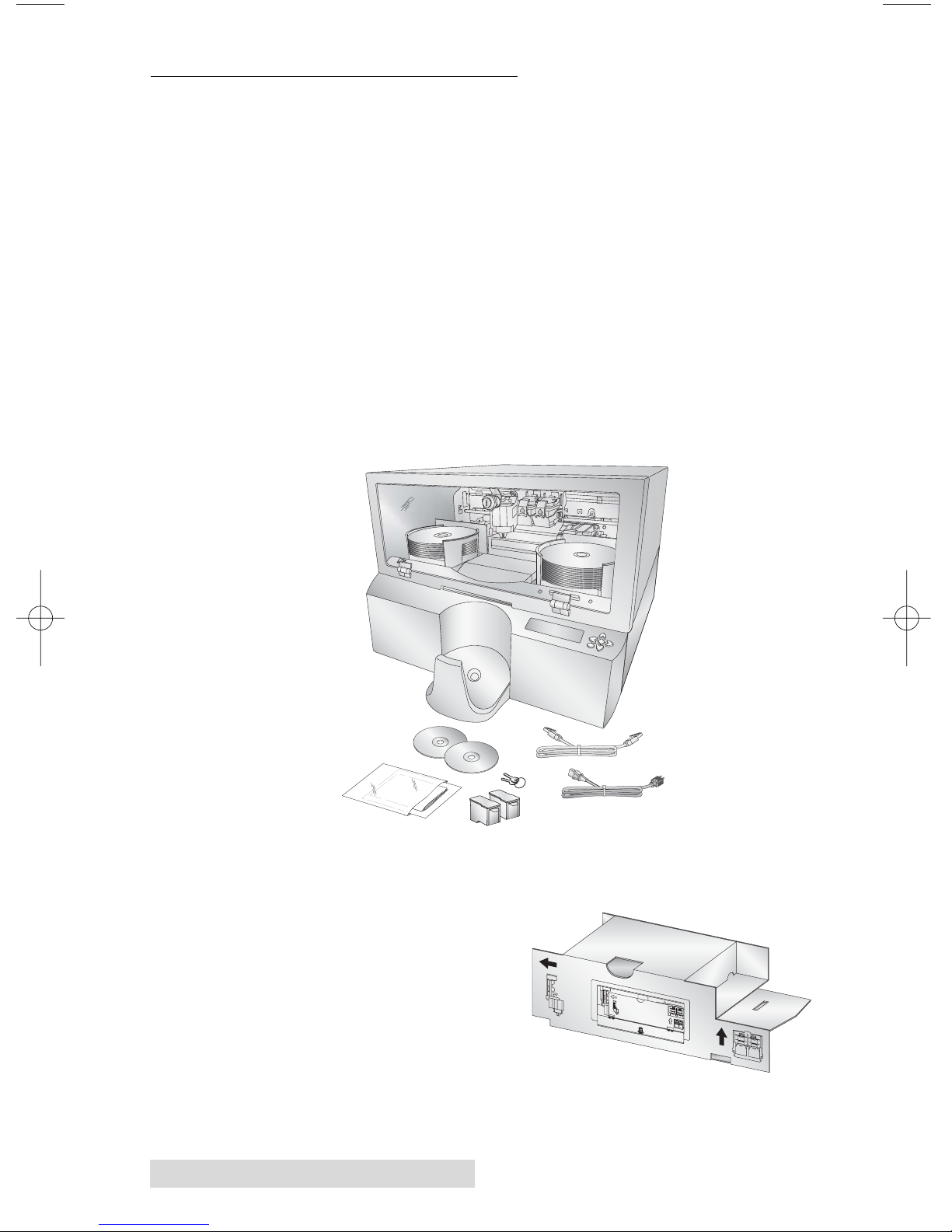
The following items are inside the box:
•Bravo XRn Network Publisher
•2 Gray Plastic Input and Output Bins (Located inside
cardboard insert)
•Power Cord
•One Three-Color (CMY) Ink Cartridge
•One Monochrome Black Ink Cartridge
•Client Installation Disc
•7' Ethernet Cable
•Warranty Card
•2 Keys
•The Operator's Manual, Quick Start Guide and Other
Printed Information
Remove all packing tape from the unit. Open the front cover
with the key provided and remove the cardboard insert by
pulling on the right side first.
The cardboard insert (pictured
to the right) prevents the
cartridge carrier from damaging
movement during shipment.
Save the shipping box and
packing materials.
They will come in handy later if you ever
need to transport the unit.
510991.qxd 6/15/2007 10:07 AM Page 2

Getting Started 3
C. IDENTIFYING THE PARTS
This illustration shows the XRn and its components.
The Robotic Disc Transporter moves discs from the left or
right Bin, to a CD/DVD Recorder, to the printer, and finally to
the Output Bin.
The CD/DVD Recorder is automatically loaded and unloaded
by the units's Robotic Disc Transporter.
The Recorder Tray Button manually opens or closes the
Recorder Tray. In normal operation, the in/out movement of
the Recorder Tray is controlled automatically and this button is
not used.
The Left and Right Bins are situated under the top cover of the
unit. Each bin can hold up to 25 discs. You can designate the
type of disc in each bin in the Administrator Utility
(Section 4A).
Color Cartridge
Black Cartridge
CD/DVD Recorders
Front Cover
LCD
Control Panel
Ink Cartridge Carrier
Robotic Disc Transporter
Output Bin
Right Bin
Recorder Tray Button
CPU
Cover Lock
Left Bin
510991.qxd 6/15/2007 10:07 AM Page 3

4 Getting Started
The Output bin is located on the front of the unit. The output
bin hold up to 50 discs.
The Front Cover is a durable plastic cover that will protect the
unit from dust and interference.
The Cover Lock allows you to lock the unit to prevent access to
the blank discs and cartridges.
The Ink Cartridge Carrier holds the color and black ink
cartridges.
The LCD Control Panel displays errors and warnings, allows
you to perform administrative functions and run archived jobs.
The CPU is a computer inside the bottom portion of the unit
and runs all the software necessary to publish discs.
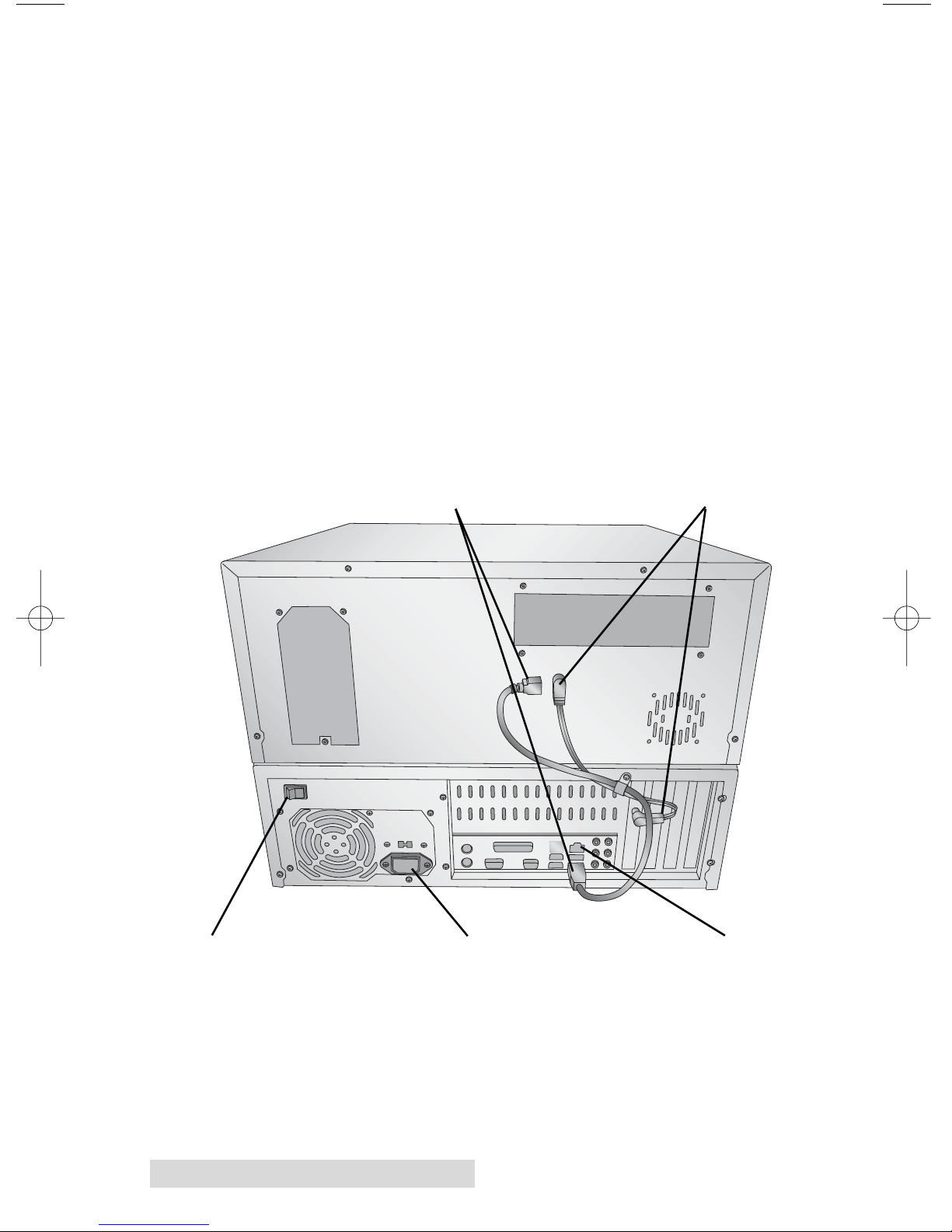
Rear Panel
Power Input PortPower Switch Ethernet Port
USB Connection Duplicator Power
510991.qxd 6/15/2007 10:07 AM Page 4

Getting Started 5
The Power Input Port connects to the included power cable.
The internal power supply is a switching 100V~240V power
supply.
The Power Switch shuts off all power to the unit.
The Ethernet Port connects with the cable included to your
network.
Please Note: The equipment's Ethernet connection is intended for indoor
connection only. Do not connect to an outdoor cable system.
The USB Connection is connected at the factory and should
not be removed.
The Duplicator Power connection is connected at the factory
and should not be removed.
510991.qxd 6/15/2007 10:07 AM Page 5

6Hardware and Software Setup
Section 2: Hardware and Software
Setup
Setup
This section will describe the step-by-step process of setting
up your unit. This includes information on how to load the
supplies (ink and disc media) necessary to start producing
discs.
A. HARDWARE SETUP
Step 1: Applying Power
• Locate the power cord supplied with the unit.
• Place one end of the power cord into the plug on the back
of the unit and
the other end
into a surge
protected
outlet.
• Turn on the
power switch
located on the
back of the
unit above
the fan.
• Unit will initialize for approximately 60 seconds.
Step 2: Installing Ink Cartridges
• Using the LCD Control Panel access the Main Menu of the
XRn by pressing the button.
Choose "Install Cartridges"
• Using the key provided, open the front cover of the unit.
The cartridge carrier will move to the
load position.
• Open the ink cartridge covers.
• Remove the ink cartridge from its
packaging.
• Slowly remove the tape covering the cartridge's print head,
being careful to avoid damaging the barcode label on the
underside of the cartridge.
DO NOT TOUCH THE COPPER AREA!
Power Switch
510991.qxd 6/15/2007 10:07 AM Page 6
Questo manuale è adatto per i seguenti modelli
1
Indice
Altri manuali Primera Hardware per computer

Primera
Primera XR Series Manuale utente

Primera
Primera DUP-11 Manuale utente

Primera
Primera Server XR Manuale utente

Primera
Primera II Manuale utente

Primera
Primera Disc Publisher SE Manuale utente

Primera
Primera Disc Publisher SE Manuale utente

Primera
Primera Server XR Manuale utente

Primera
Primera Optical Disc Duplicator Composer XL Manuale utente
Manuali Hardware per computer popolari di altre marche

EMC2
EMC2 VNX Series Manuale del proprietario

Panasonic
Panasonic DV0PM20105 Manuale utente

Mitsubishi Electric
Mitsubishi Electric Q81BD-J61BT11 Manuale utente

Gigabyte
Gigabyte B660M DS3H AX DDR4 Manuale utente

Raidon
Raidon iT2300 Manuale utente

National Instruments
National Instruments PXI-8186 Manuale utente