Primera LX3000 Manuale utente

User's Manual
© 2021 All rights reserved
071921

2
Notices: The information in this document is subject to change without notice. NO WARRANTY OF ANY KIND IS MADE WITH
REGARD TO THIS MATERIAL, INCLUDING, BUT NOT LIMITED TO, THE IMPLIED WARRANTIES OF MERCHANTABILITY AND FITNESS
FOR A PARTICULAR PURPOSE. No liability is assumed for errors contained herein or for incidental or consequential damages in
connection with the furnishing, performance, or use of this material. This document contains proprietary information that is
protected by copyright. All rights are reserved. No part of this document may be photocopied, reproduced, or translated into
another language without prior written consent.
Trademark Acknowledgments: Windows is a registered trademark of Microsoft Corporation. All other trademarks are the
property of their respective owners.
Printing History
Edition 1.0, 040621, Copyright 2021, All rights reserved.
FCC Compliance Statement: This device complies with part 15 of the FCC rules. Operation is subject to the following two
conditions: (1) this device may not cause harmful interference, and (2) this device must accept any interference received,
including interference that may cause undesired operation.
For Users in the United States: This product is intended to be supplied by a UL listed Direct Plug-In
Power Supply marked "Class 2"or a UL listed ITE Power Supply marked "LPS" with output rated
12VDC, 5A or higher. This equipment has been tested and found to comply with the limits for a Class A digital device, pursuant
to Part 15 of the FCC Rules. In a domestic environment this product may cause radio interference, in which case the user may
be required to take adequate measures. This equipment generates, uses, and can radiate radio frequency energy and, if not
installed and used in accordance with the instructions, may cause harmful interference to radio communications. However,
there is no guarantee that interference will not occur in a particular installation. If this equipment does cause harmful
interference to radio or television reception, which can be determined by turning the equipment off and on, the user is
encouraged to try to correct the interference by one or more of the following measures:
• Re-orient or relocate the receiving antenna.
• Increase the separation between the equipment and receiver.
• Connect the equipment into an outlet on a circuit different from that to which the receiver is connected.
• Consult the dealer or an experienced radio/TV technician for help.
Use of shielded cables is required to comply with the Class A limits of Part 15 of the FCC Rules. You are cautioned that any
changes or modifications not expressly approved in this manual could void your authority to operate and/or obtain warranty
service for this equipment.
For Users in Canada: This digital apparatus does not exceed the Class A limits for radio noise for digital apparatus set out on
the Radio Interference Regulations of the Canadian Department of Communications. Le present appareil numerique n'emet
pas de bruits radioelectriques depassant les limites applicables aux appareils numeriques de la class B prescrites dans le
Reglement sur le brouillage radioelectrique edicte par le ministere des Communications du Canada.
Product Disposal
Do not dispose of the Printer or supplies in the same manner as normal household waste. Consult your local authorities for
disposal and recycling options.
Battery Notice
This product contains Perchlorate material. Special handling may apply. For more information, go to
http://www.dtsc.ca.gov/hazardouswaste/perchlorate/
WARNING
THE PRINT AREA CONTAINS HAZARDOUS MOVING PARTS. KEEP FINGERS AND OTHER BODY PARTS AWAY.
CAUTION!
TO PREVENT FIRE OR SHOCK HAZARD, DO NOT EXPOSE THE UNIT TO RAIN OR
MOISTURE. TO REDUCE THE RISK OF ELECTRIC SHOCK, DO NOT REMOVE EXTERIOR
PANELS. NO USER-SERVICEABLE PARTS INSIDE. REFER SERVICING TO QUALIFIED SERVICE PERSONNEL. OPERATE THE UNIT
WITH ONLY THE PROPER ELECTRICAL SPECIFICATIONS AS LABELED ON THE PRINTER AND AC ADAPTER.
CAUTION!
USE OF CONTROLS OR ADJUSTMENTS OR PERFORMANCE OF PROCEDURES OTHER THAN THOSE SPECIFIED HEREIN MAY
RESULT IN HAZARDOUS RADIATION.
CAUTION!
RISK OF EXPLOSION IF BATTERY IS REPLACED BY AN INCORRECT TYPE. DISPOSE OF USED BATTERIES ACCORDING TO
THE INSTRUCTIONS.

3
Contents
Section 1: Getting Started............................................................................................................... 1
1A. Choosing a Good Location..................................................................................................... 1
1B. Unpacking and Inspection ..................................................................................................... 2
1C. Identifying the Parts .............................................................................................................. 3
1D. Install the Ink Tanks............................................................................................................... 7
1E. Install the Print Head ........................................................................................................... 10
Section 2: Label Stock................................................................................................................... 15
2A. Label and Roll Specifications ............................................................................................... 15
2B. Installing Label Stock ........................................................................................................... 18
2C. Adjusting the Gap Sensor Position ...................................................................................... 20
2D. Set the Stock Sensor Mode ................................................................................................. 23
2E: Set the Present/Cut Mode................................................................................................... 24
Section 3: Primera PrintHub.......................................................................................................... 26
3A: Monitoring Ink Levels .......................................................................................................... 27
3B. Using the Cost Estimator ..................................................................................................... 27
3C. Adjusting the Print Alignment ............................................................................................. 29
3D PrintHub Settings.................................................................................................................. 31
3E PrintHub Printer Settings...................................................................................................... 32
3E.1 Network Information...................................................................................................... 32
3E2. Multiple Printer Support ................................................................................................ 33
Section 4: Printing from a PC ........................................................................................................ 35
4A. Using BarTender® ................................................................................................................ 35
4B. Add Text, Barcodes, and Graphics to a BarTender Label .................................................... 41
4C. Printing from BarTender...................................................................................................... 42
4D. Printing from other programs ............................................................................................. 43
4E. Creating a Full Bleed Print ................................................................................................... 44
4F. Printer Driver Settings.......................................................................................................... 45
Section 5: Troubleshooting and Maintenance.............................................................................. 48
5A. Solving Print Alignment Problems....................................................................................... 48
5B. Solving Print Quality Problems ............................................................................................ 50
5C. Color Matching and Design Tips .......................................................................................... 52

4
6D Poor Print Quality –Cleaning the Print Head....................................................................... 54
5E. Interpreting the Indicator lights .......................................................................................... 58
5F. Technical Support ................................................................................................................ 59
Section 6: Technical Specifications .............................................................................................. 60

Section 1: Getting Started
THANK YOU…
...for choosing an LX3000 Color Label Printer. The LX3000 Printer will print razor-sharp
text and barcodes, vibrant colors, and even stunning photo-realistic photographs
directly onto rolls of labels, card stock and a variety of other approved media.
This User's Manual is your complete step-by-step guide to quickly and easily setting up
and printing with your new Color Label Printer!
1A. Choosing a Good Location
• Place the Printer on a flat surface in a location with adequate air circulation to
prevent internal heat build up.
• Do not place the Printer near heat sources such as radiators or air ducts, or in a
place subject to direct sun light, excessive dust, mechanical vibration or shock.
• Allow for adequate clearance in front of the Printer to accommodate the printed
label stock as it is leaving the Printer to avoid the possibility of binding or jamming
of the label stock.
• Allow for adequate overhead and left side clearance for opening the top cover to
allow easy access to the label stock and ink cartridge. The Printer will require 9.5
inches (24 cm) of additional space on the left side to completely open the cover
(Total = 26.75" or 68 cm). The Printer will require an additional 15.9 inches (40.4
cm) of overhead space to open the cover (Total = 25" or 63.5 cm).

1B. Unpacking and Inspection
While unpacking your Printer, inspect the carton to ensure that no damage has
occurred during shipping. Make sure that all supplied accessories are included with
your unit. The following items are included in the supply box:
1. Power Adapter
2. Separate Power Cord
3. 6' USB Cable (If other USB cable is used, it must be 6'(2 M) or less.)
4. Print Head
5. Warranty Statement and Registration Card
6. Starter Roll of High Gloss Label Stock
7. Cyan, Magenta and Yellow Ink Tanks
Save the carton and packing materials. They will come in handy when transporting the
Printer.
7

1C. Identifying the Parts
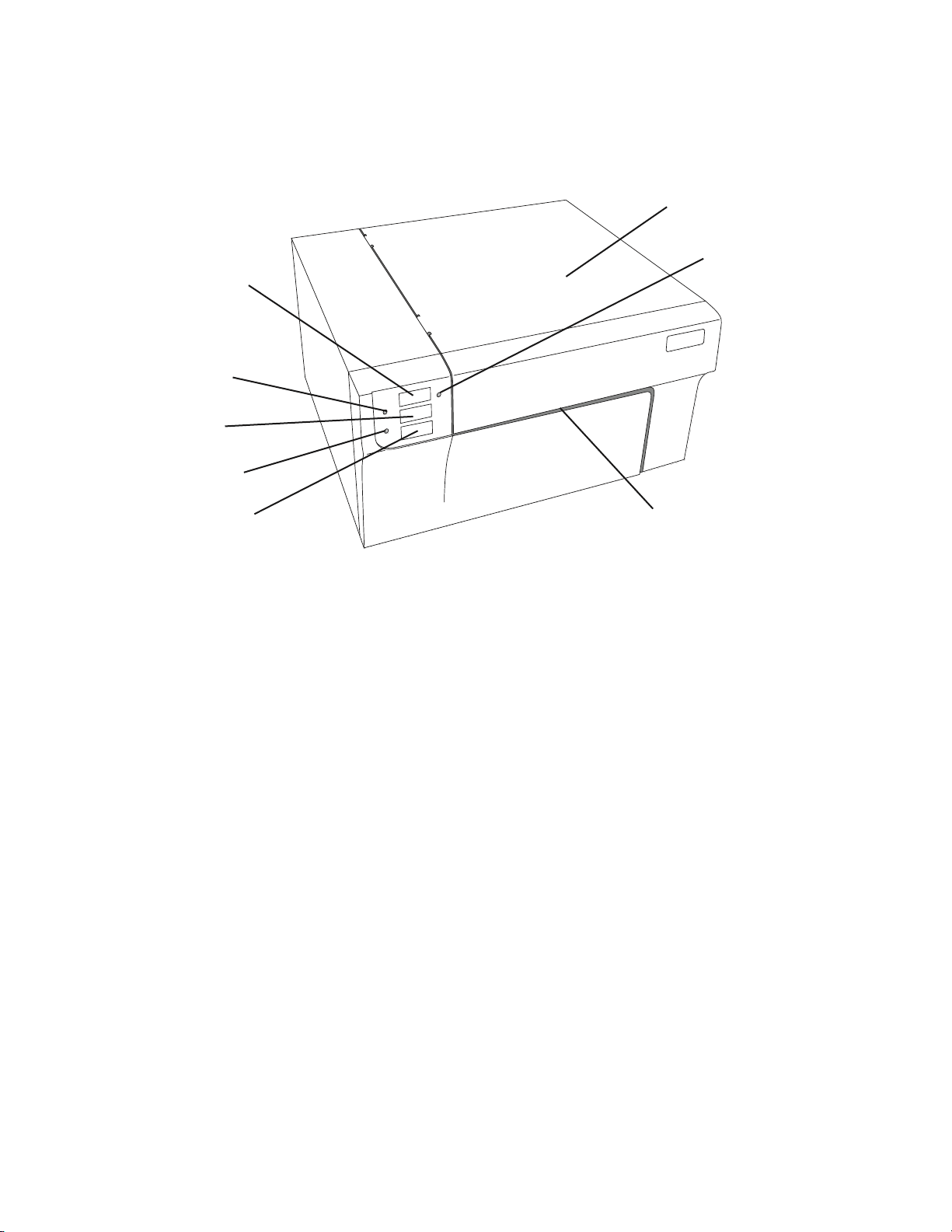
This illustration shows the front of the Printer with its control buttons and LED indicator
lights.
The Pause Button is pressed to pause a job to allow for loading of label stock and ink
cartridges. The Printer pauses after the printing of the current label has finished. The
Pause LED will illuminate when the Printer is paused.
The Power LED indicates that the Printer is on and ready to receive print jobs.
The Load/Feed Button is pressed in order to load label stock if the Printer does not
automatically detect the stock. When stock is loaded each press of the button will
cause one label to be fed through the Printer.
The Ink Low LED will illuminate when a cartridge has 10% or less of its ink remaining.
The Unload Button will unload the installed label stock by reversing it through the
Printer. Make sure to tear off the printed labels before pressing the Unload Button.
The Label Tear Bar is a serrated edge for conveniently tearing your finished labels from
the Printer. The Printer comes with a white tear bar guard. For smoother label
feeding, leave the guard in place during printing. When you are ready to tear off a
label, remove the guard, tear off the label and replace the guard.
Unload Button
Pause Button
Pause LED
Power LED
Load/Feed
Button
Ink Low LED
Label Tear Bar
Top Cover

This illustration shows the input ports and power switch found on the rear panel of the
Printer.
The next two illustrations show the interior of the Printer.
Power Input Port
USB Port
Power Switch
Ethernet

Print Head
Carrier

Yellow Ink Tank
Cyan Ink Tank
Magenta Ink Tank
Indice
Altri manuali Primera Etichettatrice

Primera
Primera CX1000 Manuale

Primera
Primera LX200e Manuale utente

Primera
Primera LX800 Manuale utente

Primera
Primera LX500e Manuale utente

Primera
Primera LX810e Manuale utente

Primera
Primera LX400e Manuale utente

Primera
Primera LX900e Manuale utente

Primera
Primera RX500 Manuale utente

Primera
Primera DL 500 Manuale utente

Primera
Primera LX400 Manuale utente

Primera
Primera LX610 Manuale utente

Primera
Primera LX810 Manuale utente

Primera
Primera LX910 Manuale utente

Primera
Primera LX800 Manuale utente

Primera
Primera 510212 Manuale utente

Primera
Primera LX3000e Manuale

Primera
Primera AP362 Manuale utente

Primera
Primera AP550e Manuale

Primera
Primera LX400 Manuale utente

Primera
Primera LP130 Manuale utente