Quantum Networks QN-H-245 Manuale utente

Quick Setup Guide
Model: QN-H-245

2| www.qntmnet.com
Copyright Information
Copyright & trademark specifications are subject to change without prior notice.
Copyright © 2018 Quantum® Networks (SG) Pte. Ltd. All Rights Reserved. Quantum
Networks® & the logo are trademarks of Quantum Networks (SG) Pte. Ltd. Other
brands or products mentioned may be trademarks or registered trademarks of their
respective owners. Mentioned contents of this document can’t be used, translated or
transmitted in any form or by any means without taking prior written permission from
Quantum Networks (SG) Pte. Ltd.

3| www.qntmnet.com
Contents
Glossary....................................................................................................................................4
Icon description........................................................................................................................4
Before you begin.....................................................................................................................5
Package contents....................................................................................................................5
Prerequisites............................................................................................................................5
Network requisites...................................................................................................................5
Connect Access Point ............................................................................................................5
Step 1 –Create new account on Quantum® RUDDER....................................................6
Step 2 - Basic setup................................................................................................................7
Step 3 - Setting up device IP address .................................................................................8
Step 4 –Set the management mode...................................................................................9
Step 5 - Access Point quick setup in RUDDER Mode ....................................................10
Step 6 - Access Point quick setup in standalone mode..................................................14
Reset Access Point to factory defaults..............................................................................17
Access Point default login detail.........................................................................................17
FCC statement.......................................................................................................................18
CE Statement.........................................................................................................................19

4| www.qntmnet.com
This Quick Setup Guide provides step-by-step instructions on how to set up Quantum
Networks® Access Point. After completing the steps described in this Guide, you will be able
to install the Access Point (AP) on-site and provide wireless network access to users.
Glossary
Feature
Description
Management Mode
Standalone: In this mode, each device is configured and
managed individually. It can be useful in scenarios with few
devices or sites with limited Internet access.
RUDDER: In this mode, devices are configured and managed
from a central controller hosted in the cloud. It offers many
more sets of features as compared to the Standalone mode.
Operation Mode
Bridge: In this mode, the device connects to a network over an
ethernet cable and extends the coverage over wireless.
Router: In this mode, the device connects to Internet Service
Provider directly using DHCP / Static IP / PPPoE protocols and
shares Internet access over a wired or wireless network to
users.
Quantum® RUDDER
Quantum® RUDDER is a cloud-hosted controller which can be
used to configure, manage & monitor devices associated with
it. It can be accessed from https://rudder.qntmnet.com
Icon description
Icon on GUI
Description
Click to get the option for the firmware update.
Click to get back to the home page.
Click to check the documentation.
Click to check device information.

5| www.qntmnet.com
Before you begin
Your Quantum Networks® Access Point can work in “Standalone Mode” or can be
managed by “RUDDER”.
Package contents
Access Point.
Prerequisites
Internet access.
Desktop / Laptop / Handheld device.
802.3af / 802.3at PoE Switch / PoE Injector.
48VDC 2A DC power adapter.
Network requisites
The listed ports must be opened or allowed in the network firewall.
TCP: 80, 443, 2232, 1883.
UDP: 123, 1812, 1813.
Allow rudder.qntmnet.com and reports.qntmnet.com in the destination field.
Connect Access Point
After unpacking Access Point, connect it to an Internet source.
Plug-in Ethernet cable of Access Point.
Power on Access Point by using 802.3af / 802.3at PoE Switch / PoE Injector.
Note: Access Point must have Internet access during initial setup for the first time to activate
the device, warranty and support.

6| www.qntmnet.com
Step 1 –Create new account on Quantum® RUDDER
Browse https://rudder.qntmnet.com.
Click “Create New Account” to sign up for a new account.
Figure 1
Follow the steps as guided on the screen for Registration.
Verify Quantum® RUDDER account from registered email id.
Once the account gets validated, it turns the page to “Add License Key” (User will get
the license key from respective (Partner / Resource) )
Account on Quantum® RUDDER (Quantum Networks® Cloud Controller) is now
ready to use.

7| www.qntmnet.com
Step 2 - Basic setup
Connect the WAN port of the Access Point to the network with Internet access.
You should see a new wireless network with SSID QN_XX:XX (where XX:XX are the
last four digits of Access Point MAC Address).
Connect to QN_XX:XX SSID and browse Access Point’s default IP “169.254.1.1”.
Figure 2
Let’s start the configuration.
On the configuration start page, it will display,
Device model number
Serial number
MAC address
Current firmware
Note:
Click button to get the option to “change the firmware” if required.
Click Change Firmware to update firmware if required. Select the firmware file from
the respective location and update it.
QN-X-XXX

8| www.qntmnet.com
Step 3 - Setting up device IP address
Click “Configure” and set the device IP address by selecting the required options.
Connectivity Mode –Select the connectivity mode.
Protocol - DHCP, Static or PPPoE
Interface –Select interface
VLAN Assignment- Enable parameter. Enter VLAN ID and click “Fetch IP Address” to
get the respective IP in case of VLAN setup is required.
Figure 3
Click “Proceed” to apply configuration and turn to the next page.

9| www.qntmnet.com
Step 4 –Set the management mode
Management Mode
Quantum Networks® Access Point can be configured in two modes:
RUDDER (on cloud / on-premise)
Centralized management of Access Points using Quantum® RUDDER
Standalone
Independent management of each Access Point
Figure 4

10 | www.qntmnet.com
Step 5 - Access Point quick setup in RUDDER Mode
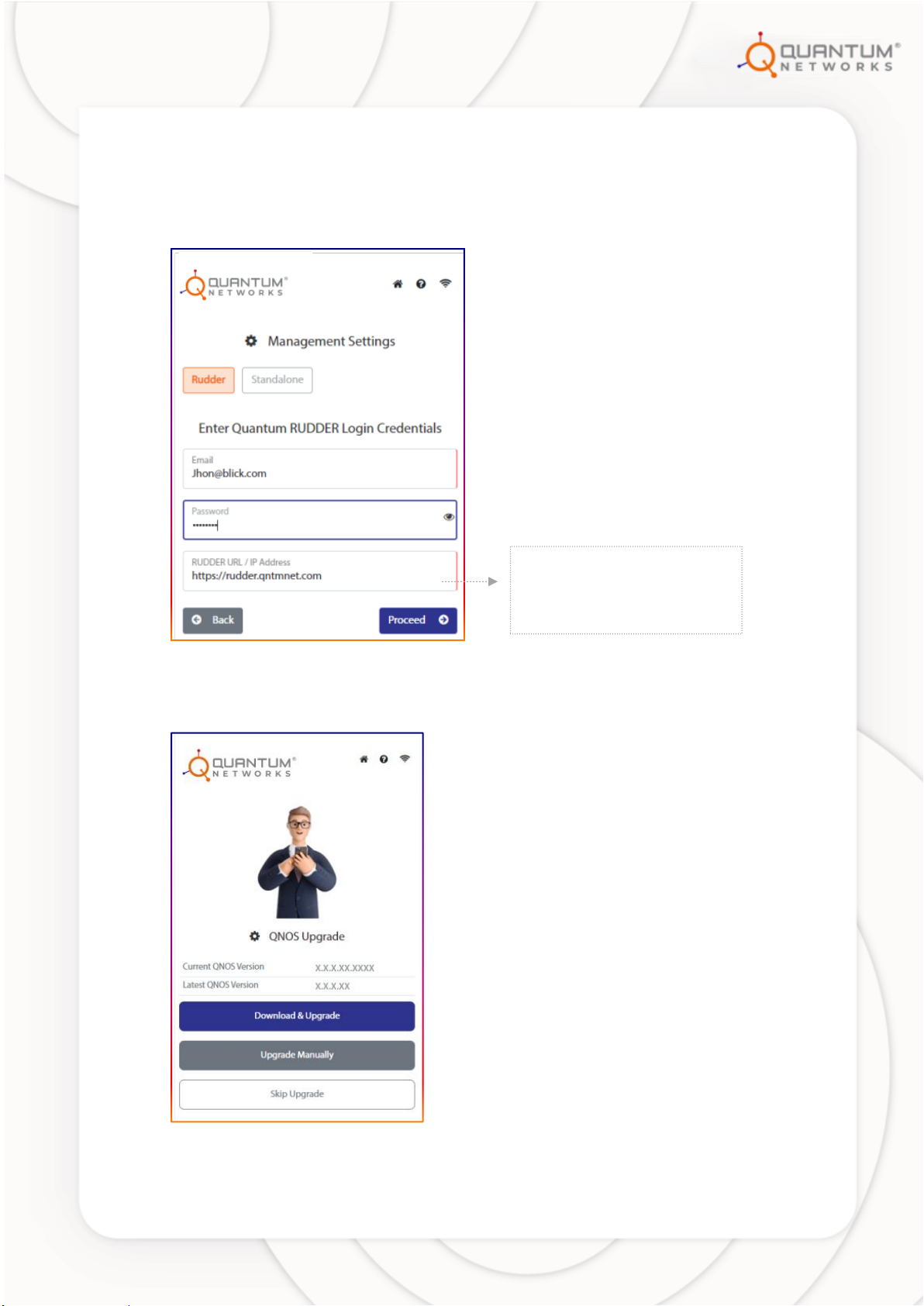
Select “Management Mode” as “RUDDER”, enter Quantum® RUDDER login
credentials and click “Proceed”.
Figure 5
It will verify the credentials, and turn to a next page.
Figure 6
In the case of on-premise RUDDER,
mention the local server IP
Address/URL assigned to RUDDER,
here.
Indice
Altri manuali Quantum Networks Punto di accesso wireless