
Reveal TACTACAM XPRO Manuale utente

INSTRUCTION MANUAL
REVEALCELLCAM.COM
2
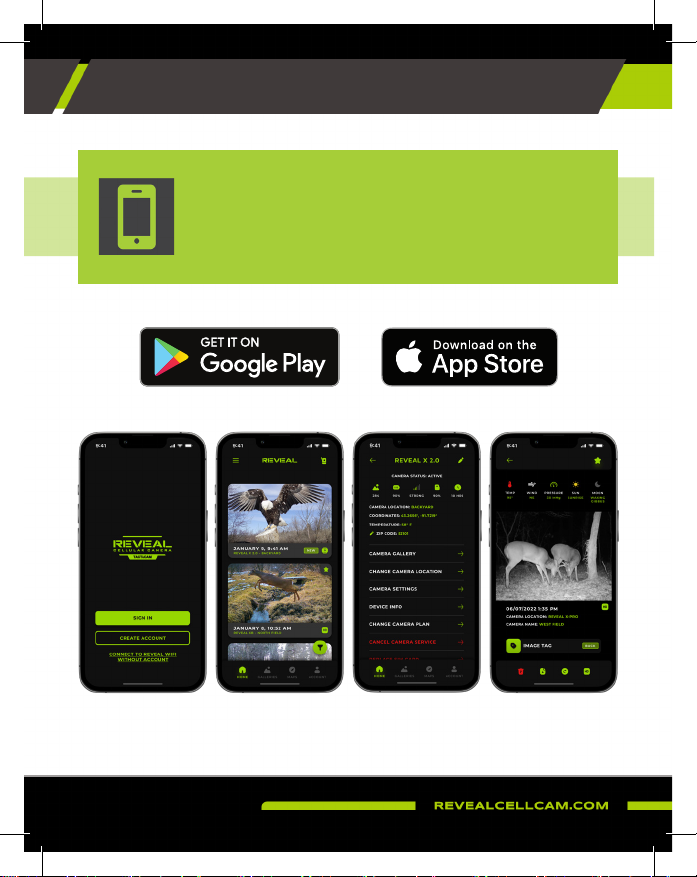
REVEAL APP DOWNLOAD
VISIT YOUR APP STORE TO DOWNLOAD
DOWNLOAD THE
TACTACAM REVEAL APP

3
TABLE OF CONTENTS
TABLE OF CONTENTS
INTRODUCTION
What’s in the Box
What You Will Need
QUICK START
Setting Up the Camera
Setting Up Your Account
Downloading the App
Add Camera to the App
Remotely Change Camera Settings from the App
Sending a Test Picture
Leaving your Camera out in the Field
SETTINGS & SPECIFICATIONS
BEST PRACTICES
Proper Camera Placement
Batteries and Cellular Trail Camera Performance
TROUBLESHOOTING
Camera Sends Pictures of Nothing
Night Vision Flash Range Doesn’t Meet Expectations
Camera Stops Taking Images or Won’t Take Images
Internal Condensation on Lens
Camera Accidentally Submerged in Water
WARRANTY
3
4
4
4
6
6
7
7
8
9
10
10
11
13
13
14
15
15
15
16
16
16
19

4
• (1) Trail Camera
• (1) Instruction Manual
• (1) Mounting Strap
• (1) Antenna
• (1) SIM Card (May or may
not be pre-installed)
• Full-size SD Card - Class 10, U3, 32GB
• Recommended Brands: Tactacam,
Lexar, SanDisk
(Other brands of low-end SD cards are incompatible
with the REVEAL and will yield unexpected results)
• (12) AA batteries required - Lithium
batteries recommended in colder
temperatures
INTRODUCTION
WHAT IS IN THE BOX? WHAT YOU WILL NEED
RECOMMENDED CAMERA ACCESSORIES (NOT INCLUDED)
SD Card Solar Panel
T-Post MountLockable Security Box
VIEW AND PURCHASE ALL ACCESSORIES AT REVEALCELLCAM.COM
Adjustable Camera Stake

5
1
5
2
6
10
14
3
7
11
15
4
8
12
9
13
INTRODUCTION
Lens
Antenna Port
Camera Working Status Indicator
Microphone
SIMs Slot (do not mix SIM’s with other cameras)
Display Screen
PIR Motion Sensor
IR LEDs
Navigation Arrows
SD Card Slot
Power/Enter
Battery Eject Button
External Battery In/DC Port
USB-C Port
Tripod/Mount Attachment
Cable Lock Holes
1/4-20 Accessory
Strap Holes
Solar Panel Attachment Rails
9
410
7
12
1
2 8
3
511
6
13
14
15
16
17
18
19
18
19
16
17

6
SETTING UP THE CAMERA
QUICK START GUIDE
1. Install camera’s antenna.
• Note: Do not over tighten the antenna, once it is secure stop tightening to prevent
antenna port damage.
2. Install a Class 10 U3 SD card (32GB).
• Recommended brands are: SanDisk, Lexar and Tactacam
3. Install 12 AA batteries.
• To eject the battery tray, press the EJECT button on the REVEAL. When inserting
AA batteries correctly orientate + and - on the front and back of the tray.
• See battery details on page 14 under Best Practices.
SIM Card
For cameras with a single SIM, the card may or may not be pre-installed. Cameras
packaged with two SIMs allow you to select a carrier that works strongest in the
area of your camera’s location. NOTE: SIM cards are exclusively paired to a camera
at the time of manufacture, so please do not remove, swap, or replace with a
different SIM card.
Activation of your camera can be done conveniently through the REVEAL mobile
app during setup.
https://www.revealcellcam.com/data-plans
Here is the link to our Data Plans and Coverage Map

7
In your Apple or Google Play Store, download the
Tactacam REVEAL app and sign in using the same
email and password you created on the website
(https://account.revealcellcam.com).
DOWNLOADING THE APP
If this is your rst REVEAL that you are activating,
please visit the REVEAL Web Portal at
https://account.revealcellcam.com/activation to
set up your account. Android users can also access
the Web Portal directly from your app, by clicking
My REVEAL on the account page in the app.
If you already have a REVEAL account with
ACTIVE cameras, you can simply log in to
your app and add your camera following the
instructions on page 8.
SETTING UP YOUR ACCOUNT
QUICK START GUIDE

8
QUICK START GUIDE
1. Navigate to the REVEAL app on your device and login using
your REVEAL account credentials. Click the home icon.
2. Click the menu in the upper left corner.
3. Select “+ Add a Camera”
4. Select the plan you wish to have and the model of the
camera.
5. Follow the prompts, allow access to the camera of your
phone, and then scan the QR code on the camera.
6. Next, follow the prompts and insert your SIM card (if SIM
is not pre-installed).
7. Complete network selection by following the in-app
prompts.
8. Name your camera and assign a location.
ADD CAMERA TO THE APP

9
QUICK START GUIDE
From the camera page click the box under the
camera name. Then choose “Camera Settings”.
Make sure to select “Apply Settings” when done to
save your changes.
Note: In camera’s SETTINGS > Settings Check,
Daily mode will check settings every 24 hours.
Hybrid mode combines the battery saving
benets of Daily mode along with the rapid
update features of Instant mode. Instant mode
will receive settings instantly but will consume
more battery.
X-Pro allows you to fully control your camera settings directly on the screen. Use the
keypad to navigate left, right, up, down, and enter to adjust camera settings. For best
results, we recommend leaving the camera settings in factory mode.
SMS CONTROLS/ON-SCREEN SETTINGS
1. Allow the camera to connect to 4G signal.
Your signal strength will be displayed on
the screen.
SENDING A TEST PICTURE
REMOTELY CHANGE THE CAMERA SETTINGS FROM THE APP.
• After your camera is activated, you will see
the signal status indicator searching, and
then connect showing the signal strength.
• After the camera has connected, push the
power/enter button to send a photograph.

10
1. Using the display screen on the REVEAL, position the camera to your
desired focal point.
2. Ensure the antenna is securely tightened.
3. Wipe down the seal, removing any dirt and/or debris.
4. Hit the left navigation arrow to enter work mode or allow the camera
to enter work mode automatically after a short period of time (work
mode means the camera is on and will function correctly). Your
camera will then begin sending you photos.
5. As long as your phone picks up a signal, be sure a motion detected
picture is sent to your phone via the app. This may take a few minutes.
LEAVING YOUR CAMERA IN THE FIELD
START USING THE REVEAL X-PRO
SENDING A TEST PICTURE (CONTINUED)
• When your test picture has been sent successfully, a message is
displayed on the REVEAL screen notifying you.
• If your test picture does not send, a send failure message will display
on the REVEAL screen.
2. As long as your phone picks up a signal, be sure a motion detected
picture is sent to your phone via the app. This may take a few
minutes.
Indice
Altri manuali Reveal Telecamera da ricognizione


