SATO Argox O4-250 Manuale utente

O4 Series
User Manual
i
FCC ID
In a domestic environment this product may cause radio interference in
which case the user may be required to take adequate measures.
FCC Warning
This equipment has been tested and found to comply with the limits for a
Class A digital device, pursuant to Part 15 of the FCC Rules. These limits are
designed to provide reasonable protection against harmful interference
when the equipment is operated in a commercial environment. This
equipment generates, uses, and can radiate radio frequency energy, and if
not installed and used in accordance with the instructions in this manual, it
may cause harmful interference to radio communications. Operation of this
equipment in a residential area is likely to cause harmful interference in
which case the user will be required to correct the interference at his own
expense.
FCC Statement for Optional RF module
This device complies with RF radiation exposure limits set forth for an
uncontrolled environment.
The antenna used for this transmitter must be installed to provide a
separation distance of at least 20 cm from all people and must not be
collocated or operating in conjunction with any other antenna or
transmitter.

O4 Series
User Manual
ii
Bluetooh/Wireless LAN Communication
Compliance Statement
This product has been certified for compliance with the relevant radio
interference regulations of your country or region. To make sure continued
compliance, do not:
∙Disassemble or modify this product.
∙Remove the certificate label (serial number seal) affixed to this product.
Use of this product near microwave and/or other Wireless LAN equipment,
or where static electricity or radio interference is present, may shorten the
communication distance, or even disable communication.
WARNING
Changes or modifications not expressly approved by the party responsible
for compliance could void the user's authority to operate the equipment.
(for USA only)

O4 Series
User Manual
iii
Liability Disclaimer
ARGOX Corporation takes steps to assure that the company’s published
engineering specifications and manuals are correct; however, errors do
occur. ARGOX reserves the right to correct any such errors and disclaims any
resulting liability. In no event shall ARGOX or anyone else involved in the
creation, production, or delivery of the accompanying product (including
hardware and software) be liable for any damages whatsoever (including,
without limitation, damages for loss of business profits, business
interruption, loss of business information, or other pecuniary loss) arising
out of the use of or the results of use of or inability to use such product,
even if ARGOX has been advised of the possibility of such damages.
Caution
Any changes or modifications not expressly approved by the party
responsible for compliance could void the user's authority to operate the
equipment.

O4 Series
User Manual
iv
Contents
1 Introduction ...........................................................................................................1
1.1 Features.......................................................................................................1
1.2 Unpacking....................................................................................................2
1.3 Understand your printer .............................................................................3
1.3.1 Perspective view ............................................................................3
1.3.2 Back view .......................................................................................4
1.3.3 Interior view I.................................................................................5
1.3.4 Interior view II................................................................................6
1.4 Printer lights................................................................................................7
1.4.1 Status lights....................................................................................7
1.4.2 System mode................................................................................10
2 Get started ...........................................................................................................11
2.1 Attach the power cord ..............................................................................11
2.2 Turn on/off your printer............................................................................12
2.2.1 Turn on your printer.....................................................................12
2.2.2 Turn off your printer ....................................................................12
2.3 Load media................................................................................................13
2.3.1 Prepare media..............................................................................13
2.3.2 Place a media roll.........................................................................14
2.3.3 Test media feed............................................................................17
2.4 Media types...............................................................................................18
2.5 Placing Ribbon Roll....................................................................................20
2.6 Media sensing ...........................................................................................23
2.6.1 Transmissive sensor .....................................................................23
2.6.2 Reflective sensor..........................................................................24
3 Printer operation..................................................................................................25
3.1 Printing Media Calibration & Configuration .............................................25
3.2 Self-test .....................................................................................................26
3.3 Restore your printer..................................................................................37
3.4 Communications .......................................................................................38
3.4.1 Interfaces and Requirements.......................................................38
3.5 Driver installation......................................................................................40
3.5.1 Installing a Plug and Play printer driver (for USB only)................41
3.5.2 Installing a Printer Driver (for other interfaces except USB)........47
4 ConfigurationonWebSettingTool.............................................................................53
4.1 Attaching the power cord ..............................................................................53

O4 Series
User Manual
v
4.2 Connecting the printer to a LAN hub ...................................................................53
4.3 Getting theIPaddress ofthe printer....................................................................54
4.4 Logging in to the web setting tool .................................................................54
5 Maintenance........................................................................................................56
4.1 Cleaning.....................................................................................................56
4.1.1 Printhead......................................................................................56
4.1.2 Media housing .............................................................................57
4.1.3 Sensor...........................................................................................57
4.1.4 Platen roller..................................................................................58
6 Troubleshooting ...................................................................................................59
5.1 Printer issues.............................................................................................59
5.2 Media issues..............................................................................................60
5.3 Ribbon Problems.......................................................................................61
5.4 Other issues...............................................................................................62
7 Specifications .......................................................................................................63
6.1 Printer........................................................................................................63
6.2 Media ........................................................................................................65
6.3 Electrical and operating environment.......................................................66
6.4 Physical dimension....................................................................................66
6.5 Fonts, Barcodes, and Graphics Specification ............................................67
6.6 Ethernet ....................................................................................................70
6.7 Bluetooth (Option)....................................................................................70
6.8 Wireless LAN (Option)...............................................................................71
6.9 Interfaces...................................................................................................72
6.9.1 USB...............................................................................................72
6.9.2 Ethernet .......................................................................................74
6.9.3 RS-232C ........................................................................................75

1 Introduction
1
1Introduction
Thank you for purchasing an Argox O4 Series barcode printer. This
manual provides information about how to set up and operate your printer,
load media, ribbon and solve common problems. Illustrations are provided
to help you quickly become familiar with the printer.
1.1 Features
■Various Connectivity Options: Ethernet, due USB host, USB device.
■Easy Operation: One-button design for easy control
■Fast Print Speed: Max 7 inches/sec for the O4 model
■Wireless LAN Connection: Build a Wireless LAN printing environment
with Bluetooth
■External Memory: The extra USB port allows you to use a USB flash
drive for storage

1 Introduction
2
1.2 Unpacking
Make sure all of the following items are included in your package.
ARGOX O4 Printer
Quick Installation Guide
DVD
Power Supply
AC Power Cord
USB Cable
Ribbon Core (0.5 inch)
When you receive the printer, open the package immediately and inspect for
shipping damage. If you discover any damage, contact the shipping company
and file a claim. ARGOX is not responsible for any damage incurred during
shipping. Save all package materials for the shipping company to inspect.
Note If any item is missing, please contact your local dealer.

1 Introduction
3
1.3 Understand your printer
1.3.1 Perspective view
LED
Indicator 2
Indicator 1
Feed Button
Cover Latch
Top Cover

1 Introduction
4
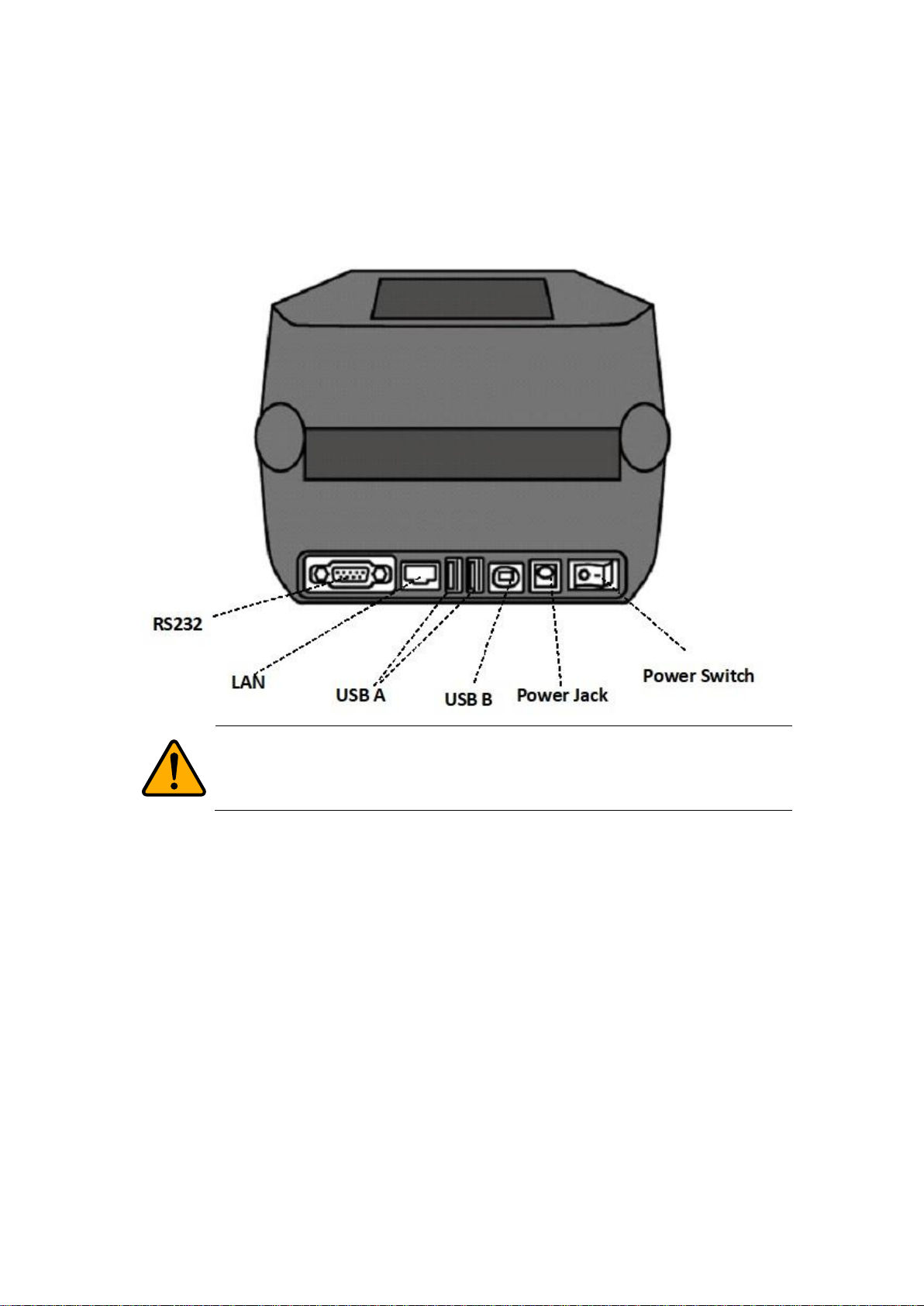
1.3.2 Back view
Caution To avoid injury, be careful not to trap your fingers in the Paper
Slot while opening or closing the Top Cover.
Questo manuale è adatto per i seguenti modelli
1
Indice
Altri manuali SATO Etichettatrice

SATO
SATO CT 400 Manuale utente

SATO
SATO TH2 Series Manuale utente

SATO
SATO TXPEX6 Manuale utente

SATO
SATO Argox MX-200 Series Manuale utente

SATO
SATO s84ex Manuale utente

SATO
SATO CT 400 Manuale di istruzioni

SATO
SATO CX Series Manuale utente

SATO
SATO CL4NX UHF Manuale utente

SATO
SATO S84 Manuale utente

SATO
SATO KENDO 22.6 Manuale utente

SATO
SATO LM400e Series Manuale utente

SATO
SATO Argox OS Series Manuale utente

SATO
SATO RWG500 Manuale utente

SATO
SATO Argox D4 Series Manuale utente

SATO
SATO s86ex Manuale utente

SATO
SATO RWG500 Manuale utente

SATO
SATO CG408 DT/TT Manuale utente

SATO
SATO DR300 Manuale utente

SATO
SATO s84ex Manuale utente

SATO
SATO s84ex Manuale utente