
Secura SecuraHub Manuale utente

SYSTEM USER GUIDE

bHAVE QUESTIONS? GETSECURA.COM
SILENCING AN ALARM
When the alarm bell or siren is sounding, enter your user code or
present your SecuraProx fob to your keypad.
IS THIS A FALSE ALARM? YES NO displays.
REAL ALARM
If a burglar alarm is valid, press NO to send a verication message to
the Central Station. Your security system will remain armed
FALSE ALARM
If a valid alarm has not occurred, press YES to cancel the alarm and
send an abort message to the Central Station. Your security system will
be disarmed.
Note: For Area Systems, the false alarm question only
displays if the entered User Code has the authority to disarm the area.

HAVE QUESTIONS? GETSECURA.COM c
Get to Know Your System ............................................................... 1
SecuraHub....................................................................................1
SecuraTouch .................................................................................1
SecuraSounder.............................................................................1
SecuraSensor................................................................................1
SecuraRemote..............................................................................1
SecuraProx Key ............................................................................2
SecuraSmoke................................................................................2
SecuraLight ..................................................................................2
Z-Wave .........................................................................................2
SecureCom Video ........................................................................2
SecuraMobile App .......................................................................2
How to Use Your Keypad................................................................. 3
System Status Icons......................................................................3
Weather........................................................................................4
Secura Logo .................................................................................4
Power/Armed LED .......................................................................4
Proximity card Reader..................................................................5
Interactive Lock ............................................................................5
Arming Your System ........................................................................ 6
Arming..........................................................................................6
Instant Arming..............................................................................6
Bypass Zones................................................................................7
Disarming Your System .................................................................... 8
When You’re At Home .................................................................8
When You’re Coming Home ........................................................8
How to Handle an Alarm.................................................................. 9
User Code Options ........................................................................ 10
Adding a User Code ..................................................................10
Deleting a User Code.................................................................11
Editing a User Code...................................................................11
Sending a User Code .................................................................11
TABLE OF CONTENTS

dHAVE QUESTIONS? GETSECURA.COM
Z-Wave Options ............................................................................. 12
Adding a Z-Wave Device ...........................................................12
Viewing Your Z-Wave Devices....................................................12
Removing a Z-Wave Device .......................................................12
Transferring Z-Wave Device Information ...................................13
Optimizing Z-Wave Device Communication..............................13
Using Favorites .............................................................................. 14
Creating a Favorite.....................................................................14
Editing a Favorite.......................................................................15
Activating a Favorite ..................................................................15
Working with Schedules................................................................. 16
Adding a Permanent Schedule ..................................................16
Extending a Schedule ................................................................16
Adding a Schedule to a Favorite ...............................................17
Using the Carousel Menu............................................................... 18
Panic...........................................................................................18
Chime.........................................................................................18
Reset ..........................................................................................18
Favorites.....................................................................................18
Easy Exit .....................................................................................18
Options ......................................................................................19
Keypad .......................................................................................19
User Codes.................................................................................19
Schedules ...................................................................................19
Events.........................................................................................19
Thermostats ...............................................................................19
Doors..........................................................................................19
Lights..........................................................................................19
User Menu Options........................................................................ 20
Sensor Reset...............................................................................20
Favorites.....................................................................................20
Z-Wave Setup.............................................................................20
Wi-Fi Setup.................................................................................21
Bypass Zones..............................................................................21
Zone Monitor .............................................................................21

HAVE QUESTIONS? GETSECURA.COM e
System Test ................................................................................21
User Code ..................................................................................21
Schedules ...................................................................................21
Time ...........................................................................................21
Display Events. ...........................................................................22
Request Service..........................................................................22
HAVE QUESTIONS? GETSECURA.COM 1
GET TO KNOW YOUR SYSTEM
This guide will introduce you to your home security system and
teach you how to navigate through its basic, everyday operation.
DISARMED
Panic
Chime
Reset
Favorites
CURRENT
HI LO
98
98 77
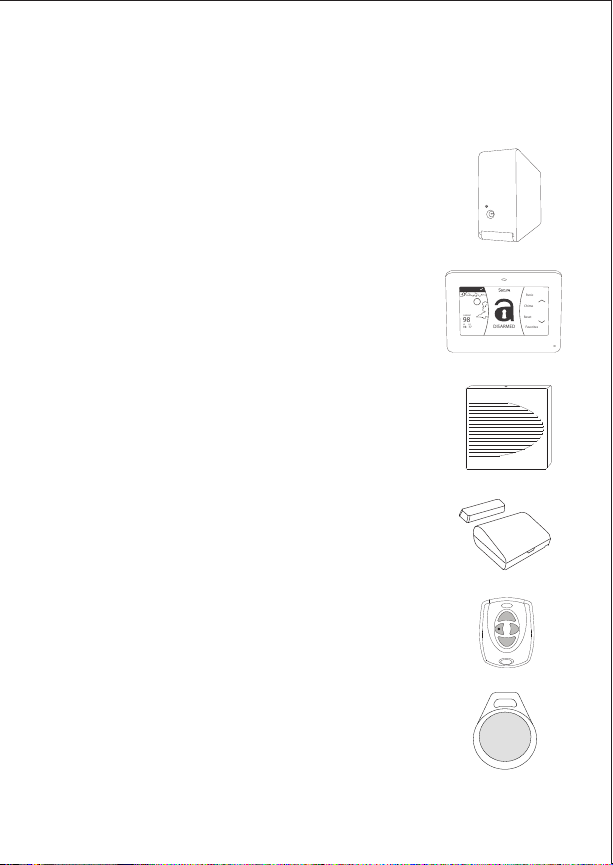
SecuraHub™
Your hub acts as your system’s brains. It communicates
with your keypad, as well as all the other system
devices throughout your home.
SecuraTouch™
The SecuraTouch is a touchscreen controller that
allows you to intuitively use your entire system. You
can use your keypad to arm and disarm the system,
add user codes, and verify alarms.
SecuraSounder™
The SecuraSounder emits sound notications when
your system goes into alarm.
SecuraSensor™
SecuraSensors are small wireless devices that detect
motion inside your home or know when your doors or
windows have been opened.
SecuraRemote™
The SecuraRemote is just like the remote to your car,
but for your home. It provides an easy way to arm and
disarm your system.
SecuraProx™ Key
The SecuraProx is an impact-resistant credential that
ts on any standard key ring and allows for codeless
arming and disarming when used with the reader
built into your keypad.
ARM
DIS
2HAVE QUESTIONS? GETSECURA.COM
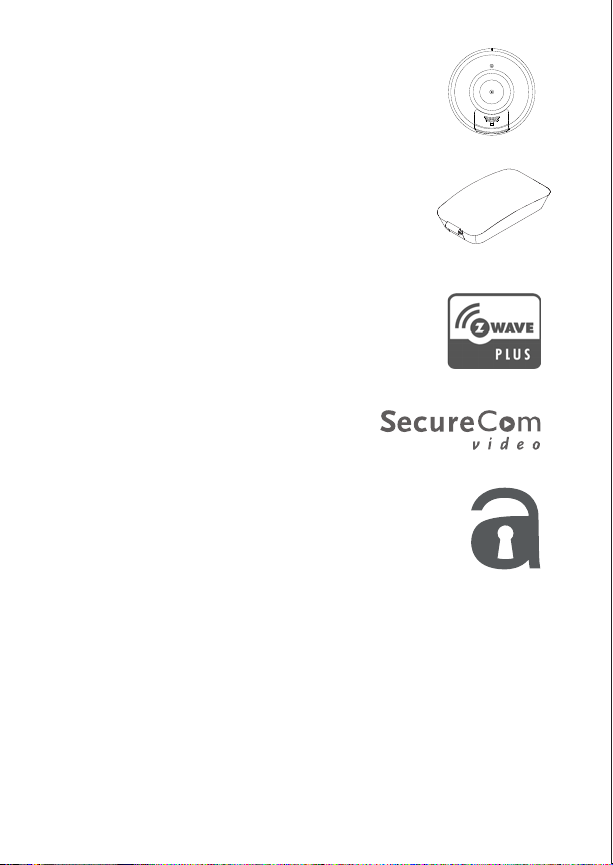
SecuraSmoke™
Your SecuraSmoke detector is a wireless sensor with
an integrated synchronized sounder.When installed in
groups, when one sounds, they all sound.
SecuraLight™
The SecuraLight comes on when an alarm is triggered
or activated by other system events, or by the app. It
provides emergency indoor-path lighting even when
the AC power is lost.
Z-Wave™
Z-Wave technology allows you to remotely control a
variety of devices. There are Z-Wave options for lights,
small appliances, garage door, thermostat, and locks.
SecureCom™ Video
With SecureCom Video, you can add wireless
cameras inside or outside your home and
record clips or view live video at any time.
SecuraMobile™ App
The SecuraMobile app allows you to control and
monitor your system on the go. The app is available for
Apple©and Android phones.
It is important to note that your system may not include all of the
equipment found in this guide.
HAVE QUESTIONS? GETSECURA.COM 3
HOW TO USE YOUR KEYPAD
DISARMED
Panic
Chime
Reset
Favorites
CURRENT
HI LO
98
98 77
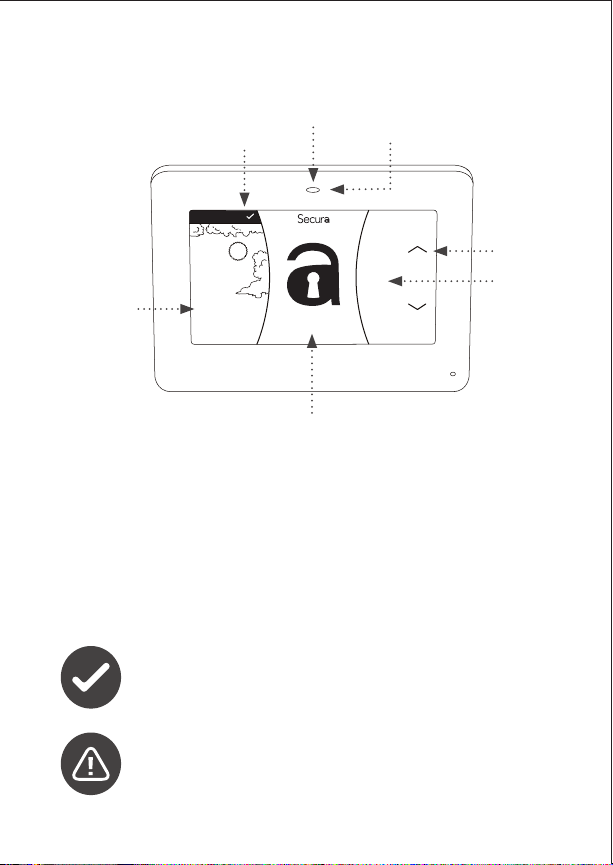
This guide will help you learn to use your SecuraTouch keypad,
your main interface when interacting with your system. During all
normal operation, your keypad’s home screen will display. Below are
descriptions of each of the areas on your home screen.
SYSTEM STATUS ICONS
A system status icon is located at the top of your home screen. The
following icons indicated the status of your system:
LOCAL
WEATHER
CAROUSEL
MENU
INTERACTIVE
LOCK
NAVIGATION
ARROWS
POWER/
ARMED LED
STATUS
ICON
System Ready to Arm
No check mark indicates that the system is not ready to arm.
A door or window may be open.
Attention List
When pressed, the attention list icon displays the
type of event or trouble message your hub has recorded,
along with the name and number of any aected zone.
PROXIMITY
CARD READER
4HAVE QUESTIONS? GETSECURA.COM
WEATHER
Your system has been programmed to provide local weather
information. Current weather conditions, as well as forecasted HI and
LOW temperatures, are available on the home screen.
SECURA LOGO
Press the Secura logo at the top of the keypad to bring up your security
provider’s contact information.
POWER/ARMED LED
The LED at the top-center of the keypad
indicates the keypad power
status and armed status of the panel. Depending on the operation, the
LED displays Red or Blue as listed in the table.
Color and Activity Armed Status Keypad Power Status
Blue Steady Disarmed AC Power OK, Battery OK
Blue Blinking Disarmed AC Power OK, Battery Fault
No Light Disarmed AC Power Fault, Battery OK
Red Steady Armed AC Power OK, Battery OK
Red/Blue Alternate Armed AC Power OK, Battery Fault
Red Blinking Armed AC Power Fault, Battery OK
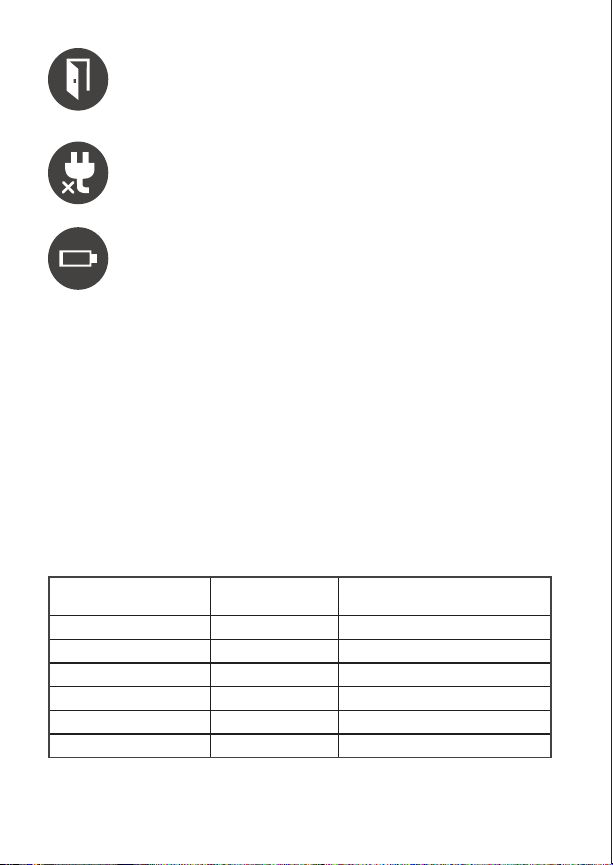
Chime On
A tone will sound each time a door or window is opened.
You can activate this feature in the Zone Monitor section of
the user menu. See Zone Monitor.
AC Power Trouble
Your system’s AC power supply is low or missing.
Battery Trouble
Your system’s battery is low or missing.

HAVE QUESTIONS? GETSECURA.COM 5
PROXIMITY CARD READER
Your keypad provides a built-in proximity card reader located behind
the Power/Armed LED for the ultimate in codeless arming/disarming.
INTERACTIVE LOCK
The interactive Lock allows arming and disarming from the home
screen. Your system may be programmed as either an All/Perimeter
system or as a Home/Sleep/Away system.
All
All arms both the perimeter and the interior of your
home. Use this when you are leaving the house and no
one will remain inside.
Perimeter
Perimeter arms just the perimeter of your home. Use
this when you are staying home, but would like your
exterior doors and windows to remain armed.
Sleep
Sleep arms the perimeter and a portion of the interior.
Bedrooms and nighttime parts of your home are left
unarmed, allowing you to access parts of your home during
the night. Other areas of the house that are not used at
night are armed.
Away
Away arms the perimeter, interior, and bedrooms. Use
this when you are leaving the house and no one will
remain inside.
Home
Home arms the perimeter of your home. Use this when
you are staying home, but would like your exterior doors
and windows to remain armed.
All/Perimeter
Home/Sleep/Away
Questo manuale è adatto per i seguenti modelli
7
Indice
Altri manuali Secura Sistema di sicurezza

Manuali Sistema di sicurezza popolari di altre marche


EDM
EDM Solution 6+6 Wireless-AE Manuale utente

Highway Safety Group
Highway Safety Group EA401 Manuale utente

Siren
Siren LED GSM Manuale utente

Detection Systems
Detection Systems 7090i Istruzioni per il montaggio

Se-Kure Controls
Se-Kure Controls MicroMini SK-4841 Manuale utente

Siemens
Siemens FDM273 Manuale utente