SecurityMan iCamDVR Manuale utente

iCamDVR User's Manaul
Easily turn Security camera
into a Internet Security WebCam!

2 | SecurityMan
Copyright Notice
This manual is furnished under license and may be used or copied only in ac-
cordance with the terms of such license. Except as permitted by such license ,
no part of this publication may be reproduced , stored in a retrieval system , or
transmitted , in any form or any means , electronic , mechanical . Recording, or
otherwise, including translation to another language or format, without the pri-
or written permission of SecurityMan. The content of this manual is furnished
for informational use only, is subject to change without notice, and should
not be construed as a commitment by SecurityMan. SecurityMan assumes no
responsibility or liability for any errors or inaccuracies that may appear in this
book. All other product names, trademarks and registered trademarks in this
document are the properties of their respective holders. FCC Information Notes
on FCC’s “Consistent Statement of Information”This product meet the require-
ments specied in Part 1 5 of FCC Regulation. Operation rests with the follow-
ing two conditions:
(1 ) The equipment should not cause any harmful interference .
(2 ) The equipment must receive and process any interference ,
Including any possible interference caused by operation
Mistakes .
Warranty
SecurityMan warrants this product will be free from defects in materials and
workmanship for period of time specied on the product packaging. This
limited warranty shall commence from thedate of purchase. SecurityMan
Products warranty is not transferable and is limited to the original purchaser.
If the product is found to be defective then, as your sole remedy and as the
manufacturer’s only obligation, SecurityMan will repair or replace the product.
This warranty shall not apply to products that have been subjected to abuse,
misuse, abnormal electrical or environmental conditions,
normal wear and tear or any condition other than what can be considered
normal use.
Limitation of Liability
The liability of SecurityMan arising from this warranty and sale shall be limited
to a refund of the purchase price. In no event shall SecurityMan be liable for
costs of procurement of substitute products or services, or for any lost prof-
its, or for any consequential, incidental, direct or indirect damages, however
caused and on any theory of liability, arising from this warranty and sale. These
limitations shall apply not withstanding any failure of essential purpose of any
limited remedy. 7
SecurityMan
4601 E. Airport Drive, Ontario, CA 91761, USA
Tel: 888-977-3777 or 909 -230-6668
Fax: 909-230-6889
Website: http://www.securitymaninc.com
Copyright 2008 by SecurityMan v4.0

3 | SecurityMan
TABLE OF CONTENTS
Introduction
iCamDVR product features
System Requirements
iCamDVR Specications
Hardware Basic
iCamDVR
Windows Vista Driver Software Installation
Windows Vista Driver Software Uninstall
Windows 2000/XP Driver Software
Main Display Interface
Display Control Panel
Quick Channel Display Switch
Login
Record Status Panel
Manual Record Mode
Schedule Record
Motion Detection Record Mode
Recycling Record
System setups
Basic Conguration Panel
4
6
7
8
8
12
13
14
14
15
15
15
16
16
16
17
19
21
22
22
22
22
22
22
22
23
23
23
23
23
25
26
26
27
27
27
27
28
30
31
31
Record Setup Panel
Time Stamp
Switch
Manual Record
Manual Record Frame Rate
Schedule Record
Schedule Record Frame Rate
Motion Detection
Motion Record Frame Rate
Camera Security
Record Quality
Audio In
Schedule conguration Panel
Video ProAmp Panel
Motion Detection conguration Panel
Alarm Conguration Panel
Disk Shortage Alarm
Pre-Alarm Record
Motion Holding Time
Alarm Output Function Conguration
Auto Mail Alarm Function Conguration
Emap Function Conguration
Emap Edit
To view the Emap

4 | SecurityMan
33
34
34
36
38
42
43
46
47
48
48
50
50
52
52
56
56
57
P.T.Z Conguration Control Panel
Relative Denitions
Serial Ports Setting
User Conguration Panel
PAN/TILT/ZOOM Control
Pan/Tilt/Zoom Control
Search and Playback Panel
Record Search
Record Playback Control
Backup Record Files
Delete Record Files
Capture Picture
Print & Print Setup
Image Zoom In / Out
Remote Surveillance & Playback
Remote Live Surveillance
Remote Client Setup
WebCam Installation
RPB (Remote Playback)
RPB Set up
RPB(Remote Playback) Client Setup
RPB Login
Using RPB (Remote Playback)
Mobile Surveillance
Symbian 60 Series Connection
Frequently Asked Questions
Installation Q & A
SuperDVR Q & A
Network Q &
Other Q & A
Troubleshooting
System requirements for iCamDVR & Remote
Client Computers
Installation Instruction:
Troubleshooting
Setting up Remote Client Computer for
WebCam & RPb
Function Tree
SuperDVR
Cong
WebCam
Remote Playback
60
61
64
66
69
69
71
73
76
76
77
77
79
80
81
81

4 | SecurityMan
INTRODUCTION
Thank you for choosing iCamDVR!
The iCamDVR system is a 4 channel USB Internet camera
and DVR adapter which implements MPEG4 compres-
sion format and enables 4 channel real-time/time-laps
surveillance. iCamDVR has a powerful compression rate
and other network features in which synchronous audio/
video compression transmission. It is widely used in banks,
intelligent communities, trac management units, medi-
cal department buildings, educational buildings, armed
forces, etc. iCamDVR is the state of the art and cost-eec-
tive products that is your ideal choice.
This user’s manual will cover a wide range of features,
functionality and software usage which includes hardware
and driver installation. Please make sure to follow the
procedure as instructed in this manual accordingly. Proper
setup and knowing your product’s ability can keep this
digital surveillance system running more eciently.
iCamDVR product features:
Schedule Record Mode•
Choose any time in a day of the week to setup sched-
ule recording. Schedule recording will automatically
start to record when the scheduled set time is reached.
Motion Detection Mode•
Motion detection area and motion sensitivity level is
adjustable. Each of the 4 channels is independently
operated. Motion detection sensitivity level can be ad-
justed for each signicant channel. The system begins
to record when the camera(s) detects motion or mov-
ing objects and the system will stop recording after a
period of time, this period of time is adjustable in the
motion setup of SuperDVR.
Recycle Record Mode•
The record storage can be selected from the sequence
list of hard drives/partitions detected by SuperDVR
under Basic Congurations on the hosting computer.
If multiple volumes or drives are selected, the record
storage will automatically goes to the next drive/parti-
tion when it is full. If all the partitions are full then the
recycling record mode will take eect, the oldest re-
corded data will be overwritten by new data. Hard disk
minimum space detection will trigger the alarm buzzer
if storage space is less than the minimum storage set.
The alarm buzzer is active only if the recycle recording
is set as inactive.
P.T.Z Control•
Control multiple speed domes and integrative cam-
eras, including pan, tilt, zoom, focus, iris adjustment,
and preset point/auto scout for P.T.Z devices. Sup-
ported protocols are Null, Lilin, Minking, Neon, Pelco-D,
Pelco-P, Star, Vido, and VISCA.

5 | SecurityMan
Advanced search modes; search by date/time, camera,•
record mode, or a random combination of all three
modes.
Supports recorded le backup, delete by date/time or•
by camera.
Convenient to add system capabilities via software•
upgrades.
Low CPU/Storage resources usage utilizing advanced•
technology/compression.
Remote Surveillance and P.T.Z control through Intranet•
and Internet.
Pre-Alarm recording, buzzer alarm, email alarm out.•
Can greatly decrease fragmented les while use NTFS•
partition.
User-friendly graphic interface.•
Users Management•
There are 3 level of users privileges; Administrator,
Power Users, and Normal Users. Dierent users have
dierent rights to ensure system security and acces-
sibility.
Multi-Channel Display•
Support dierent multi-channel display mode, full
screen display and auto dwell display.
Watch Dog Function•
In case SuperDVR driver or windows system froze or
lock up, the watchdog feature will automatically restart
the computer and automatically login to SuperDVR
system.
One iCamDVR to a PC, the maximum frame rate can•
reach 30 fps with 4 channels.
Supports 320x240 / 640x480 (NTSC) and 352x288•
standard resolutions.
Each channel has independent color, contrast,•
brightness, hue, and saturation adjustment.
MPEG4 compression format greatly reduces HDD•
usage.
Video playback function includes pause, stop, fast-for-•
ward, frame-by-frame and image snapshot.

6 | SecurityMan
System Requirements
iCamDVR MinimumSystem Requirements:
Table1.
We recommend Intel motherboards, chipsets and CPUs or
other equivalent system components similar to the system
requirements. The following are other motherboards, chip-
sets and CPUs that are known to be compatible:
System Mother-
board
CPU Memory Video Card
1ASUS
P5GD2-X
915
Intel P4-640
3.2GHz
1.0GB nVIDIA Ge-
Force 6600GT
2ASUS
MZN32
( nVidia
nForce
590SLI)
AMD
Athlon(tm)
64_2 3800+
512MB nVIDIA GE-
FORCE 7600
3GA-
K8VT890
(VIA
K8T890 )
AMD
Athlon(tm)
64 3000+
512MB Rad EON
X1600
4WinFast
760G
_Sis
760GX_
AMD Sem-
pron 3000+
256MB Sis Mirage
5ASUS
K8N4
(nVidia
Force4)
AMD Sem-
pron 3000+
512MB WinFast
PX6600LE
Table 2 - iCamDVR System Requirements
Type
PC Module
iCamDVR
CPU Intel P4 Celeron Processor 1.7GHz
Motherboard Intel 845/865/915 series
HDD 80GB Free
RAM 256MB
VGA GeForce2_GeForce4_FX5200_ATI Rage128
OS Windows 2000 SP4, 2003 SP1, XP SP2, and
Vista
DirectX 9.0 or above
USB 2.0
Table 1 - iCamDVR System Requirements

7 | SecurityMan
iCamDVR Specications
Video format: NTSC/PAL (selectable).•
Resolution: 320x240/ 640x480(NTSC), 352x288/ /•
704x576(PAL).
Maximum frame rate per channel: 30 ftp (NTSC) 4•
channels; 7.5fps each channel (option), 25 fps (PAL) 4
channels; 6.25fps each channel.
Screen set: resolution 1024_768, color quality 16 bits or•
32 bits
Video Resolution: 320x240 or 640x480 (NTSC)•
Compression code rate: 50kbps – 1.2Mbps•
Compression format: MPEG4•
4 x RCA Video Input•
2 x Audio Input Channel (select one)•
Video Output: USB 2.0 (to PC)•
Recorder Media: HDD, USB Disk, CD-RW•
Record Mode: Motion, Sensor, Schedule, Manual•
Network Protocol: TCP/IP•
PTZ Protocol: Null, Lilin, Minking, Neon, PelcoD, PelcoP,•
Star, Vido, and VISCA
Remote software: WebCam & RPB (Remote Playback)•
software from Internet Explorer Web Browser.

Figure 3 - iCamDVR Installation
8 | SecurityMan
Windows Vista Driver Software Installation
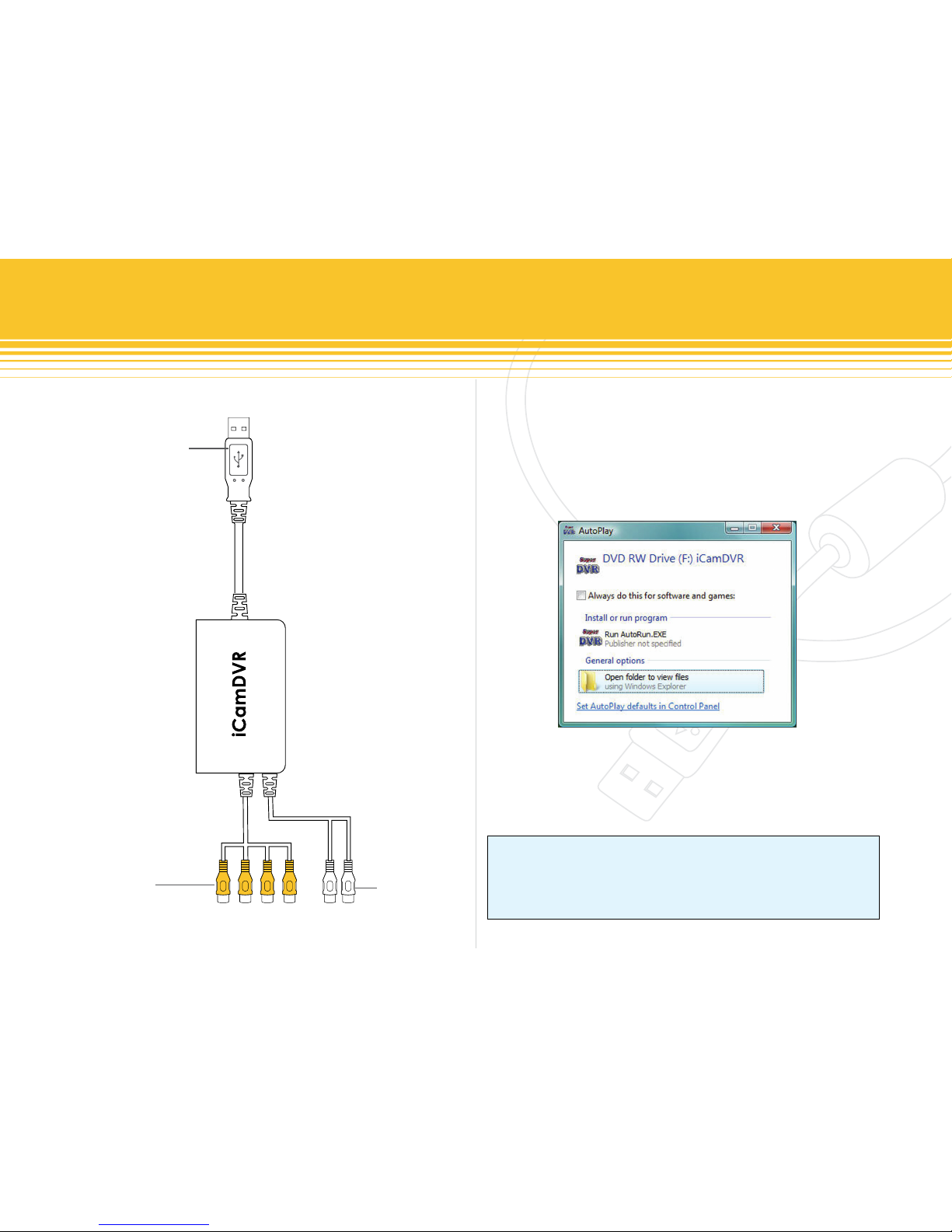
Plug in iCamDVR hardware to the computer via USB2.0
port. Insert the auto run CD into the CD/DVD ROM tray to
automatically install the driver software and the following
windows will appear:
NOTE
If the CD is inserted and the auto run does not execute please
go into the CD directory into a folder called “Install” and simply
click on “SETUP.EXE” and the installation process will begin.
Select and click on “Install or run program” to continue
installation.
iCamDVR
HARDWARE BASIC
USB Connection
Video InputsAudio Input
Figure 2 - iCamDVR

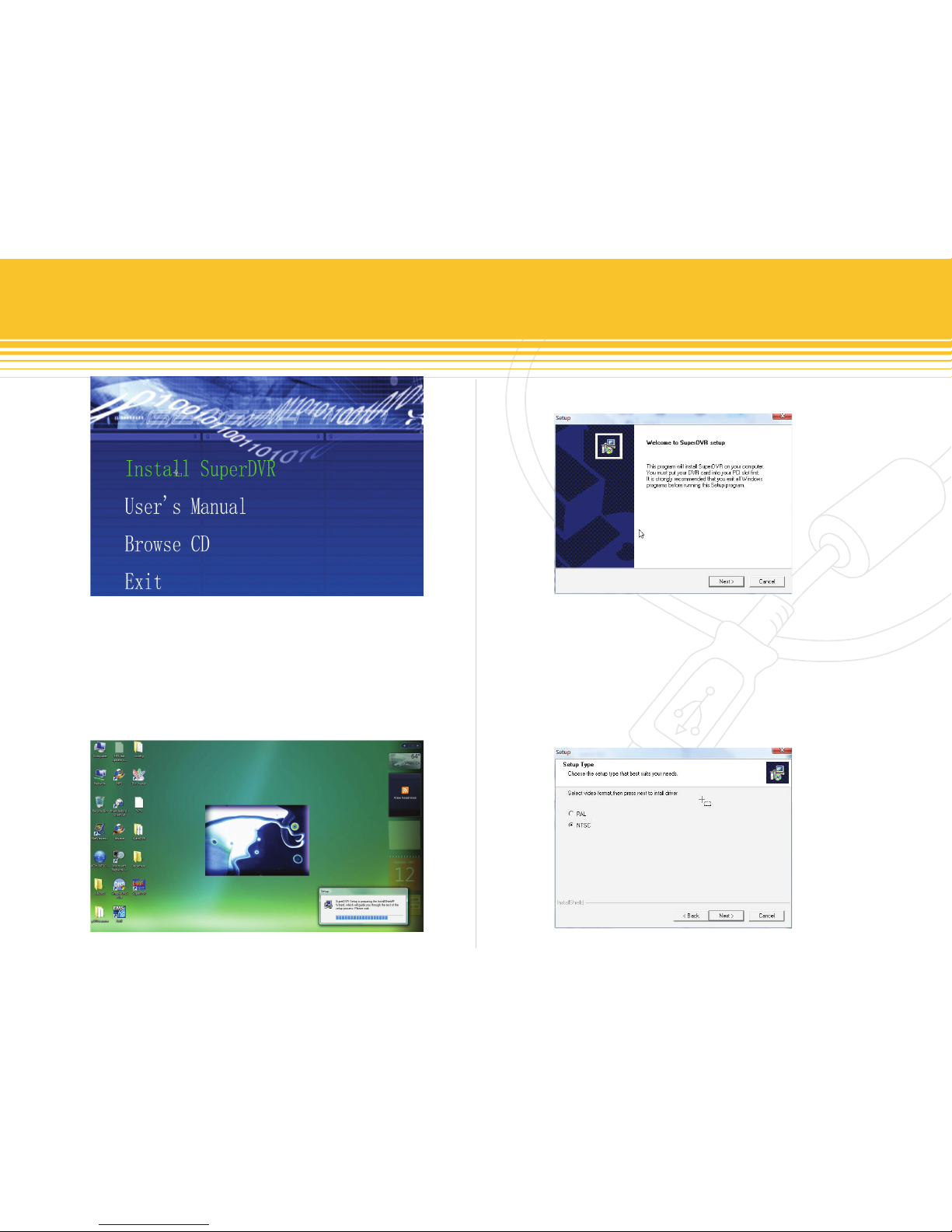
Figure 6 - Welcome Page
Figure 7 - Select Video Format
Figure 5 - Automatic
Figure 4 - Installation Selection
9 | SecurityMan
Click “Next” to proceed.
Setup Type windows Select to setup “NTSC or PAL” video
standard, for U.S customers and other NTSC countries se-
lect NTSC and the click “Next” to continue setup. All other
than NTSC countries select PAL and then click “Next” to
continue setup.
Next click on “Install SuperDVR” and the installation
process start with User Account Control windows, please
select “Cancel” to quite installation or “Allow I trust this
program. I know where it’s from or I’ve used it before.”
to continue installation as illustrated below.
Altri manuali per iCamDVR
1
Indice