
Shelly RGBW 2 Manuale utente


VERSION FW3
Table of Contents:
• Connect Device to your Home WIFI Network
• Connecting Accessories to the HomeKit
• Entering Setup Mode
• Change WiFi Network
• Reconnecting to WiFi Network
• Reset HomeKit ID
• Remove WiFi Settings
• Saving Changes
• Factory Reset
• Questions and Answers?
• Specifications
Device Connection
WWW.VOLTIO.CZ
SHELLY RGBW 2
2

VERSION FW3
Connect Device to your Home WIFI Network
After connecting the switch to power, the switch can be toggling
manually using the button on the top of the cover. To be able to
operate the switch remotely, we must first connect it to the
home wifi network. The picture below shows that Shelly creates
its own wifi network.
1. Go to your wifi network settings on your mobile device
(iPhone, iPad or MacBook).
2. Select the device with SSID VOLTIO-XXXXXX (where
XXXXXX are the last six characters of its MAC address).
3. Select login to the wifi network in which HomeKit will be
used and enter the appropriate password.
Note: If you have multiple routers in your home, you only
need to leave one on for the entire time that the device is
logged on to the network and HomeKit.
WWW.VOLTIO.CZ
SHELLY RGBW 2
3
Crypto services s.r.o.
VERSION FW3
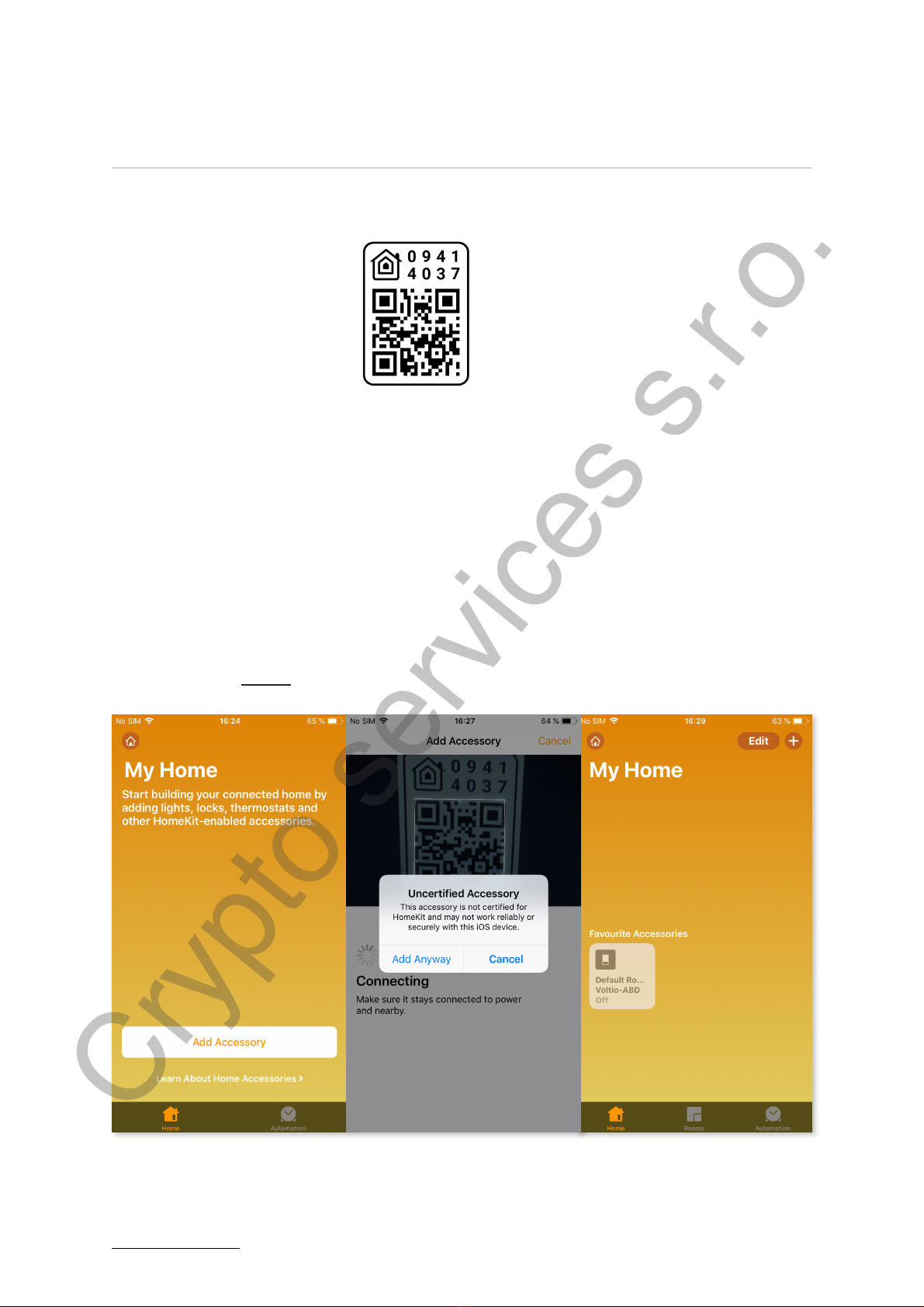
Connecting Accessories to the HomeKit
1. Open the Home app and select the Add Accessories button
2. Scan the code:
3. If you cannot scan the password, select “I cannot scan” next
“Enter Code” and enter the password: 094-14-037
4. Select accessories VOLTIO-XXXXXX
5. After a while (approx. 30 seconds), a switch will appear in
the HomeKit.
6. If you cannot add your device to HomeKit because you don’t
see it in available devices, unplug it and plug it in after a
while. If this does not help, reset the switch to the factory
settings here.
WWW.VOLTIO.CZ
SHELLY RGBW 2
4
Crypto services s.r.o.

VERSION FW3
Entering Setup Mode
To put the switch to setup mode, you have to choose one of
two following options.
1. In the Home App, you quickly toggle the switch status 10
times in a row.
2. You physically press the switch button 10 times in quick
succession.
Then the LED on the switch blinks three times to indicate that
you have entered the setup mode.
It will not be possible to enter the setup mode if the device sees
the original WiFi network to which it was connected, so it is
necessary to turn off the original WiFi network to enter the
setup mode.If the device is in the setup mode and connected to
WiFi, it is possible to connect to it via an Internet browser
through its IP address.
Emergency Setup Mode:!If a device has its power cut off or
freezes within 3 seconds of booting, next time it boots it will go
directly to setup mode.
Change WiFi Network
The setup mode page displays a list of WiFi networks within
the range of the device. The list can be refreshed by clicking on
the!⟲WiFi Networks!button. If you want to change the network
you must enter the Setup Mode, then select one of the
available networks and enter the network password when
requested.
If your SSID is hidden then you can enter its details manually
by clicking on the!Enter SSID manually!button. You will then be
prompted to enter an SSID and a password. Make sure you
enter both correctly.
WWW.VOLTIO.CZ
SHELLY RGBW 2
5
Crypto services s.r.o.

VERSION FW3
Reconnecting to WiFi Network
If the WiFi network becomes unreachable, the device will
continually retry its connection until it becomes available again.
Reset HomeKit ID
If you remove the device from the Home app, you must check
the Reset HomeKit ID box in Setup mode.
Setting this option resets the HomeKit ID used by the device
when you press it, and then press the Save button.
When making changes to a device that requires the HomeKit ID
to be reset follow this procedure:
1. Remove your device from the Home App
2. Turn Off Your WiFi Network
3. Enter Setup Mode on the device
4. Select!Reset HomeKit ID
5. Turn On Your WiFi Network
6. Select!Connect
7. Pair the device with your Home App again.
WWW.VOLTIO.CZ
SHELLY RGBW 2
6
Crypto services s.r.o.

VERSION FW3
Remove WiFi Settings
You can remove any currently saved WiFi settings by enabling
the!Remove WiFi Settings!option and then clicking!Save. The
device will remove any previously stored SSID and password
and then reboot. As no WiFi settings will be available on reboot
the device will immediately enter!Setup mode.
When making changes to a device that requires Remove WiFi
Settings follow this procedure:
1. Remove your device from the Home App
2. Turn Off Your WiFi Network
3. Enter Setup Mode on the device
4. Select!Reset HomeKit ID
5. Select!Remove WiFi Settings
6. Connect to a new WiFi network
7. Select!Connect
8. Pair the device with your Home App again.
Saving Changes
Clicking!Save!will save any changes you have made while in
setup mode, apply them and reboot the device to use them.
WWW.VOLTIO.CZ
SHELLY RGBW 2
7
Crypto services s.r.o.

VERSION FW3
Factory Reset
To reset the device to the factory settings
follow these steps:
1. Turn Off WiFi Network
2. Enter setup mode
3. Reset HomeKit ID
4. Remove WiFi Settings
5. Save Changes
Questions and Answers?
• What to do when I have a device connected and can't see
its WiFi network?
If you have properly connected the device to the power
supply and you do not see its WiFi network, reset the device to
the factory settings.
• I've connected my device to Wifi and can't see it on
devices that I can add in the Home app?
Make sure you have connected the device to the same
WiFi network on which you want to run HomeKit. If the device is
not connected to the same WiFi network, it will not appear on
devices that you can add to the Home app.
Recommendation: If you are running multiple routers in your
home, leave only one device turned on and turn off the others.
Even though the device appears to be a single WiFi network, it
can cause you a problem connecting the device.
WWW.VOLTIO.CZ
SHELLY RGBW 2
8
Crypto services s.r.o.

VERSION FW3
• How do I make sure my device is properly connected to
the WiFi network?
If you are sure that you selected the correct network and
entered the correct password when WiFi is logged in, the
device will no longer appear as an AP access point and you
should not see its SST VOLTIO_XXXXXX in the available WiFi
networks.
• Does the 5 GHz WiFi switch work?
Unfortunately it does not work. When pairing devices to
WiFi, it is necessary to have 5 GHz WiFi switched off on the
router to which you are connecting for trouble-free pairing.
Specifications
Input Voltage range: 12-24 V DC
Output Power (12 V): 144 W / 45 W/ gang
Output Power(24 V): 288 W / 90 W/ gang
Output: RGB or RGBW
Dimensions: 43 x 38 x 14 mm (L x W x H)
Enclosure Material: Fire-retardant ABS V0
Humidity: 5%-90% RH, Non-condensing
Wireless Standard: 802.11 b/g/n
Security Mechanism: WPA-PSK/WPA2-PSK
Operating Temperature: 0ºC-40ºC (32°F-104°F)
Color: Yellow
Gang: 4
Contact
If you have any questions contact us on e-mail:
For a faster response to queries, use our messenger:
m.me/voltio.cz
WWW.VOLTIO.CZ
SHELLY RGBW 2
9
Crypto services s.r.o.
Indice
Altri manuali Shelly Interruttore


