Smanos K2 Manuale utente

smanos K2 Smart Hub
The DUT (K2 hub) is a security enabled Z-Wave Plus product that is able to use
encrypted Z-Wave Plus messages to communicate to other security enabled Z-Wave
Plus products.
Please refer to K2 Smart Hub User manual for details to configure the Wi-Fi
connection before using the K2 Hub.
Contents
1. Install the DUT (smanos K2 Smart Hub) ..................................................................2
1.1. Download the “smanos home” App.................................................................2
1.2. Sign Up/In........................................................................................................2
1.3. Setup the K2 Smart Hub..................................................................................2
2. Certification Product Documentation........................................................................3
D.2 Controllers - Inclusion / Exclusion .........................................................................3
I. Inclusion:.............................................................................................................3
II. Exclusion:...........................................................................................................4
From Z-Wave network:...........................................................................................4
From controller’s memory......................................................................................5
D.3 Controllers – Replication........................................................................................5
D.4 Controllers – Learn Mode.......................................................................................5
D.5 Controllers - Including the DUT.............................................................................5
D.6 Controllers - Basic Documentation.........................................................................6
D.12 Documentation related to BASIC commands.......................................................6
D.13 Documentation for Factory Default Reset............................................................6
D.17 Documentation for S2 Security CC ......................................................................7
1.1.2 to remove the failed node:.....................................................................................7
1.2 to replace the failed node:........................................................................................8
II. Device Attribute........................................................................................................9

1. Install the DUT (smanos K2 Smart Hub)
1.1. Download the “smanos home” App
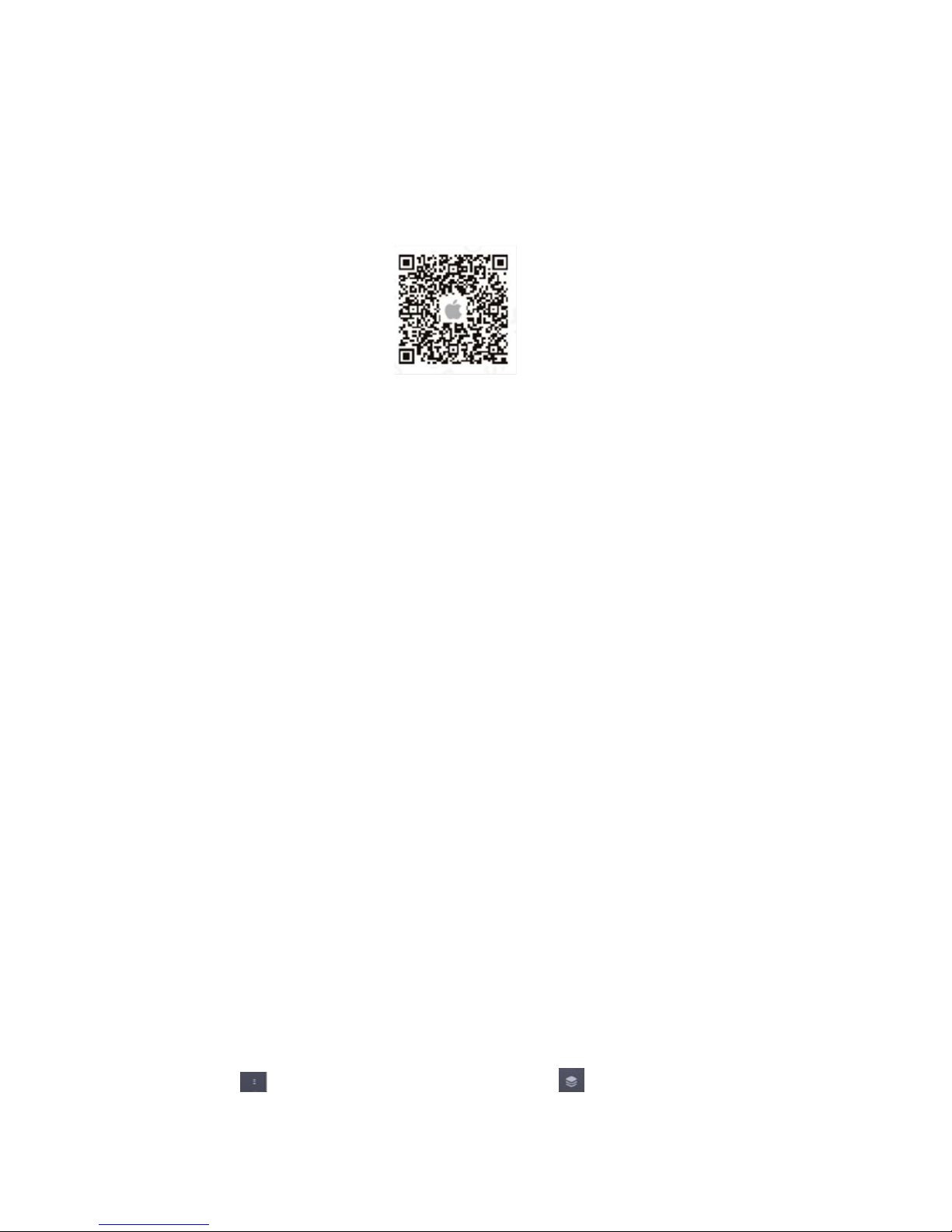
You can search “smanos home” inApp Store or scan the QR codes as below.
1.2. Sign Up/In
If you have not registered an account with smanos, please press “Sign up” just below
the “Sign in” icon on the app, and follow the instructions to create your account first.
If you do not receive an account verification code in your email inbox during the
registration process, please remember to check your spam/junk folder and make sure
the notice has not been blocked by your service provider.
Once you have an account with us, please select the “Sign in” icon and enter your
email address and password to log in.
Press the “+” button on the Device List. Tap on [K2 Smart Hub], then follow the
configuration steps to set up your K2 Hub with your home Wi-Fi.
1.3. Setup the K2 Smart Hub
1. Plug the power adapter into a wall socket and into the K2 Hub, slide the Power
Switch from OFF to ON, wait until the white light flashes blue.
2. Connect the K2 to Your Smartphone
Use the Pin to press the Wi-Fi Configuration Button 3 seconds, the light flash red and
blue alternately.
3. Go to your phone’s Wi-Fi settings, look for and select "smanos K2" hotspot to
connect your mobile to the Hub. When connected, return to your “smanos home” app.
4. Enter Wi-Fi Details for Your K2 Smart Hub Select your 2.4GHz Wi-Fi network
from the display list, and enter the Wi-Fi network password. The Hub will connect to
the selected Wi-Fi network. This binding process should take about one minute.
5. When a successful connection is established, the indicator will stop blinking. Now,
your smanos K2 Hub is successfully set, enjoy a smart and secure life!
2. Certification Product Documentation
D.2 Controllers - Inclusion / Exclusion
I. Inclusion:
1. Click [ ] icon on the up-right corner and select [ ] icon to enter the interface

of the accessories list.
Click “+” icon on the up-right corner (of the accessories list page) to enter the device
selection page.
2. Press the “Z-Wave Products” and “START INCLUSION” to add the Z-Wave
device.
* The list (from Keypad to Glass Break Detector) is for adding the proprietary RF
devices.
3. Press the "INCLUSION " button to enter the add mode.
①The DUT is waiting for adding the device. LED flashing in red, green and blue.
②Set the Z-Wave device into the adding mode according to its manual.
③The DUT will start the inclusion process and device configuration. Successful
inclusion and configuration will be confirmed by “User defined name and location”
message. The device LED lights stop blinking.

II.Exclusion:
Deleting the device will remove it from both the Z-Wave network and the controller’s
memory.
From Z-Wave network:
1. Click [ ] icon on the up-right corner and select [ ] icon to enter the interface
of the accessories list.
2. Click on the room (Location) where the device is installed.
3. Click "door 1" and slide to the left, then the delete button appear.
4. Click the " " button, and then click the "YES" button in the pop-up box, the
DUT enters the delete mode, waiting to delete the accessory.
①Set the Z-Wave device into the learn mode according to its user’s manual.
②The DUT will start the process of exclusion and removing from controller’s
memory.
③If the device is deleted successfully, then the "Reminder" message box will be
closed.

From controller’s memory
1. Click [ ] icon on the up-right corner and click on the [ ] icon into the "Setting"
interface.
2. Click "Delete Z-Wave" Device into the delete mode, and the device can be
removed from the learning mode.
D.3 Controllers – Replication
When the DUT adds a controller to the network, the replication of the network
information from the DUT to another controller is initiated.
D.4 Controllers – Learn Mode
1. Click [ ] icon on the up-right corner and click on the [ ] icon into the "Setting"
interface.
2. Click the "Connect the DUT to Other Controller", and the DUT enters the "Learn
mode" mode.
The DUT will terminate the learning mode if the connections are not completed in
certain time.
D.5 Controllers - Including the DUT
1. Click [ ] icon on the up-right corner and click on the [ ] icon into the "Setting"
interface. (ref. D.4)
2. Click the "Connect the DUT to Other Controller" button, and the DUT enters the

"Learn mode" mode.
The DUT will wait for other controllers to add for inclusion.
D.6 Controllers - Basic Documentation
If the DUT receives a basic command, it will not do anything.
D.8 Devices from multiple manufacturers in one network
The DUT can be operated in any Z-Wave network with other Z-Wave certified
devices from other vendors.
All non-battery operated nodes within the network will act as repeaters regardless of
vendor to increase reliability of the network.
D.9 Documentation forAssociation CC
1. Grouping identifier:1 ;
2. Maximum number of devices that can be added to the group:1
3. Description of how the association group is used and / or triggered by the
product:①W hen the DU T is added to the network, it’s group 1 needs to be set
"lifeline".
②When the DUT is added to the network by a controller,
"COMMAND_CLASS_DEVICE_RESET_LOCALLY" is sent to the controller via
"lifeline" when the DUT returns to factory settings.
D.12 Documentation related to BASIC commands
The DUT will control the added “unknown’devices via Basic Set on/off.
The value of basic set on is “0” while the basic set off is “0xff”.
D.13 Documentation for Factory Default Reset
Note: If this controller is the primary controller for your network, resetting it will
result in the nodes in your network being orphaned and it will be necessary after the
reset to exclude and re-include all of the nodes in the network. If this controller is
being used as a secondary controller in the network, use this procedure to reset this
controller only in the event that the network primary controller is missing or
otherwise inoperable.
1. Click [ ] icon on the up-right corner and click on the [ ] icon into the
"Setting" interface. (ref. D.4)
2. Click the "Reset Z-Wave Module" button and a pop-up box will be displayed.

3. Click "Reset" and the DUT will start restoring factory settings of the Z-Wave
module.
4. Click "Cancel" and the DUT will cancel the restoring factory settings.
D.17 Documentation for S2 Security CC
D.19.1 How to activate any functionality available in the device
related to Z-Wave behavior.
I. Click [ ] icon on the up-right corner and click on the [ ] icon into the
"Setting" interface. (ref. D.4)
To delete Z-Wave Device:
Click "Delete Z-Wave Device", the DUT enters to the delete mode and is waiting for
the selected device enters to the learning mode.
To remove the failed node:
Click "Aborted Device Management", and the DUT enters the failed node
management page.
1. Click " " and then "Delete" in the pop-up box to remove the failed node.

2. Click " " and then "Cancel" in the pop-up box to cancel removing the failed
node.
To replace the failed node:
Click "Aborted Device Management", and the DUT enters the failed node
management page.
1. Click " " and then "Continue" in the pop-up box to replace the failed node.
After the DUT enters the Add mode, set the accessory to be added to the learning
mode.
2. Click " " and then "Cancel" in the pop-up box to cancel replacing the failed
node.
Click "Send NIF” to broadcast NIF.
Click “Network Management Password” for password modification and acquisition.

1. The initial password of DUT’s network management is ‘111111’, the effective time
is 5 minutes each time. After 5 minutes, it needs to re-enter the password.
2. Click 'Change Z-Wave Password', the password can be modified to enter the old
password once and new password two times.
3. Click 'Forgot Z-Wave Password' to enter the password acquisition interface. Enter
the main account and password to get the current network management password.
II. Device Attribute
1. Click [ ] icon on the up-right corner and select [ ] icon to enter the interface
of the accessories list. (ref. D.2)

2. Select the Z-Wave device and enter the attribute page.
Indice
Altri manuali Smanos Interruttore


