
SMART HAWM-UX Manuale utente

Integration and
Cabling Guide
HAWM-UX/UF
HeightAdjustable Wall
Mount

Product Registration
If you register your SMART product, we’ll notify you of new features and software
upgrades.
Register online at www.smarttech.com/registration.
Keep the following information available in case you need to contact SMART
Technical Support.
Serial Number: ___________________________________________________
Date of Purchase: ___________________________________________________
FCC Warning
This equipment has been tested and found to comply with the limits for a Class A digital device, pursuant to Part 15 of the
FCC Rules. These limits are designed to provide reasonable protection against harmful interference when the equipment is
operated in a commercial environment. This equipment generates, uses and can radiate radio frequency energy and, if not
installed and used in accordance with the manufacturer’s instructions, may cause harmful interference to radio
communications. Operation of this equipment in a residential area is likely to cause harmful interference in which case the
user will be required to correct the interference at his own expense.
Trademark Notice
SMART Board, smarttech, the SMART logo and all SMART taglines are trademarks or registered trademarks of SMART
Technologies ULC in the U.S. and/or other countries. HDMI is a trademark or registered trademark of HDMI Licensing LLC.
Phillips is a registered trademark of Phillips Screw Company. All third-party product and company names may be
trademarks of their respective owners.
Copyright Notice
©2010 SMART Technologies ULC. All rights reserved. No part of this publication may be reproduced, transmitted,
transcribed, stored in a retrieval system or translated into any language in any form by any means without the prior written
consent of SMART Technologies ULC. Information in this manual is subject to change without notice and does not
represent a commitment on the part of SMART.
Patent No. US5448263; US6141000; US6320597; US6326954; US6337681; US6540366; US6741267; US6747636;
US7151533; US7289113; US7499033; US7626577; US7687736; USD602972; CA2058219; and CA2252302. Other
patents pending.
09/2010

Contents
1Best practices for placing cables on a Height-Adjustable Wall Mount .................. 1
2Cabling a SMART Board 685ix or D685ix interactive whiteboard system to your
SMART Height-Adjustable Wall Mount-UX/UF ..................................................... 5
Cabling a SMART Board 685ix or D685ix interactive whiteboard system ...... 5
Mounting your HAWM-UX/UF mobility switch .......................................... 5
Placing cables for HAWM-UX/UF-mounted components......................... 7
Placing cables for other components ..................................................... 13
3Cabling a SMART Board 600i4 or D600i4 interactive whiteboard system to your
SMART Height-Adjustable Wall Mount-UX/UF ................................................... 19
Cabling a SMART Board 600i4 or D600i4 interactive whiteboard system.... 19
Mounting your HAWM-UX/UF mobility switch ........................................ 20
Placing cables for HAWM-UX/UF-mounted components....................... 22
Placing cables for SBA-L speakers ........................................................ 24
Placing cables for other components ..................................................... 26
4Cabling a SMART Board 600i3 or D600i3 interactive whiteboard system to your
SMART Height-Adjustable Wall Mount-UX/UF ................................................... 33
Cabling a SMART Board 600i3 or D600i3 interactive whiteboard system.... 33
Mounting your HAWM-UX/UF mobility switch ........................................ 34
Placing cables for remotely mounted components................................. 36
Placing cables for SBA or SBA-L speakers............................................ 46

ii | –

Chapter 1
Best practices for
placing cables on a
Height-Adjustable
Wall Mount
Your SMART Height-Adjustable Wall Mount (HAWM-UX/UF) is an easy-to-adjust
platform for connecting the components of your SMART Board™ interactive
whiteboard system. However, placing cables on your HAWM-UX/UF requires care and
attention. The HAWM-UX/UF enables you to operate your interactive whiteboard
system at multiple levels, depending on your users’ comfort, access and personal
height needs. Some equipment that you connect to your HAWM-UX/UF isn’t movable
and can pose a risk of cable damage, unless you take special precautions. By
carefully examining the lengths of cable you need to install your system components
and by following this guide, you can ensure trouble-free installation and years of safe
operation.
If you’re connecting your HAWM-UX/UF to a SMART Mobile Height-Adjustable Floor
Stand (FS-UX), see the FS-UX Height-Adjustable Floor Stand Installation and
Integrator’s Guide (smarttech.com/kb/147510) for additional instructions.
Use the following best practices when placing cables for any type of interactive
whiteboard system mounted on a HAWM-UX/UF-mounted. These best practices
make installing peripheral devices to your interactive whiteboard system easier,
improve the safety and security of your system and prevent damage to your devices.

2 | CHAPTER 1 – BEST PRACTICES FOR PLACING CABLES ON A
HEIGHT-ADJUSTABLE WALL MOUNT
• Don’t mount your HAWM-UX/UF in the way of power outlets or cable locations. If
a power outlet or cable crosses the HAWM-UX/UF’s path of travel, it can result in
a broken power supply or cable damage.
• If you need to attach a peripheral device, guest computer or laptop to the projector
system, make sure that the cable is long enough so that the laptop or peripheral
isn’t pulled by the HAWM-UX/UF at its lowest or highest height.
• Mount your peripheral devices to a permanent location near the HAWM-UX/UF. If
the peripheral device moves or can move, it can cause cable strain if the device is
moved too far from and interferes with the HAWM-UX/UF.
• Cables supplied by SMART for connecting your projector to the extended control
panel (ECP) or interactive whiteboard are long enough to accommodate the
additional distances your HAWM-UX/UF requires. You might need longer cables
to attach your interactive whiteboard system to your computer or to other
peripherals.

3 | CHAPTER 1 – BEST PRACTICES FOR PLACING CABLES ON A
HEIGHT-ADJUSTABLE WALL MOUNT
• Before customizing or buying cables, assess your installation location and
peripheral connection options and carefully measure the distance between your
devices and their connection locations on the interactive whiteboard system.
Measure the distances at the HAWM-UX/UF’s lowest and highest height, and use
the greater number as your minimum cable length.
– Make sure there is enough slack in your cables to minimize cable strain.
– When measuring the minimum cable length make sure there are no
obstructions in the cable’s path. A rising or descending cable can catch on an
obstruction unless the cable is properly secured out of the way of the
obstruction.

4 | CHAPTER 1 – BEST PRACTICES FOR PLACING CABLES ON A
HEIGHT-ADJUSTABLE WALL MOUNT
– Before placing cables, note the heights and locations of cable access points
(such as cable tray access hatches, ethernet ports and power outlets) and
restrictions in the room, and note alternative routing options. If you can, move
the HAWM-UX/UF closer to these sources.
– To prevent a tripping hazard, bundle or use cable-ties and cable management
clips on excess cabling, and place the cables above floor level.

Chapter 2
Cabling a SMART Board
685ix or D685ix interactive
whiteboard system to your
SMART Height-Adjustable
Wall Mount-UX/UF
Cabling a SMART Board 685ix or D685ix interactive whiteboard system ...... 6
Mounting your HAWM-UX/UF mobility switch .......................................... 6
Placing cables for HAWM-UX/UF-mounted components......................... 8
Placing cables for other components ..................................................... 14
Cabling a SMART Board 685ix or D685ix
interactive whiteboard system
SMART Board 685ix and D685ix interactive whiteboard systems always include a
SMART UX60 ultra-short-throw projector and an extended control panel (ECP)
located on the interactive whiteboard.
IMPORTANT
Before following these instructions, install your HAWM-UX/UF and interactive
whiteboard system according to the SMART HAWM-UX/UF installation guide
(smarttech.com/kb/145745). The instructions below are a supplement to, and not
a substitute for, the installation guide.
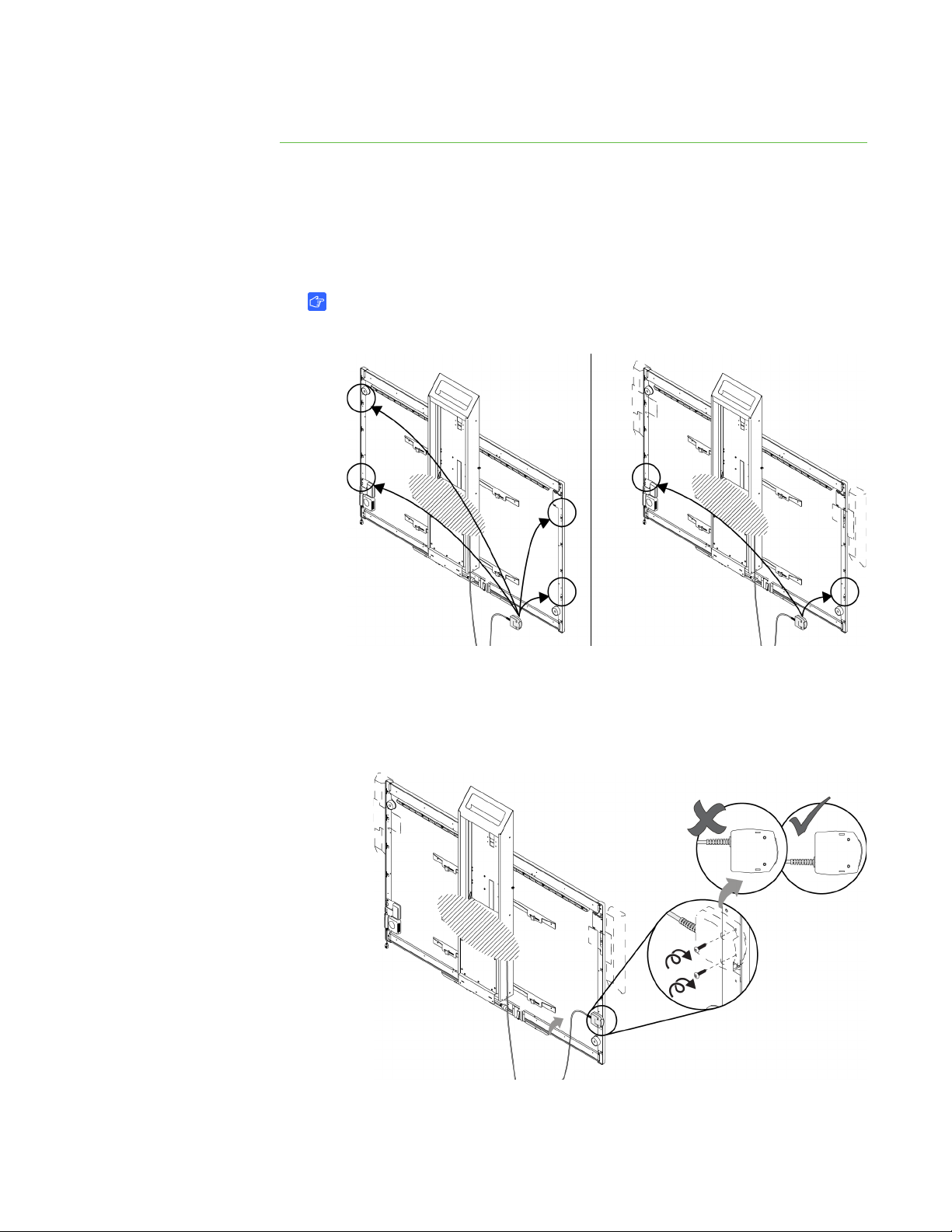
Mounting your HAWM-UX/UF mobility switch
The mobility switch controls the vertical movement of the HAWM-UX/UF and your
interactive whiteboard system. The mobility switch is wired directly to the rear panel of
the HAWM-UX/UF. Use the installation guide with the following procedure to place and
mount the mobility switch.
6 | CHAPTER 2 – CABLING A SMART BOARD 685ix OR D685ix INTERACTIVE
WHITEBOARD SYSTEM TO YOUR SMART HEIGHT-ADJUSTABLE WALL
To mount the
HAWM-UX/UF mobility
switch to your interactive
whiteboard
1. Locate the HAWM-UX/UF mobility switch. If you haven’t done so already, remove
and discard the plastic bag that holds the mobility switch.
2. Chose the mobility switch’s mounting location. There are mounting holes on the
left and the right sides and near the top and the bottom of the interactive
whiteboard.
IMPORTANT
If you installed or plan to install the SBA-L Projection Audio System, mount
the mobility switch on the bottom mounting holes.
3. Using a Phillips® No. 2 screwdriver and the two screws listed inside the
HAWM-UX/UF installation guide, secure the mobility switch cable toward the side
of the interactive whiteboard where you chose to mount the mobility switch. Make
sure that the mobility switch cable is toward the bottom of the switch as you
mount it.
Questo manuale è adatto per i seguenti modelli
1
Indice
Altri manuali SMART Rack e supporto

SMART
SMART SMART Height-Adjustable Wall mount... Manuale utente

SMART
SMART FSE-420 Manuale utente

SMART
SMART FSSBID 100 Istruzioni di montaggio

SMART
SMART WSE-400 Manuale utente

SMART
SMART FSE-400 Manuale utente

SMART
SMART FSE-400 Manuale utente

SMART
SMART WSE-410 Manuale utente

SMART
SMART WSE-400 Manuale utente

SMART
SMART FSSBID 100V Manuale utente

SMART
SMART WSE-400 Manuale utente


