
Smartwares CIP 37186AT Manuale utente
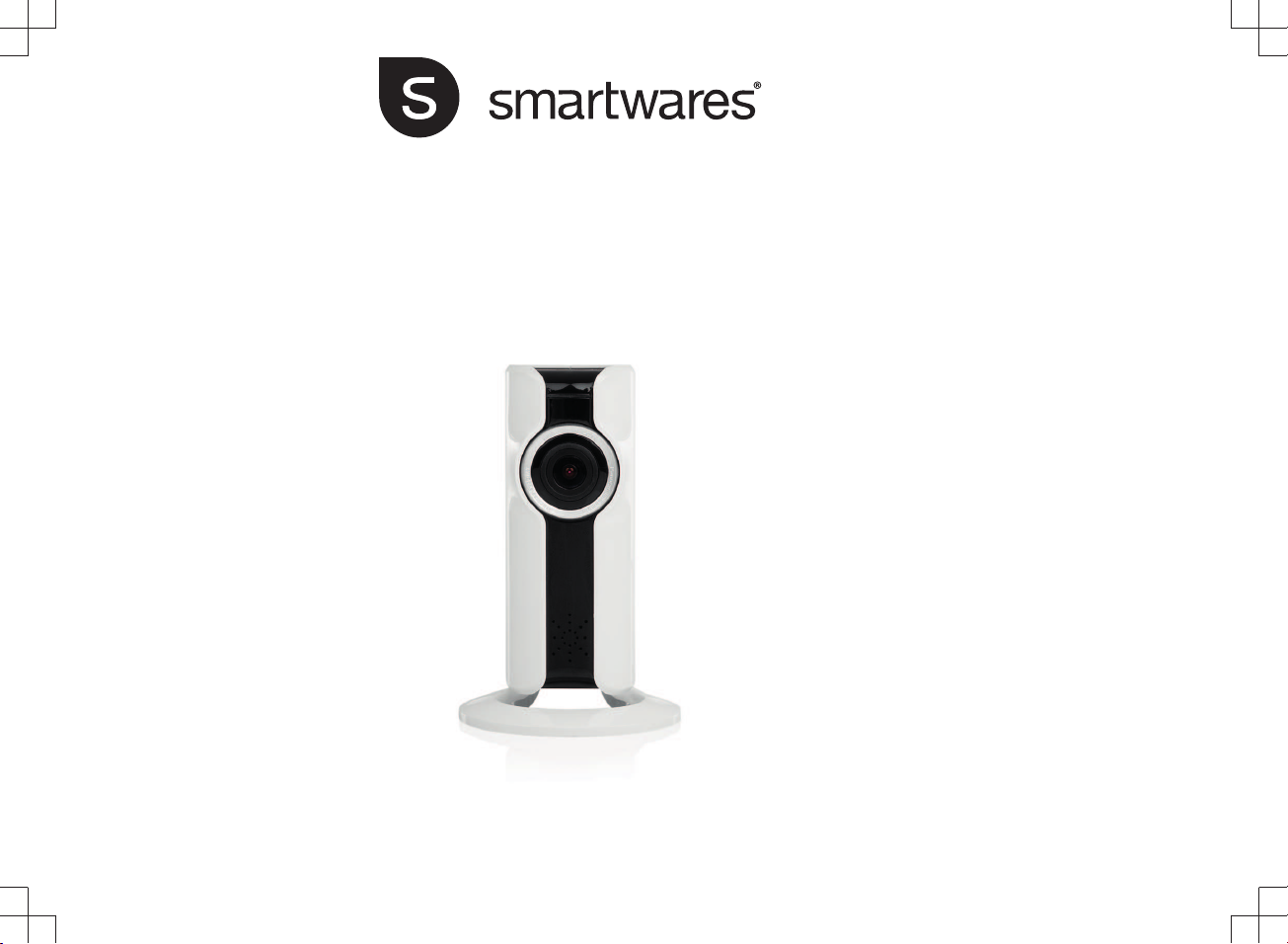
CIP37186AT | INDOOR IP-CAMERA
EN | Instruction manual
FR | Mode d’emploi
DE | Bedienungsanleitung
NL |Gebruiksaanwijzing
PL | Instrukcja obsługi
CS | Návod na použití

PARTS DESCRIPTION / ONDERDELENBESCHRIJVING / DESCRIPTION DES PIÈCES /
TEILEBESCHREIBUNG / DESCRIPCIÓN DE LAS PIEZAS / DESCRIÇÃO DOS
COMPONENTES / DESCRIZIONE DELLE PARTI / BESKRIVNING AV DELAR /
OPIS CZĘŚCI / POPIS SOUČÁSTÍ / POPIS SÚČASTÍ

Instruction manual
3
PARTS DESCRIPTION
1. LED
2. Microphone
3. Lens
4. Speaker
5. USB port
6. Reset button
7. MicroSD card slot
INSTALLATION
• If you wish to mount the camera on a wall, attach the mount to
the wall with the supplied screws and plugs. Make sure they are
suitable for your type of wall.
QUICK START GUIDE
Follow the instructions below to quickly get started with your camera.
For a more detailed description of all functionality, please check the
help function in the app or download the extended user manual from
our website, www.smartwares.eu. Please search for "CIP-31786AT".
Inserting a MicroSD card
• First make sure your camera is not connected to the power
adapter. Insert your Micro-SD card all the way in the MicroSD
card slot on the camera. Only use a class 10 MicroSD card (max
128 GB).
• A MicroSD card is required for recording footage.
Download the app
• iOS: Search for "SW360" in the Apple app store.
• Android: Search for "SW360" in the Google play store.
• Download and install the app on your mobile device.
Creating an account
If you're using this app for the first time, you will need to create an
account.
• Open the app.
• Tap on "New User"
• Fill in your email address.
• Enter a new password, and confirm it.
Note: It's not possible to paste the code, you need to type it.
• A verification email will be sent to you. Please click on the link in
the mail to confirm your account. If you don't confirm, you won't
be able to continue using your account.
• Now open the app again and login to the account you just
created.
• If you already have created an account, fill in your login and
password information, and tap on "Sign in".
• If you have forgotten your password, tap on "Forgot password",
and follow the directions in the app.
Connecting a camera
1. On the "my devices" tab, tap on the "plus" (+) sign in the top right
corner. Tap "Add a new device".
2.Tap on the picture that corresponds to your camera.
3. Plug in the camera with the USB adapter to power it up. Please
wait for 30 seconds until the LED on the camera starts flashing. Make
sure that your camera is in close range (1m) of your mobile device.
4.Check if the notification LED is flashing, and confirm in the app. If
the LED is not flashing, please refer to the chapter "Resetting the
camera".
EN

Instruction manual
4
iOS Android
5a. Exit the app, and go to the Wi-
Fi settings on your mobile device.
The camera transmits it's own
private wireless network.
5. Select your camera-ID from the
list. You can find the camera-ID
on the sticker on the back of the
camera.
5b. Connect to the Wi-Fi network
SSID that corresponds to your
Camera-ID. You can find the
camera-ID on the sticker on the
back of the camera. The
password is “11111111”. Wait for
your mobile device to connect to
the camera's Wi-Fi network.
5c. When you have connected
successfully to the camera, return
to the SW360 app.
6. In the SW360 app, choose the SSID of the wireless network you
ultimately want to connect the camera to. Enter the corresponding
password. Note: A 5Ghz WiFi network is not supported.
7. When the connection is successful, the LED will turn green and the
camera will say "Connection is successful".
8. Please give your camera a name (for instance "living room"). Now
you will be able to access your camera. You can watch the live view
from anywhere in the world through the app on your mobile device.
APP FUNCTIONS
• On the "My devices" tab, you can see and manage all the
camera's that are linked to your account. If you tap the three dots
next to your camera name, you have the following options:
Setup
• From the setup screen you can change:
– The name of your camera.
– Video quality.
– Motion detection notifications.
– Recording options.
– Formatting your MicroSD card.
– Access the "Help" function.
• You can share your cameras with other accounts by tapping on
the share icon.
• You can remove a camera from your account by tapping "delete".
Live view
• On the "my devices" tab, press the play button to open the live
view of your camera.
• Rotate your mobile device to view the video full-screen in
landscape.
• Tap or pinch to zoom in and out.
• Rotate the view by scrolling with your finger.
• From this screen, you can use the buttons on the bottom to:
– Turn the sound on or off.
– Take a snapshot.
– Talk through the camera by tapping and holding the
microphone icon.
– Record footage directly to your mobile device.

Instruction manual
5
• It's possible to view recorded footage by sliding the timebar at the
bottom, or choosing a date.
Troubleshooting
• I can't see my camera-ID in the list during setup.
– Please make sure you camera is within 1m of your mobile
device.
– Try to reset the camera. See paragraph "resetting the
camera".
– Attempt to enable the location service on your mobile device
and try again.
– Go to the Wi-Fi settings of your mobile device, and check if
you see the camera-ID in your list of available networks.
Connect to this network. Now go back to the SW360 app,
and check if you can link the camera to your Wi-Fi network.
Resetting the camera
• When do you need to reset the Camera?
– If you have changed your Wi-Fi name or password.
– If you have changed the Wi-Fi router or access point.
– If you want to link the camera to another account.
– If you want to link the camera to a different Wi-Fi network.
• To reset the camera, poke the reset button on the camera with
the provided tool. Keep the button pressed for at least 10
seconds. Release the button, the camera will tell you the factory
settings are restored. Wait for at least 20 seconds to allow the
camera to reboot.
More information
• For a more detailed description of all functionality, please check
the help function in the app or download the extended user
manual from our website, www.smartwares.eu. Please search for
"CIP-31786AT".
EN

Manuel d'instructions
6
DESCRIPTION DES PIÈCES
1. LED
2. Micro
3. Objectif
4. Haut-parleur
5. Port USB
6. Bouton de réinitialisation
7. Logement de carte MicroSD
INSTALLATION
• Si vous voulez monter la caméra au mur, fixez le support au mur
avec les vis et chevilles fournies. Assurez-vous de leur adaptation
au type de mur.
GUIDE DE DÉMARRAGE RAPIDE
Suivez ces instructions pour prendre rapidement en main votre
caméra. Pour une description détaillée de toutes les fonctionnalités,
reportez-vous à la fonction d'aide de l'app ou téléchargez le manuel
utilisateur complet sur notre site Web : www.smartwares.eu.
Recherchez "CIP-31786AT".
Insertion de carte MicroSD
• Assurez-vous d'abord que votre caméra n'est pas connectée à
l'adaptateur d'alimentation. Insérez votre carte MicroSD à fond
dans le logement de carte MicroSD de la caméra. Utilisez
uniquement une carte MicroSD de classe 10 (maxi. 128 Go).
• Une carte MicroSD est obligatoire pour enregistrer une vidéo.
Téléchargement d'app
• iOS : Recherchez "SW360" sur l'Apple app store.
• Android : Recherchez "SW360" sur Google play store.
• Téléchargez et installez l'app sur votre téléphone portable.
Création de compte
Si vous utilisez cette app pour la première fois, vous devez créer un
compte.
• Ouvrez l'app.
• Touchez "Nouvel utilisateur"
• Renseignez votre adresse e-mail.
• Saisissez un nouveau mot de passe et confirmez-le.
Remarque: Il est impossible de coller le code. Vous devez le saisir.
• Un e-mail de vérification vous est envoyé. Cliquez sur le lien dans
le courrier afin de confirmer votre compte. Si vous ne confirmez
pas, vous ne pouvez pas continuer à utiliser votre compte.
• Ouvrez alors à nouveau l'app et connectez-vous au compte que
vous venez de créer.
• Si vous avez déjà créé un compte, saisissez votre identifiant et
votre mot de passe et touchez "Sign in".
• Si vous avez oublié votre mot de passe, touchez "Forgot
password" et suivez les instructions de l'app.
Connexion d'une caméra
1. Dans l'onglet "mes dispositifs", touchez le signe "plus" (+) en haut à
droite. Touchez "Ajouter nouveau dispositif".
2.Touchez l'image qui correspond à votre caméra.
3. Branchez la caméra avec l'adaptateur USB pour la mettre sous
tension. Attendez 30 secondes pour que la LED de la caméra
commence à clignoter. Assurez-vous que la caméra est à portée (1
m) de votre dispositif mobile.

Manuel d'instructions
7
4.Vérifiez si la LED de notification clignote et confirmez dans l'app. Si
la LED ne clignote pas, référez-vous au chapitre "Réinitialisation de
caméra".
iOS Android
5a. Sortez de l'app et rendez-
vous aux Paramètres Wi-Fi de
votre dispositif mobile. La caméra
transmet son propre réseau sans
fil privé.
5. Sélectionnez l'ID de votre
caméra dans la liste. Vous
retrouvez l'ID de la caméra sur
l'autocollant au dos de la caméra.
5b. Connectez-vous au SSID du
réseau Wi-Fi correspondant à l'ID
de votre caméra. Vous retrouvez
l'ID de la caméra sur l'autocollant
au dos de la caméra. Le mot de
passe est “11111111”. Attendez
que votre dispositif mobile se
connecte au réseau Wi-Fi de la
caméra.
5c. Une fois la connexion établie
avec la caméra, revenez à l'app
SW360.
6. Dans l'app SW360, choisissez le SSID du réseau sans fil auquel
vous voulez connecter la caméra. Saisissez le mot de passe
correspondant. Remarque: Un réseau Wi-Fi 5GHz n'est pas pris en
charge.
7. Si la connexion est réussie, la LED devient verte et la caméra
annonce "Connexion réussie".
8. Nommez votre caméra (par ex. "salon"). Vous pouvez alors
accéder à votre caméra. Vous découvrez la vue en direct, depuis
n'importe où dans le monde, grâce à l'app de votre dispositif mobile.
FONCTIONS D'APP
• Dans l'onglet "Mes dispositifs", vous découvrez et gérez toutes
les caméras liées à votre compte. Si vous touchez les trois petits
points du nom de votre caméra, vous disposez des options
suivantes :
Configuration
• Dans l'écran de configuration, vous modifiez :
– Le nom de votre caméra.
– Qualité vidéo.
– Notifications de détection de mouvement.
– Options d'enregistrement.
– Formatage de votre carte MicroSD.
– Accédez à la fonction "Aide".
• Vous pouvez partager vos caméras avec d'autres comptes en
touchant l'icône de partage.
• Retirez une caméra de votre compte en touchant "supprimer".
Vue en direct
• Dans l'onglet "mes dispositifs", appuyez sur le bouton de lecture
pour ouvrir la vue en direct de votre caméra.
• Faites pivoter votre dispositif mobile pour afficher la vidéo en
plein écran au format paysage.
• Touchez ou pincez pour zoomer.
• Faites pivoter l'affichage en faisant défiler avec votre doigt.
• Dans cet écran, vous pouvez utiliser les boutons du bas pour :
– Activer /désactiver le son.
FR

Manuel d'instructions
8
– Prendre un cliché.
– Parler via la caméra en touchant l’icône de microphone sans
le relâcher.
– Enregistrer des vidéos directement sur votre dispositif mobile.
• Vous pouvez lire un enregistrement vidéo en faisant coulisser le
curseur de temps en bas ou en choisissant la date.
Dépannage
• Je ne vois pas l'ID de ma caméra dans la liste durant la
configuration.
– Assurez-vous que votre caméra est à moins de 1m de votre
dispositif mobile.
– Tentez de réinitialiser la caméra. Voir le paragraphe
"réinitialisation de caméra".
– Tentez d'activer le service de localisation de votre appareil
mobile puis réessayez.
– Allez aux paramètres Wi-Fi de votre dispositif mobile et
vérifiez si l'ID de caméra est dans votre liste des réseaux
disponibles. Connectez-vous à ce réseau. Revenez alors à
l'app SW360 et vérifiez si vous pouvez relier la caméra à
votre réseau Wi-Fi.
Réinitialisation de caméra
• Quand devez-vous réinitialiser la caméra ?
– Si vous avez changé de nom ou de mot de passe Wi-Fi.
– Si vous avez changé de routeur ou de point d'accès Wi-Fi.
– Si vous voulez associer une autre caméra au compte.
– Si vous voulez associer la caméra à un réseau Wi-Fi différent.
• Pour réinitialiser la caméra, enfoncez le bouton de réinitialisation
sur la caméra avec l'outil fourni. Maintenez le bouton appuyé au
moins 10 secondes. Relâchez le bouton et la caméra vous
indique que les réglages d'usine ont été restaurés. Attendez au
moins 20 secondes afin que la caméra redémarre.
En savoir plus
• Pour une description détaillée de toutes les fonctionnalités,
reportez-vous à la fonction d'aide de l'app ou téléchargez le
manuel utilisateur complet sur notre site Web :
www.smartwares.eu. Recherchez "CIP-31786AT".

Bedienungsanleitung
9
TEILEBESCHREIBUNG
1. LED
2. Mikrofon
3. Linse
4. Lautsprecher
5. USB-Anschluss
6. Rückstellschalter
7. MicroSD-Kartenschlitz
AUFSTELLUNG
• Wenn Sie die Kamera an einer Wand montieren wollen,
befestigen Sie die Halterung mit den mitgelieferten Schrauben
und Dübeln an der Wand. Stellen Sie sicher, dass sich diese für
Ihre Wand eignen.
KURZANLEITUNG
Die folgenden Hinweise helfen Ihnen, ihre neue Kamera sofort zu
nutzen. Alle Funktionen werden ausführlich in der Hilfe-Funktion der
App beschrieben. Alternativ haben Sie die Möglichkeit, die
ausführliche Bedienungsanleitung von unserer Homepage
www.smartwares.eu herunterzuladen. Suchen Sie nach dem
Schlüsselwort "CIP-31786AT".
Einlegen einer MicroSD-Karte
• Stellen Sie zuerst sicher, dass Ihre Kamera nicht mit der
Steckdose verbunden ist. Legen Sie Ihre Micro-SD-Karte in den
MicroSD-Kartenschlitz der Kamera ein. Verwenden Sie nur eine
Micro-SD-Karte der Klasse 10 (max. 128GB).
• Eine Micro-SD-Karte ist notwendig, wenn Sie Aufnahmen
machen wollen.
Herunterladen der App
• iOS: Suchen Sie im App-Store von Apple nach dem
Schlüsselwort "SW360".
• Android: Suchen Sie im Google Play Store nach dem
Schlüsselwort "SW360".
• Laden Sie die App herunter und installieren Sie sie auf Ihrem
mobilen Gerät.
Konto erstellen
Wenn Sie diese App zum ersten Mal benutzen, müssen Sie ein
Konto erstellen.
• Öffnen Sie die App.
• Tippen Sie auf "Neuer Benutzer".
• Geben Sie Ihre E-Mail-Adresse ein.
• Geben Sie ein neues Passwort ein und bestätigen Sie es.
Hinweis: Es ist nicht möglich, den Code einzufügen; er muss von
Hand eingegeben werden.
• Sie erhalten eine Bestätigung per E-Mail. Klicken Sie in dieser
Mail auf den Link zum Bestätigen Ihrer E-Mail-Adresse. Sie
können ihren Account erst nach Bestätigen der angegebenen E-
Mail-Adresse nutzen.
• Öffnen Sie anschließend die App erneut und melden Sie sich mit
den neuen Benutzerdaten an.
• Wenn Sie bereits ein Konto haben, geben Sie Kontoname und
Passwort ein und tippen Sie auf "Sign in".
• Wenn Sie Ihr Passwort vergessen haben, tippen Sie auf "Forgot
password" und folgen Sie den Anweisungen der App.
Anschließen einer Kamera
DE

Bedienungsanleitung
10
1. Tippen Sie im Reiter "Meine Geräte" auf das Pluszeichen (+) oben
rechts. Tippen Sie auf "Neues Gerät hinzufügen".
2.Tippen Sie auf das Bild, das Ihrer Kamera entspricht.
3. Verbinden Sie die Kamera zum Einschalten per USB-Adapter.
Warten Sie 30 Sekunden lang, bis die LED an der Kamera zu blinken
beginnt. Stellen Sie sicher, dass Ihre Kamera sich in der Reichweite
Ihres mobilen Geräts befindet (1 m).
4.Prüfen Sie, ob die Anzeige-LED blinkt, und bestätigen Sie die
Eingabeaufforderung in der App. Falls die Anzeige-LED nicht blinkt,
siehe hierzu Kapitel "Kamera zurücksetzen".
iOS Android
5a. Schließen Sie die App und
gehen Sie auf Ihrem mobilen
Endgerät zu den WiFi-
Einstellungen. Die Kamera
überträgt die vorprogrammierten
Einstellungen für das private
Drahtlosnetzwerk.
5. Wählen Sie die Kamera-ID aus
der Liste. Die Kamera-ID finden
Sie auf dem Aufkleber auf der
Kamerarückseite.
5b. Stellen Sie die Verbindung mit
dem für die Kamera-ID
vorgesehenen WiFi-Netz her. Die
Kamera-ID finden Sie auf dem
Aufkleber auf der
Kamerarückseite. Das Passwort
lautet “11111111”. Warten Sie,
bis Ihr mobiles Endgerät eine
Verbindung zum WiFi-Netz der
Kamera aufgebaut hat.
5c. Wechseln Sie nach einem
erfolgreichen Verbindungsaufbau
zurück in die SW360-App.
6. In der SW360-App können Sie nun durch die Auswahl des Namens
(SSID) das Drahtlosnetzwerk festlegen, mit dem sich die Kamera
standardmäßig verbindet. Geben Sie das entsprechende Passwort
ein. Hinweis: Ein 5GHz-WiFi-Netzwerk wird nicht unterstützt.
7. Wenn die Verbindung erfolgreich aufgebaut wurde, wird die LED
grün und die Kamera meldet "Verbindung ist erfolgreich".
8. Geben Sie eine Kamerabezeichnung ein (z.B. "Wohnzimmer").
Anschließend haben Sie Zugriff auf die Kamera. Über die App auf
Ihrem mobilen Endgerät können Sie das Live-Bild weltweit abrufen.
FUNKTIONEN DER APP
• Im Reiter "Meine Geräte" sehen und verwalten Sie alle Kameras,
die mit Ihrem Konto verknüpft sind. Tippen Sie auf die drei Punkte
neben der Kamerabezeichnung, um eine der folgenden Optionen
aufzurufen:
Einrichtung
• In der Anzeige Einstellungen können Sie Folgendes ändern:
– Den Namen Ihrer Kamera.
– Videoqualität.
– Benachrichtigung bei Bewegungserkennung.
– Aufnahmeoptionen.
– Micro-SD-Karte formatieren.
– Menü "Help" aufrufen.
• Sie können Ihre Kameras mit anderen Konten verknüpfen, indem
Sie auf das Icon Share tippen.
Indice
Lingue:
Altri manuali Smartwares Telecamera IP


