
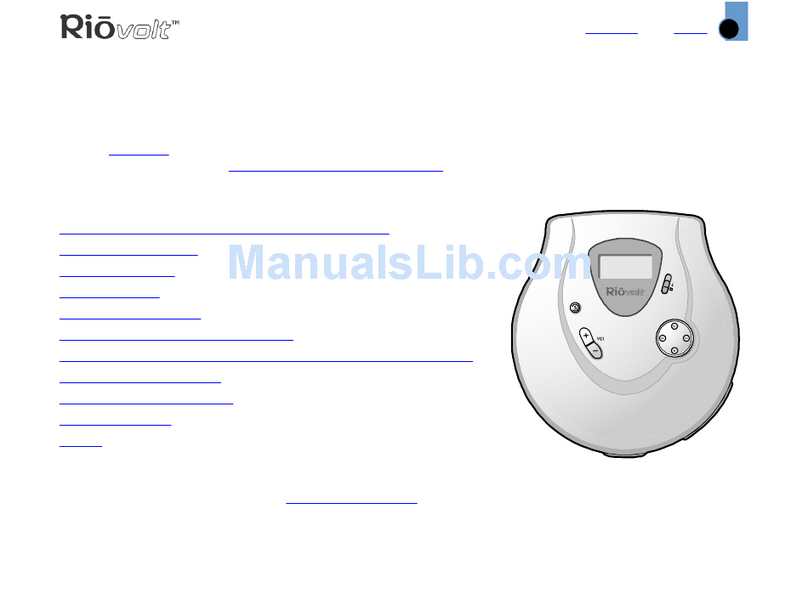
Sonic Blue RioVolt SP50 Manuale utente

User's Guide
SP50/SP50C
PN75510390-001

2
Table of Contents
Package Contents ............................................... 3
Welcome ........................................................... 4
Player Overview ................................................. 5
LCD Overview .................................................... 6
Advanced Features ............................................. 7
Special MP3 Features .......................................... 9
FAQs .............................................................. 10
Technical Specifications ..................................... 12
Customer Care ................................................. 13
Warranty ......................................................... 14
Important Safety Information ............................ 15

3
Rio Player
2 AA-size
batteries
Earphones
†Included with SP50C Only
Car Cassette
Adapter
†
Flickerstick CD
†
Car Power Adapter
†
Package Contents

4
Make sure your player includes the following accessories (see page 3):
• Two AA-size batteries
• Earphones
• Quick Start Guide
• Car Cassette Adapter (SP50C only)
• Car Power Adapter (SP50C only)
• Flickerstick CD (SP50C only)
1. Slide open the battery cover (see page 4).
2. Insert the two supplied AA batteries, paying attention to the correct polarities (+ and -).
3. Replace the battery cover.
• Connect the supplied earphones to the HEADPHONE jack on the side of the player.
Tip: You can also use the LINE OUT jack to connect the player to an external audio system.
1. Press the OPEN button to release the latch and open the CD cover.
2. Insert an audio CD or MP3 CD into the player, label side up.
3. Close the CD cover.
Note: The RioVolt SP50/SP50C can play CDs with the following logos:
1. Press the PLAY/PAUSE button to turn on the player and begin playback.
Note: There will be a short delay while the player reads the tracks on the CD.
2. Press the STOP button to stop playback. Press STOP again to turn off the player.
Unpack
Welcome to the RioVolt SP50/SP50C, your complete portable solution
for audio CD and MP3 playback. The RioVolt includes ESP (Electronic
Shock Protection), which buffers up to two minutes of digital audio to
prevent skipping. Follow these steps to get started:
ReWritable
Insert Batteries
Connect Earphones
Insert Disc
Play Disc
Welcome

5
Volume:
Adjusts the
volume level
LCD
Lock/Unlock:
Disables or enables
function keys to
event accidental
operation
Bass/Normal:
Selects normal or
enhanced bass
Line Out:
Connects the
player to an
external audio
system
Phones:
Connects to earphones
or headphones
Open:
Opens the
player cover
Player Overview
DC In jack:
Connects to the optional
power adapter to save
battery life (to order,
visit www.sonicblue.com)
Battery cover:
Slides out and
lifts up; Insert
your 2 AA-size
batteries here

6
Skip Ahead:
Skips to next
track; Press
and hold to
scan forward
Play/Pause:
Plays and pauses
tracks; Press to
turn on the player
Skip Back:
Skips to previous
track; Press and
hold to scan
backward
ESP/Menu:
• During CD playback,
enables or disables ESP
• In MP3 mode,
enters the MP3
track select menus
Mute/Enter:
Turns audio on
and off. Also
makes selections
in the MP3 track
select menus
Shows current album (folder)
number (MP3 CDs only)
Mode/Select:
Selects the desired
Repeat mode
(Repeat 1, Repeat
Album, Repeat All
Albums, Intro,
Random Repeat All,
Random Repeat
Album) during CD
or MP3 playback
Stop:
Stops playback;
Press twice to
turn off player
Program:
Enters Program
Playback mode,
where you can
program CD or
MP3 tracks to
play in any order
Shows current
track number Shows elapsed
track time
Displays ID3 Tag
information (MP3
CDs only)
LCD Overview
Indicates ESP
is active
Flashes to indicate
battery life is low
Indicates MP3
disc is loaded
Indicates track
intros will
be scanned
Indicates a track is
playing or paused
Indicates current
Repeat mode
Indicates keys
are locked
Indicates custom
track order is
programmed

7
Repeat Modes
Press the MODE/SELECT button to set the player to one
of the following Repeat modes:
• Repeat 1 - Repeats the currently selected track.
• Repeat Album (MP3 only) - Repeats all tracks
in the currently selected album (folder).
• Repeat All - Repeats all tracks (CD) or all
albums (MP3).
• Intro - Plays the first 10 seconds of every track.
• Random All - Plays all tracks in random order.
• Random Album - Plays all the tracks in
the selected album in random order.
ESP (Electronic Shock Protection)
• During CD playback, press the ESP/MENU button to
activate electronic shock protection. The player will
continuously buffer 45 seconds of music to guard
against skipping.
• During MP3 playback, the player automatically creates
a 2-minute buffer to prevent skipping.
Advanced Features

8
Program Playback
Program playback allows you to play CD or MP3 tracks
in a preset order.
Tip: MP3 files play in the order they are written onto
the CD-R. To ensure that tracks play in the order
you want, try adding “01” ~ “99” before the file
names before recording them onto CD-R.
1. Load an audio CD or MP3 CD, then press the
PROGRAM button.
Note: If programming an audio CD, skip to step 3.
2. Press the SKIP BACK /SKIP AHEAD
buttons to select the desired album (folder) number,
then press PROGRAM.
3. Press the SKIP BACK /SKIP AHEAD
buttons to select the desired track number, then
press PROGRAM.
4. Repeat steps 2 and 3 to store up to 24 CD tracks or
up to 64 MP3 tracks. The total number of
progammed tracks is indicated as “P_#”
5. Press the PLAY/PAUSE button to begin
playback of your custom track order.
6. Press the STOP button twice or open the CD cover to
exit program playback.
Advanced Features (Cont.)

9
Searching for MP3 Tracks Alphabetically
1. Press the ESP/MENU button once.
2. Use the PLAY/PAUSE , STOP , SKIP BACK
and SKIP AHEAD buttons to highlight the first letter
of the MP3 file name
you are searching for, then press MUTE/ENTER.
3. Press MODE/SELECT twice to view all tracks that begin
with the desired letter.
Note: If no tracks begin with that letter, press ESP/MENU
twice to exit.
4. Press the SKIP BACK and SKIP AHEAD buttons to
browse the list of tracks.
5. Press MUTE/ENTER to play the
selected track.
Browsing MP3 Tracks by Album
1. Press the ESP/MENU button twice.
2. Press the PLAY/PAUSE /STOP buttons to select the
desired album (folder).
3. Press the SKIP BACK or SKIP AHEAD button to
enter the album.
4. Use the PLAY/PAUSE /STOP buttons to select the
desired track, then press MUTE/ENTER to play the
selected track.
Special MP3 Features

10
FAQs
Frequently Asked Questions
What MP3 bit rates are supported?
• The player supports bit rates up to 320 kbps. It does not support bit rates
below 32 kbps. See table for details...
Are ID3 tags supported?
• Yes, the player supports ID3 Tags in ASCII
code. However, other code formats, including
compressed format and Lyrics tag mode,
are not supported.
Why does the player turn off when I plug in the AC adapter?
• As a safety precaution, the player will turn off when changing from battery to
AC power. Simply press PLAY/PAUSE to restart the unit.
What CD-R formats can I use?
• The player supports CD-Rs burned in UDF/ISO9660 (Constant
Package)/Joliet format.
How long will the batteries last?
• Two AA batteries typically provide up to 10 hours of continuous MP3
playback.
Why does the player stop when I press ESP/MENU?
• It is normal for the player to stop momentarily when you select ESP/MENU
while an audio CD is playing. Turning off ESP clears the buffer and the player
has to reload the data which had previously been stored in the buffer.
44.1 32 - 320
32 32 - 112
22.05 16 - 80
16 16 - 48
Sampling Sampling
Frequency (KHz) Bitrate (kbps)
Questo manuale è adatto per i seguenti modelli
2
Indice
Altri manuali Sonic Blue Lettore CD

Sonic Blue
Sonic Blue Volt SP250 Manuale

Sonic Blue
Sonic Blue SP100 Manuale utente

Sonic Blue
Sonic Blue RioVolt SP65 Manuale utente

Sonic Blue
Sonic Blue Volt SP150 Manuale utente

Sonic Blue
Sonic Blue SP100 Manuale utente
Sonic Blue
Sonic Blue Volt SP60 Manuale utente

Sonic Blue
Sonic Blue Volt SP250 Manuale utente

Sonic Blue
Sonic Blue Volt SP150 Manuale utente

Sonic Blue
Sonic Blue RioVolt SP350 Manuale utente


