
SPRT SP-R301 Manuale utente

Content
Precautions .................................................................................................................................................... 1
Safety Precautions ................................................................................................................................1
Precautions for storage ........................................................................................................................2
Brief introduction ................................................................................................................................... 2
Chapter 1 Feature and Performance .........................................................................................................4
1.1 Printing performance ..................................................................................................................... 4
1.2 Printer paper ................................................................................................................................... 4
1.3 Print characters ...............................................................................................................................5
1.4 Interfaces ......................................................................................................................................... 5
1.5 Print control command .................................................................................................................. 5
1.6 Power requirements .......................................................................................................................6
1.7 Working environment .....................................................................................................................6
1.8 Dimensions ......................................................................................................................................6
1.9 Model classification ........................................................................................................................6
Chapter 2 Operation Specification ............................................................................................................. 6
2.1 Printer Appearance ........................................................................................................................ 6
2.2 Paper Installation ............................................................................................................................7
2.2.1 Paper Loading ..................................................................................................................... 7
2.2.2 Solution to Paper Jam ........................................................................................................7
2.3 Interface ........................................................................................................................................... 8
2.3.1 Ethernet Interface ............................................................................................................... 8
2.3.2 USB Interface ...................................................................................................................... 8
2.3.3 Wireless connection ........................................................................................................... 9
2.3.4 Cash Drawer Interface ..................................................................................................... 10
2.3.5 Power Connection ............................................................................................................ 11
2.4 Buzzer, Buttons and Indicators .................................................................................................. 11
2.5 Normal Boot State ........................................................................................................................14
2.6 Self-test .......................................................................................................................................... 14
2.7 Hexadecimal Printing ...................................................................................................................15
2.8 Parameter Setting ........................................................................................................................ 16
2.9 Enter the program upgrade mode ............................................................................................. 16
Appendix A ................................................................................................................................................... 18

1
Precautions
Before using the printer, please read this chapter carefully!
Safety Precautions
◆Do not touch the print head and its connected parts to avoid burns or damage to
the print head due to static electricity.
◆If the printer emits smoke, peculiar smell or abnormal noise, the machine must be
turned off immediately. Continued use may cause fire. You should cut off the power
immediately and contact the seller or customer service center to inquire about the
solution.
◆Do not disassemble the machine by yourself. Improper repairs are dangerous and
will therefore lose the warranty commitment provided by the supplier.
◆Please use the power adapter provided by the supplier or meet the specifications.
An improper power adapter may damage the machine and cause a fire.
◆Prevent foreign matter from entering the machine to avoid damage to the machine
components, which may even cause fire and accidents in serious cases.
◆If there is water or other liquid flowing into the machine, please cut off the power
immediately, and get in touch with the seller immediately to inquire about the
treatment method. Continued use may cause fire.
Precautions for use
◆The printer should not be immersed in water or exposed to rain, otherwise it may
cause damage to the printer.
◆Do not open the paper compartment cover during printing, otherwise it may cause
the printer to work abnormally.

2
◆When using the USB interface to print, the USB cable cannot be unplugged during
the printing process, otherwise the print data may be incomplete. When using
Bluetooth to print, the distance cannot exceed 10 meters during the printing process,
otherwise it may cause garbled printing or failure to print.
◆Although the printer can work stably from 0°C to 50°C, too high ambient
temperature (45°C) or too low ambient temperature (5°C) will cause the print quality
to decrease.
◆Excessive environmental humidity (above 85% relative humidity) or low
environmental humidity (below 20% relative humidity) will cause the print quality to
decrease.
◆Using low-quality printing paper or printing paper that has been stored for a long
time may reduce the printing quality and even damage the printer.
◆When the printer works in the black mark detection mode (when printing
pre-printed receipts with black marks), the black mark pre-printed on the printing
paper is required to comply with the black mark printing specifications (see 4.2 black
mark detection instructions for details), otherwise it may cause The printer cannot
accurately detect the black mark.
Precautions for storage
◆The printer should be stored in an environment with a temperature of -20°C to
60°C and a relative humidity of 10% to 90%.
Brief introduction
The SP-R301 printer is a new type of thermal line printer with fast printing speed, low
noise, good reliability, high printing quality, no need for ribbon, and eliminates the
trouble of daily maintenance.
The SP-R301 printer is small in size, easy to operate, and has a wide range of
applications. It is especially suitable for commercial cash registers, PC-POS, bank
POS, and various commercial fields that require document printing.

3
Warning
This is a class A product. In a domestic environment this product
may cause radio interference in which case the user may be
required to take adequate measures.

4
Chapter 1 Feature and Performance
1.1 Printing performance
● Printing method: line thermal printing
● Printing paper width: 79.5±0.5mm
● Printing density: 8dots/mm, 576dots/line
● Printing speed: maximum printing speed 200mm/s (25% printing density)
● Reliability: (1) Print head life: 150km
Conditions of Use:
* Print 12 × 24 Western characters, print 50 lines at a time, and repeat printing
intermittently.
* Use designated thermal paper
(2) Cutter life: 1500,000 times.
(3) Effective printing width: 72mm
1.2 Printer paper
● Thermal paper roll model: TF50KS-E (Japan paper co.ltd)
AF50KS-E(JUJO THERMAL)
● Thermal paper roll: paper type ---------- ordinary thermal paper 79.5xф80mm
(maximum)
Inner diameter ---------- ф13mm (minimum)

5
Paper thickness ---------- 0.06mm~0.08mm
1.3 Print characters
● Western character set:
12×24 dots, 1.5 (width)×3.00 (height) mm
● Chinese characters:
24×24 dots, 3.00 (width) × 3.00 (height) mm
1.4 Interfaces
●Ethernet interface:
Standard Ethernet interface.
●USB interface:
Standard USB interface.
●Wireless interface:
WiFi, Bluetooth interface
●Cash drawer control:
DC24V, 1A, 6-wire RJ-11 socket.
1.5 Print control command
●Character printing command: supports double-width and double-height printing of
ANK characters, custom characters and Chinese characters, and the character line
spacing can be adjusted.
●Dot map printing command: support different density dot map and download
graphics printing.
●GS barcode printing commands: support UPC-A, UPC-E, EAN-13, EAN-8,
CODE39, ITF25, CODABAR, CODE93, CODE128, PDF417, QR Code, DATA Matrix
barcode printing.

6
1.6 Power requirements
●DC24V±10%, 2A, A-1009-3P power socket
1.7 Working environment
●Operating temperature: 5℃~50℃Operating relative humidity: 10%~80%
●Storage temperature: -20℃~60℃Storage relative humidity: 10%~90%
1.8 Dimensions
●174(L)mm×150(W)mm×118(H)mm
1.9 Model classification
model
interface
Speed (Max)
SP-R301UE
USB, 100M Ethernet
200mm/s
SP-R301UEVT
USB, 100MEthernet, voice
SP-R301UEBT
MM
USB, 100MEthernet, bluetooth
SP-R301UEW
USB, 100MEthernet, WIFI
Chapter 2 Operation Specification
2.1 Printer Appearance
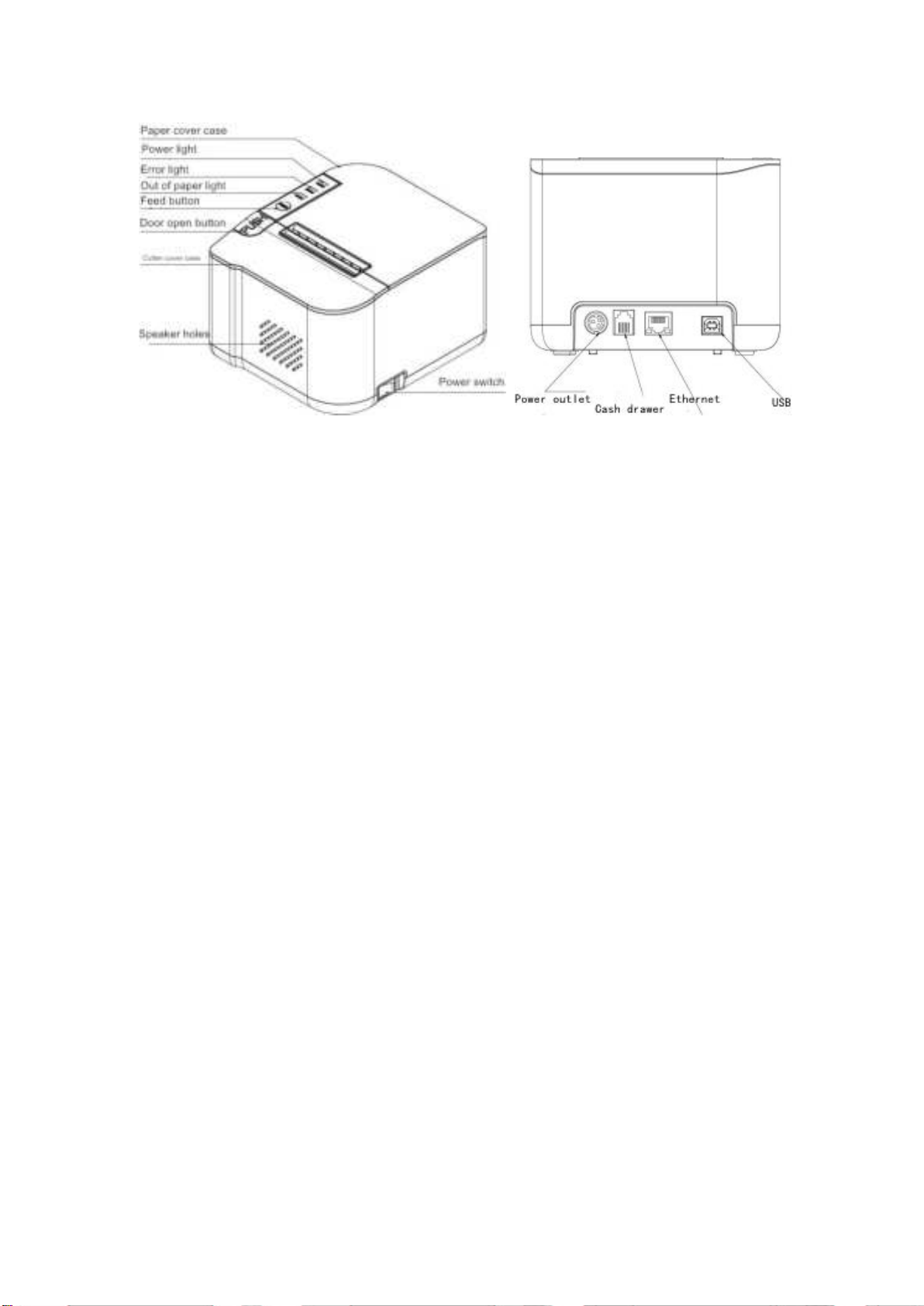
The names of the various parts of the printer are shown in Figure 2-1.
7
Figure 2-1 The name of each part of the printer
2.2 Paper Installation
2.2.1 Paper Loading
The thermal paper installation steps are as follows:
Press the left open button to open the paper compartment cover, put the thermal
paper roll into the paper compartment of the paper machine, pull out a section from
the paper roll, then put the paper end on the machine head, and close the paper
compartment cover. Gently press down.
Notice
1. Pay attention to the direction of loading the paper roll so that the printing side faces
the machine head.
2. Do not use your hand to walk forward or backward.
3. The machine head should be kept clean to avoid affecting the print quality
2.2.2 Solution to Paper Jam
If the cutter is jammed, turn off the power switch and re-energize the cutter to return
to its original position. If there is a paper jam, open the paper compartment cover and

8
take out the paper. If the cutter cannot return to its original position after powering on
again, the upper cover can be opened to expose the cutter. Pull the plastic gear on
the cutter by hand to return the cutter to its original position.
If the cutter is jammed, and hope that the data in the printer will not be lost. You can't
turn off the power, you can only use the above manual method to return the cutter to
its original position. Then open the paper compartment cover, remove the jammed
paper, and close the paper compartment cover. The printer will automatically recover
from paper cut errors.
2.3 Interface
2.3.1 Ethernet Interface
The model with Ethernet interface use RJ45 Network socket. The appearance is as
Fig.2-3 shows:
Fig2-3 Ethernet Interface
2.3.2 USB Interface
The standard accessories of SP-R301 printer includes a Mini USB cable with D Type
connector which connects printer and main device. The USB type belongs to the
slave device type(DEVICE). Pins description of Mini-USB as Fig.2-3 below:
Pin
Function
Notes
1
V Bus
Power +5V
2
Data-
Data-
3
Data+
Data+
4
GND
Ground
Fig.2-4 USB interface
Indice
Altri manuali SPRT Stampante

SPRT
SPRT SP-RMT17 Manuale utente

SPRT
SPRT SP-RMD12 Manuale utente

SPRT
SPRT TL24 Istruzioni per l'installazione

SPRT
SPRT SP-POS893 Manuale utente

SPRT
SPRT POS802 Manuale utente

SPRT
SPRT SP-POS894 Manuale utente

SPRT
SPRT SP DVII Series Manuale utente

SPRT
SPRT SP-POS801 Manuale utente

SPRT
SPRT SP-L51 Manuale utente

SPRT
SPRT SP-L36 Manuale utente

SPRT
SPRT SP-Y33 Manuale utente

SPRT
SPRT SP-POS88? Manuale utente

SPRT
SPRT SP-RMD8 Manuale utente

SPRT
SPRT SP-POS58VI Manuale utente

SPRT
SPRT POS890 Manuale utente

SPRT
SPRT SP-POS58IV Manuale utente

SPRT
SPRT SP-RMD9 Manuale utente

SPRT
SPRT SP-RMDIIID Manuale utente

SPRT
SPRT SP-POS587 Manuale utente

SPRT
SPRT POS58VI Manuale utente


