TCL Sweeva 2000 Manuale utente

Hi! Let’s Get Started.
Sweeva 2000
Quick Start Guide

Table of Contents
English
Register and Protect Your Purchase ................................................................................................ 2
Packaging List ........................................................................................................................................... 3
Quick & Easy Setup ................................................................................................................................. 4
Magnetic Strip Virtual Wall Setup ..................................................................................................... 5
Remote Control ........................................................................................................................................ 5
TCL Home App Setup ............................................................................................................................ 6
Robot Light Indicator Status & Error Tones .................................................................................. 7
Maintenance ............................................................................................................................................... 8
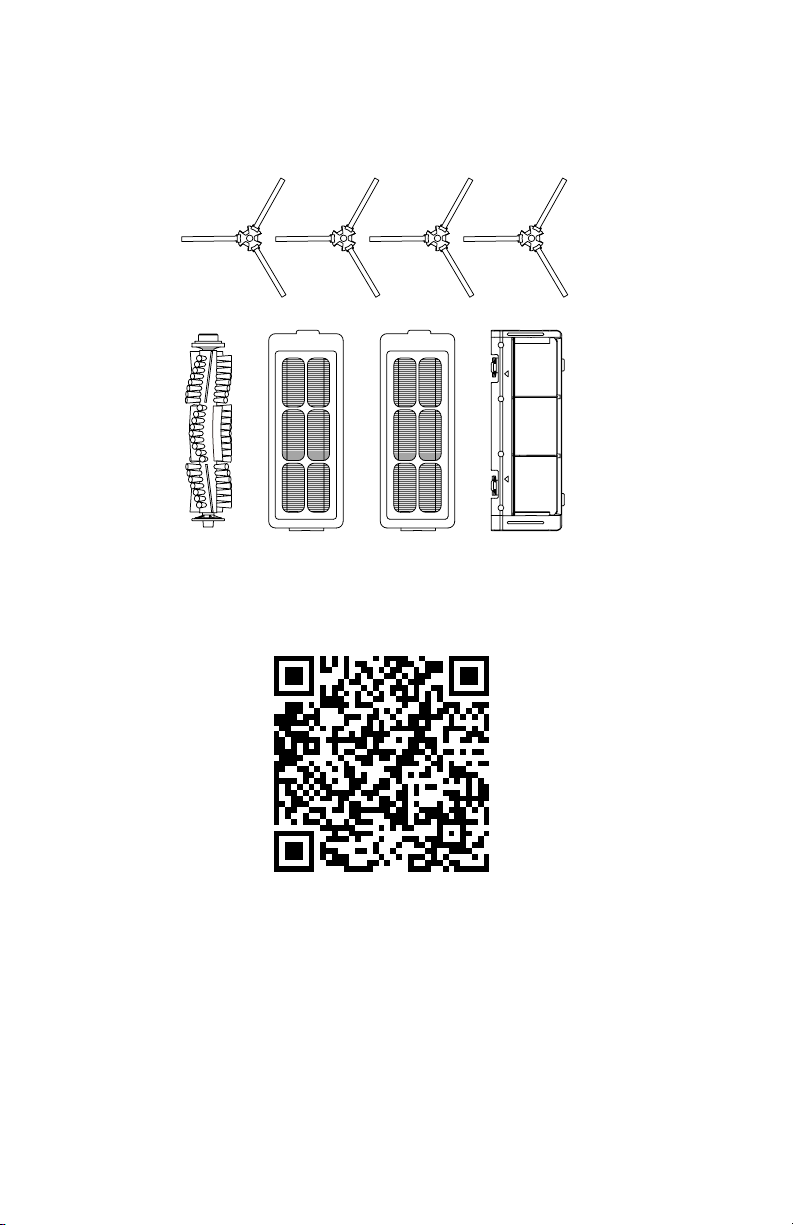
Replacement Parts .................................................................................................................................. 9
Important Safety Instructions (Please Review Before Use) .................................................... 10
Warranty Information ............................................................................................................................. 13
Troubleshooting ....................................................................................................................................... 14
Spanish
Registre y Proteja su Compra ............................................................................................................. 16
Lista de Empaque .................................................................................................................................. 17
Configuración Rápida y Sencilla ........................................................................................................ 18
Configuración de la Pared Virtual con Banda Magnética ........................................................ 19
Control Remoto ........................................................................................................................................ 19
Instrucciones de la Aplicación WiFi ................................................................................................. 20
Estado del Indicador de Luz del Robot y Tonos de Error ....................................................... 21
Mantenimiento .......................................................................................................................................... 22
Piezas de Reemplazo ............................................................................................................................. 23
Instrucciones Importantes de Seguridad (Por Favor Revise Antes de Usar) .................. 24
Información de garantía ........................................................................................................................ 27
Resolución de Problemas ..................................................................................................................... 28
French
Enregistrez Et Protégez Votre Achat ............................................................................................... 30
Liste de L’emballage ............................................................................................................................... 31
Installation Rapide et Facile ................................................................................................................ 32
Configuration du Mur Virtuel À Bande Magnétique .................................................................. 33
Télécommande .......................................................................................................................................... 33
Installation de l’application WiFi ....................................................................................................... 34
Indicateur Lumineux du Robot, Statut et Tonalités D’erreur .................................................. 35
Entretien ...................................................................................................................................................... 36
Pièces de Rechange ............................................................................................................................... 37
Instructions de Sécurité Importantes (Veuillez Vérifier Avant Utilisation) ....................... 38
Informations sur la Garantie ................................................................................................................ 41
Dépannage ................................................................................................................................................. 42

Product Replacement
Free 1-time replacement if product cannot be fixed.
TCL Parts & Service
Genuine TCL parts & factory certified service.
No Deductible
$0 out of pocket expense.
Priority Service
Free shipping and rapid turn-around time.
Extended Manufacturer Coverage
Extended parts & labor coverage for manufacturer defects.
PROTECT PLUS
Thank you for choosing TCL. We want your ownership experience to bring you as much joy as
the product you purchased does, so we’re oering you a special price on TCL Protection Plans
when you purchase during registration. Add a TCL Protection Plan within your first 30 days of
ownership to receive the best value and we’ll make sure nothing gets in the way of you enjoying
your new product.
Add a TCL Protection Plan when you register your
product and be covered from life’s mishaps
Benefits & Description
Up To 4 Years
3-5 Days3-5 Days
Up To 4 Years
Scan or text a photo of
the camera icon to 71403
Register easily with your smartphone
Or register online at www.tclusa.com/register
Need help? Visit photoregister.com/help or text HELP to 71403
Register and protect your purchase
Accidental Damage Protection
Coverage for drops, breaks and spills starts after 30 days.
ENGLISH
*Extended service plans (i.e., “Protect” and “Plus” plans) are only oered in the United States (US). All TCL
products continue to oer a limited consumer warranty in both the US and Canada. Please refer to the warranty
section in this guide for additional details on warranty information.
TCLRBTVAC

Packaging List
Robot Vacuum X 1
Additional Filter X 1
Remote Control X 1
Magnetic Strip X 2
Charging Base X 1
Cleaning Knife X 1
AAA Battery X 2
Double Sided
Tape X 1
Power Adapter X 1
Side Brushes X 4
User Manual and
Other Document X 1

Quick & Easy Setup
Step 1:
Plug the adapter into the power jack on
the back of the charging base.
Step 3:
Place the charging base against a wall,
leaving a safe distance around the base.
Step 5:
Flip the rocket switch on the underside
of the vacuum to power on the device.
Step 2:
Plug in the power adapter to an outlet
and a solid blue light on top of the
charging base will turn on.
Step 4:
Install the left and right brushes on
the robot.
Step 6:
Charge your robot completely before
use. Then, press the start button on
top of the robot to begin cleaning

Remote Control
Before using the remote, set the clock to your
local time so cleaning occurs on time.
Magnetic Strip Virtual Wall Setup
The magnetic strip can be used as a virtual wall. Simply place the strip (or a
portion of the strip) at the entrance of a room or around an area you do not
want your vacuum to enter using the double-sided tape.
Screen
The screen will show icons
corresponding to the
button selection
Clock Setting
Press and hold to enter
clock settings. Then, use
the directional pad to set
the time. (Up and down
changes the digit while
left and right changes the
digit selection).
Manual Control
Control the direction
of the robot vacuum
or setting the time and
schedules.
Auto Mode
Robot vacuum will clean
in a random pattern.
Vacuum Level
Adjust the vacuum’s
suction level to quiet,
standard, and turbo.
Schedule Cleaning
Press and hold to select a
time to schedule cleaning.
Then, use the directional
pad to set the time.
(Up and down changes
the digit while left and
right changes the digit
selection). Press and
hold to cancel an already
scheduled cleaning time.
Start Button
Start or pause the
robot vacuum
Edge Mode
Robot Vacuum will
clean along the walls
or furniture.
Spot Mode
Robot vacuum will clean a
spot in a spiral path.
Recharge
Robot vacuum will go
back to the charging base.

App Control Setup
Step 1: Download & Open the TCL Home App
Scan the QR code or use the following link https:tcl.link/homeplusapp
Step 2: Create an Account
Create and verify your account using your email.
Step 3: Add Your Device
Select the “Add Device” button and follow the in-app instruction to complete
setup.

Robot Light Indicator Status & Error Tones
Blue
Normal power, can enter
working mode/standby
mode as required
Red Error Warning
Red Flashes Error Warning
Orange
Low battery in working
mode/standby mode/
return to charging base
Orange Flashes The appliance is charging
STATUS BUZZER ALARM ACTION
Roller
Brush
Stuck
One Beep,
Flash Red Light
Turn o sweeva, and remove any hair or
debris from the roller brush.
Anti-Drop
Sensors
Are Dirty
Two Beeps,
Solid Blue Light Clean the anti-drop sensors
Side-
Brush
Failure
Two Beeps,
Flash Red Light
Turn o sweeva and remove any hair or
debris from the side brushes.
Side
Wheel
Failure
Three Beeps,
Flash Red Light
Turn o sweeva and remove any hair or
debris from the wheel.
Forward
Collision
Bumber
Stuck
Four Beeps,
Solid Blue Light
Repair the stuck forward collision
bumper and then press the start button
to continue cleaning
Suction
Failure
Five Beeps,
Flash Red Light
1. Turn o sweeva, then remove and
empty the dust collector
2. Make sure the suction inlet is not
blocked by any hair or debris
Low
Battery
Warning
Seven Beeps,
Solid Orange Light
Manually put the robot to the charging
base for charging.

Maintenance
Note: Turn o the robot/remove the charging base from power before cleaning.
1. Cleaning the Dustbin
Press the buckle on the dustbin, remove from robot, forcefully open while still
holding the buckle, and dispose of contents.
2. Cleaning the Filter
While the dustbin is open, place your thumb to the left of the filter and pull
up to remove. Rinse the filter for 1 minute and shake o excess water. Reinstall
filter once completely dry (up to 24 hours or more may be required). (Monthly
cleaning is recommended, but no more than one time per month).
3. Cleaning the Roller Brush
Turn the robot over, press on both buckles to remove the brush cover, remove
brush from the right side, then clean the hair and debris from the brush using the
included tool before reinstalling.
4. Cleaning the Side Brushes
Turn the robot over, forcefully remove both side brushes , then use the cleaning
tool to remove hair and debris before reinstalling.
5. Cleaning the Omni-Directional Wheel
Remove the wheel and use the cleaning tool remove hair and debris before
reinstalling.

Replacement Parts
Scan the QR code below using your phone’s camera or type the link below into your
browser’s URL to purchase TCL genuine replacements parts for your device.
Sweeva 1000/2000
Robot Vacuum Accessory Kit
go.tcl.com/1000-2000-Accessory-Kit
Indice
Lingue:
Altri manuali TCL Aspirapolvere