TomTec Excellent 8 Manuale utente

ATP7483
User Manual
Excellent 8
8”Android 2.3 Tablet

ATP7483 – Excellent 8
2
Welcome ....................................................................................................... 4
Important Notices......................................................................................... 5
Keys and Functions....................................................................................... 6
I. Getting Started .......................................................................................... 7
1.1 Turn on/off ........................................................................................ 7
1.1.1 Turn on .................................................................................... 7
1.1.2 Turn off.................................................................................... 7
1.2 Lock/unlock the screen (sleep mode) ......................................... 7
1.3 Connect to a computer................................................................. 7
1.3.1 Connect to PC via USB cable.............................................. 7
II. Your Home Screen.................................................................................... 8
2.1 Icons on Home Screen ................................................................... 8
2.2 Operations on Home Screen ......................................................... 9
2.2.1 Add app icon to home screen ........................................... 9
2.2.2 Delete app icon from home screen................................... 9
2.2.3 Add widgets to your home screen ..................................... 9
2.2.4 How to set wallpaper ........................................................... 9
2.2.5 How to hide status bar ......................................................... 9
2.2.6 Find your recent operations................................................. 9
III. Network Connection ............................................................................10
3.1 Wi-Fi ................................................................................................10
3.1.1 Turn on Wi-Fi ........................................................................10
3.1.2 Turn off Wi-Fi ........................................................................10
3.1.3 Add a Wi-Fi network...........................................................11
3.1.4 Forget a Wi-Fi network .......................................................11
3.2 Tethering & portable hotspot......................................................11
3.2.1 USB tethering.......................................................................11
3.2.2 Portable Wi-Fi hotspot........................................................11
3.2.3 Portable Wi-Fi hotspot settings..........................................11
3.2.4 Help......................................................................................11
3.3 VPN settings...................................................................................12
3.3.1 Add VPN..............................................................................12
3.3.2 VPNs.....................................................................................12
3.4 Mobile networks ...........................................................................12
3.4.1 Data enabled.....................................................................12
3.4.2 Data roaming .....................................................................12
3.4.3 Access Point Names ..........................................................12
3.4.4 Use only 2G networks.........................................................12
3.4.5 Network operators .............................................................13
IV. Internet Browsing ..................................................................................13
4.1 Internet Browsing ..........................................................................13
V. Install and Manage Apps.....................................................................14
5.1 Install and Manage Apps............................................................14
VI. Multi-media Functions .........................................................................16

ATP7483 – Excellent 8
3
6.1 Music..............................................................................................16

6.2 Video .............................................................................................16

6.2.1 Video Playback..................................................................16

6.3 Gallery ...........................................................................................17
6.4 Camera .........................................................................................18
6.4.1 Take photos ........................................................................18
6.4.2 Record videos ....................................................................18
6.4.3 Turn off camera..................................................................19
6.5 E-book reader...............................................................................19
6.5.1 Bookshelf .............................................................................19
6.5.2 Download Books ................................................................19
6.5.3 Author and filename .........................................................19
VII. Settings..................................................................................................20
7.1 Set display .....................................................................................20
7.2 Set applications............................................................................20
7.3 Set language & keyboard ..........................................................21
7.4 Storage ..........................................................................................21
7.5 Set location & security .................................................................22
VII. Battery...................................................................................................22
Troubleshooting .........................................................................................24

ATP7483 – Excellent 8
4
Welcome
Thank you for purchasing this Excellent 8” (tablet PC) product.
It brings you much convenience for your business (supports Word, Excel,
send & receive e-mails...) and entertainment (supports 3D game, chat
with friends, watch movies, read eBooks.....).
Running on Android 2.3, with a 1.2 GHz processor and highly responsive
capacitive touch screen, it brings you wonderful user experience.
Before beginning, please read this user manual carefully.
As the software of the tablet updates quickly, the user manual may not
cover all aspects of new technologies.

ATP7483 – Excellent 8
5
Important Notices
⊙The new battery will be in its best condition after 2-3 times full charge
and discharge.
⊙While using the earphone, if the volume is excessively high it may
cause hearing damage. So please adjust the volume of the player
to a moderate level and balance the time of using.
⊙Do not disconnect the tablet suddenly when formatting or uploading
and downloading, which can lead to program errors.
⊙Do not dismantle the tablet by yourself, and do not use alcohol,
thinner or benzene to clean its surface.
⊙Do not use the tablet while driving or walking.
⊙The tablet is not moisture and water resistant. Please do not use it in a
damp environment.
⊙Do not drop or hit it to hard surface, or the screen may get
damaged.
⊙Do not upgrade the firmware by yourself. This would cause damage
to your tablet.

ATP7483 – Excellent 8
6
Keys and Functions
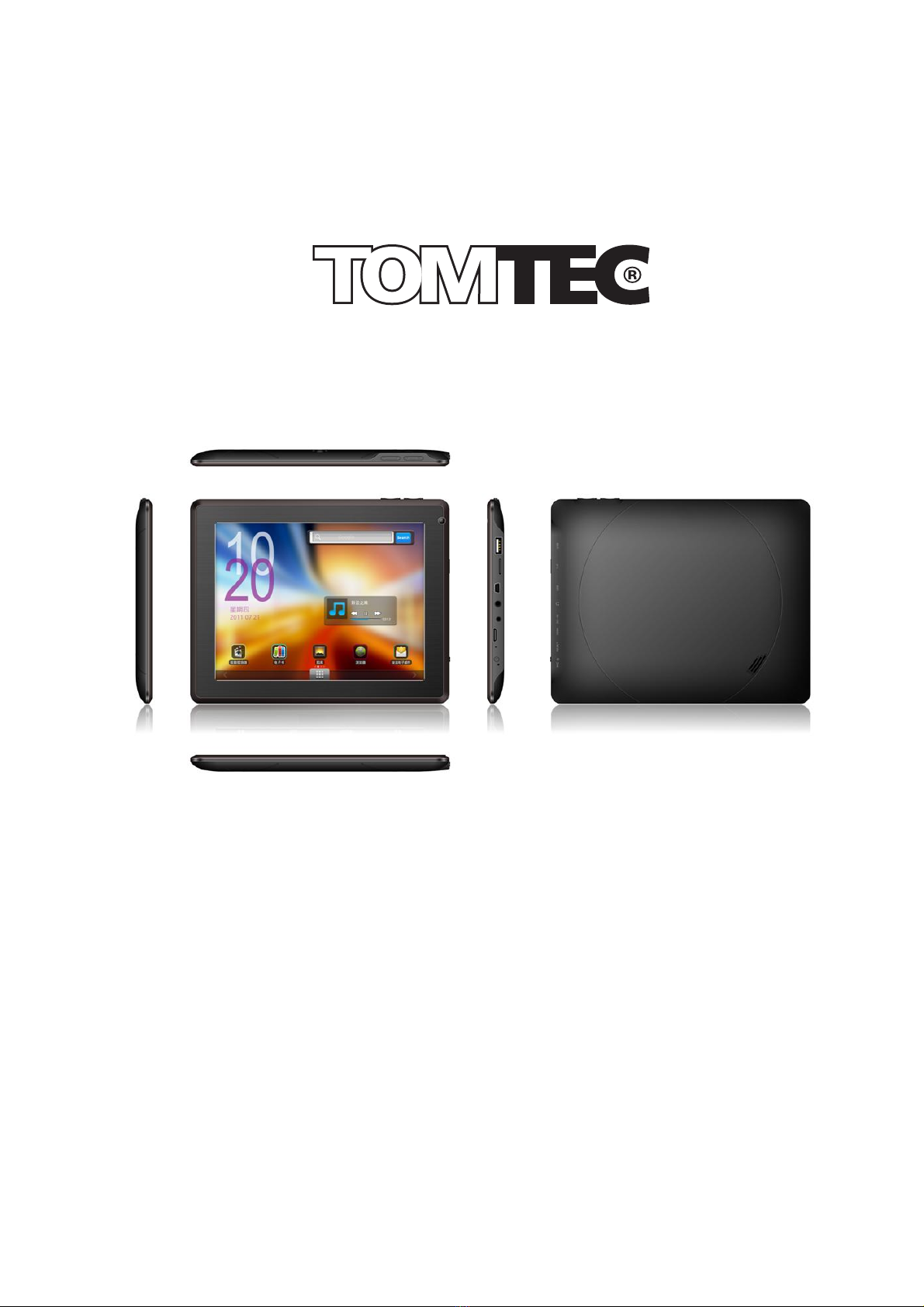
1. Vol-
2. Vol+
3. Menu button
4. ESC button: to go back to previous menu
5. 0.3M Camera
6. USB host: support mouse, keyboard, 3G USB dangle, Ethernet adapter,
USB flash disk / flash drive
7. TF card slot
8. Mini-USB port: connect to computer
9. Earphone jack
10. DC in: connect to 5V adaptor
11. MIC
12. Power button
13. Reset hole
When the tablet is frozen or does not respond to any keys or any
operations, you may use a pin to reset the tablet.
14.Speaker

ATP7483 – Excellent 8
7
I. Getting Started
1.1 Turn on/off
1.1.1 Turn on
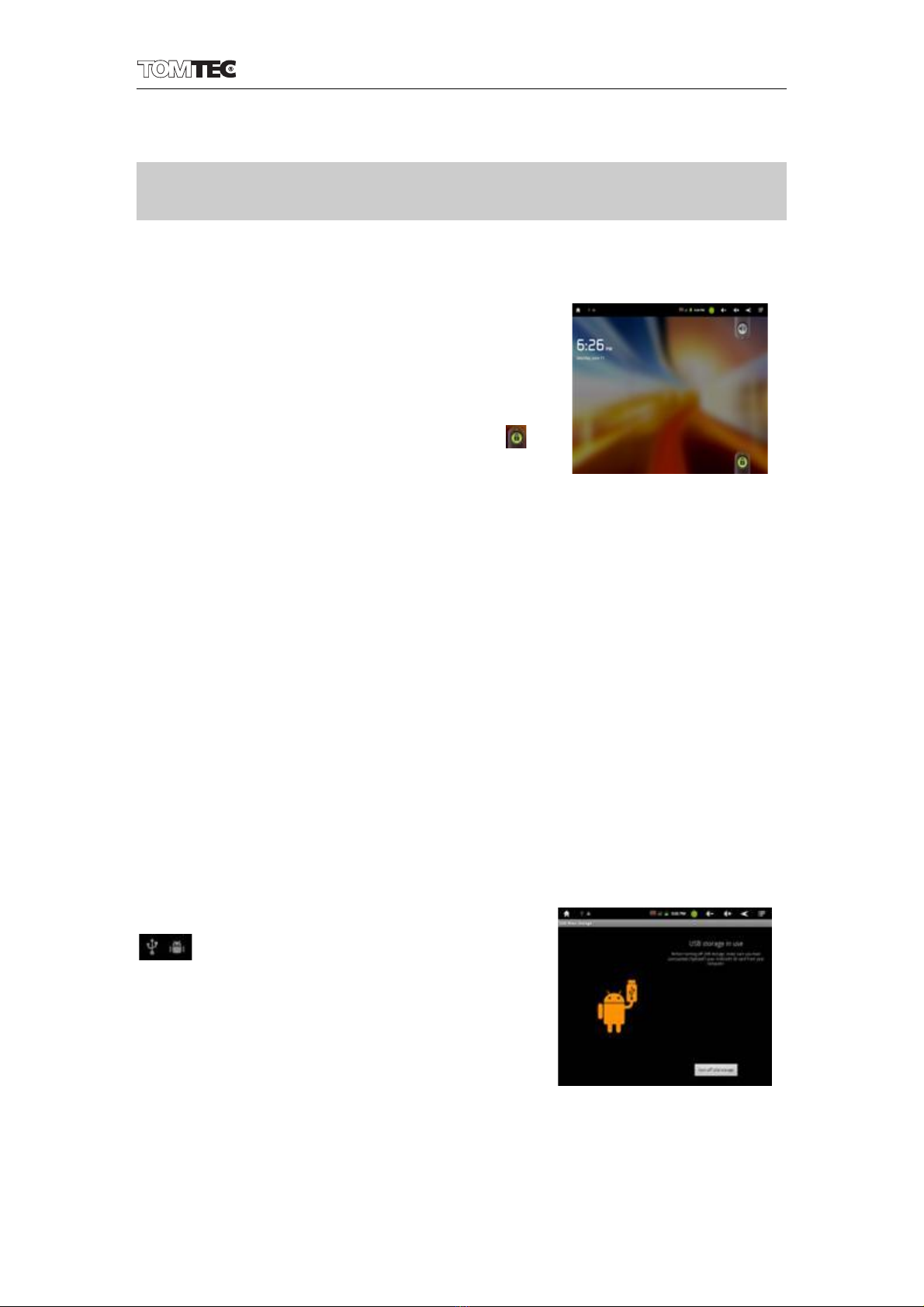
To start your tablet, press and hold the power
key for 2 seconds. The tablet will start to get
you to the Home screen. Drag the slider
upwards on the lower right hand corner to
unlock the screen.
1.1.2 Turn off
When the tablet is on, to shut off your tablet, press and hold the power
key until the “System options” dialog appears and tap “Power Off”,
then “your device will shut down” dialog appears. Tap “OK”.
1.2 Lock/unlock the screen (sleep mode)
To save battery, you should put your tablet in sleep mode by turning off
the LCD display. To do this, quick press the power key and immediately
release it, the screen will turn dark. Do it again to light screen.
1.3 Connect to a computer
1.3.1 Connect to PC via USB cable
When tethered to PC with a USB cable, the
icon appears at the left side of the
status bar. Hold and slide the icon
downwards, select and tap “USB
connected”, then “Turn on USB storage”,
then “Turn on USB storage” dialog appears.
Tap “OK”.

ATP7483 – Excellent 8
8
II. Your Home Screen
2.1 Icons on your home screen
An example of the home screen is shown above. You can fill the space
with any combination of shortcuts, widgets, and folders you like. Some
pre-installed shortcut icons will appear at the bottom, and a Google
Search Widget appears at the top.
When you power on your tablet for the first time, you’ll see the main
home-screen panel. This panel is typically centered; you can access
additional panels on either side of the main one by swiping your finger
left or right.
At the top of the Home Screen is your Status Bar.
-Home: touch it to go back to the home screen
-Return: to return to the previous menu
-Menu: touch to show the submenu (at some interfaces, there may
be not a submenu)
-Vol-: touch it to reduce the volume
-Vol+: touch it to increase the volume
-App Panel: touch it to view all apps

ATP7483 – Excellent 8
9
2.2 Operations on Home Screen
2.2.1 Add app icon to home screen
Within the App Panel, touch and hold any icon for about 2 seconds, the
icon will be in the movable status and appear on the home screen.
2.2.2 Delete app icon from home screen
On the main screen, touch and hold undesired icon till it becomes
movable. The panel turns into a trash can . Drag the item to the
trash can and release it when it turns red.
2.2.3 Add widgets to your home screen
To add a widget, tap and hold your
finger on any open space on your
home screen, and select Widgets
from the context menu that opens.
From there, select any of the
available widgets. For instance, you
may add an Analog clock, calendar,
picture frame, and other useful widgets to your Home Screen.
2.2.4 How to set wallpaper
To add a widget, tap and hold your finger on any open space on your
home screen, and select Wallpapers from the context menu that opens.
In the popup “Select wallpaper from” dialog, select a wallpaper from
Gallery, Live wallpapers and Wallpapers.
2.2.5 How to hide status bar
On the home screen, you may hide your status bar or make it reappear
by swiping your finger up or down.
2.2.6 Find your recent operations
Tap and hold in the status bar, your recent operations will pop out.
select to continue.

ATP7483 – Excellent 8
10
III. Network Connection
3.1 Wi-Fi
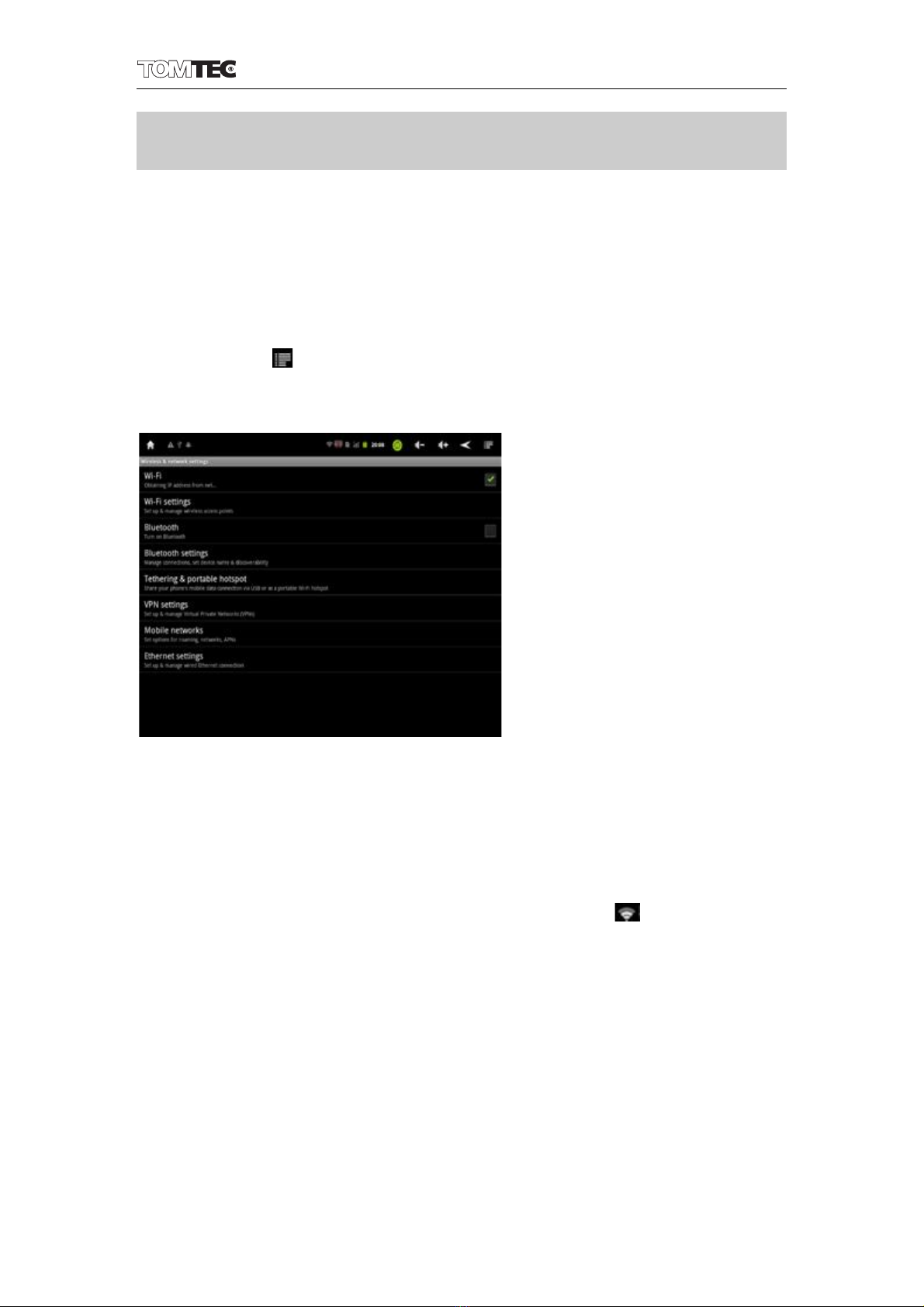
Wi-Fi can only be used when it connects with home Wi-Fi Access Point
(AP) or a free unsecured Wi-Fi hotpot. Under “Wireless & networs”, tap
“Wi-Fi settings”. Ensure that both Wi-Fi and Network Notification are
enabled with green check marks. If you need to rescan for available
networks, tap , then tap “scan”. For the secured one, you need to
input password or some other form of access agreement
acknowledgement via a browser.
3.1.1 Turn on Wi-Fi
Within the App Panel, tap “Settings” →then “Wireless & networks” →
“Wi-Fi” to turn on and scan. Your tablet lists the networks it finds within
range. Tap a network to connect. If necessary, enter Network SSID,
Security, and Wireless password, and tap “Connect”. When your tablet
is connected to the network, the wireless indicator appears in the
status bar. Waves indicate connection strength
3.1.2 Turn off Wi-Fi
To turn off Wi-Fi, uncheck “Wi-Fi” under “Wireless & networks”. Turn off
Wi-Fi when you’re not using it, to extend the life of your battery between
charges.
Questo manuale è adatto per i seguenti modelli
1
Indice
Altri manuali TomTec Tavoletta