
Vanco RS232-IP Manuale utente
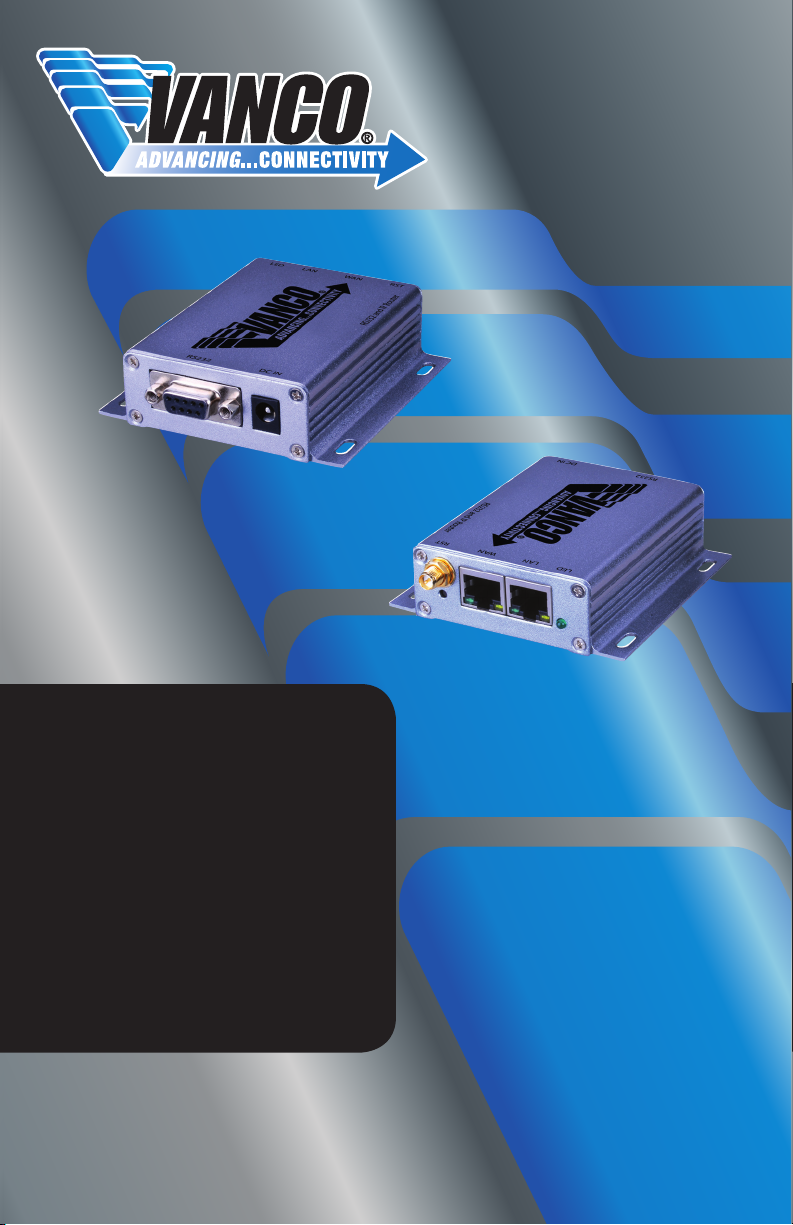
RS-232 and IP
Router
Vanco Part Number:
RS232-IP
Technical Support

www.vanco1.com 800-626-6445
2
1. Do not expose this unit to water, moisture,
or excessive humidity.
2. Do not install or place this unit in a built-in
cabinet, or other conned space without
adequate ventilation.
3. To prevent risk of electrical shock or re
hazard, due to overheating, do not obstruct
unit’s ventilation openings.
4. Do not install near any source of heat,
including other units that may produce heat.
5. Do not place unit near ames.
6. Only clean unit with a dry cloth.
7. Unplug unit during lightening storms, or
when not used for an extended period
of time. A surge protector is strongly
recommended.
8. Protect the power cord from being walked
on or pinched, particularly at the plugs.
9. Use unit only with accessories specied by
the manufacturer.
10. Refer all servicing to qualied personnel.
CAUTION
HDMI is a very complex technology requiring continuous authentication of the signal and the same
video resolution and audio settings on all electronic equipment in the system. When there are multiple
sources and displays, the video resolution and audio setting on all connected units must be adjusted
to correspond with that of the display having the lowest video and audio capability.
WARNING
DEAR CUSTOMER
Thank you for purchasing this product.
For optimum performance and safety, please
read these instructions carefully before
connecting, operating or adjusting this product.
Please keep this manual for future reference.
This product is 100% inspected and tested in the United States
to verify HDMI performance parameters.

www.vanco1.com 800-626-6445 3
FEATURES
The Vanco RS232-IP is a LAN/Wi-Fi to Serial adapter that allows for remote access,
conguration, and the ability to control any serial device over an IP network. Based on the
universal serial interface with built-in TCP/IP protocol, the RS232-IP enables seamless
communication via serial port, Ethernet, or any wireless network interface. Works with any
traditional serial devices and can send and receive data through a connected internet network. A
great solution for devices that only has the ability of being controlled through a serial connection,
this allows control through a PC or third party LAN or wi network!
RS-232 and IP Router
Part # RS232-IP
• LAN/Wi-Fi to Serial adapter that allows for remote access, conguration, and the ability to control any
serial device over an IP network
• Enables seamless communication via serial port, Ethernet, or any wireless network interface
• Wired/Wireless Router, and wireless access point capability
• Converts commands received over UDP or TCP/IP to Serial
• Supports RS232 and RS485 interfaces
• Extremely low latency
• DC 5-18V ultra wide voltage input, provides 2A current for increased reliability
• Suitable for use in battery powered systems
• Transparent Transmission Mode, RS232/RS485 to RJ45, RS232/RS485 to WIFI
• RJ45 to WIFI can be achieved simultaneously to ensure stable of data transmission
• Supports WEP/WAP-PSK/WAP2-PSK/WAPI
• Encipher Type: WEP64/WEP128/TKIP/AES
• Power Supply: 5V
• Dimensions: 1.1” W .3” H x 1.6” D

www.vanco1.com 800-626-6445
4
Network Standard...................................................... Wireless: IEEE 802.11n,IEEE 802.11g, IEEE 802.11b; Wired: IEEE 802.3, IEEE
802.3
Wireless Transmission Rate........................................ 11n: maximum up to 150Mbps; 11g: maximum up to 54Mbps; 11b: maximum up
to 11Mbps
Tracks Number .......................................................... 1-14
Frequency Range ....................................................... 2.4-2.4835G
Emission Power ......................................................... 12-15DBM
Interface ................................................................... Wi-Fi, WAN, LAN, RS232
Antenna Type............................................................. External Antenna 6DB
WIFI Work Mode ....................................................... Client/AP/Router
WDS Function ........................................................... Support WDS wireless bridge connection
Wireless Security ...................................................... Wireless MAC address ltering; Wireless security function switch; 64/128/152
bit WEP encryption; WPA-PSK/WPA2-PSK, WPA/WPA2 security mechanism
Network Management ................................................ Remote Web management; Conguration le import and export; WEB software
upgrade
Maximum Transmission Rate ...................................... 500000bps
TCP Connection ........................................................ Max connection number>20
UDP Connection ........................................................ Max connection number>20
Serial Baud Rate ....................................................... 1200~500000bps
Status indicator ........................................................ Status indicator
Operating Temperature .............................................. -20-70 Degrees C
Operating Humidity .................................................... 10%-90%RH (noncondensing)
Storage Temperature ................................................. -40-80 Degrees C
Storage Humidity ....................................................... 5%-90%RH (noncondensing)
Dimensions ............................................................... 29mm x 40mm x 8.8mm
Frequency Bandwidth Optional..................................... 20MHz,40MHz, Automatic
SPECIFICATIONS
PACKAGE CONTENTS
Please check the packaging and make sure the following items are contained in the shipping carton:
• RS232-IP Unit
• 5V Power Supply
• Male-to-Female DB9 (RS232) Cable
• Cat5e Patch Cable
• Mounting Screws (the unit has 4 holes for mounting the product)
• Product Manual

www.vanco1.com 800-626-6445 5
PANEL DESCRIPTIONS
1. RS232 (DB9 Female)
2. Power Supply Input
3. Antenna Screw Terminal
4. Reset (RST)
5. WAN RJ45
6. LAN RJ45
7. Wi Status
1
67
4
2
5
3

www.vanco1.com 800-626-6445
6
RS-232 Connection
1
5
6
9
Pinout
Number
Function Input/
Output
Description
1 N/A N/A N/A
2 RXD Input Data receiving input
3 TXD Output Data sending ouput
4 N/A N/A N/A
5 GND Input Ground
6 N/A N/A N/A
7 N/A N/A N/A
8 N/A N/A N/A

www.vanco1.com 800-626-6445 7
LAN Interface and WAN Connections
The RS232-IP utilizes two network interfaces with a WAN port and LAN port. The interface uses a standard
RJ45 connector as shown below:
The following table shows the pin denitions of RJ-45:
Pinout
Number
Function Direction Description
1 TX+ Output Transmit Data +
2 TX- Output Transmit Data -
3 RX+ Input Receive Data +
4 N/A N/A N/A
5 N/A N/A N/A
6 RX- Input Receive Data -
7 N/A N/A N/A
8 N/A N/A N/A
RST Button
The RST (reset) button is used to reset the RS232-IP to factory default settings. When the RS232-IP
completes startup, press and hold the RST button for 10 seconds. All of the parameters and settings of the
unit will be reset to default.
5V Power Input
Voltage range: 4.5 ~ 5.5V. The default conguration of RS232-IP for the power adapter is 5V/1A DC power
supply.
Antenna Terminal
Standard SMA interface within the outer spiral needle.
LED Indicator light
Wi Status: LED light blinking: Connected to Wi; LED light off: Not connected to Wi

www.vanco1.com 800-626-6445
8
CONNECT AND OPERATE
There are 4 methods that can be used to connect to the RS232-IP:
• Ethernet to Serial (RS232-IP connected directly to a network with a Cat5e/6 cable)
• Wi (Client) to Serial
• Wi (Access Point) to Serial
• Default (combination of any the above-mentioned modes)
Connect and Operate - Ethernet to Serial:
In this mode, LAN is enabled and WIFI/WAN functions and ports are closed. Through the appropriate settings, the
data between the computer and the LAN port on the RS232-IP can be achieved through the network through category
cables. Ethernet can be congured as a dynamic IP address (DHCP) or can also be congured as a static IP address
(STATIC).

www.vanco1.com 800-626-6445 9
1. Power up the RS232-IP. The Link light will blink slowly after powering up.
2. Connect a single Cat5e/6 to the RJ45 jack on the RS232-IP
- A PC and the RS232-IP can be connected to the same LAN via an ethernet switch or router
3. Connect a computer either directly to the RS232-IP LAN port or to the network the RS232-IP is connected
to, and set the network segment to be the same as the RS232-IP’s segment: 192.168.16.XX (Default:
192.168.16.254).
4. Enter the default IP address of 192.168.16.254 into any web browser to enter the user interface.
• Username: admin
• Password: admin

www.vanco1.com 800-626-6445
10
6. Here you can change the settings as needed for the RS232-IP to communicate through the network. Once
changes are completed, select Apply for changes to take effect
NOTE: After changes have been applied, you may need to sign back into the user interface using the new IP
information and address.
5. Under the NetMode drop-down menu, select ETH-SERIAL
Indice
Altri manuali Vanco Convertitore multimediale

Vanco
Vanco HDVC1 Manuale utente

Vanco
Vanco 12x3 Multi-Function Switch/Scaler Istruzioni per l'installazione

Vanco
Vanco HD4KSC Manuale utente

Vanco
Vanco EVOLUTION EVSP8K22 Manuale utente

Vanco
Vanco 280708 Istruzioni per l'installazione

Vanco
Vanco Evolution EV4K1014 Manuale utente

Vanco
Vanco EVSP14VW Manuale utente

Vanco
Vanco 280563 Manuale utente

Vanco
Vanco HDSP4K12 Istruzioni per l'installazione


