
Verkada TD52 Manuale utente


Introduction
What’s in the box
Verkada Inc. 405 E 4th Ave, San Mateo, CA 94401
All specifications are subject to change without notice
Copyright © 2022 Verkada Inc. All rights reserved.
2
What you’ll need
●A working internet connection
●A smartphone or laptop
●A #2 Phillips head and power drill
●A level
●TD52 Video Intercom
●Flush Mount Plate
●T10 Security Torx screwdriver
●2x Grommets
●Grommet punch
●4x drywall screws
●4x drywall anchors
●4x M4 x 18mm machine screws
●4x 8-32 ¾” machine screws
Connect
Connect the TD52 to your network using the
Ethernet port located behind the rear door of
the device.
Supports PoE and PoE+. PoE+ required for full function.
After connecting the TD52 to network and
power, visit: verkada.com/start
For detailed installation instructions, visit:
verkada.com/support
Introduction
Verkada Inc. 405 E 4th Ave, San Mateo, CA 94401
All specifications are subject to change without notice
Copyright © 2022 Verkada Inc. All rights reserved.
3
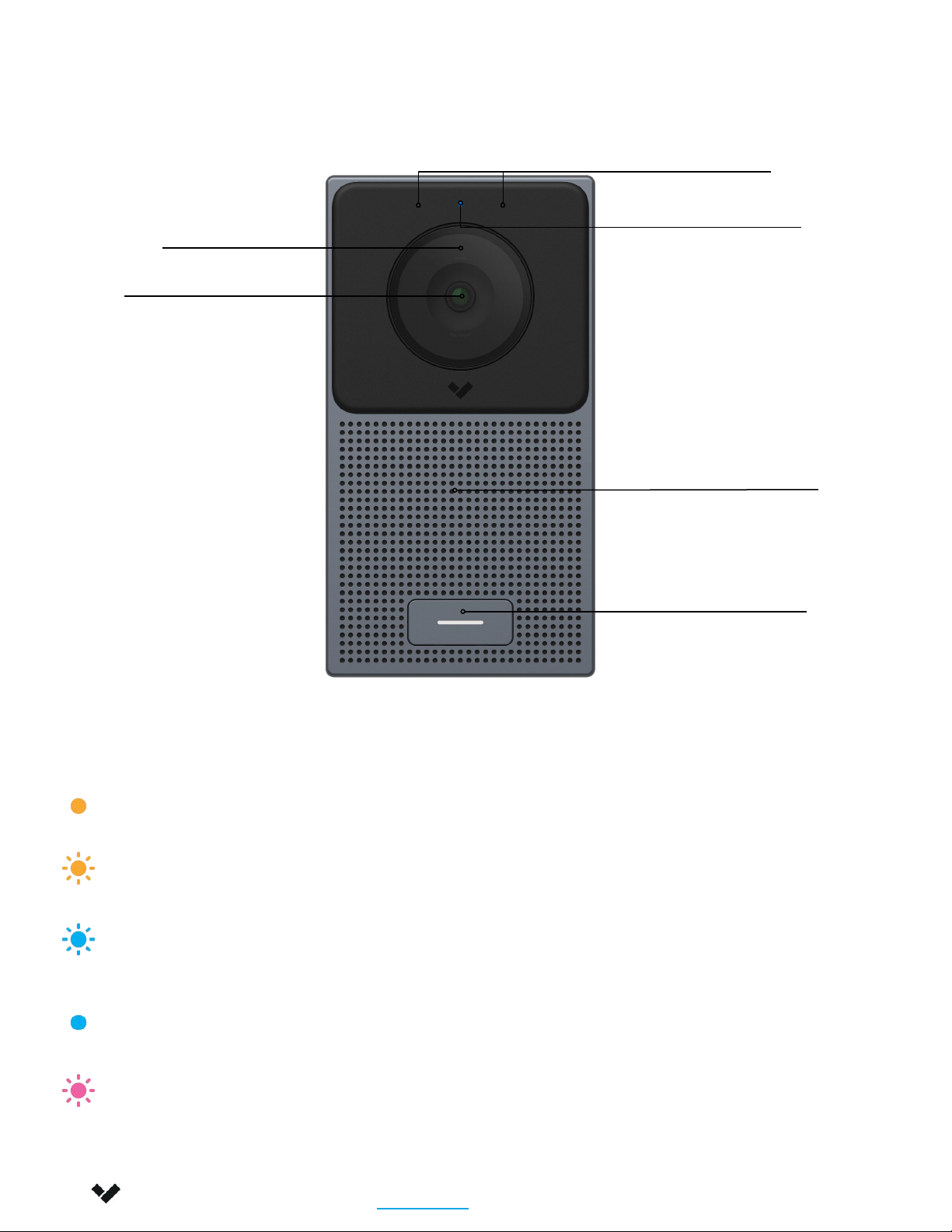
Ambient Light
Sensor
Status LED
Status LED Behavior
Solid Orange
Controller is on and booting up
Flashing Orange
Controller is updating firmware
Flashing Blue
Controller is managing doors,
but cannot reach the server
Solid Blue
Controller is managing doors
and connected to the server
Flashing Pink
Identify
Call Button
Camera
Speaker
Overview 1/2
Microphones

Introduction
Verkada Inc. 405 E 4th Ave, San Mateo, CA 94401
All specifications are subject to change without notice
Copyright © 2022 Verkada Inc. All rights reserved.
4
Ambient Light
Sensor
Status LED
Status LED Behavior
Solid Orange
Controller is on and booting up
Flashing Orange
Controller is updating firmware
Flashing Blue
Controller is managing doors,
but cannot reach the server
Solid Blue
Controller is managing doors
and connected to the server
Flashing Pink
Identify
Call Button
Camera
Speaker
Overview 1/2
Microphones

Introduction
Overview 2/2
Verkada Inc. 405 E 4th Ave, San Mateo, CA 94401
All specifications are subject to change without notice
Copyright © 2022 Verkada Inc. All rights reserved.
5
I/O Terminal Block POE Port
Pin 1 Pin 2 Pin 3 Pin 4 Pin 5 Pin 6 Pin 7 Pin 8 Pin 9 Pin 10
NO COM NC GND B A 12V GND IN 1 IN 2
I/O Terminal Block Pins

Verkada Inc. 405 E 4th Ave, San Mateo, CA 94401
All specifications are subject to change without notice
Copyright © 2022 Verkada Inc. All rights reserved.
6
Introduction
TD52 Technical Specifications
Sensor Resolution 5MP (2688 x 1944)
Lens Type Fixed
Image Sensor 1/2.8” Progressive CMOS
Focal Length 2.12mm
Iris Fixed
Aperture F2.0
Field of View Horizontal: 130°
Vertical: 100°
Diagonal: 160°
IR Range 15m / 50ft in low light
Onboard Storage 256GB
Audio Streaming Two-way, full duplex with echo cancellation and noise suppression
Audio Output 5W speaker ; 90dB SPL at 1m / 3.3ft
Audio Input 2 omnidirectional digital MEMs microphones
Inputs / Outputs 2x dry inputs
1x dry relay, 30VDC @ 1A (resistive load)
1x RS-485 port
Dimensions 238mm (L) x 128mm (W) x 44mm (H)
9.4in (L) x 5in(W) x 1.7in (H)
Weight 1.1kg/2.3lb
Tamper Detection Yes
Resistance Rating IK08, IP66
Operating Specs Power: 11.5W (IEEE 802.3af PoE) ; Extended Temperature Range: 25.5W (IEEE 802.3at PoE)
Temperature: -20°C – 50°C / -4°F – 122°F, PoE 802.3af ; -40°C – 50°C / -40°F – 122°F, PoE 802.3at
Humidity: 90%
Compliance FCC, ICES
Connectivity Ethernet: 10/100Mbps RJ-45 cable connector for Network/PoE connection
Included Accessories T10 screwdriver, mounting hardware kit, grommet punch
Mounting Options Flush mount plate (included), surface mount box (separate accessory), angle mount box (separate
accessory), trim plate (separate accessory), rain hood (separate accessory)

Verkada Inc. 405 E 4th Ave, San Mateo, CA 94401
All specifications are subject to change without notice
Copyright © 2022 Verkada Inc. All rights reserved.
7
To add the TD52 to your Verkada
Command account, enter the serial
number printed on the back of the device
or the packaging (or the order number) to
the “Add Device” page:
command.verkada.com/add-device
[Optional] If you’d like to update and
configure TD52 before mounting, connect
the device to your network using the
Ethernet port located in the cable bay on
the back of the device.
Installation
Connect

Installation
Mounting 1/3
Verkada Inc. 405 E 4th Ave, San Mateo, CA 94401
All specifications are subject to change without notice
Copyright © 2022 Verkada Inc. All rights reserved.
8
The Flush Mount Plate has holes configured for
the following mounting conditions:
A) Legacy intercom back box
B) Direct wall mounting
C) 4-gang Junction box mounting
Use the corresponding holes to mount to an
existing intercom back box (A) or 4-gang
junction box (C).
To mount directly to a wall, use the mount
plate as a template to mark mounting holes
(B) and the center cutout. Use the marks to
drill pilot holes for the mount plate. For direct
mounting, drill 3mm pilot holes. When using
wall anchors, drill 6mm pilot holes.
Use the supplied screws to install the mount
plate onto the wall. Ensure that the labels on
the mount plate are facing away from the
wall.
Please Note The supplied screws are
intended to cover most possible install
cases. Be sure to use the best screws
for your specific job.

Installation
Mounting 2/3
Route the building-side cable through the hole in the
center of the mount plate.
On the bottom edge of the device, loosen the T10 Torx
Security screws and remove the faceplate.
On the rear of the device, loosen the four T10 Torx
Security screws on the cable bay door to access the
ethernet and I/O ports.
Insert the RJ-45 ethernet cable through the right
grommet using the included grommet punch and
pass through the cable bay door before plugging
into the ethernet port.
If needed, insert I/O wires through the left grommet
and pass through the cable bay door before
plugging into the I/O terminal block. Remove the I/O
terminal block with a flat head screwdriver for easier
installation.
Attach wires according to the pins below.
Verkada Inc. 405 E 4th Ave, San Mateo, CA 94401
All specifications are subject to change without notice
Copyright © 2022 Verkada Inc. All rights reserved.
9
Pin 1 Pin 2 Pin 3 Pin 4 Pin 5 Pin 6 Pin 7 Pin 8 Pin 9 Pin 10
NO COM NC GND B A 12V GND IN 1 IN 2

Installation
Mounting 3/3
Verkada Inc. 405 E 4th Ave, San Mateo, CA 94401
All specifications are subject to change without notice
Copyright © 2022 Verkada Inc. All rights reserved.
10
Return the grommets to the cable bay door. Make
sure the grommet is installed in the right direction for
proper sealing.
Secure the cable bay doors by tightening the four T10
Torx Security screws at each corner.
Attach the device to the mount plate to the wall
using the 4 provided M4 machine screws.
Reattach the faceplate by engaging the hooks at the
top. Swing the faceplate down into position and
tighten the T10 torx security screws on the bottom
edge of the device.
Altri manuali per TD52
1
Indice
Altri manuali Verkada Sistema di interfono


